
What changed: new screenshots from our own iPhone 17e on iOS 27.0.1, dark mode, and the wording checked against those screens.
howtosimply.com/guides/how-to-check-your-ios-version-and-free-storage-on-iphone/ · Checked October 2026 · iPhone 17e · iOS 27.0.1
In this guide
Open Settings, tap General, then About. iOS Version shows the software version. Capacity is the total storage and Available is what is still free.
3 of 4 steps with real screenshots · 2 official sources below
- Device
- iPhone
- Shown on
- iOS 27.0.1 (iPhone 17e)
- App
- Settings
- Path
- Settings › General › About
- Real screenshots
- 3 of 4 steps
- Checked
- October 2026
- Sources
- 2 official, linked below
Step by step
Open Settings and tap General
Open the grey Settings icon and tap General.
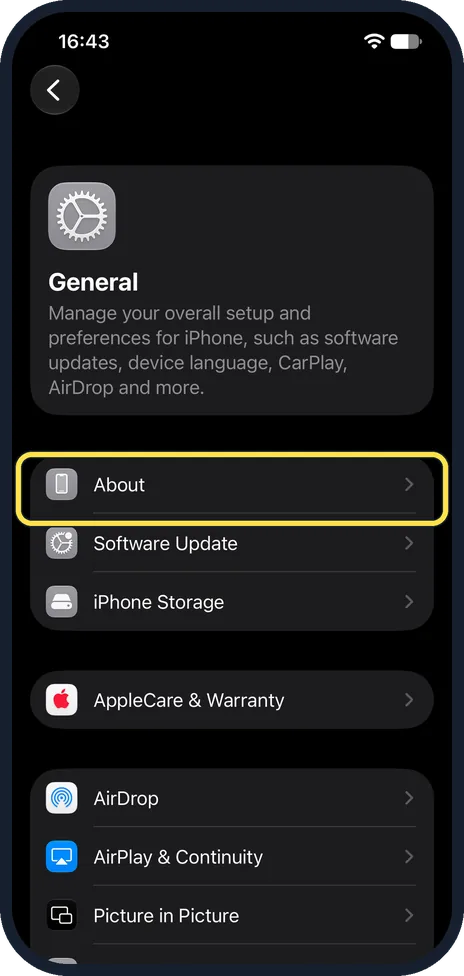
Tap About
About is the first row under the General heading.
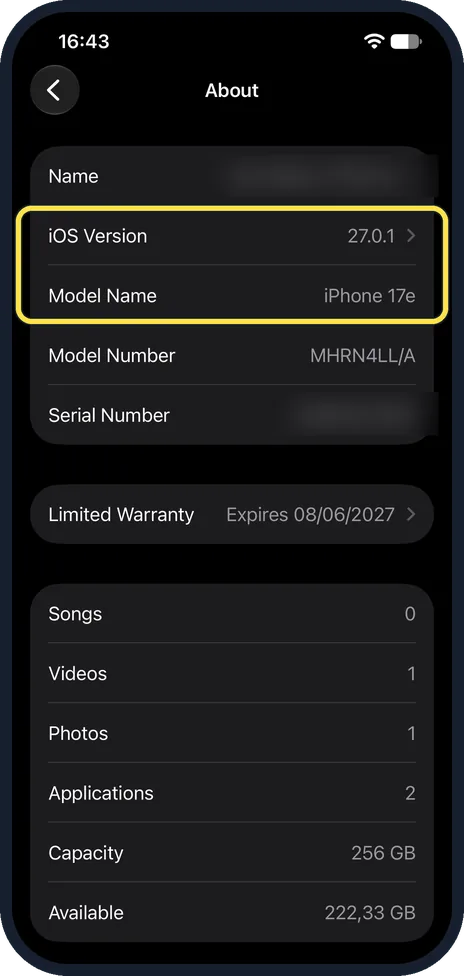
Read the iOS version and model
iOS Version shows the software on the phone. Model Name is the name used in shops, such as iPhone 17e. Tap iOS Version to see when the update was installed and what it brought.
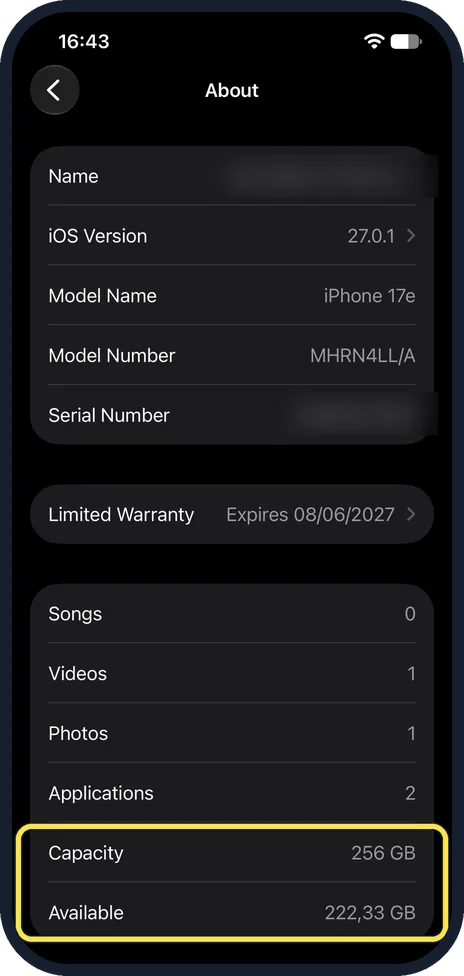
Read Capacity and Available
Capacity is the size of the phone, for example 128 GB or 1 TB. Ours showed 256 GB with 222,33 GB available. Available is the free space right now. If Available is under about 5 GB, updates and the camera start to struggle.
What changed: new screenshots from our own iPhone 17e on iOS 27.0.1, dark mode, and the wording checked against those screens.
About this guide
The About page answers the questions support staff and second-hand buyers ask most: which iPhone is this, which iOS is on it and how much space is left.
The pictures are our own, from an iPhone 17e on iOS 27.0.1, in dark mode. The name and serial number are blurred.
Good to know
The Serial Number on this page is what Apple asks for when you check warranty or book a repair. Hold your finger on it to copy it. Do not post it publicly.
To see what is using the space, go back to General and tap iPhone Storage. The list is sorted with the largest apps first.
To check for a newer iOS version, go back to General and tap Software Update.
In short: Settings, General, About. iOS Version for the software, Available for free space.
- Apple Support: Find the software version on your iPhone
- Apple Support: How to check the storage on your iPhone
Links checked in October 2026. Menus and features can change after software updates. These steps match the version named at the top.
Did this guide work for you?
Sorry about that. What happened?