
howtosimply.com/guides/how-to-change-the-lock-screen-clock-on-a-google-pixel/ · Checked October 2026 · build CP3A.260905.009 · Google Pixel 10a, Android 17
In this guide
Touch and hold an empty spot on the home screen, tap Wallpaper and style, stay on the Lock screen tab, scroll down and tap Clock. Pick a clock face, change its width, colour or size at the bottom, then tap Apply.
6 of 6 steps with real screenshots · 1 official source below
- Device
- Android
- Shown on
- Google Pixel 10a, Android 17 (build CP3A.260905.009)
- Real screenshots
- 6 of 6 steps
- Checked
- October 2026
- Sources
- 1 official, linked below
Step by step
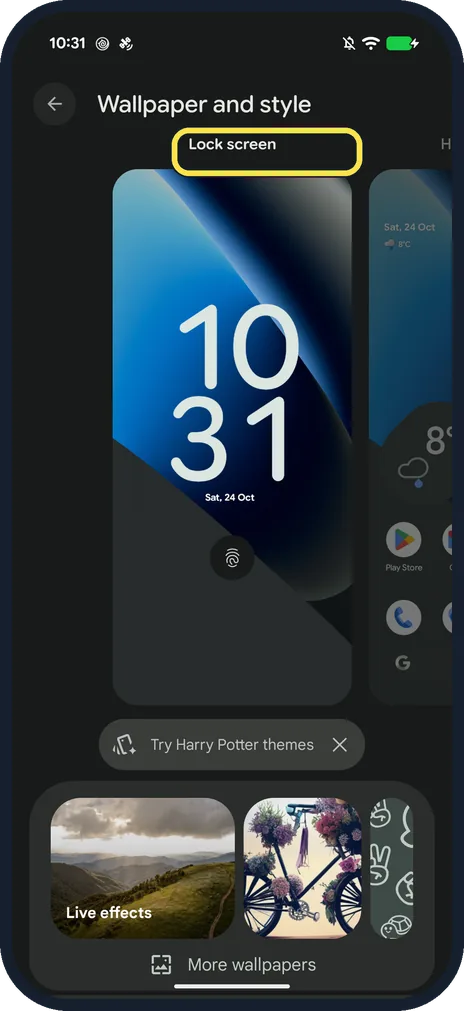
Open Wallpaper and style
Touch and hold an empty spot on the home screen and tap Wallpaper and style. Make sure Lock screen is selected at the top.
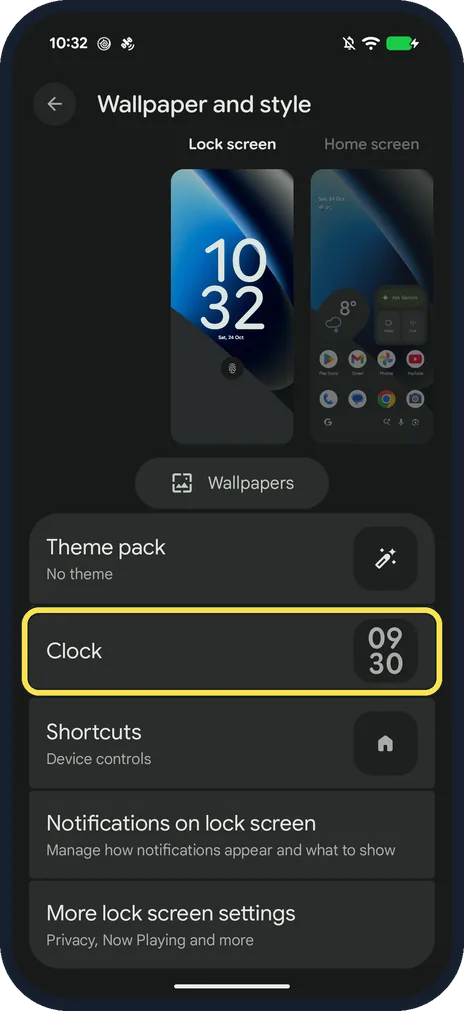
Tap Clock
Scroll down below the preview. Tap Clock, between Theme pack and Shortcuts.
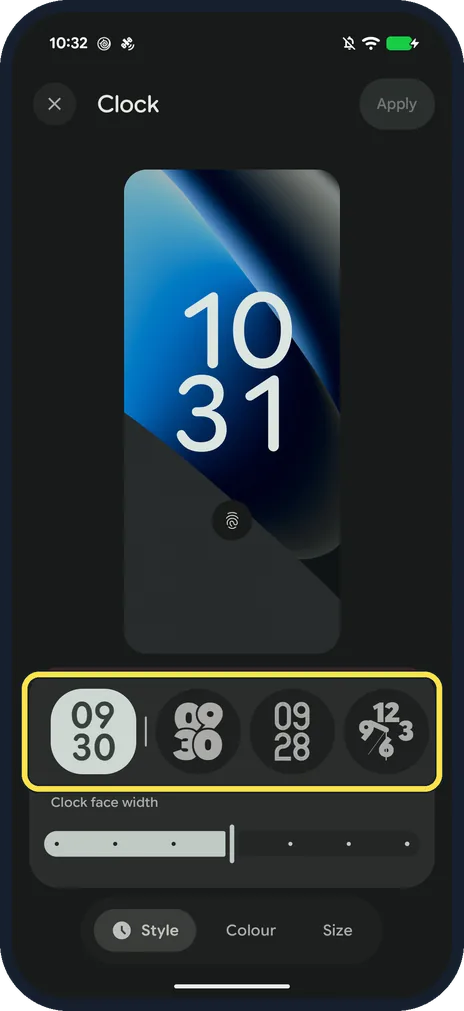
Pick a clock face
At the bottom are the clock faces; ours had four: the default digital clock, digital with overlapping numerals, a digital transit-style clock and an analogue clock with bold numbers. Tap one to preview it.
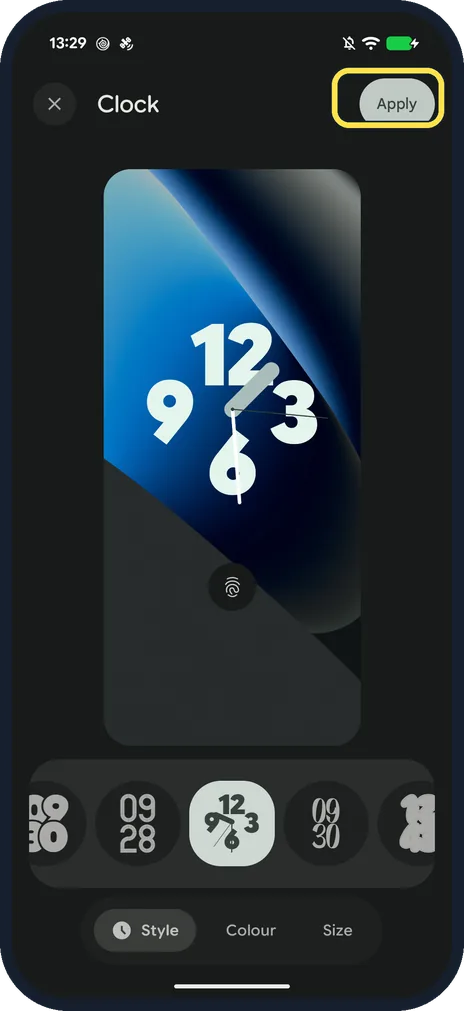
Tap Apply
The preview shows your choice and Apply at the top right lights up. Tap Apply to keep it, or the X at the top left to leave without changing anything. We chose the analogue clock.
Check the lock screen
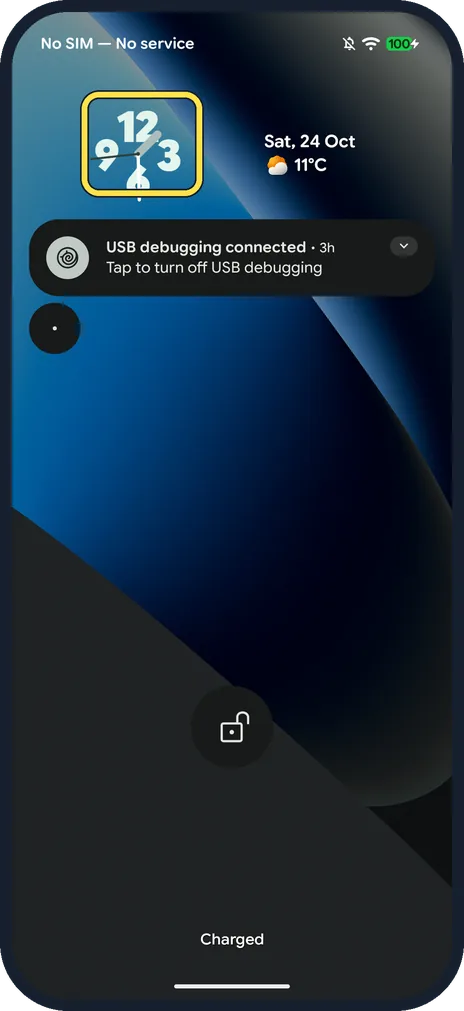
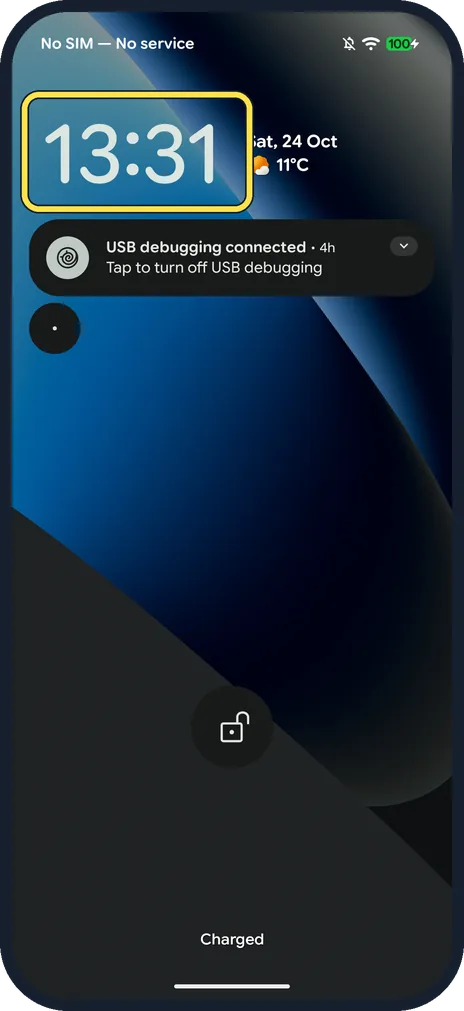
Lock the phone and wake it. Ours showed the analogue clock at the top left, next to the date and weather. With a notification on screen it was smaller than the default digital clock.
Let the clock shrink for notifications
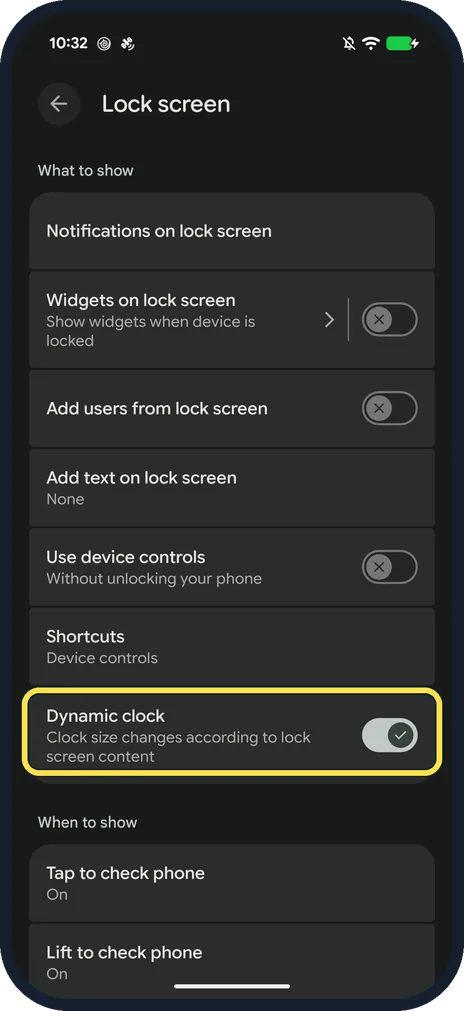
Back on Wallpaper and style, tap More lock screen settings, the last row in the step 2 picture. On the page that opens, Dynamic clock changes the clock size according to the lock screen content; it was on on ours.
If you do not see this option
- Want it narrower, another colour or smaller? Below the clock faces, Clock face width has a slider. Style, Colour and Size are tabs at the bottom; Google says Size turns Large on or off. Source: Customize the lock screen on your Pixel phone
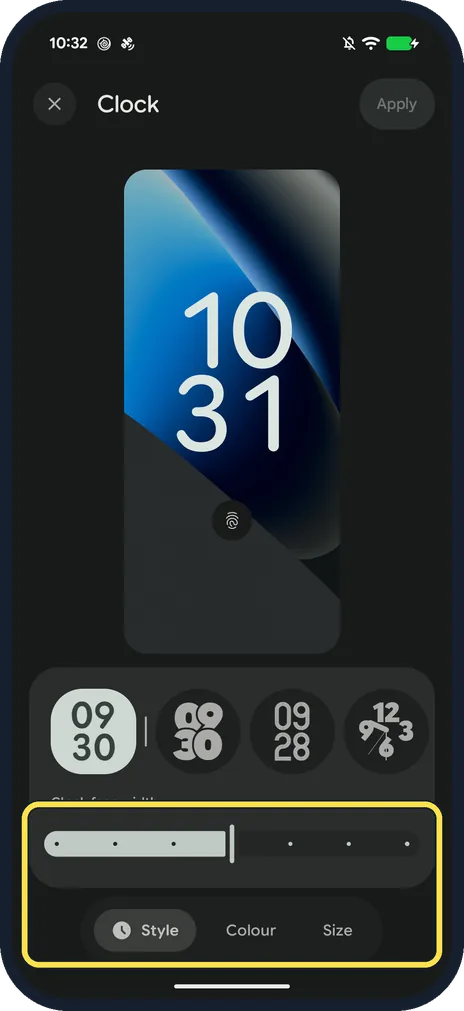
- Want the default clock back? The default digital clock is the first face in the strip (step 3). After choosing another face the strip may have moved along, as in step 4, so scroll it back to the start, select the first face and tap Apply.
- No Clock option? Google's steps are for Android 16 and higher. Check you're on the Lock screen tab, not Home screen. Source: Customize the lock screen on your Pixel phone
If this does not work
- Clock small or in the corner? Google says Dynamic clock changes the clock size according to the lock screen content. Turn it off in More lock screen settings. Source: Customize the lock screen on your Pixel phone
- Clock doesn't show when the screen is off? That is the always-on display: how to turn on Always-on display on a Google Pixel.
About this guide
Pixel phones have a few lock screen clock faces, from a big two-line digital clock to an analogue one. You change them in Wallpaper and style, not in the Clock app.
The screenshots are from our Google Pixel 10a with Android 17, in Dark mode, taken on 24 October 2026. We applied the analogue clock for the pictures, then set the default digital clock back.
Good to know
Change the picture behind it: how to change the wallpaper on a Google Pixel.
Change the two buttons at the bottom of the lock screen: lock screen shortcuts on a Google Pixel.
In short: Hold the home screen, Wallpaper and style, Lock screen, Clock, pick a face, width/Colour/Size, Apply. Dynamic clock is in More lock screen settings.
Links checked in October 2026. Menus and features can change after software updates. These steps match the version named at the top.
📷 See real photos from the Pixel 10a in our Camera Lab, next to 10 other phones.
Did this guide work for you?
Sorry about that. What happened?