GOOGLE PIXEL
How to change the lock screen shortcuts on a Google Pixel (Android 17)

In short
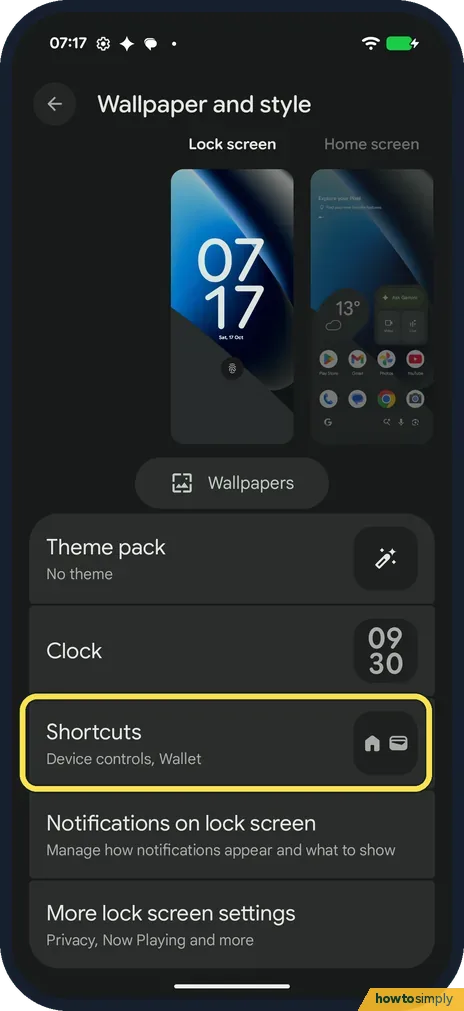
Open Settings, Wallpaper and style, keep Lock screen selected and tap Shortcuts, below Theme pack and Clock. Tap Left shortcut or Right shortcut, pick one such as Torch, Camera or Do Not Disturb, then tap Apply. Ours had Device controls and Wallet.
6 of 6 steps show a real screenshot from our Pixel 10a. Each step was checked against the maker's own instructions, linked at the end.
Steps
- 1
Open Wallpaper and style, then Shortcuts
Open Settings and tap Wallpaper and style. Keep Lock screen selected at the top, then tap Shortcuts, below Theme pack and Clock. Ours said Device controls, Wallet. Google says you can also touch and hold an empty space on the home screen and tap Wallpaper and style.
- 2
Pick a slot and a shortcut
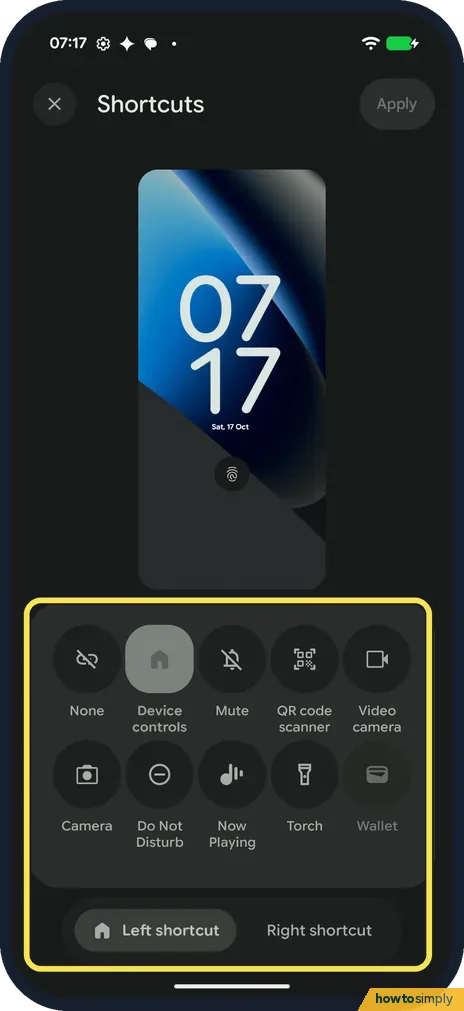
At the bottom, tap Left shortcut or Right shortcut; a preview of the lock screen is at the top. The choices are None, Device controls, Mute, QR code scanner, Video camera, Camera, Do Not Disturb, Now Playing, Torch and Wallet. Tap one. Our left slot was Device controls.
- 3
Do the other slot
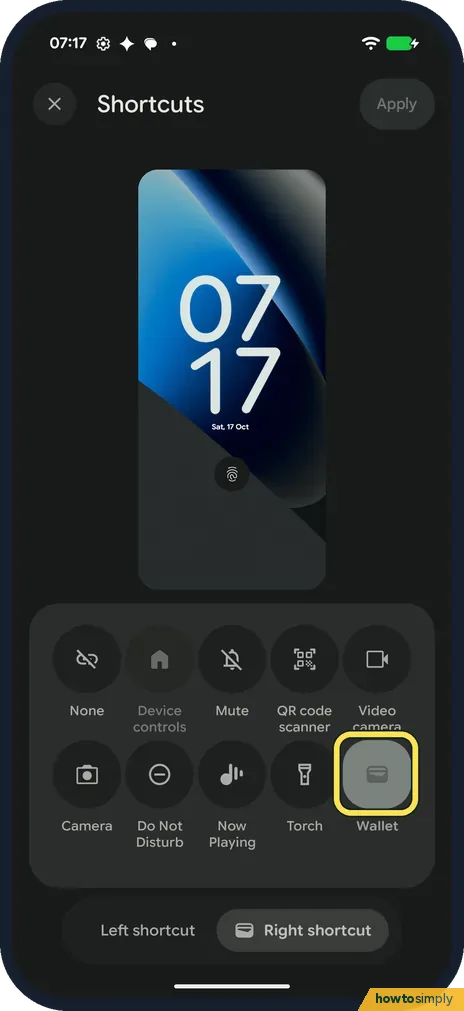
Tap the other slot and pick again. Our right slot was Wallet. The choice used in the other slot is dimmed: with Right shortcut picked, our Device controls was greyed out.
- 4
Tap Apply
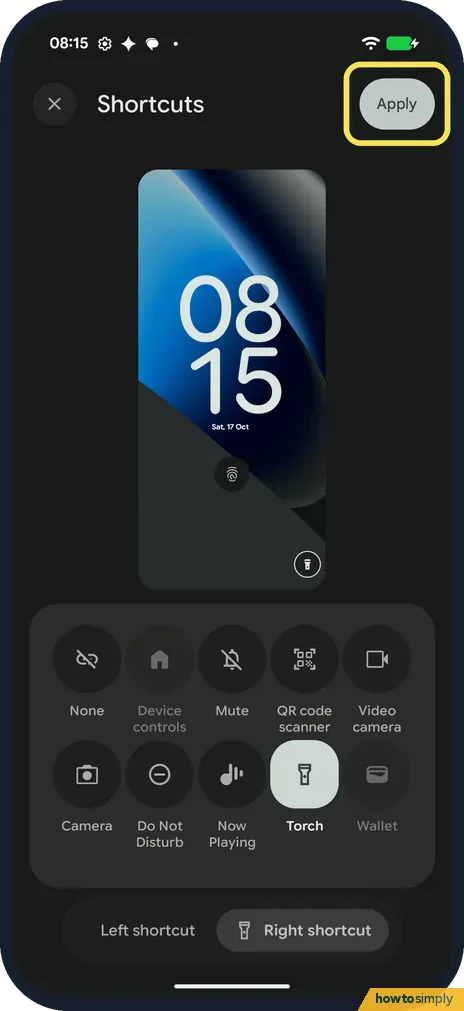
We picked Torch for the right slot. Apply at the top right was dimmed until then; now tap it.
- 5
Check the lock screen
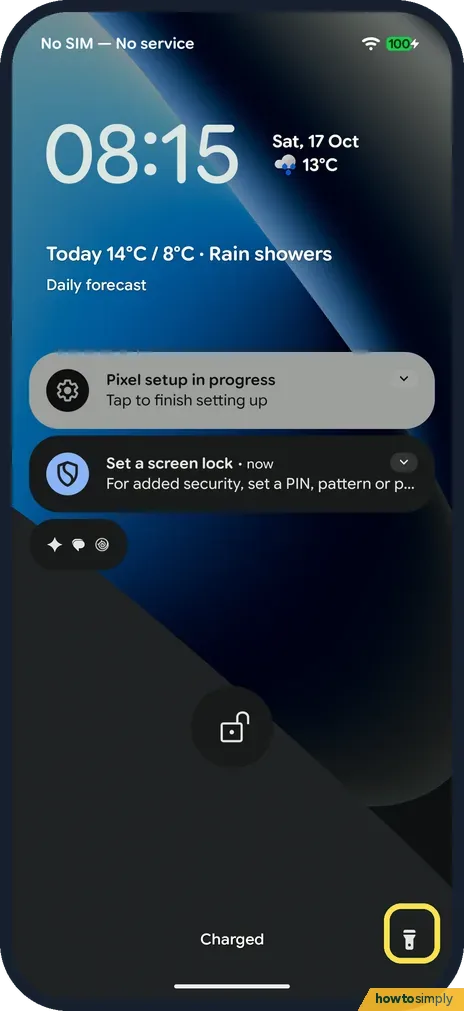
Lock the phone. Ours showed the Torch button in the bottom right corner.
- 6
Touch and hold a shortcut to use it
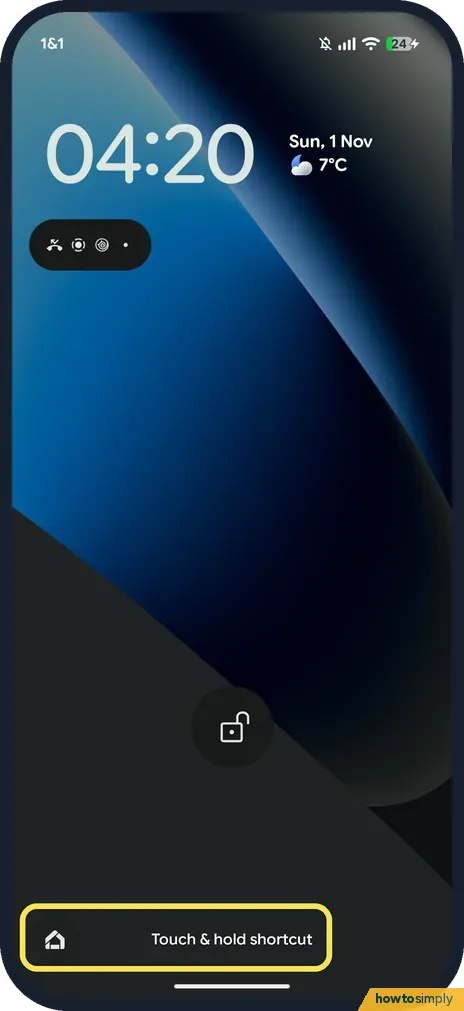
A tap is not enough. On 1 November 2026 we tapped the Device controls button at the bottom left of our lock screen: it did not open, and the phone showed Touch & hold shortcut. Touch and hold the button instead.
If you do not see this option
- Choices named differently? Google's list names Flashlight and Home. On our Pixel they were Torch and Device controls, and the list also had None and Now Playing. Source: Customize the lock screen on your Pixel phone
- No swipe to Lock screen? Google's steps say to swipe right to Lock screen, then swipe up to find Shortcuts. Ours had Lock screen and Home screen tabs at the top of Wallpaper and style. Source: Customize the lock screen on your Pixel phone
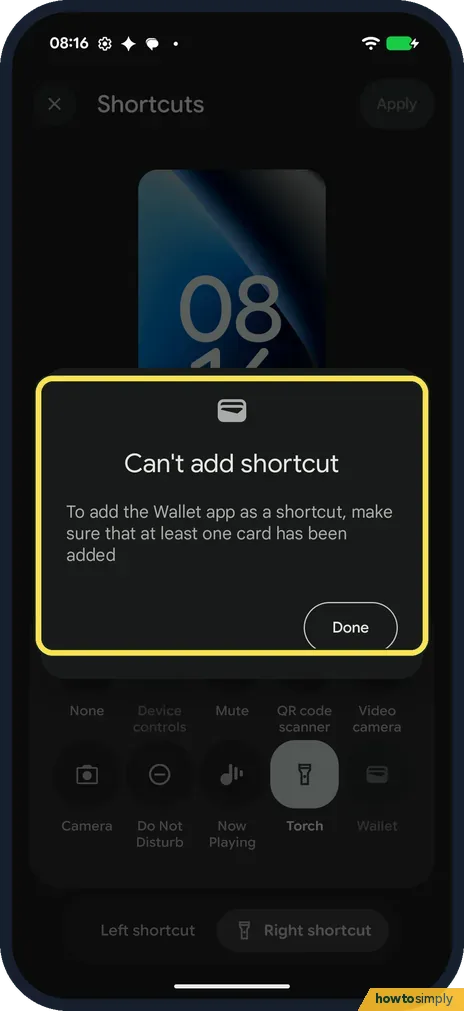
- Wallet can't be picked? Ours said Can't add shortcut: to add the Wallet app as a shortcut, make sure that at least one card has been added. Add a card in Google Wallet first.
If this does not work
- Shortcut didn't change? You probably left without tapping Apply. Google's steps end with Apply.
- A choice is greyed out? It is already used in the other slot. On ours, Device controls was dimmed while the right slot was picked. Change the other slot first.
- Device controls shortcut does nothing? It needs smart home devices to control. Google also lists Use device controls under More lock screen settings, to let you use those controls while the phone is locked.
Good to know
Want no shortcuts at all? None is the first choice in the list. Pick it for each slot.
On 17 October Device controls left our left corner empty on the lock screen (step 5); on 1 November the button was there (step 6). We have no smart home devices set up.
To show the time while the screen is off, see how to turn on Always-on display on a Google Pixel.
The wallpaper is on the same page: how to change the wallpaper on a Google Pixel.
A shortcut on the lock screen can be used by anyone holding the phone, without unlocking it. Torch, Camera or Mute are low-risk choices. Think twice about Device controls if you have smart locks or alarms.
About this guide
- Device
- Android
- Shown on
- Google Pixel 10a, Android 17 (build CP3A.261005.005)
- App
- Settings
- Path
- Settings › Wallpaper and style › Lock screen › Shortcuts: Left or Right shortcut
- Real screenshots
- 6 of 6 steps
- Checked
- October 2026
- Sources
- 1 official, linked below
Sources
Links checked October 2026. Menus and features can change with updates.Spotted a mistake? Menus change with updates, and we want every step to match your screen. Email us about this page or use the contact form. We read every report, and fixes are listed on What changed.
Liked this guide?
Follow us for new guides and short how-to videos.
Did this guide work for you?
Sorry about that. What happened?