GOOGLE PIXEL
How to change the wallpaper on a Google Pixel (Android 17)

In short
Open Settings, Wallpaper and style. Pick Lock screen or Home screen, then tap Wallpapers. Choose your own photo, a Wallpaper Studio option or a collection. Tap an image, then Next, tick Lock screen, Home screen or both, and tap Apply.
9 of 9 steps show a real screenshot from our Pixel 10a. Each step was checked against the maker's own instructions, linked at the end.
Steps
- 1
Open Wallpaper and style
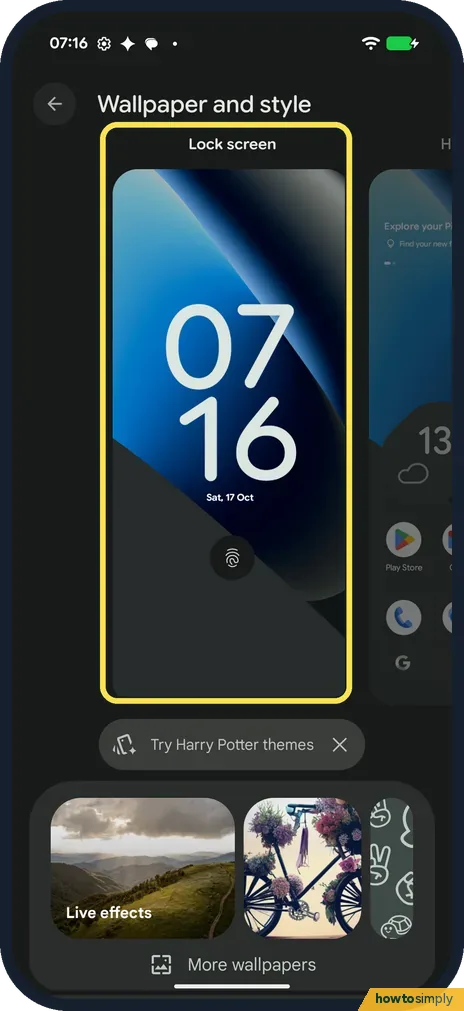
Open Settings and tap Wallpaper and style. The top shows previews of your screens. Google says you can also touch and hold an empty space on the home screen.
- 2
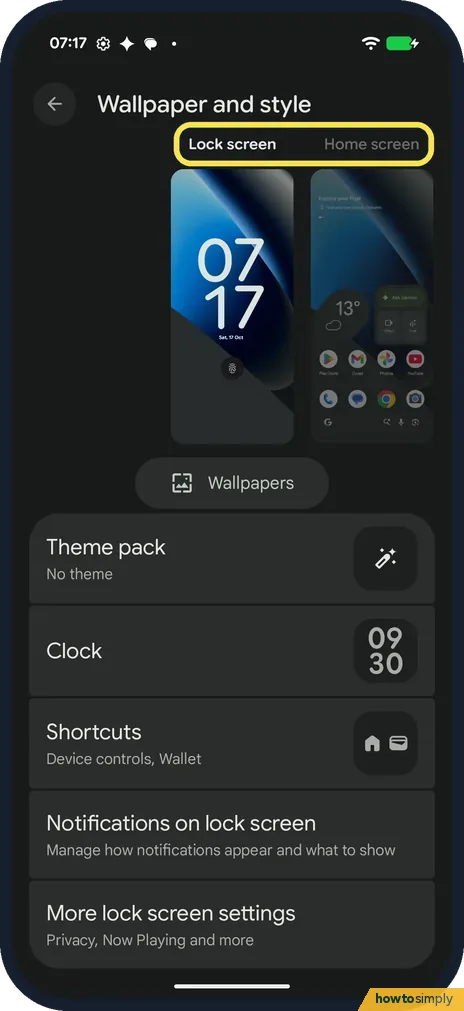
Pick Lock screen or Home screen
Tap Lock screen or Home screen at the top to choose which one you change.
- 3
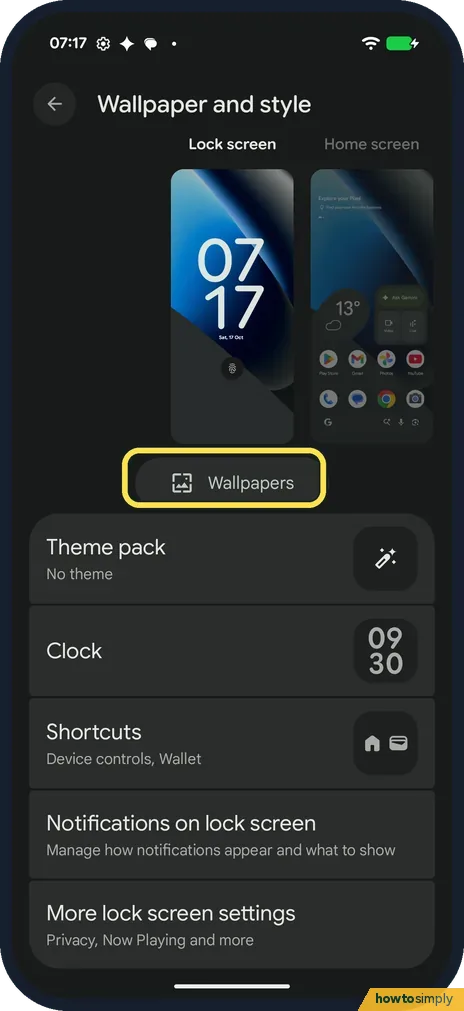
Tap Wallpapers
Tap Wallpapers below the previews. The Wallpaper page opens.
- 4
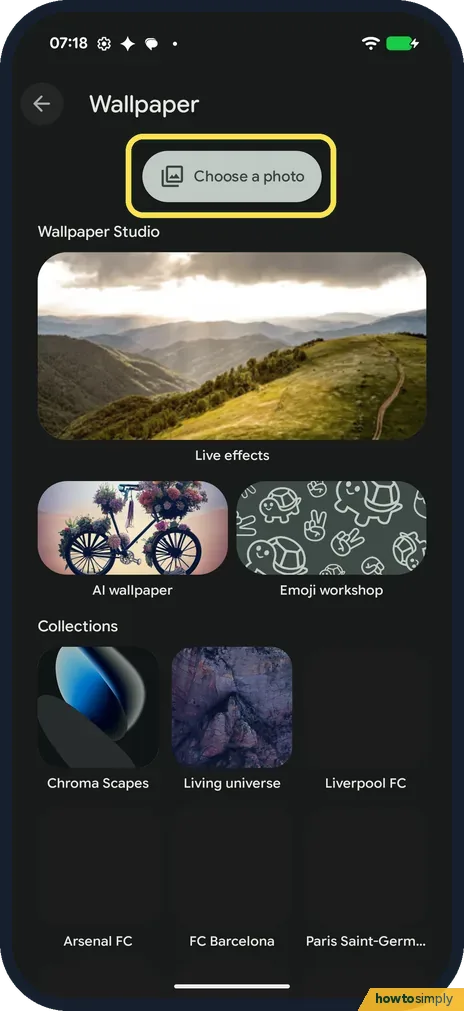
Use your own photo
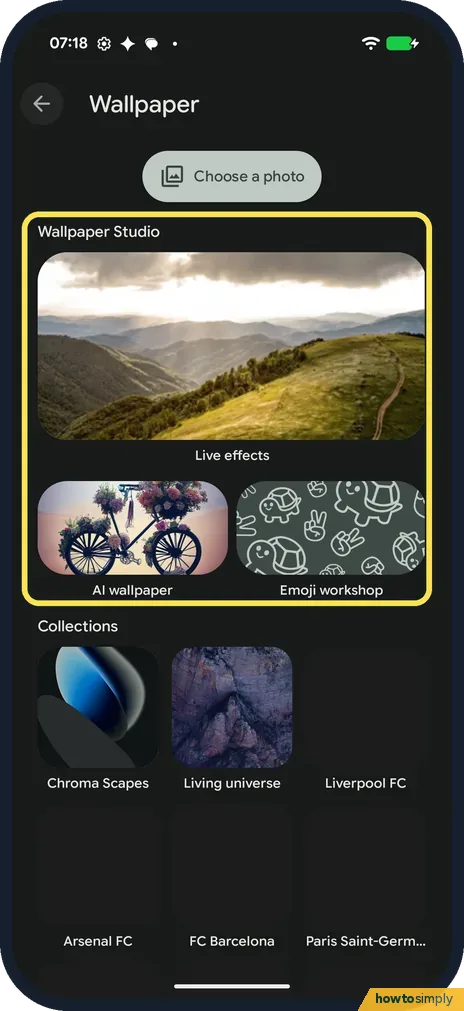
Choose a photo at the top lets you pick one of your own pictures.
- 5
Or make one in Wallpaper Studio
Wallpaper Studio has Live effects, AI wallpaper and Emoji workshop. Google says you can create or customise a wallpaper with Live effects, AI or emojis.
- 6
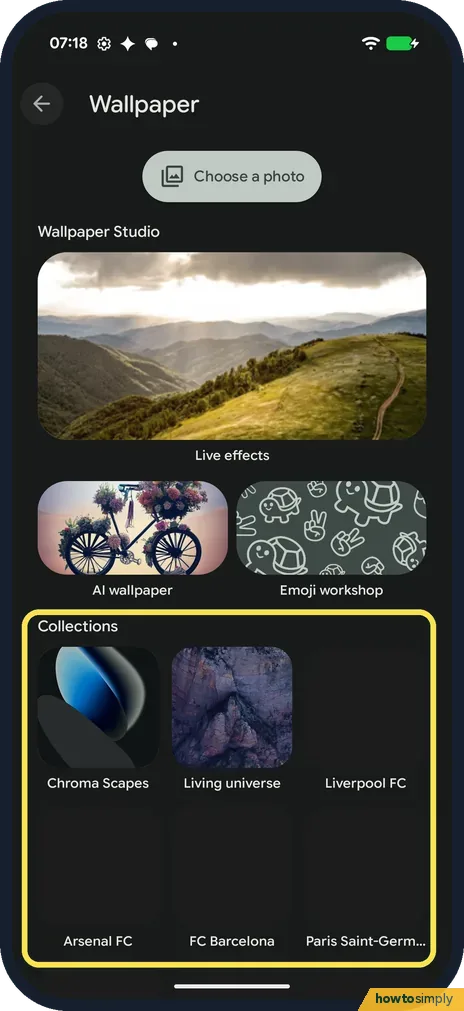
Or pick from a collection
Collections had Chroma Scapes, Living universe, Liverpool FC, Arsenal FC, FC Barcelona, Paris Saint-Germain (its name is cut off on screen) and more.
- 7
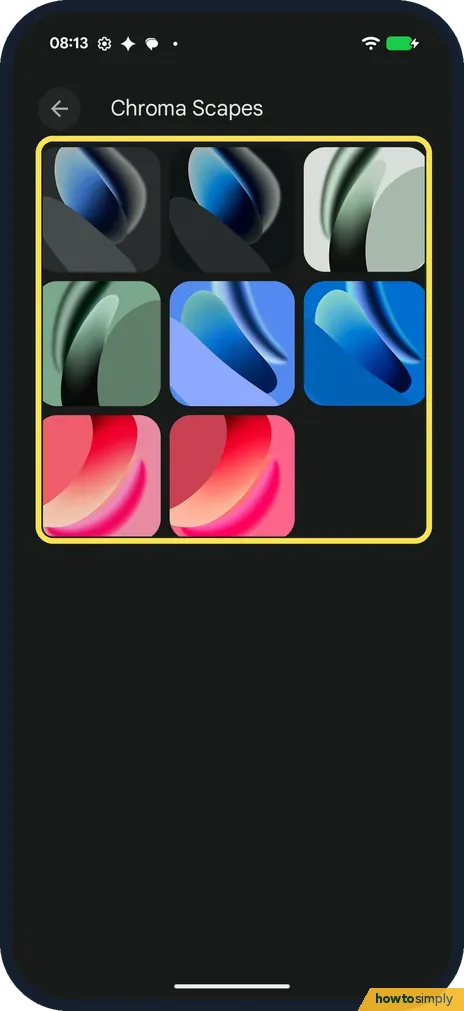
Tap an image
We opened Chroma Scapes. It had eight images. Tap the one you want.
- 8
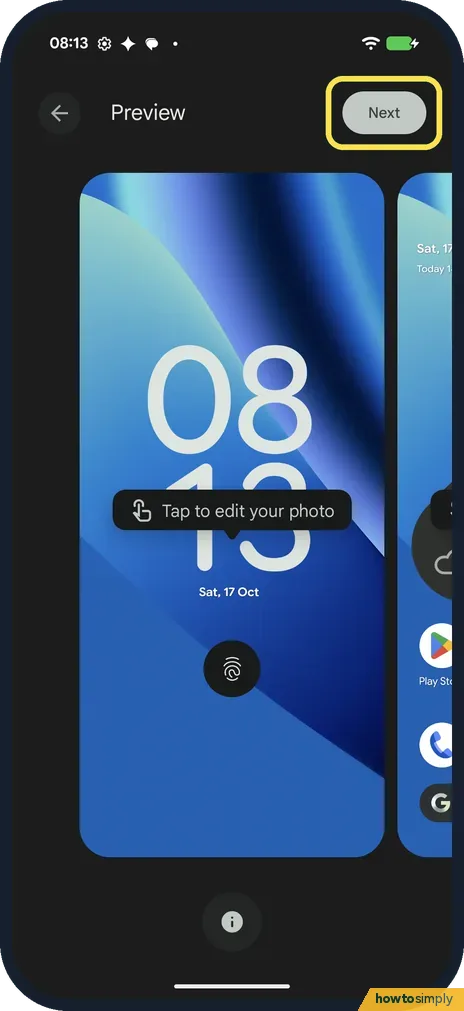
Tap Next
The preview shows the wallpaper on the lock screen. Google's help says to tap Apply here; ours had a Next button at the top right instead.
- 9
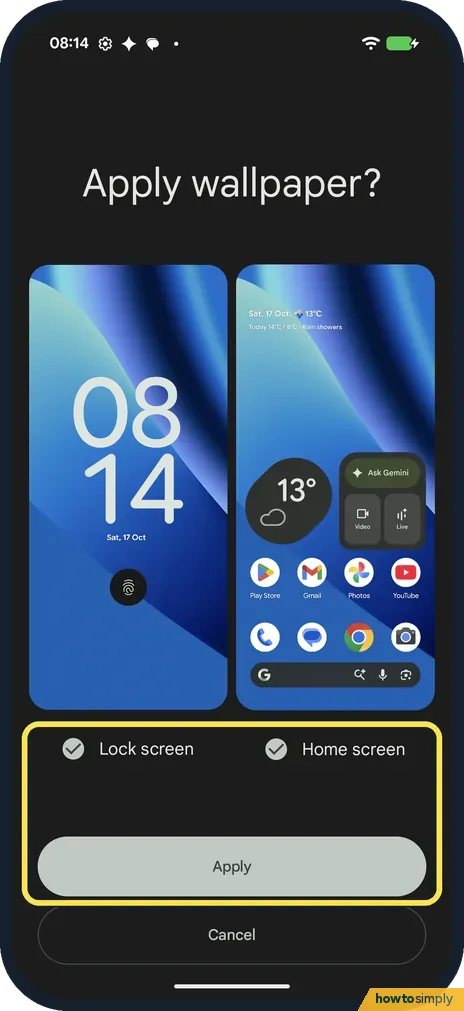
Choose the screens and tap Apply
Apply wallpaper? has a Lock screen and a Home screen tick box; both were ticked on ours. Untick one to change only the other, then tap Apply. We tapped Cancel.
If you do not see this option
- No AI wallpaper? Google says AI wallpaper is only on the Pixel 8 and later, and may not be available for some accounts, such as Family Link accounts. Source: Create & customize the wallpaper on your Pixel phone
- No Emoji workshop or photo effects? Google says Emoji Workshop needs a Pixel 4a or later. The Cinematic effect needs a Pixel 6 or later, and the shape and weather effects a Pixel 9a or later. Source: Create & customize the wallpaper on your Pixel phone
- No Wallpaper and style in Settings? Google's steps start on the home screen instead: touch and hold an empty space, then tap Wallpaper and style. Source: Change wallpaper on your Pixel phone
- App colours changed with the wallpaper? Google says you can pick a preset colour palette that matches your wallpaper, or tap Other colours to set your own. Change the palette if you want different colours with the same picture. Source: Change wallpaper on your Pixel phone
If this does not work
- Only one screen changed? Wallpaper and style has separate Lock screen and Home screen tabs. Google says to select between them to set them separately. On ours the Apply wallpaper? box also lets you tick both.
- Daily wallpaper won't use your photo? Google says Daily wallpaper doesn't work with your personal photos or live wallpapers. Pick a collection instead.
- Icons hard to see on the new wallpaper? See how to change home screen settings on a Google Pixel.
Good to know
Ours also showed a Try Harry Potter themes banner on Wallpaper and style, with an X to close it. We didn't open it.
The lock screen buttons are set on the same page: how to change the lock screen shortcuts.
About this guide
- Device
- Android
- Shown on
- Google Pixel 10a, Android 17 (build CP3A.261005.005)
- App
- Settings
- Path
- Settings › Wallpaper and style › Lock screen or Home screen › Wallpapers: pick an image › Next
- Real screenshots
- 9 of 9 steps
- Checked
- October 2026
- Sources
- 2 official, linked below
Sources
Links checked October 2026. Menus and features can change with updates.Spotted a mistake? Menus change with updates, and we want every step to match your screen. Email us about this page or use the contact form. We read every report, and fixes are listed on What changed.
Liked this guide?
Follow us for new guides and short how-to videos.
Did this guide work for you?
Sorry about that. What happened?