GOOGLE PIXEL
How to hide sensitive content on the lock screen on a Google Pixel (Android 17)

In short
Open Settings, Display and touch, Lock screen, Notifications on lock screen. Turn off Show sensitive content to hide what notifications say. Turn off Show on lock screen to hide them all. On ours the sensitive content switch was on but dimmed.
6 of 6 steps show a real screenshot from our Pixel 10a. Each step was checked against the maker's own instructions, linked at the end.
Steps
- 1
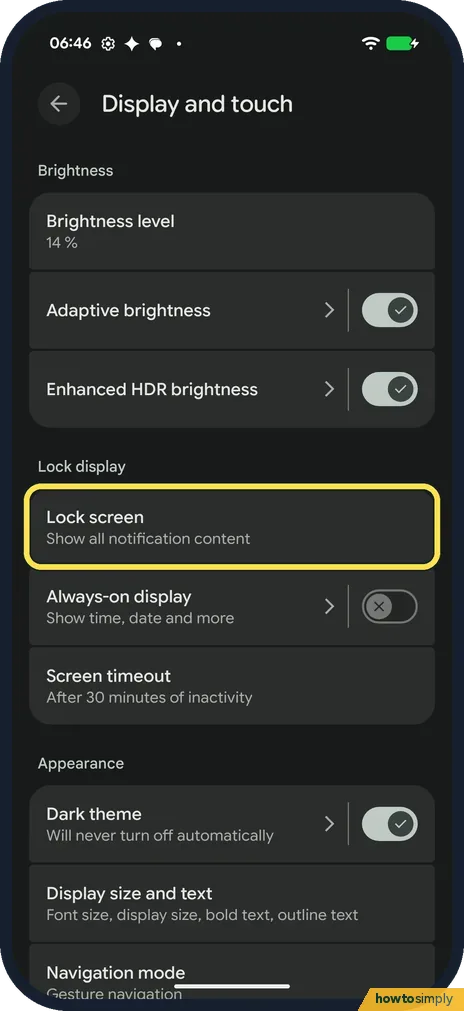
Open Lock screen
Open Settings and tap Display and touch. Lock screen is under Lock display. Ours said Show all notification content.
- 2
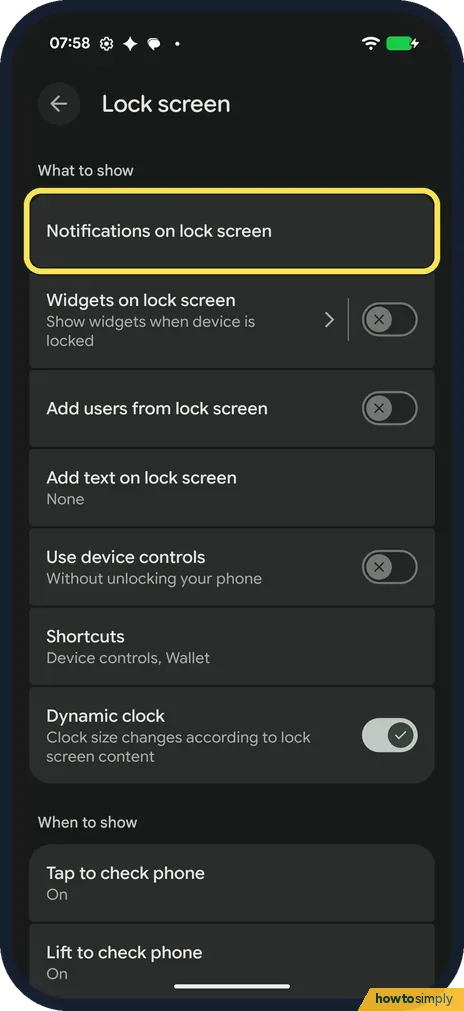
Tap Notifications on lock screen
It is the first row under What to show.
- 3
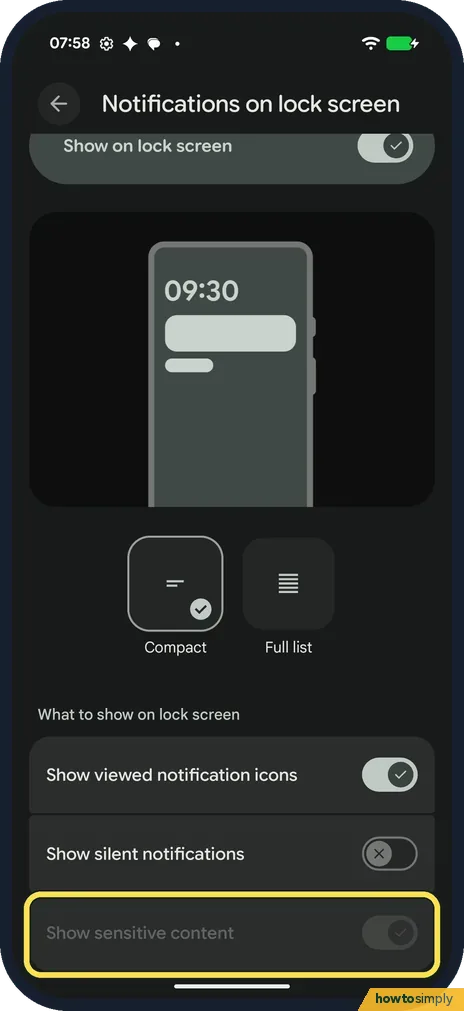
Turn off Show sensitive content
At the bottom, turn off Show sensitive content to hide what notifications say. On ours it was on, but the switch and its label were dimmed.
- 4
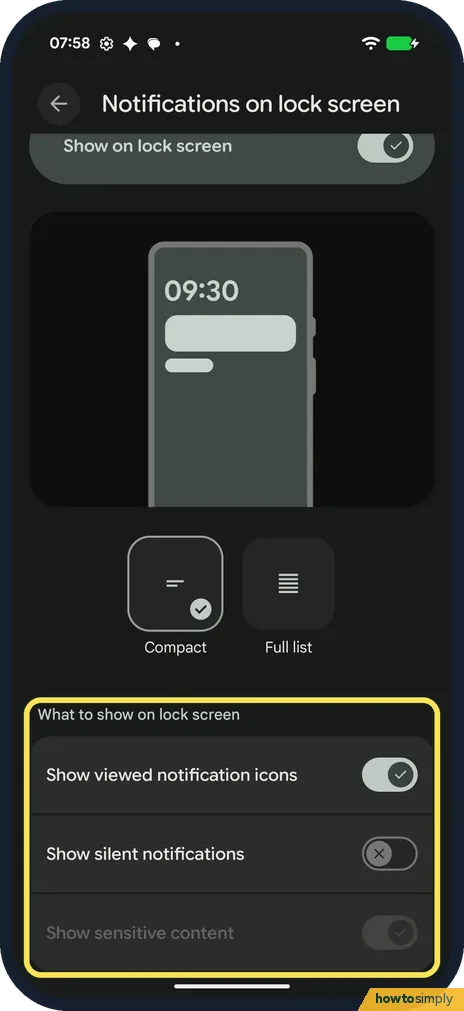
Choose what else shows
Under What to show on lock screen, Show viewed notification icons was on and Show silent notifications was off.
- 5
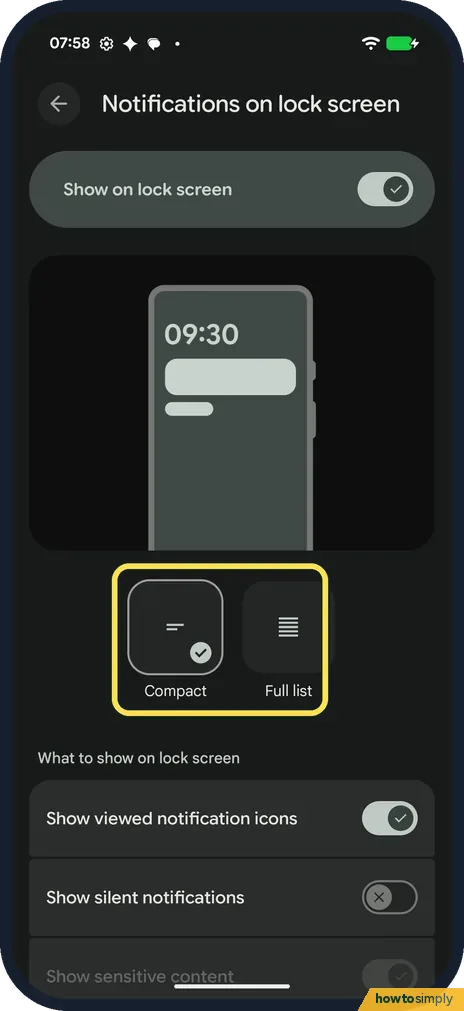
Compact or Full list
Pick Compact or Full list to choose how notifications show on the lock screen. Ours was Compact.
- 6
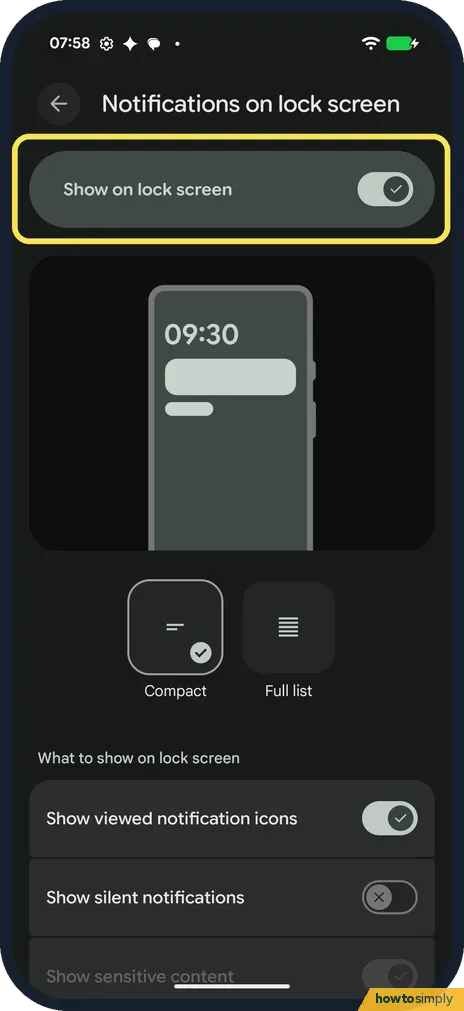
Or hide them all
To show no notifications on the lock screen at all, turn off Show on lock screen at the top. Ours was on.
If you do not see this option
- Switch dimmed? On ours, Show sensitive content was dimmed. Our Pixel has no screen lock set, and we think that is why: without a lock, anyone can open the phone anyway. Set a screen lock, then look again. Source: Set screen lock on an Android device
- Another way in? Google says the same page opens from Settings, Notifications, then Notifications on lock screen under Privacy. Source: Customize the lock screen on your Pixel phone
- Older Android or another brand? Google says older phones use Settings, Apps and notifications, Notifications, then Sensitive notifications under Lock screen, and that settings can vary by phone. Source: Control notifications on Android
If this does not work
- Message text still shows? Check Show sensitive content is off and that a screen lock is set. Google says you can also stop single apps from showing notifications on the lock screen.
- Some notifications missing from the lock screen? Show silent notifications was off on ours, so silent ones stay hidden. Turn it on to see them. See also Pixel not getting notifications.
- Can't dismiss a notification there? Google says that if you can't dismiss a notification on the lock screen, unlock the phone and dismiss it.
Good to know
To find an alert you dismissed by mistake, see how to see notification history on a Google Pixel.
Always-on display shows the time while locked: how to turn on Always-on display.
This only changes what shows while the phone is locked. Once you unlock it, the full text is back in the notification shade. To undo it, return to Notifications on lock screen and turn Show sensitive content on again.
About this guide
- Device
- Android
- Shown on
- Google Pixel 10a, Android 17 (build CP3A.261005.005)
- App
- Settings
- Path
- Settings › Display and touch › Lock screen
- Real screenshots
- 6 of 6 steps
- What we did
- Observed: looked at each screen, changed nothing
- Checked
- October 2026
- Sources
- 3 official, linked below
Sources
Links checked October 2026. Menus and features can change with updates.Spotted a mistake? Menus change with updates, and we want every step to match your screen. Email us about this page or use the contact form. We read every report, and fixes are listed on What changed.
Liked this guide?
Follow us for new guides and short how-to videos.
Did this guide work for you?
Sorry about that. What happened?