
What changed: every step re-shot on our own Galaxy S26 (Korean model SM-S942N) on One UI 9, dark mode, with the steps rewritten for the One UI 9 screens.
howtosimply.com/guides/how-to-turn-on-auto-blocker-on-a-samsung-galaxy-phone/ · Checked October 2026 · SM-S942N, Korean model), One UI 9, Android 17 (build S942NKSS4BZIG · Samsung Galaxy S26
In this guide
Open Settings, Security and privacy, Auto Blocker and tap the switch at the top. It blocks apps from unauthorized sources, commands sent over a USB cable, malware images in messaging apps and non-official software updates.
5 of 5 steps with real screenshots · 1 official source below
- Device
- Android
- Shown on
- Samsung Galaxy S26 (SM-S942N, Korean model), One UI 9, Android 17 (build S942NKSS4BZIG)
- App
- Settings
- Path
- Settings › Security and privacy › Auto Blocker
- Real screenshots
- 5 of 5 steps
- Checked
- October 2026
- Sources
- 1 official, linked below
Step by step
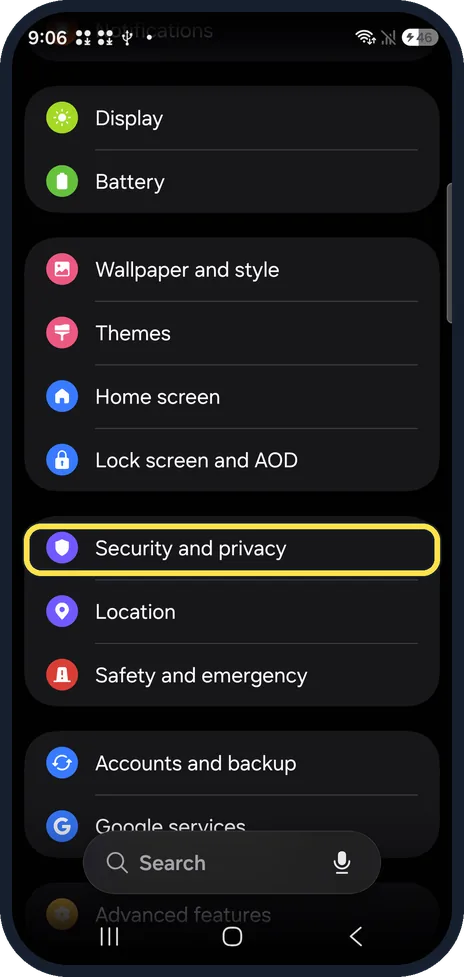
Open Security and privacy
Open Settings and tap Security and privacy.
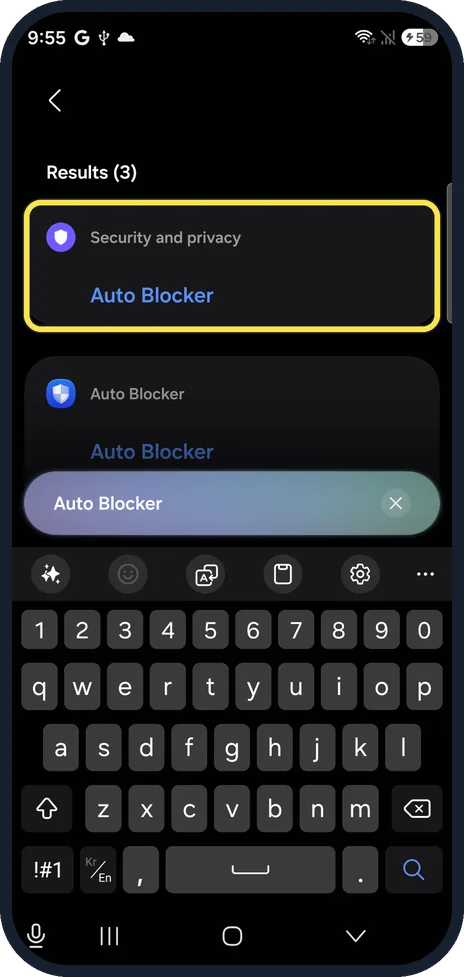
Find Auto Blocker
Tap Search at the bottom of Settings, type Auto Blocker and tap the result under Security and privacy.
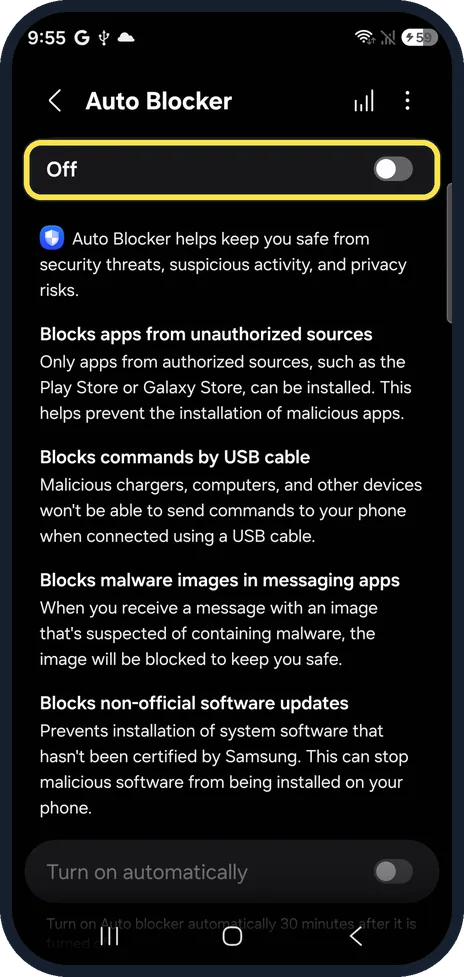
Switch it on
Tap the switch next to Off to turn it on.
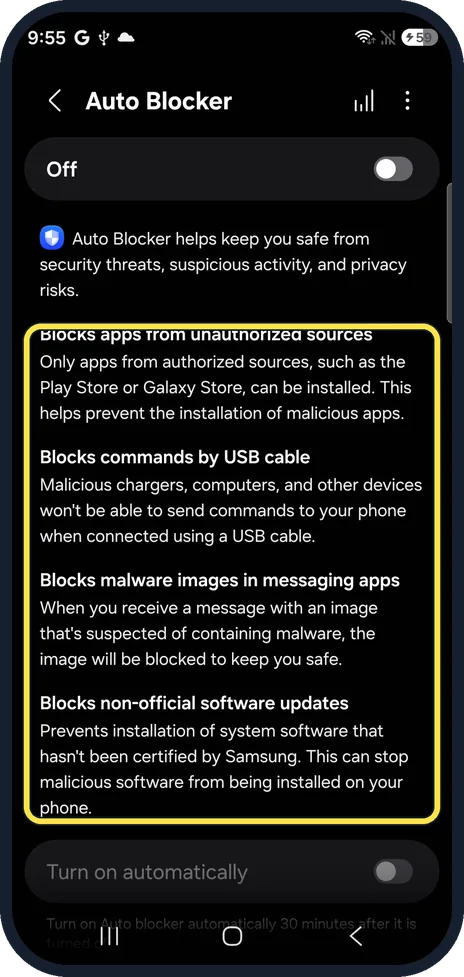
Know what it blocks
Apps from sources other than the Play Store or Galaxy Store, commands from chargers or computers over USB, suspicious images in messaging apps, and software updates not certified by Samsung.
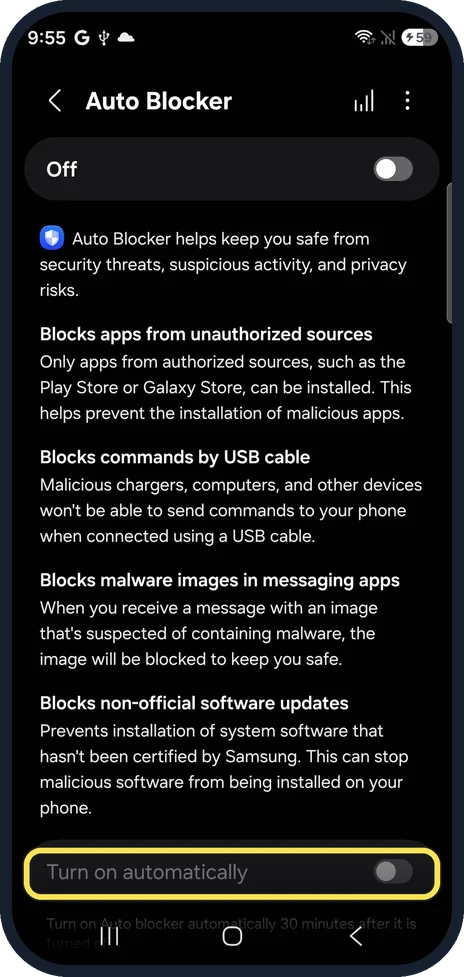
Check Turn on automatically
If you switch Auto Blocker off, for example to install an app from a website, this option turns it back on by itself 30 minutes later. It is greyed out while Auto Blocker is off.
What changed: every step re-shot on our own Galaxy S26 (Korean model SM-S942N) on One UI 9, dark mode, with the steps rewritten for the One UI 9 screens.
If you do not see this option
- No Auto Blocker row? Scroll to the very bottom of Security and privacy, or use Settings search as in step 2.
- On One UI 8.5 Our Galaxy A57 with One UI 8.5 had Auto Blocker near the top of the Security and privacy page.
If this does not work
- A computer cannot see the phone over USB That is Blocks commands by USB cable at work. Turn Auto Blocker off while you need the connection; charging still works.
- An app from a website will not install That is Auto Blocker blocking apps from unauthorized sources, the first item on its page. Switch it off, install the app, and let Turn on automatically switch it back on.
About this guide
Auto Blocker is Samsung's one-switch protection against the most common ways malware gets onto a phone. It was off on our phone.
Should you turn it on? Samsung recommends keeping it on. The only thing most people notice is that apps from outside Google Play and the Galaxy Store cannot be installed or updated while it is on. Official software updates are not affected.
The screenshots are from our Samsung Galaxy S26, the Korean model SM-S942N, with One UI 9 and Android 17 (build S942NKSS4BZIG), in Dark mode. Menus can differ on models sold in other regions. We opened Auto Blocker but did not switch it on, because it blocks the USB connection we take screenshots over.
Good to know
To install an app from outside the stores you have to switch Auto Blocker off first. Do that only for an app you trust.
In short: Settings, Security and privacy, Auto Blocker, switch on. Turn on automatically brings it back after 30 minutes.
Links checked in October 2026. Menus and features can change after software updates. These steps match the version named at the top.
📷 See real photos from the Galaxy S26 in our Camera Lab, next to 10 other phones.
Did this guide work for you?
Sorry about that. What happened?