GOOGLE PIXEL
How to change the home screen grid on a Google Pixel (Android 17)

In short
Press and hold an empty spot on the home screen and tap Wallpaper and style. On the Home screen side, scroll down and tap Layout. Choose Small, Medium, Large or XL and tap Apply. Ours was on Medium. Small fitted more on the screen; we set Medium back afterwards.
7 of 7 steps show a real screenshot from our Pixel 10a. Each step was checked against the maker's own instructions, linked at the end.
Steps
- 1
Open Wallpaper and style
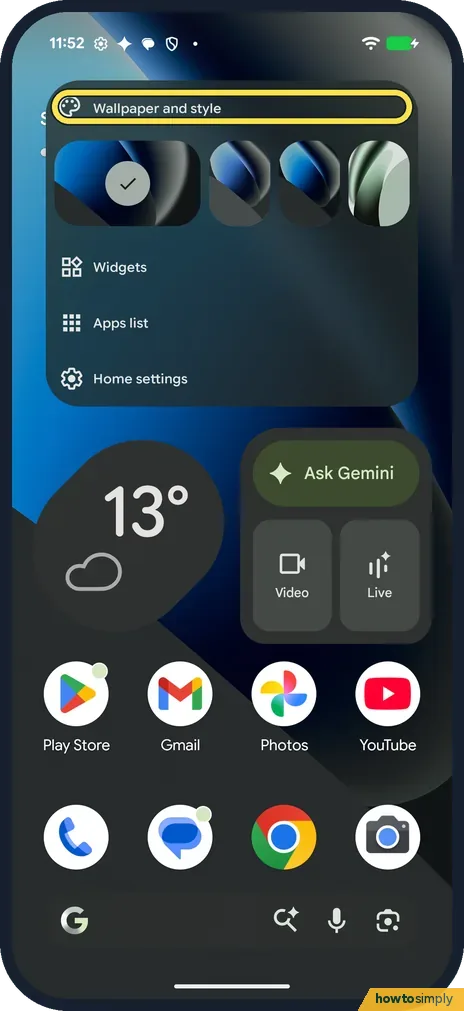
Press and hold an empty spot on the home screen. The menu has Wallpaper and style, Widgets, Apps list and Home settings. Tap Wallpaper and style.
- 2
Go to Home screen
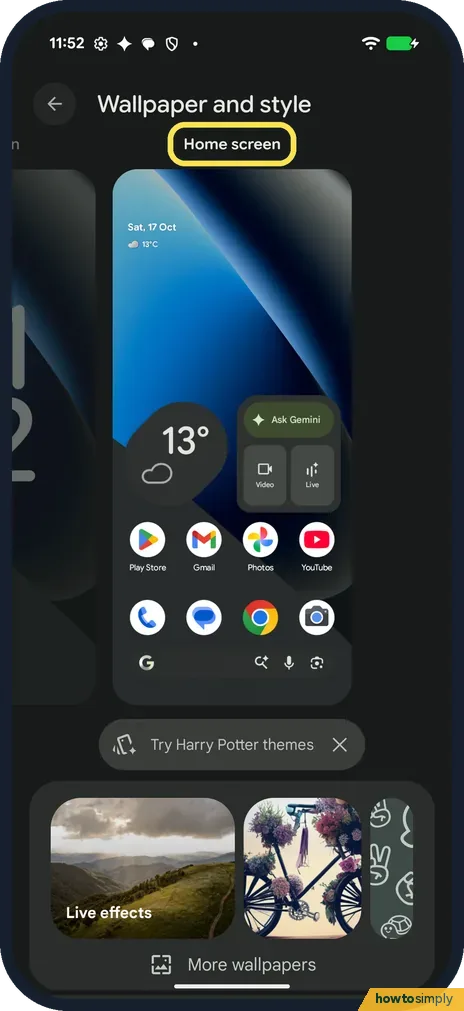
Wallpaper and style opens with a preview. Google says to swipe left to select your home screen; the name above the preview then reads Home screen.
- 3
Tap Layout
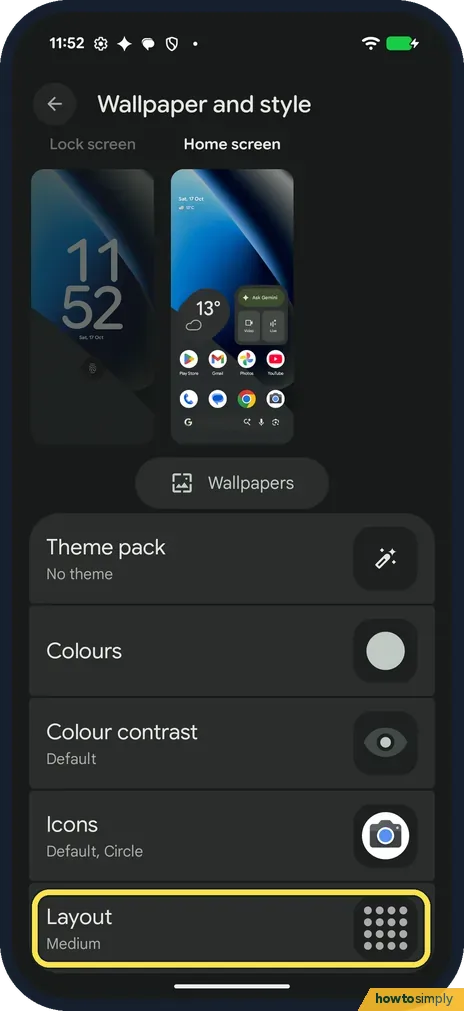
Scroll down past Theme pack, Colours, Colour contrast and Icons. Layout is the last row; ours said Medium. Tap it.
- 4
See the four sizes
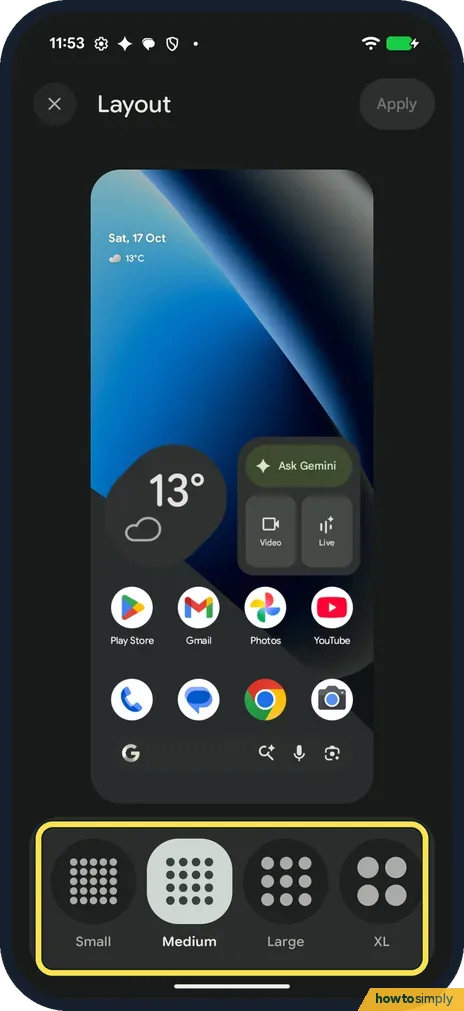
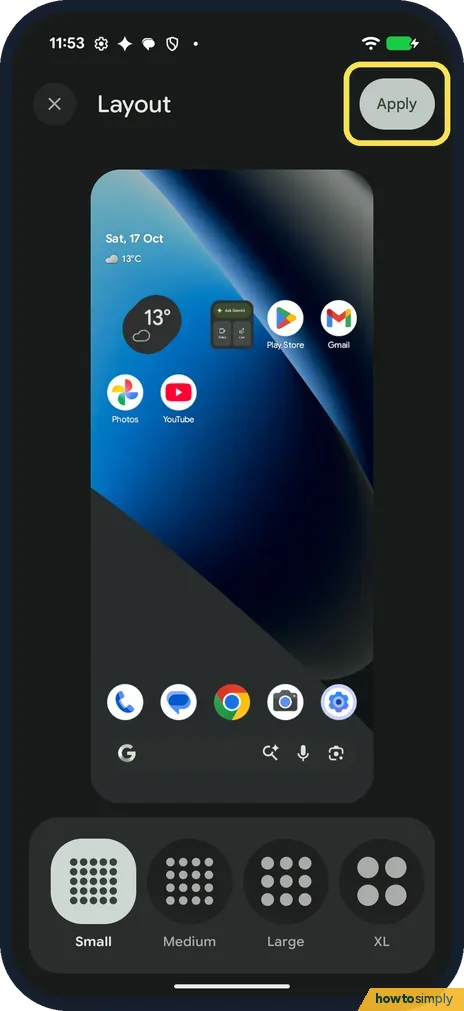
The Layout page shows a preview of your home screen and four sizes at the bottom: Small, Medium, Large and XL. Medium was highlighted on ours, and Apply at the top stayed dim.
- 5
Pick a size and tap Apply
Tap a size and the preview changes. With Small, the weather and Gemini widgets shrank and Play Store and Gmail moved up beside them. Tap Apply at the top right.
- 6
Check the home screen
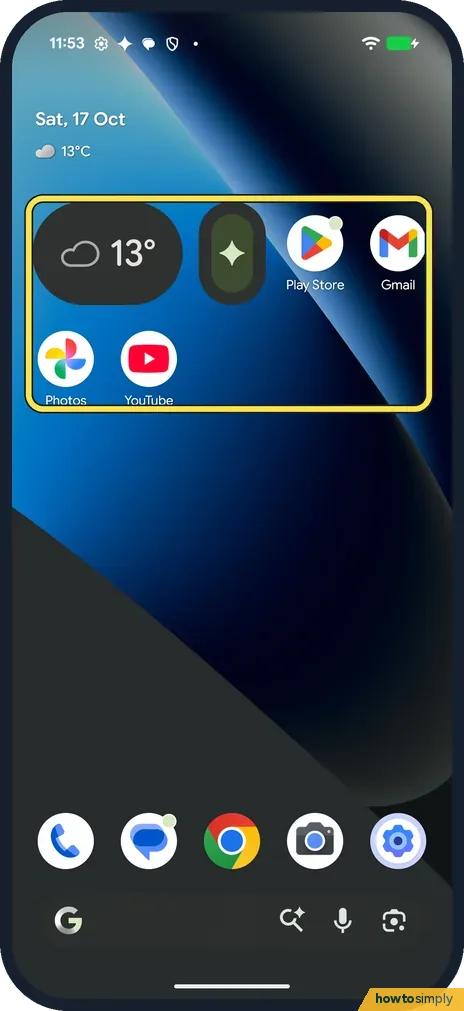
With Small our icons were smaller, the weather widget showed only 13° and the Gemini widget only its star. Play Store and Gmail sat beside them, Photos and YouTube moved up below, and the bottom row got a fifth icon, Settings.
- 7
Set it back
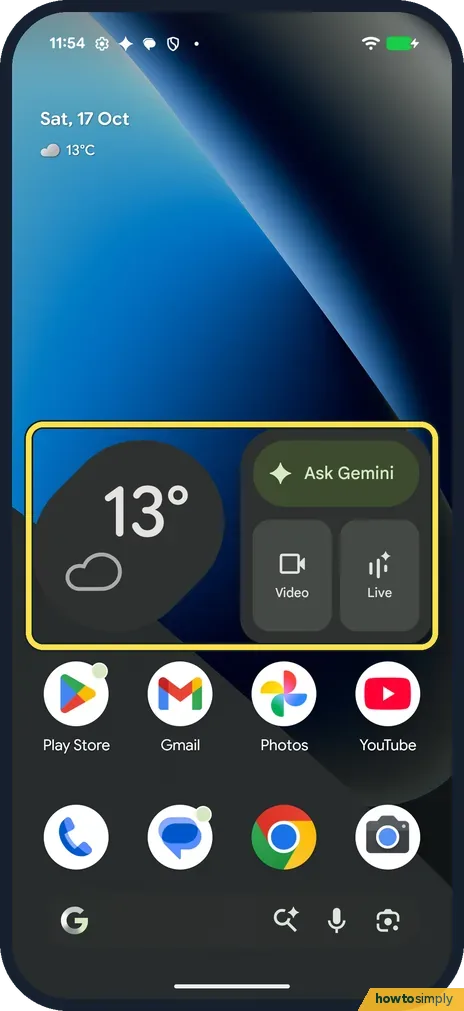
To undo, open Layout again, tap the old size and tap Apply. We chose Medium: the weather widget (13°) and the Ask Gemini widget with Video and Live were back to full size.
If you do not see this option
- No grid option in Settings? Our Pixel had none in the Settings app or in Home settings. Google's steps start on the home screen too: touch and hold an empty space, tap Wallpaper and style, then Layout. Source: Add apps, shortcuts & widgets to your Home screens
- Google says icon size? Google's help says to select an icon size on the Layout page, to change the number of apps per row. On ours the four choices were called Small, Medium, Large and XL. Source: Add apps, shortcuts & widgets to your Home screens
- No Wallpaper and style in the menu? Press and hold an empty part of the home screen, not an app or a widget. On ours the menu then had Wallpaper and style at the top.
If this does not work
- Widgets went small? On ours Small also shrank the weather and Gemini widgets to small versions. Choosing Medium again put them back as they were.
- Apps moved around? With Small, our apps moved up to fill the space beside the widgets. Going back to Medium put them back in their old places.
- Text too small to read? Layout changes the grid, not the text. For bigger text everywhere: text and display size on a Pixel.
Good to know
Notification dots, At a Glance and new app icons are in Home settings, on the same menu: home screen and search settings. The picture behind the icons: change the wallpaper.
Add a clock, weather or other widget: add a widget on a Pixel.
About this guide
- Device
- Android
- Shown on
- Google Pixel 10a, Android 17 (build CP3A.261005.005)
- App
- Home screen
- Path
- Home screen › Wallpaper and style › Home screen › Layout
- Real screenshots
- 7 of 7 steps
- Checked
- October 2026
- Sources
- 1 official, linked below
Sources
Links checked October 2026. Menus and features can change with updates.Spotted a mistake? Menus change with updates, and we want every step to match your screen. Email us about this page or use the contact form. We read every report, and fixes are listed on What changed.
Liked this guide?
Follow us for new guides and short how-to videos.
Did this guide work for you?
Sorry about that. What happened?