GOOGLE PIXEL
How to turn on Always-on display on a Google Pixel (Android 17)

In short
Open Settings, tap Display and touch, then Always-on display, and turn on the switch. It shows the time, date and more while the screen is off. It isn't on the Lock screen page. The page warns it increases battery usage.
3 of 3 steps show a real screenshot from our Pixel 10a. Each step was checked against the maker's own instructions, linked at the end.
Steps
- 1
Open Display and touch
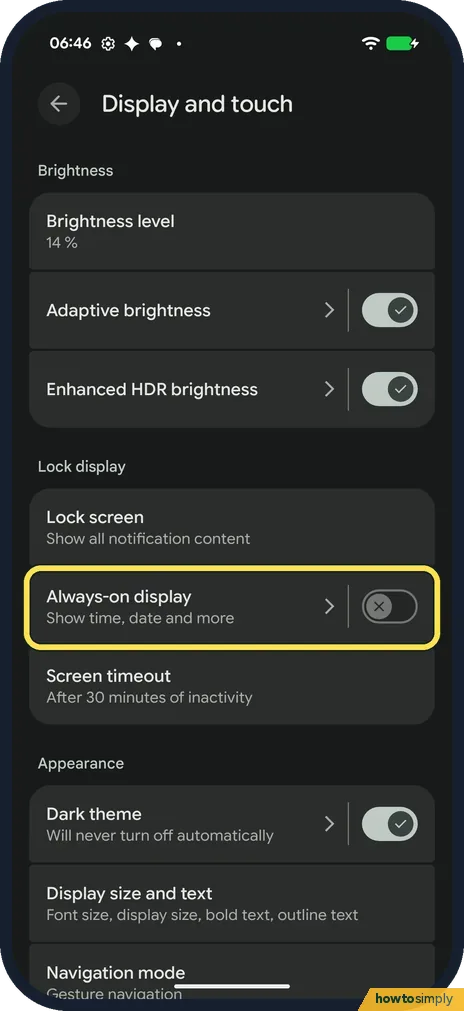
Open Settings and tap Display and touch. Always-on display is under Lock display, between Lock screen and Screen timeout. It has a switch right on the row.
- 2
Turn on the switch
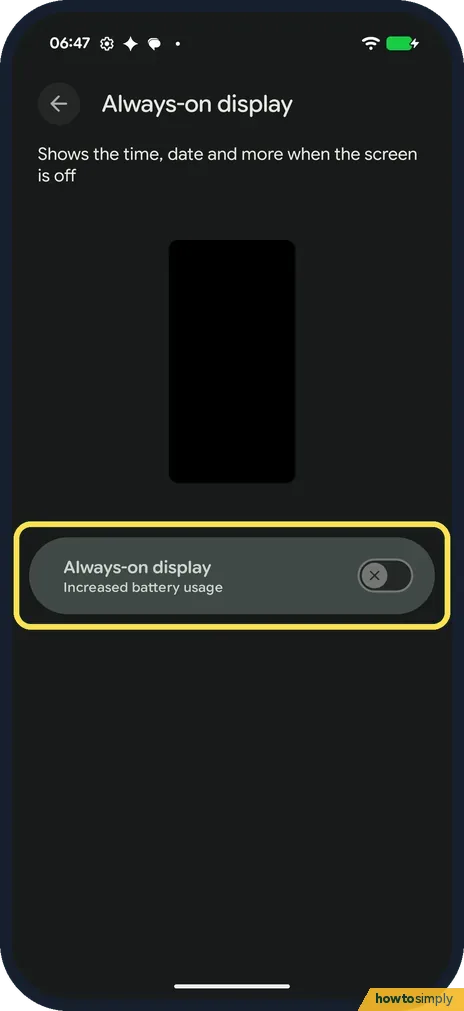
Tap the row to open its page. It has one switch, Always-on display, with the note Increased battery usage. Turn it on. Ours was off.
- 3
Or wake the screen when you need it
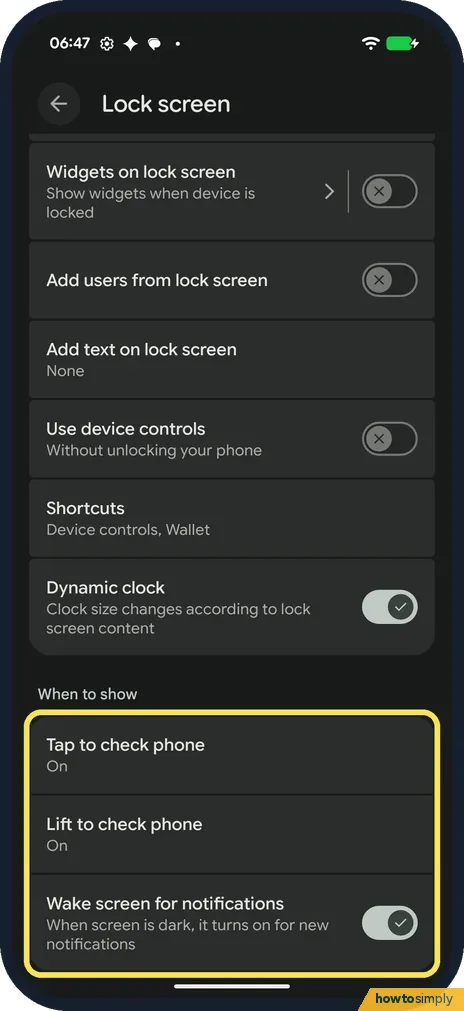
If you'd rather save battery, Settings, Display and touch, Lock screen has Tap to check phone, Lift to check phone and Wake screen for notifications under When to show. All three were on on ours.
If you do not see this option
- Not on the Lock screen page? Right. On our Pixel 10a with Android 17, the Lock screen page has notifications, widgets, shortcuts, Dynamic clock and the wake gestures, but no Always-on display. It is a separate row on Display and touch.
If this does not work
- Battery going down faster? The switch itself says Increased battery usage. Google says to turn off Always-on display to save battery: Settings, Display and touch.
- Don't see notifications on the locked screen? Check Notifications on lock screen on the Lock screen page, then see Pixel not getting notifications.
- Always-on display goes dark at night? Google's Digital Wellbeing help lists Keep the screen dark as a Bedtime mode option: it turns off the always-on display at bedtime. If the screen goes blank at the same time each night, check your Bedtime mode settings.
- Screen goes off sooner than you expect? Always-on display only controls the dimmed screen after the phone locks. Google describes Adaptive timeout under Screen timeout, which turns the screen off early when you aren't using it.
Good to know
To make the screen stay on longer while you use it, see how to change the screen timeout.
To keep the battery healthy overnight: how to limit charging to 80% on a Google Pixel.
Once it is on, a dimmed screen with the time, date and more stays visible whenever the phone is locked. That is the trade-off behind the Increased battery usage note: the screen is never completely off. Anyone near the phone can glance at it too. To undo it, turn the same switch off.
Google's general Android battery advice lists lowering screen brightness and letting the screen turn off sooner among the settings that use less battery. If you only want to check the time now and then, the wake gestures on the Lock screen page are a lighter option.
If you also want to hide message text when the phone is locked, see how to hide sensitive content on the lock screen.
About this guide
- Device
- Android
- Shown on
- Google Pixel 10a, Android 17 (build CP3A.261005.005)
- App
- Settings
- Path
- Settings › Display and touch
- Real screenshots
- 3 of 3 steps
- Checked
- October 2026
- Sources
- 2 official, linked below
Sources
Links checked October 2026. Menus and features can change with updates.Spotted a mistake? Menus change with updates, and we want every step to match your screen. Email us about this page or use the contact form. We read every report, and fixes are listed on What changed.
Liked this guide?
Follow us for new guides and short how-to videos.
Did this guide work for you?
Sorry about that. What happened?