
howtosimply.com/guides/how-to-turn-on-dark-mode-on-an-oppo-phone/ · Checked October 2026 · CPH2689, EEA), ColorOS 16.0.5, Android 16 (build CPH2689_16.0.5.1001(EX01) · OPPO Reno13 5G
In this guide
Open Settings, Display & brightness and tap Dark mode. Dark mode settings lets you pick Enhanced, Medium or Gentle and try Dark mode for third-party apps (Beta).
3 of 3 steps with real screenshots · 3 official sources below
- Device
- Android
- Shown on
- OPPO Reno13 5G (CPH2689, EEA), ColorOS 16.0.5, Android 16 (build CPH2689_16.0.5.1001(EX01))
- App
- Settings
- Path
- Settings › Display & brightness
- Real screenshots
- 3 of 3 steps
- Checked
- October 2026
- Sources
- 3 official, linked below
Step by step
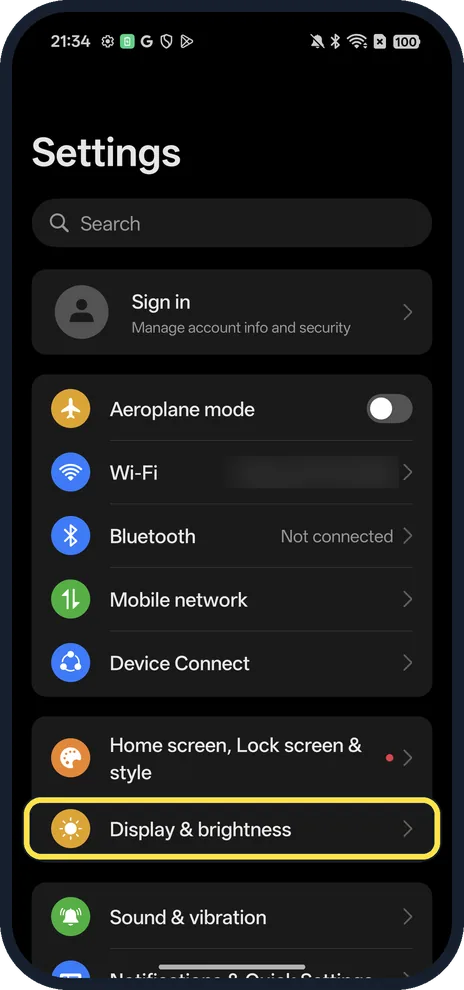
Open Display & brightness
Open Settings and tap Display & brightness.
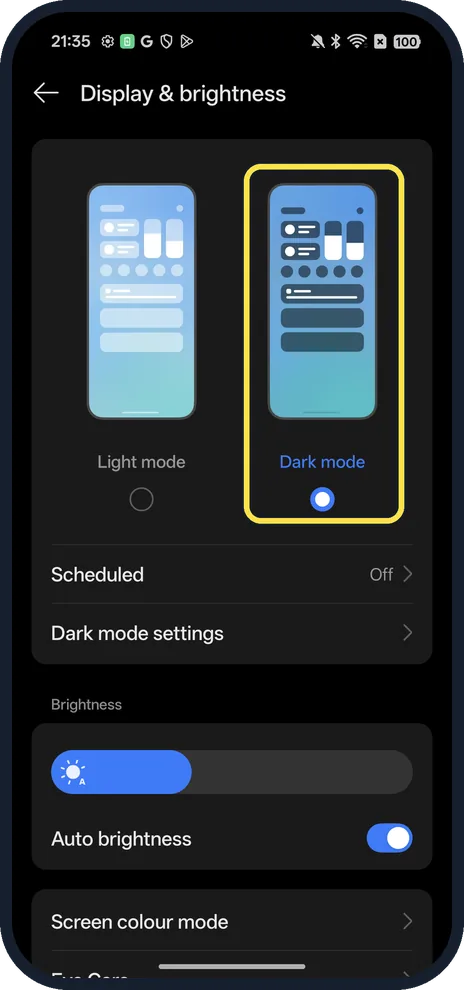
Tap Dark mode
Tap the Dark mode picture or the circle under it.
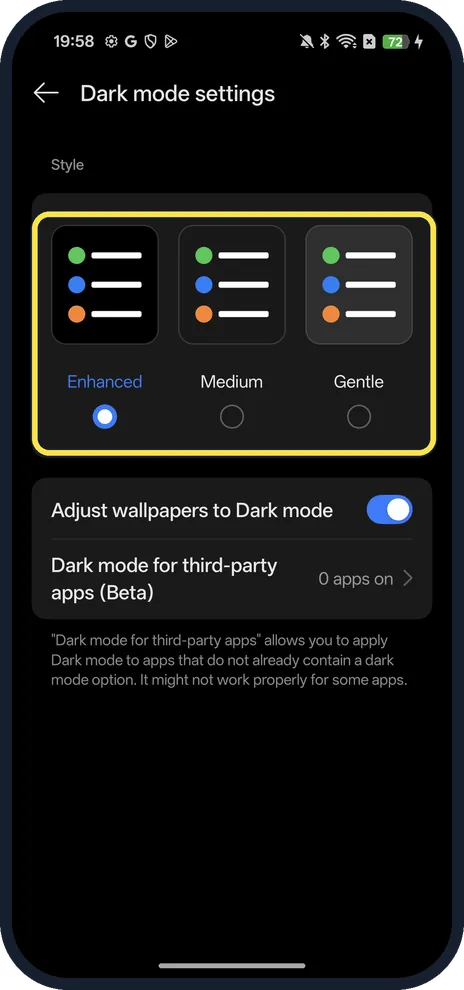
Pick a style
Tap Dark mode settings: Enhanced, Medium or Gentle. Enhanced was selected on ours, and Adjust wallpapers to Dark mode was on.
If you do not see this option
- Older ColorOS? OPPO's ColorOS 11 help gives Settings, Display & Brightness, Dark, Dark Mode Settings, with the same three contrast levels and Adjust Wallpaper/Icons to Dark Mode. Source: Customizable Dark Mode with ColorOS 11
- Want a quick switch? Google says Android phones have a Dark theme tile in Quick Settings; add it with the edit pencil if your layout doesn't show it. Source: Change dark theme and colour settings on Android
- No Dark mode for third-party apps row? It is marked Beta on our ColorOS 16.0.5 and read 0 apps on. It sits under Dark mode settings, not on the Display page.
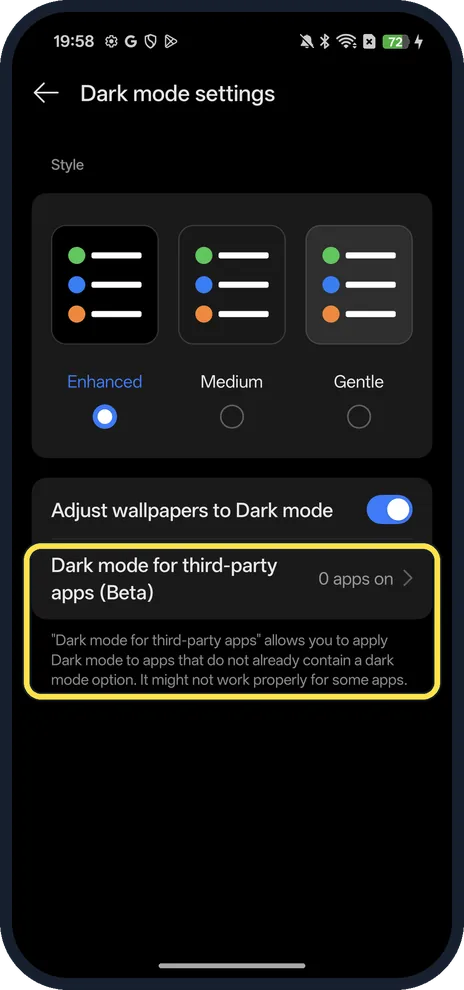
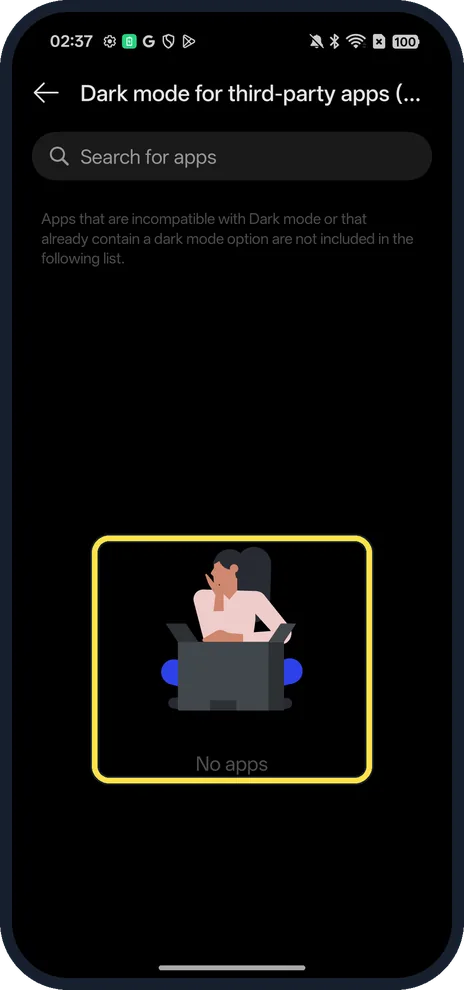
- Third-party list empty? Ours said No apps. Apps that are incompatible with Dark mode, or that already contain a dark mode option, are not included.
If this does not work
- An app stays white? Turn it on for that app under Dark mode for third-party apps. Our list said No apps: the page says apps that are incompatible with Dark mode or already have their own dark option are left out, so look in the app's own settings for a theme option.
- Dark mode turned itself on? OPPO says Super Power Saving Mode switches the phone to Dark mode automatically. Source: What Is the Super Power Saving Mode on OPPO Phones
- Only want it at night? Tap Scheduled under the pictures. It was Off on ours.
About this guide
The screenshots are from our OPPO Reno13 5G, the European model CPH2689, with ColorOS 16.0.5 and Android 16 (build CPH2689_16.0.5.1001(EX01)), in Dark mode.
Good to know
Show the time while the screen is off: turn on Always-On Display.
Smoother scrolling or longer battery: change the refresh rate.
In short: Settings, Display & brightness, Dark mode; style in Dark mode settings.
- OPPO Support: Customizable Dark Mode with ColorOS 11
- OPPO Support: What Is the Super Power Saving Mode on OPPO Phones
- Google Android Help: Change dark theme and colour settings on Android
Links checked in October 2026. Menus and features can change after software updates. These steps match the version named at the top.
Did this guide work for you?
Sorry about that. What happened?