
howtosimply.com/guides/how-to-set-or-change-the-screen-lock-on-an-android-phone/ · Checked October 2026 · build CP3A.261005.005 · Google Pixel 10a, Android 17
In this guide
On a Google Pixel, open Settings, Security and privacy, Device unlock, Screen lock. On a Samsung Galaxy, open Settings, Lock screen and AOD, Screen lock and biometrics. Enter any current lock, choose PIN, Password or Pattern and enter it twice. The PIN screen on our Pixel recommended six digits.
5 of 6 steps with real screenshots · 1 official source below
- Device
- Android
- Shown on
- Google Pixel 10a, Android 17 (build CP3A.261005.005)
- App
- Settings
- Real screenshots
- 5 of 6 steps
- Checked
- October 2026
- Sources
- 1 official, linked below
Step by step
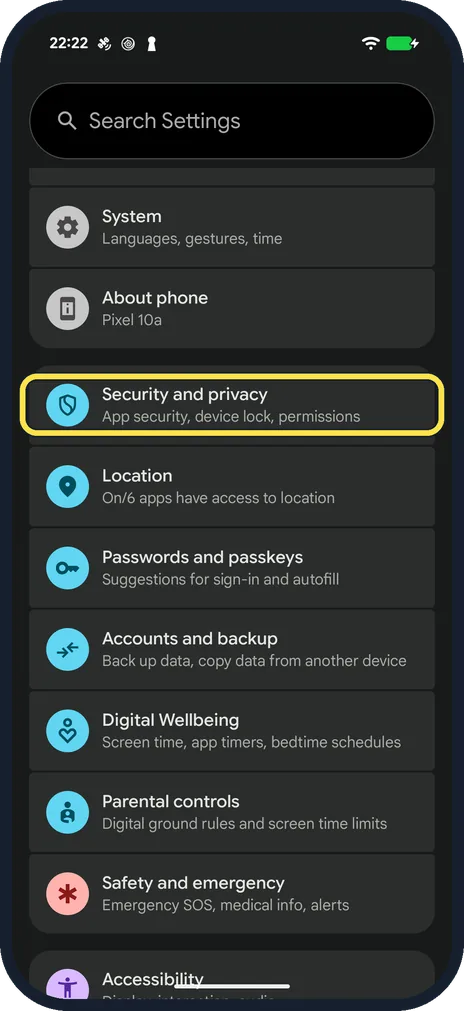
Open Settings and tap Security and privacy
On our Pixel it is below About phone. If you cannot find it, search the settings for Screen lock.
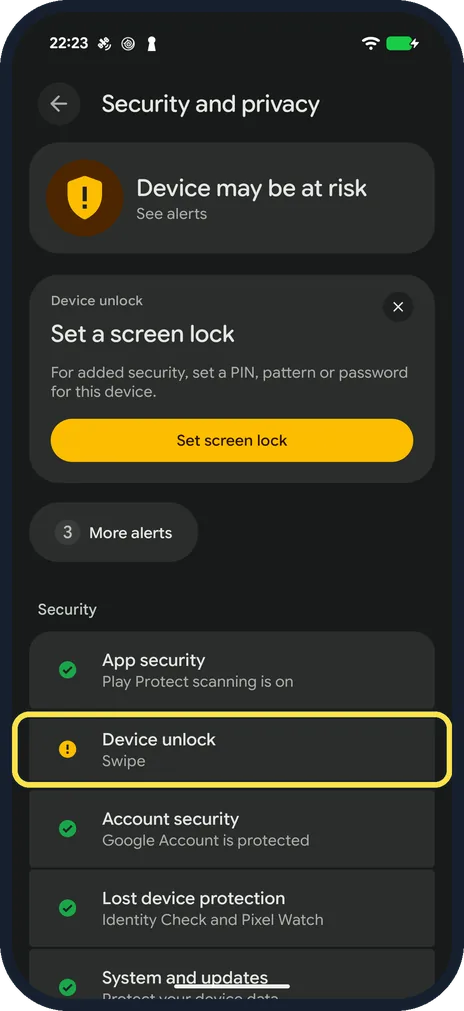
Tap Device unlock
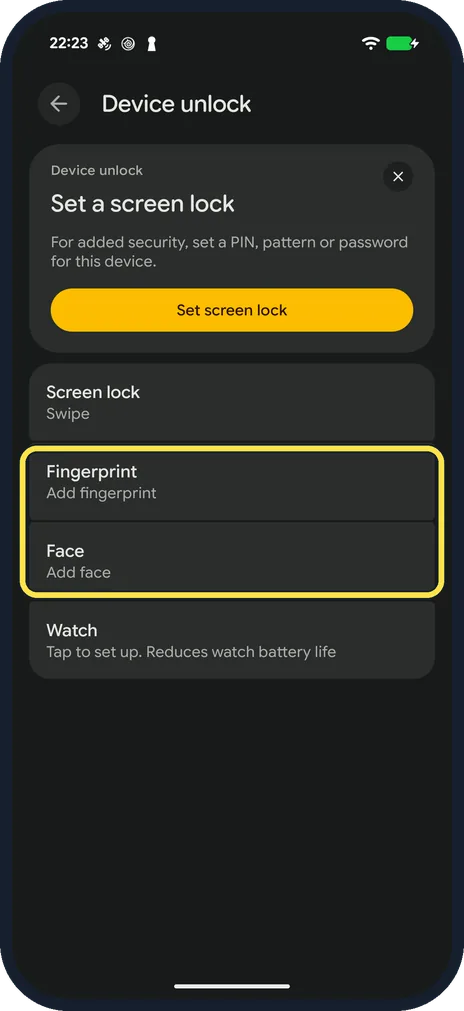
Under Security, Device unlock shows the current lock; ours said Swipe, with a warning sign. The Set a screen lock card at the top leads to the same place.
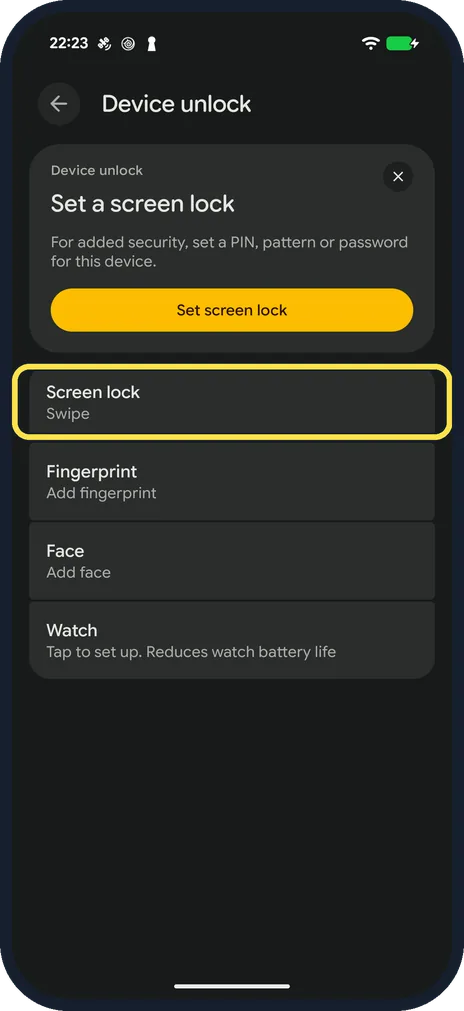
Tap Screen lock
The line under it shows the current type, Swipe on ours. If a PIN, pattern or password is already set, the phone asks for it first.
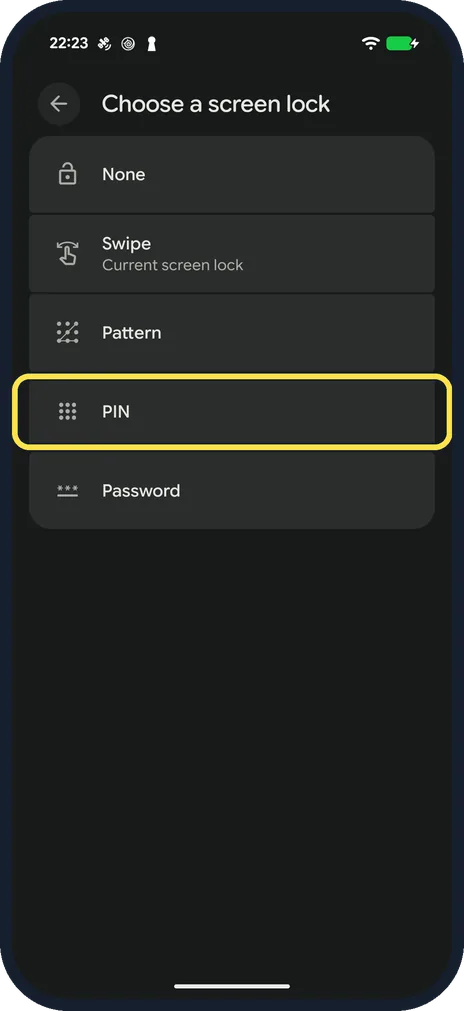
Choose the type
Ours offered None, Swipe (marked Current screen lock), Pattern, PIN and Password. A PIN is four or more digits. A password is the most secure choice. A pattern is the easiest to watch over your shoulder.
Enter it twice
Type the PIN, pattern or password, then type it again to confirm. Android blocks screenshots of this screen, so ours came out black. It read: PIN must be at least 4 digits, but a 6-digit PIN is recommended. We typed nothing and backed out.
Add a fingerprint or face
Back on Device unlock, Fingerprint and Face are below Screen lock; ours said Add fingerprint and Add face. They make unlocking quick. The PIN stays as the fallback and is asked for after a restart.
If you do not see this option
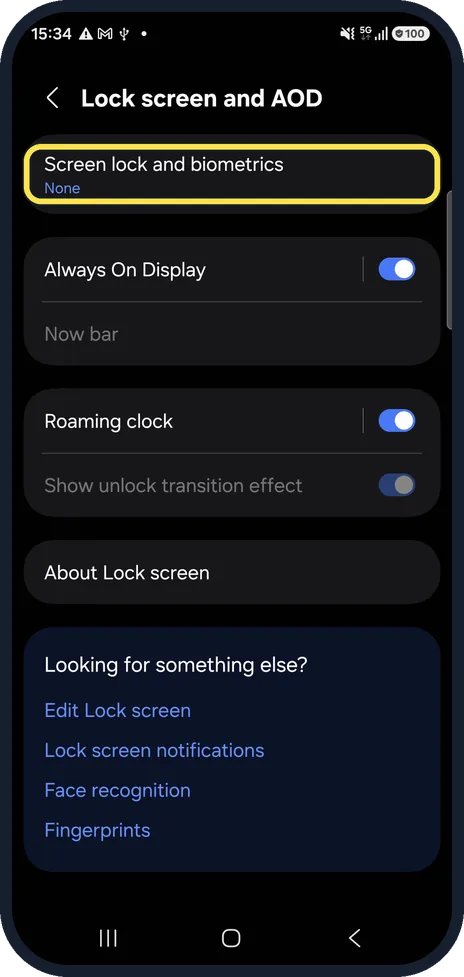
- You have a Samsung Galaxy Open Settings, Lock screen and AOD, Screen lock and biometrics. On our Galaxy A57 with One UI 8.5 the same page also has Lock screen notifications.
- Your phone has other menu names Android Help gives Settings, Security as the general route and says to check the phone maker's support site if there is no Security entry. Source: Set screen lock on an Android device
If this does not work
- The PIN screen is black in a screenshot That is Android protecting the screen, not a fault; ours did the same.
- The phone asks for a lock you forgot You need the current lock to change it. Without it, the only way back in is to erase the phone; see the guide linked below.
About this guide
The screen lock is what stands between a finder or thief and everything on the phone. It also encrypts your data and is needed for fingerprint unlock, Google Wallet and theft protection.
The screenshots are from our Google Pixel 10a with Android 17 (build CP3A.261005.005), in dark mode. Its screen lock was Swipe, so Security and privacy warned that the device may be at risk. The Samsung route is under If you do not see this option.
Good to know
None and Swipe give no protection at all. Anyone who picks up the phone can open it.
With a PIN of six or more digits you can switch on auto-confirm, so the phone unlocks without tapping Enter. Google notes that this is slightly less secure.
If you forget the lock, the only way back in is to erase the phone: forgot your Android PIN or pattern: how to get back in.
More protection against theft: how to turn on theft protection on Android.
In short: Pixel: Settings, Security and privacy, Device unlock, Screen lock. Samsung: Settings, Lock screen and AOD, Screen lock and biometrics. Choose PIN, Password or Pattern, enter it twice, add a fingerprint.
Links checked in October 2026. Menus and features can change after software updates. These steps match the version named at the top.
Did this guide work for you?
Sorry about that. What happened?