
howtosimply.com/guides/how-to-change-screen-mode-vivid-or-natural-on-a-samsung-galaxy/ · Checked October 2026 · Samsung Galaxy A57 (One UI 9, Android 17 (build A576BXXU6BZIE)) and Samsung Galaxy A57 5G (One UI 8.5, Android 16)
In this guide
Open Settings, Display, Screen mode and choose Vivid or Natural. Vivid gives stronger, more saturated colours; Natural looks closer to real life. With Vivid, the White balance slider makes the screen cooler or warmer.
If you do not see this option
- There is no White balance slider Samsung says the cooler-or-warmer slider and Advanced settings come with Vivid. Choose Vivid first. Source: Set the screen color on your Galaxy phone to vivid or natural
- Some adjustments are greyed out Samsung says some colour adjustments may not be available while the blue light filter, an accessibility colour filter or Adaptive colour tone is on. Source: Set the screen color on your Galaxy phone to vivid or natural
4 of 4 steps with real screenshots · 1 official source below
- Device
- Android
- Shown on
- Samsung Galaxy A57 (SM-A576B), One UI 9, Android 17 (build A576BXXU6BZIE), Samsung Galaxy A57 5G (SM-A576B), One UI 8.5, Android 16
- App
- Settings
- Path
- Settings › Display › Screen mode
- Real screenshots
- 4 of 4 steps
- What we did
- Observed: looked at each screen, changed nothing
- Our phone
- Shown on Galaxy A57, One UI 8.5
- Checked
- October 2026
- Sources
- 1 official, linked below
Step by step
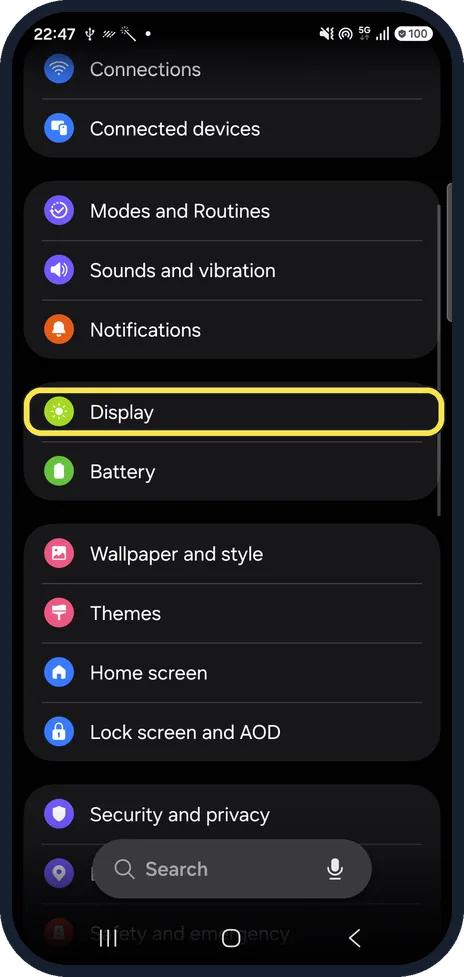
Open Display
Open Settings and tap Display.
Watch these steps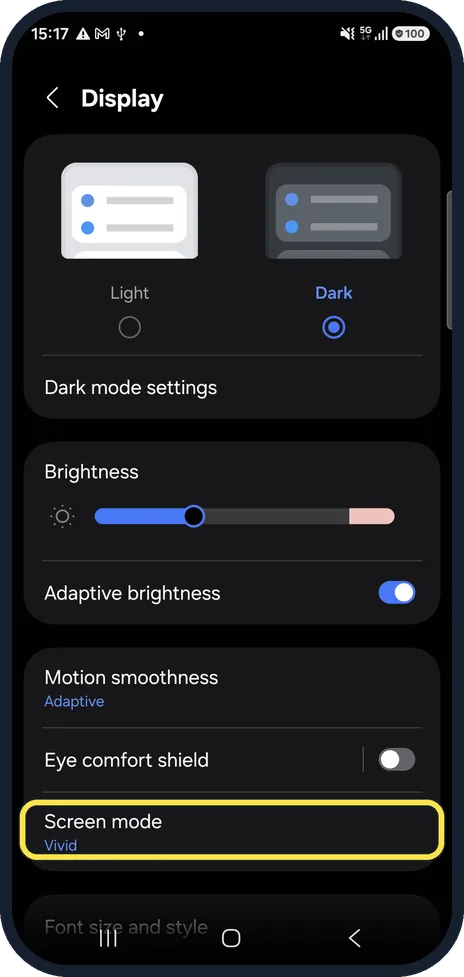
Tap Screen mode
Scroll down the Display page to Screen mode.
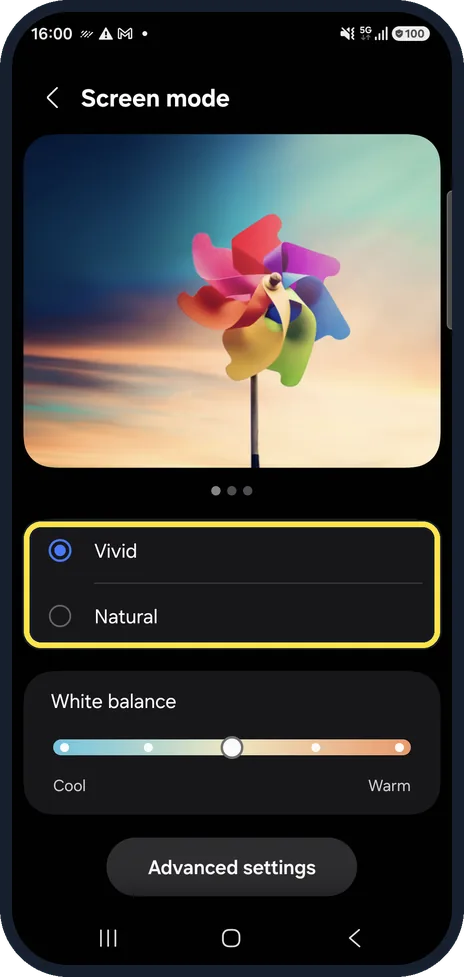
Choose Vivid or Natural
The preview above changes as you tap. Natural is the better choice if you edit photos.
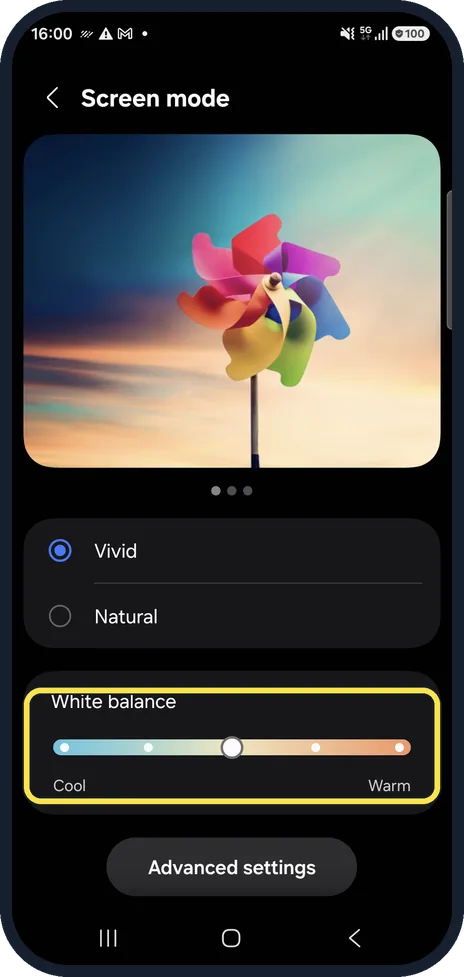
Adjust White balance
Drag towards Cool for a bluer screen or Warm for a yellower one. Advanced settings below adjusts red, green and blue separately.
Watch these steps
If this does not work
- The screen is black and white Samsung says a grey screen usually means Vision enhancements or sleep mode is on. Turn them off. Source: Set the screen color on your Galaxy phone to vivid or natural
- Colours still look slightly off Samsung says Advanced settings under Screen mode lets you adjust the colour by hand. Source: Set the screen color on your Galaxy phone to vivid or natural
About this guide
Vivid or Natural: which is better? Neither is right for everyone. Pick Vivid if you like punchy colours and want to tune them: Samsung says only Vivid has the slider that makes the screen cooler or warmer, plus Advanced settings for manual colour. Pick Natural if photos look oversaturated on your Galaxy or you edit photos; it tones the colours down and has no adjustments. The preview changes the moment you tap, so try both on a photo you know.
If photos look too bright and saturated, or a new Galaxy looks different from your old phone, the Screen mode is usually why. Ours was set to Vivid, with the White balance slider in the middle.
Good to know
A yellow tint at night usually comes from Eye comfort shield, not the Screen mode: how to turn on Eye comfort shield on a Samsung Galaxy phone.
In short: Settings, Display, Screen mode, Vivid or Natural; White balance with Vivid.
Links checked in October 2026. Menus and features can change after software updates. These steps match the version named at the top.
📷 See real photos from the Galaxy A57 in our Camera Lab, next to 10 other phones.
Did this guide work for you?
Sorry about that. What happened?