XIAOMI REDMI
How to turn on Always-on display on a Xiaomi phone (HyperOS 3)

In short
Go to Settings, Personalisation, Always-on display and turn on the switch at the top. Display items sets when it shows. Then pick a style: My theme, Signature, Analog, Kaleidoscope, Digital or your own picture under Select background.
7 of 7 steps show a real screenshot from our Redmi Note 15 Pro 5G. Each step was checked against the maker's own instructions, linked at the end.
Steps
- 1
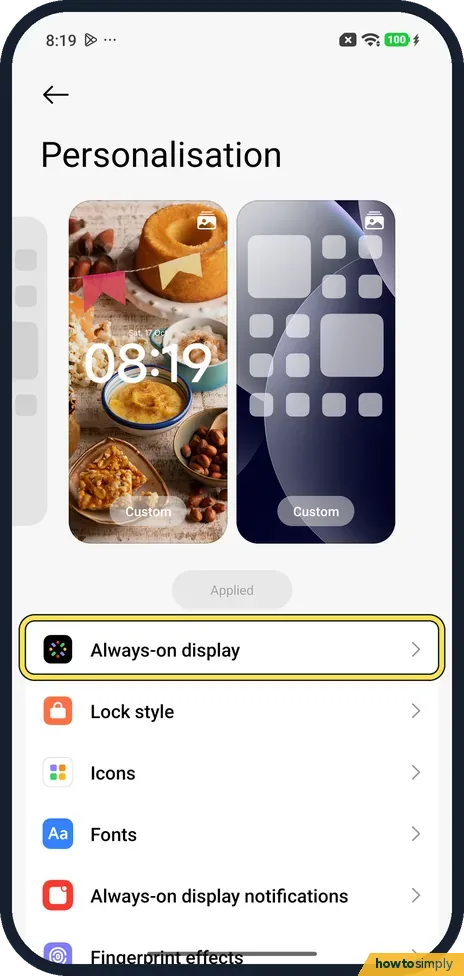
Open Personalisation
Open Settings and tap Personalisation. Always-on display is in the list below the wallpaper previews.
- 2
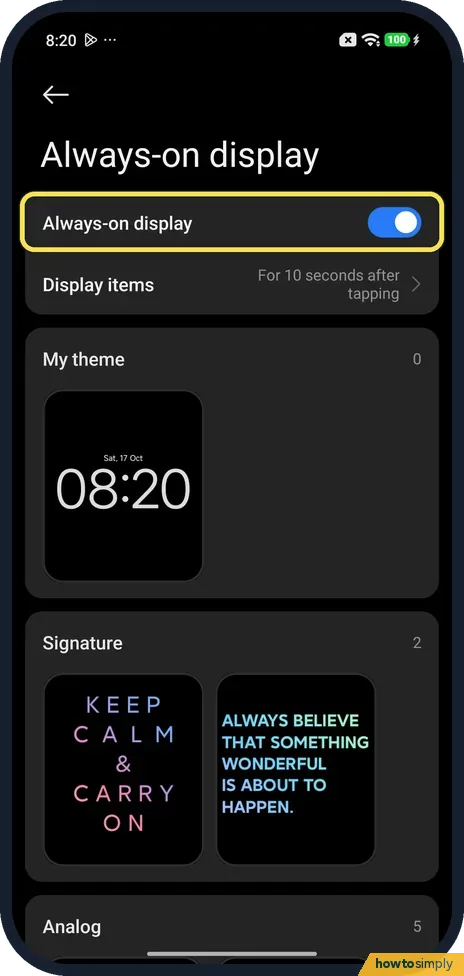
Turn on the switch
Tap the Always-on display switch at the top. This page is dark even in Light mode.
- 3
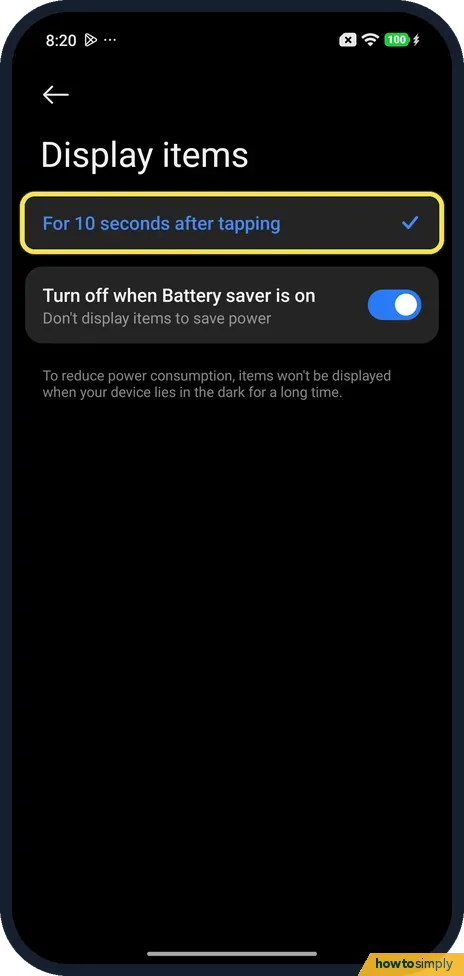
Choose when it shows
Tap Display items. Ours offered For 10 seconds after tapping, which was ticked.
- 4
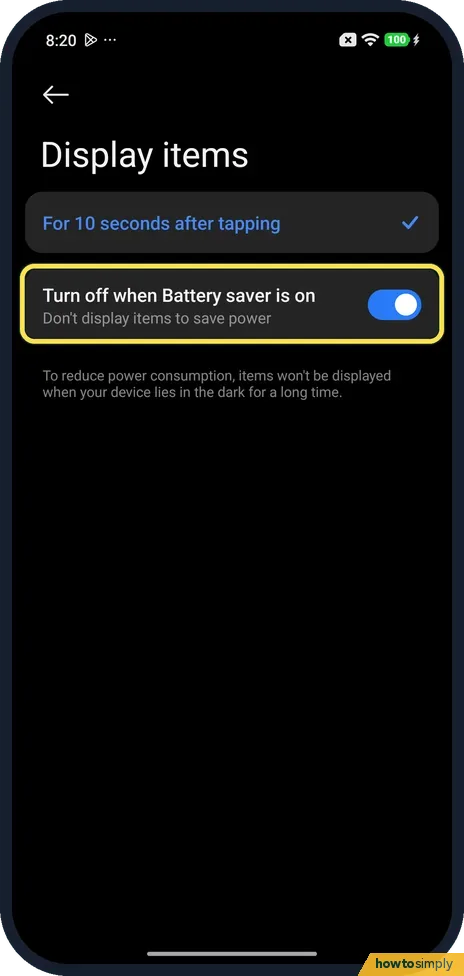
Battery saver switch
Below it, Turn off when Battery saver is on was on: Don't display items to save power.
- 5
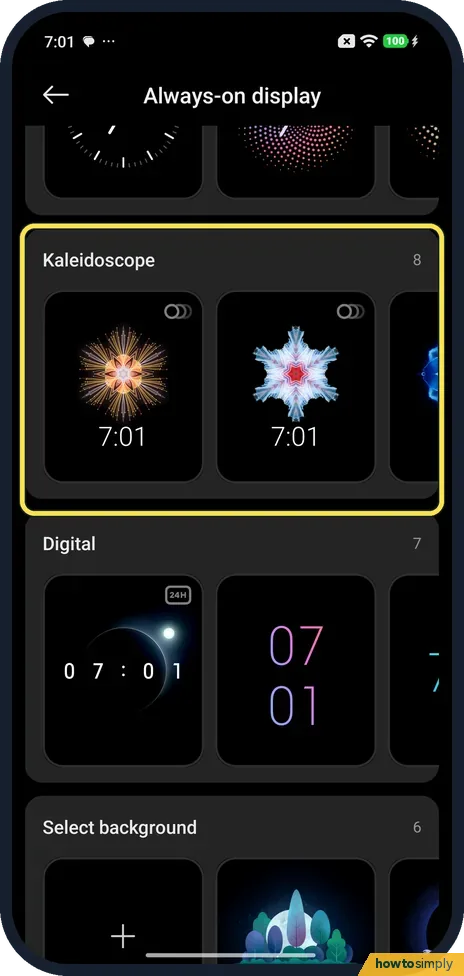
Pick a style
Back on the Always-on display page, scroll through My theme, Signature, Analog, Kaleidoscope and Digital. Each heading has a row of designs. Tap one to set it up.
- 6
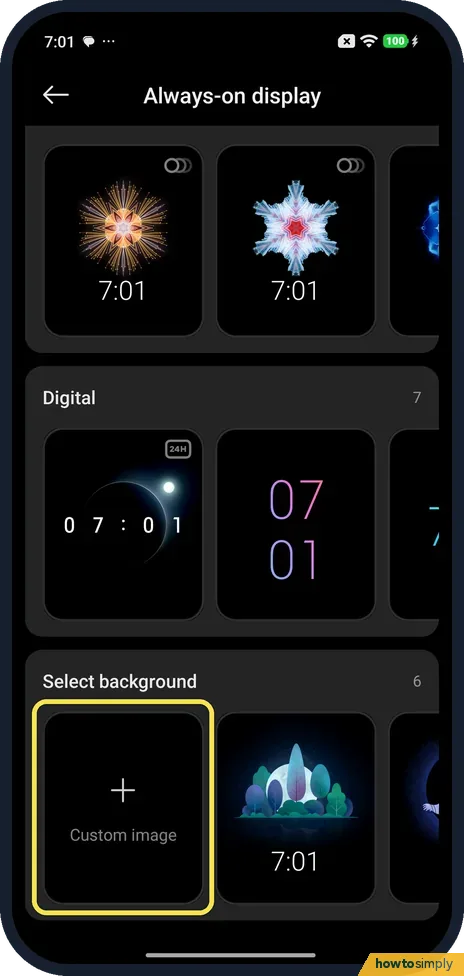
Or use your own picture
At the bottom, Select background starts with Custom image. Tap it to pick a photo.
- 7
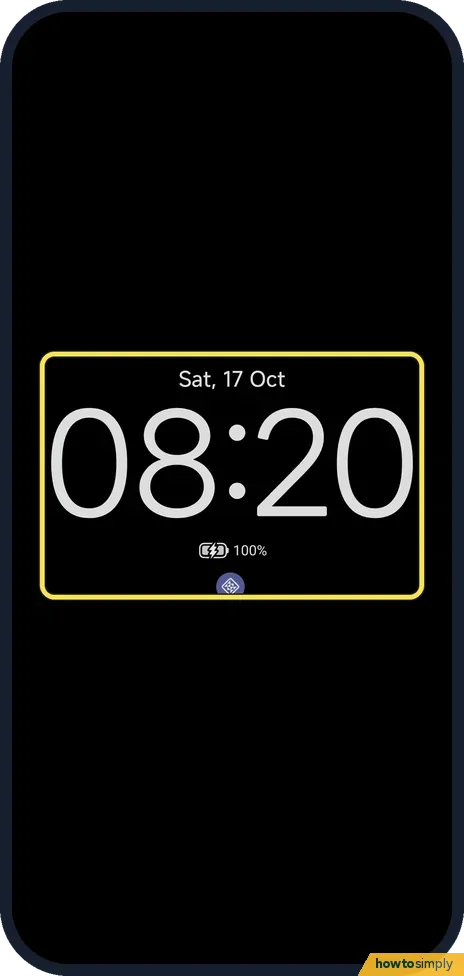
Lock the phone
Ours showed the date, the time, the battery at 100% and a notification icon on the black screen.
If you do not see this option
- Only one choice under Display items? Ours had only For 10 seconds after tapping. Xiaomi's HyperOS 3 guide also lists Always, Smart and Scheduled. Source: Generic User Guide for HyperOS 3.0
- Not under Personalisation? Xiaomi says some phones use Settings, Always-on display & Lock screen, and that the REDMI Note 14 Pro+ 5G uses Settings, Wallpaper & personalization. Sources: How to enable Always-on display?, Does the Redmi Note 14 Pro+ 5G support Always-on Display (AOD)?
- No Always-on display at all? Xiaomi says the feature is only on phones with an OLED screen. Source: Always-on display (AOD) doesn't work on the REDMI Note 10
If this does not work
- Nothing shows on the locked screen? Check the switch is on, then Turn off when Battery saver is on under Display items: it was on on ours, so Battery saver hides the display. Xiaomi also says the display turns off for a while when the proximity sensor is covered.
- It vanishes at night? The Display items page on ours says items won't be displayed when your device lies in the dark for a long time, to reduce power use.
- Switch on but nothing changes? Xiaomi says to update the phone and check for third-party theme, font, optimizer or launcher apps, which may not work with it.
Good to know
How long the screen stays on while you use it: how to change the screen timeout.
Change the lock screen itself: how to customise the lock screen clock. For battery use, see battery mode and battery use.
Always-on display uses some power, because part of the screen stays lit while the phone is locked. That is why Xiaomi offers the Battery saver switch. To undo the change, turn the Always-on display switch off. If you only want the screen to wake when you pick the phone up, see raise to wake and double-tap to wake.
About this guide
- Device
- Android
- Shown on
- Xiaomi Redmi Note 15 Pro 5G (25080RABDG), HyperOS 3.0.308.0, Android 16
- App
- Settings
- Path
- Settings › Personalisation
- Real screenshots
- 7 of 7 steps
- Checked
- October 2026
- Sources
- 5 official, linked below
Sources
- Xiaomi: Generic User Guide for HyperOS 3.0
- Xiaomi Support: How to enable Always-on display?
- Xiaomi Support: Does the Redmi Note 14 Pro+ 5G support Always-on Display (AOD)?
- Xiaomi Support: Always-on display (AOD) doesn't work on the REDMI Note 10
- Xiaomi Support: What is Always On Display (AOD)? Which phones are supported?
Spotted a mistake? Menus change with updates, and we want every step to match your screen. Email us about this page or use the contact form. We read every report, and fixes are listed on What changed.
Liked this guide?
Follow us for new guides and short how-to videos.
Did this guide work for you?
Sorry about that. What happened?