
What changed: every step re-shot on our own Galaxy S26 (Korean model SM-S942N) on One UI 9, dark mode, with the steps rewritten for the One UI 9 screens.
howtosimply.com/guides/how-to-use-maintenance-mode-on-a-samsung-galaxy-before-a-repair/ · Checked October 2026 · SM-S942N, Korean model), One UI 9, Android 17 (build S942NKSS4BZIG · Samsung Galaxy S26
In this guide
Open Settings, Device care, Maintenance mode and tap Turn on. The phone needs a screen lock first; Swipe does not count. Samsung says the phone then restarts with your photos, messages and accounts hidden. To leave, tap the Maintenance mode notification, then Exit and Restart.
6 of 6 steps with real screenshots · 1 official source below
- Device
- Android
- Shown on
- Samsung Galaxy S26 (SM-S942N, Korean model), One UI 9, Android 17 (build S942NKSS4BZIG)
- App
- Settings
- Path
- Settings › Device care › Maintenance mode
- Real screenshots
- 6 of 6 steps
- Checked
- October 2026
- Sources
- 1 official, linked below
Step by step
Check your screen lock
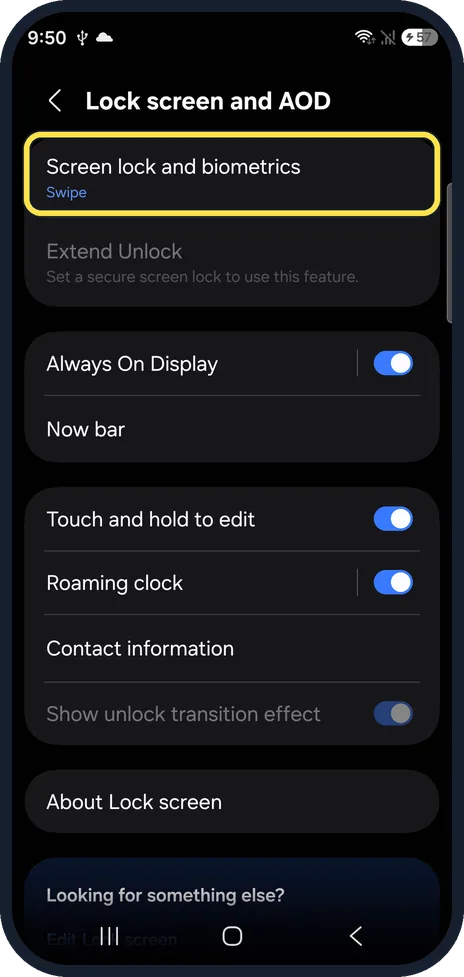
Maintenance mode needs a PIN, pattern or password. Open Settings, Lock screen and AOD and look at Screen lock and biometrics; ours said Swipe, which is not enough.
Open Device care
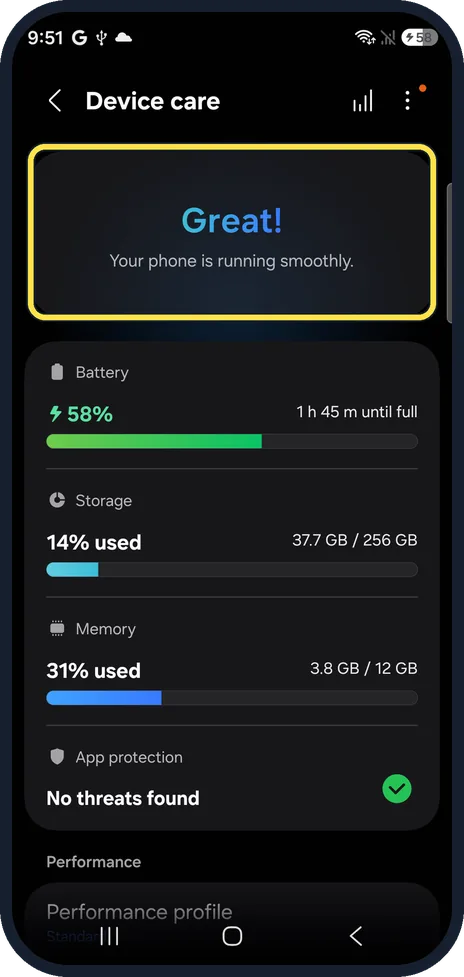
Open Settings and tap Device care. The top card shows how the phone is doing; ours said Great! Your phone is running smoothly.
Tap Maintenance mode
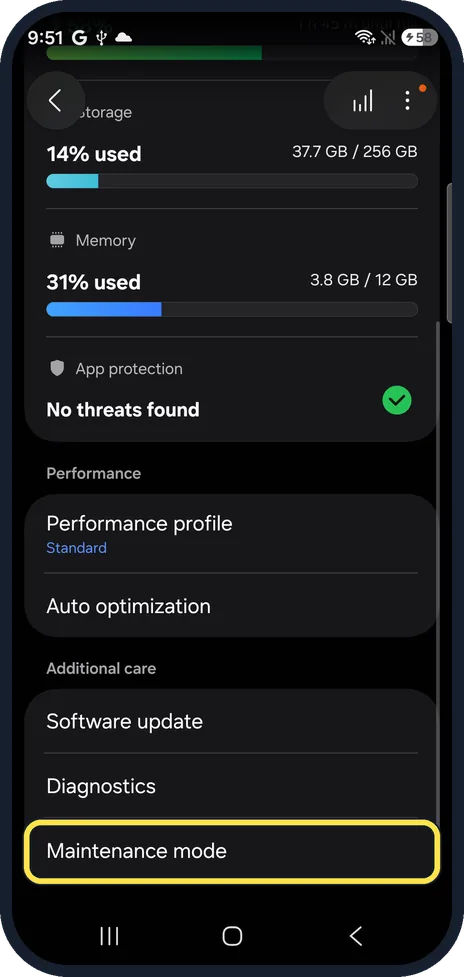
Scroll down to Additional care. Maintenance mode is the last row, after Software update and Diagnostics.
Read what it does
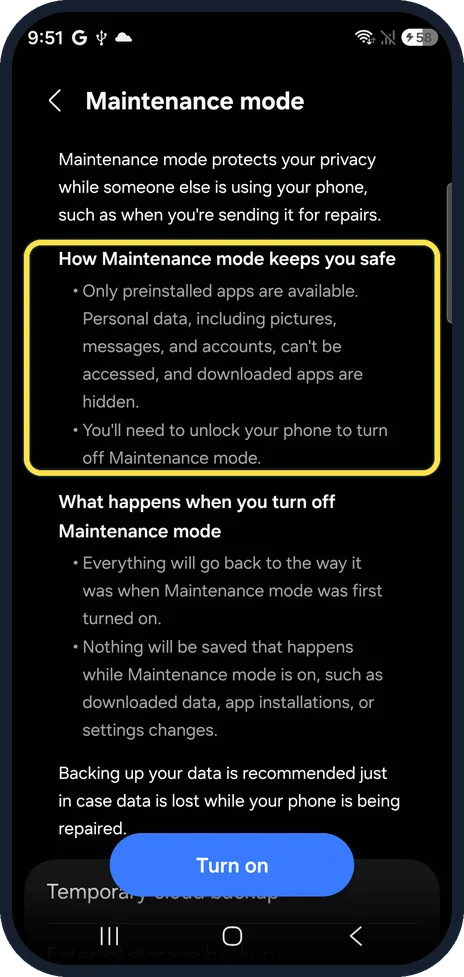
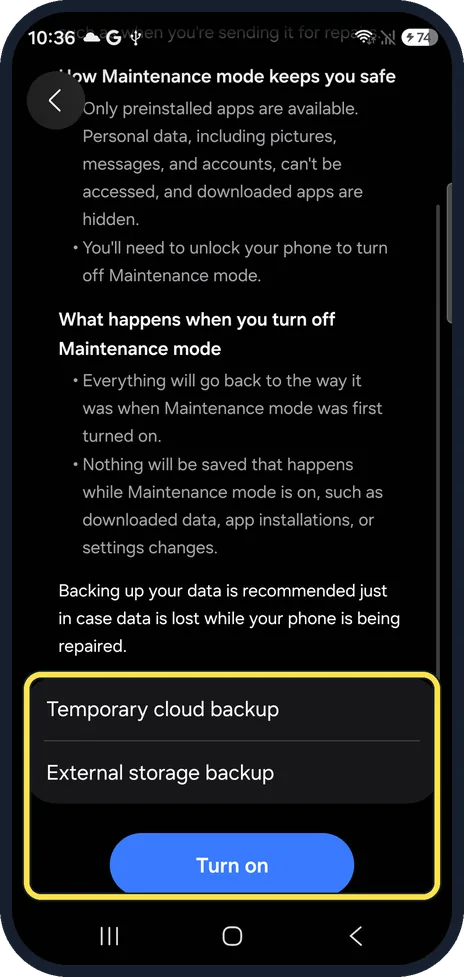
Under How Maintenance mode keeps you safe, the page says only preinstalled apps are available, and pictures, messages and accounts can't be accessed. You'll need to unlock the phone to turn it off.
Back up, then tap Turn on
The page recommends a backup in case data is lost during the repair, and offers Temporary cloud backup and External storage backup. Then tap Turn on.
Set a screen lock if it asks
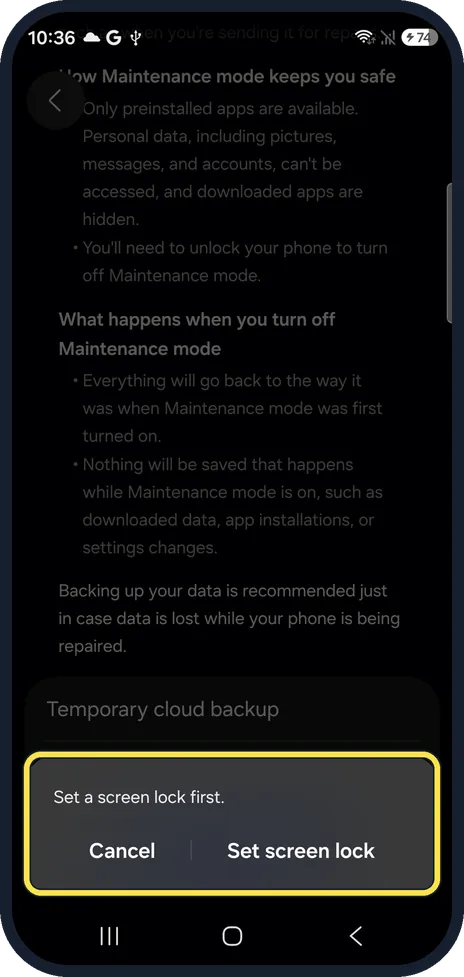
With no PIN, pattern or password, Turn on shows Set a screen lock first, with Cancel and Set screen lock. Tap Set screen lock, choose a PIN, pattern or password, and tap Turn on again. Samsung says the phone then restarts in Maintenance mode.
What changed: every step re-shot on our own Galaxy S26 (Korean model SM-S942N) on One UI 9, dark mode, with the steps rewritten for the One UI 9 screens.
If you do not see this option
- Your phone has older software Samsung says Maintenance mode needs One UI 5 or later. Tap Software update under Additional care to check. Source: Use Maintenance mode on your Galaxy phone or tablet
If this does not work
- Turn on stops at Set a screen lock first Swipe or None is not a screen lock here. Set a PIN, pattern or password first. Samsung also says it needs between 500 MB and 1.5 GB of free storage. Source: Use Maintenance mode on your Galaxy phone or tablet
- You cannot leave Maintenance mode Samsung says to tap the Maintenance mode notification, then Exit and Restart, and enter your PIN, pattern or password. Have it ready. Source: Use Maintenance mode on your Galaxy phone or tablet
- Something done during the repair has gone This is expected. The page says nothing that happens while Maintenance mode is on will be saved.
About this guide
Handing a phone to a repair shop usually means handing over everything on it. Maintenance mode lets the technician test the phone while your own data stays locked away. Samsung says it needs One UI 5 or later.
The screenshots are from our Samsung Galaxy S26, the Korean model SM-S942N, with One UI 9 and Android 17 (build S942NKSS4BZIG), in Dark mode. Menus can differ on models sold in other regions. Our phone had no screen lock, so Turn on stopped at Set a screen lock first; the restart and exit follow Samsung's guide.
Good to know
The technician can use the phone and its built-in apps for tests. Your downloaded apps are hidden.
Back up first anyway. A repair such as a new board can still erase the phone.
In short: Settings, Device care, Maintenance mode, Turn on (needs a PIN, pattern or password). Exit from its notification.
Links checked in October 2026. Menus and features can change after software updates. These steps match the version named at the top.
📷 See real photos from the Galaxy S26 in our Camera Lab, next to 10 other phones.
Did this guide work for you?
Sorry about that. What happened?