GOOGLE PIXEL
How to back up a Google Pixel (Android 17)

In short
Go to Settings, System, Backup. If backup is off, Back up your device opens: choose Photos and videos and Other device data and tap Confirm. The Backup page then shows your phone and each type of data.
4 of 4 steps show a real screenshot from our Pixel 10a. Each step was checked against the maker's own instructions, linked at the end.
Steps
- 1
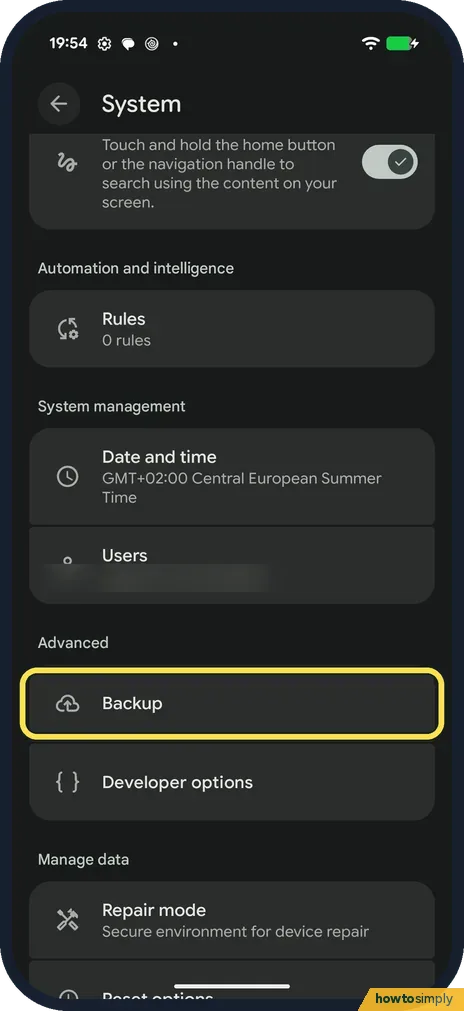
Find Backup
Go to Settings, System. Backup is under Advanced. Tap it.
- 2
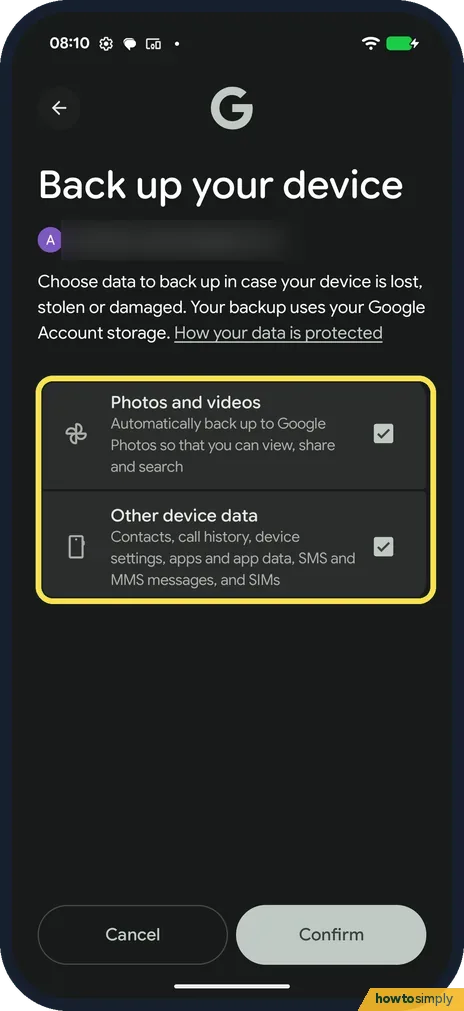
Choose what to back up
With backup off, Back up your device opens first. Photos and videos and Other device data (contacts, call history, settings, apps, SMS and MMS) were ticked.
- 3
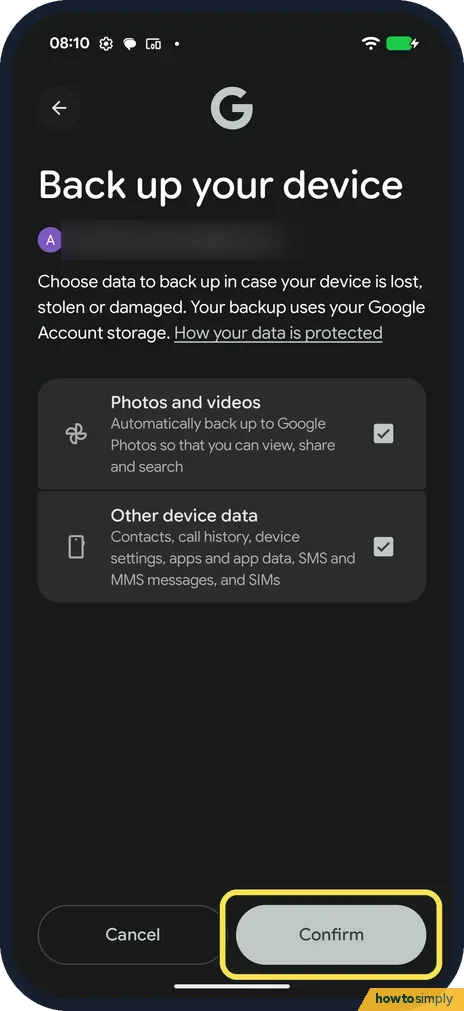
Tap Confirm
Tap Confirm to start backing up. We tapped Cancel.
- 4
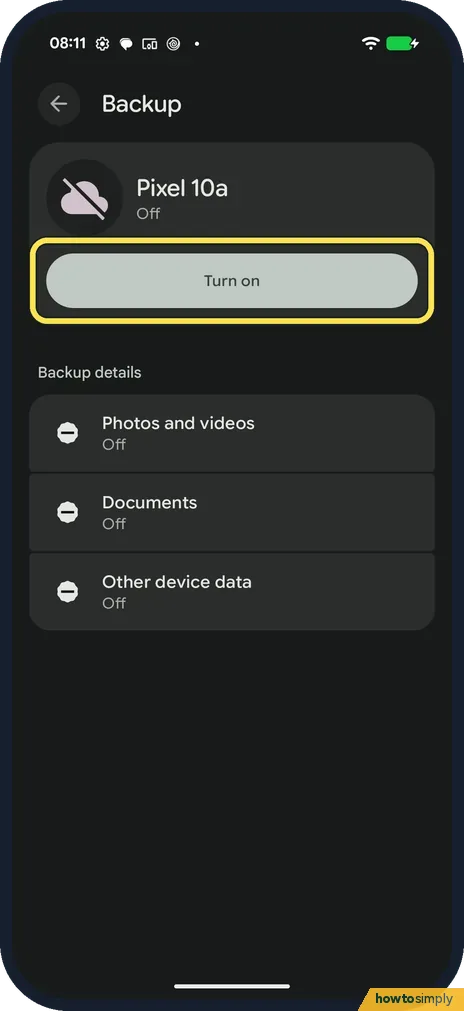
Check the Backup page
The Backup page shows the phone (Pixel 10a, Off on ours) and Backup details: Photos and videos, Documents and Other device data, each Off. Turn on starts the backup.
If you do not see this option
- No Backup in System? Search Settings for Backup.
- Documents not in the choice? The Backup page lists Documents separately. It was Off on ours.
If this does not work
- Backup won't run? Google says backup needs Wi-Fi or mobile data and can take a while.
- Storage full? The screen says backup uses your Google Account storage. Free up space there first.
- Backup not offered on a work phone? Google says backup can't be used on a personal device set up with a work profile, or on a device set up for work only. Ask your IT team how they want the phone's data kept.
- Backup asks you to set a screen lock? Google says to use a PIN, pattern or password. Some backed-up data is end-to-end encrypted with that screen lock, so swipe or Smart Lock alone is not enough.
- Backup details still not On? Google says a backup can take up to 24 hours. On appears below each type of data once it has been saved, so leave the phone online and check again later.
- One app's data missing after a restore? Google says some apps can't back up all their data. Check the app's own backup option, or ask its developer.
Good to know
Before a reset: how to factory reset a Pixel.
Once backup is on, it keeps running in the background, so you do not have to start it again each time. It counts towards your Google Account storage: Google gives up to 15 GB free and sells more through Google One. Photos and videos backed up through Google Photos are not encrypted with your screen lock, while some other device data is. To stop backing up later, return to the Backup page and turn it off.
When you move to a new phone, sign in with the same Google Account during setup and choose to restore. Google says this can take up to 24 hours. You can also check what is stored from the Google Account dashboard on the web, since Google Drive has no Backups tab.
About this guide
- Device
- Android
- Shown on
- Google Pixel 10a, Android 17 (build CP3A.260905.009)
- App
- Settings
- Path
- Settings › System › Advanced › Backup
- Real screenshots
- 4 of 4 steps
- Checked
- October 2026
- Sources
- 2 official, linked below
Sources
Links checked October 2026. Menus and features can change with updates.Spotted a mistake? Menus change with updates, and we want every step to match your screen. Email us about this page or use the contact form. We read every report, and fixes are listed on What changed.
Liked this guide?
Follow us for new guides and short how-to videos.
Did this guide work for you?
Sorry about that. What happened?