
howtosimply.com/guides/how-to-move-phone-contacts-to-your-google-account-on-a-samsung-galaxy/ · Checked October 2026 · Samsung Galaxy A57 5G (SM-A576B), One UI 8.5, Android 16
In this guide
Open Contacts, tap the three dots, then Settings, then Move contacts to other storage location and choose your Google account. Then set Default storage location to Google so new contacts are saved there too.
4 of 4 steps with real screenshots · 2 official sources below
- Device
- Android
- Shown on
- Samsung Galaxy A57 5G (SM-A576B), One UI 8.5, Android 16
- App
- Settings
- Real screenshots
- 4 of 4 steps
- What we did
- Observed: looked at each screen, changed nothing
- Our phone
- Shown on Galaxy A57, One UI 8.5
- Checked
- October 2026
- Sources
- 2 official, linked below
Step by step
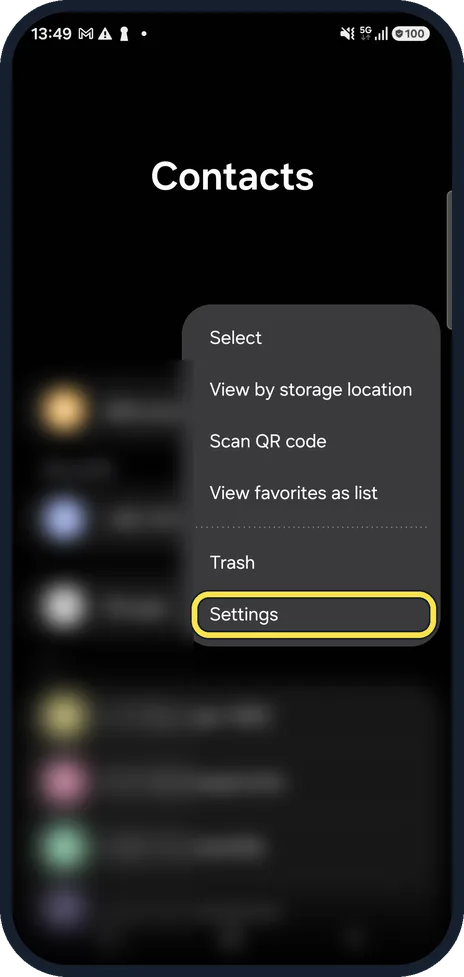
Open Contacts settings
Open Contacts, tap the three dots at the top right, then Settings.
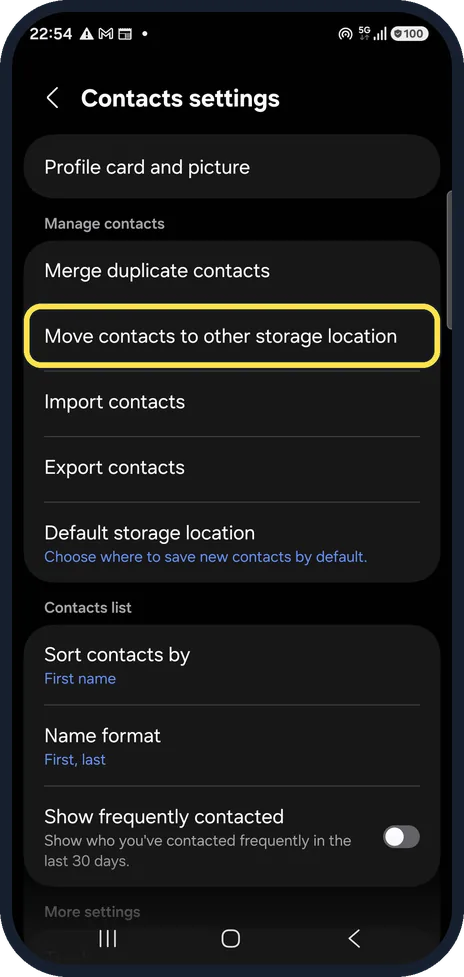
Move the old contacts
Tap Move contacts to other storage location, choose where they are now (Phone or SIM) and move them to your Google account.
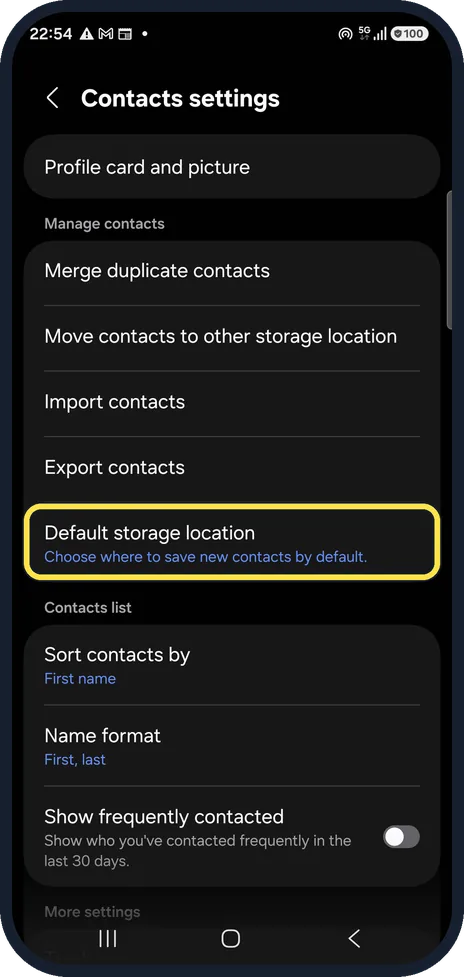
Set the default storage
Tap Default storage location so new contacts go to Google too.
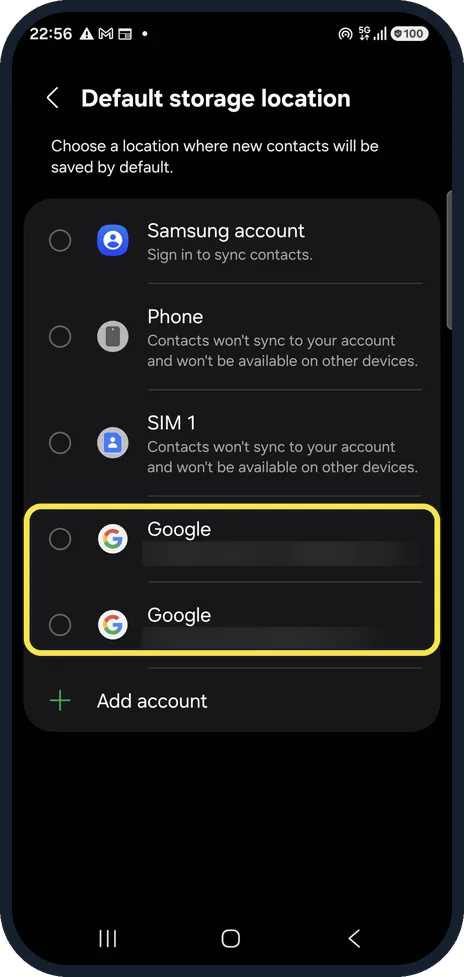
Choose your Google account
Pick Google. Phone and SIM 1 say contacts there won't sync to your account. We blurred our two accounts and chose nothing.
If you do not see this option
- There is no Google account to choose Samsung says you need a Google account signed in on the phone. In Contacts settings, Sync contacts or Synchronize contacts offers Add account. Source: How to sync your contacts on a Galaxy phone to your Google account and view the synced contacts
- The menu names are different Samsung's guide shows another layout used by some versions: the menu icon (three lines), Manage contacts, then Synchronize contacts and Set default storage location. Source: How to sync your contacts on a Galaxy phone to your Google account and view the synced contacts
If this does not work
- The moved contacts are not on your computer Samsung says syncing needs an internet connection and Contacts sync on for the Google account. Then sign in to your Google account on the web and look under Contacts. Source: How to sync your contacts on a Galaxy phone to your Google account and view the synced contacts
- New contacts still save to the phone Samsung says a new contact is not saved to Google if its storage location is My phone or another account. Set Default storage location to the Google account. Source: How to sync your contacts on a Galaxy phone to your Google account and view the synced contacts
About this guide
Contacts saved to the phone or the SIM stay on the phone and are lost with it. Contacts in your Google account are backed up and appear on any new phone.
Good to know
Check the result on a computer at contacts.google.com.
Merge duplicate contacts, on the same settings page, tidies up names that appear twice after a move.
In short: Contacts, three dots, Settings: Move contacts to other storage location to Google, then Default storage location to Google.
- Samsung Latin: How to sync your contacts on a Galaxy phone to your Google account and view the synced contacts
- Samsung UK: How to sync Galaxy phone contacts with Google account
Links checked in October 2026. Menus and features can change after software updates. These steps match the version named at the top.
📷 See real photos from the Galaxy A57 in our Camera Lab, next to 10 other phones.
Did this guide work for you?
Sorry about that. What happened?