GOOGLE PIXEL
How to check battery health on a Google Pixel (Android 17)

In short
Open Settings, Battery, Battery health. The status at the top says Normal or Reduced; ours said Normal. Tap Battery capacity to see the estimated charge it can hold (100% on ours), and Battery health tips for four ways to keep it healthy.
7 of 7 steps show a real screenshot from our Pixel 10a. Each step was checked against the maker's own instructions, linked at the end.
Steps
- 1
Open Battery health
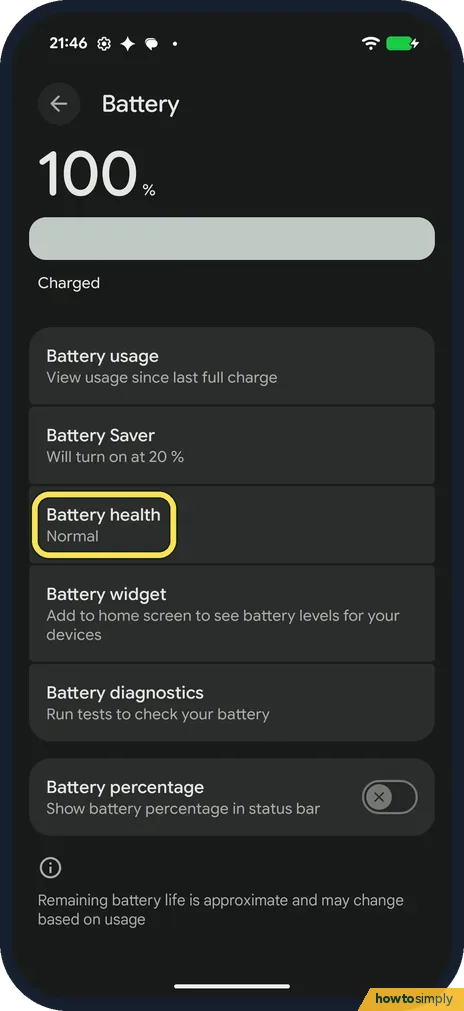
Open Settings and tap Battery. Battery health is below Battery Saver. Ours said Normal. Tap it.
- 2
Read the status
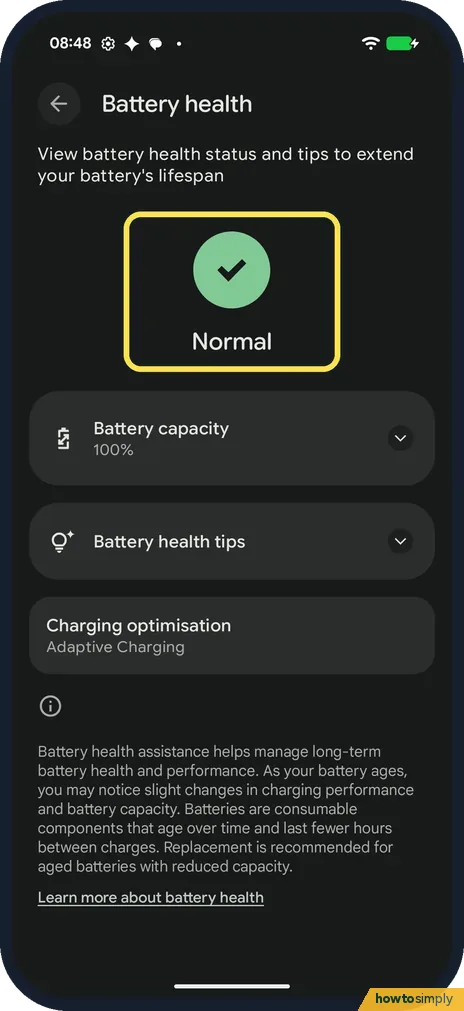
The page opens with the status in big letters: Normal on ours. Google says Reduced means the capacity is below 80%, and Unavailable means it can't tell.
- 3
Tap Battery capacity
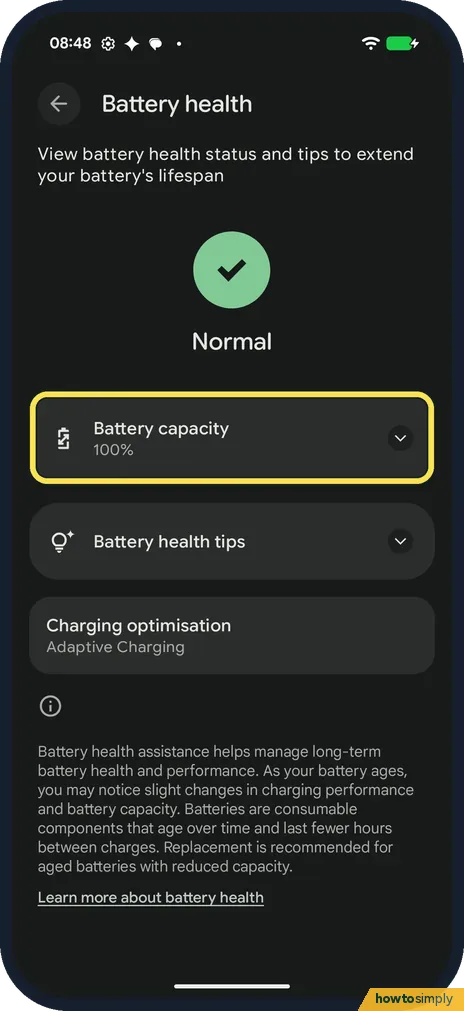
The first card is Battery capacity, with the figure under it. Ours said 100%. Tap the card to open it.
- 4
Read what the figure means
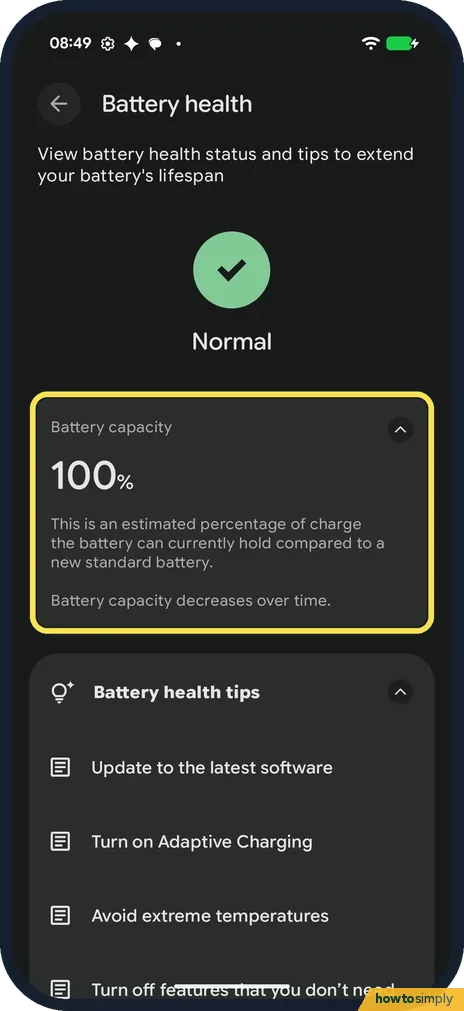
The card opens: This is an estimated percentage of charge the battery can currently hold compared to a new standard battery. Battery capacity decreases over time.
- 5
Open Battery health tips
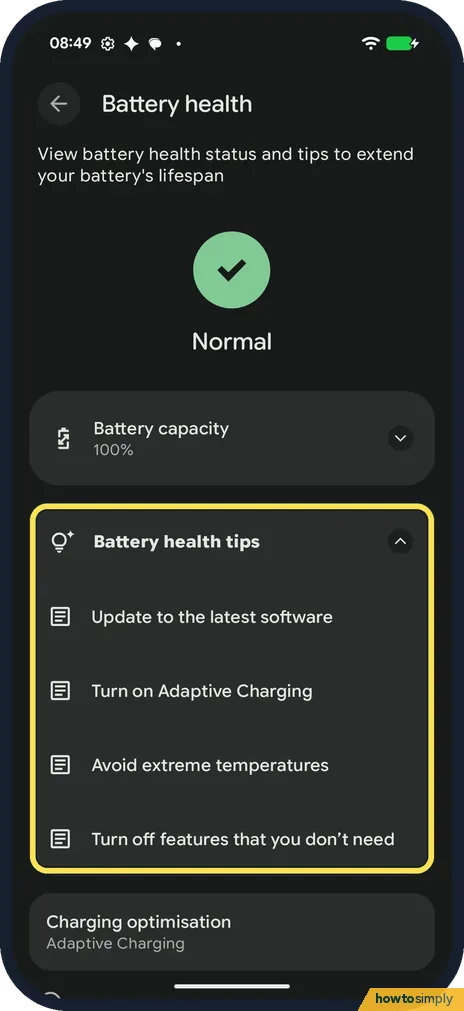
Tap Battery health tips. Ours listed four: Update to the latest software, Turn on Adaptive Charging, Avoid extreme temperatures and Turn off features that you don't need.
- 6
Charging optimisation
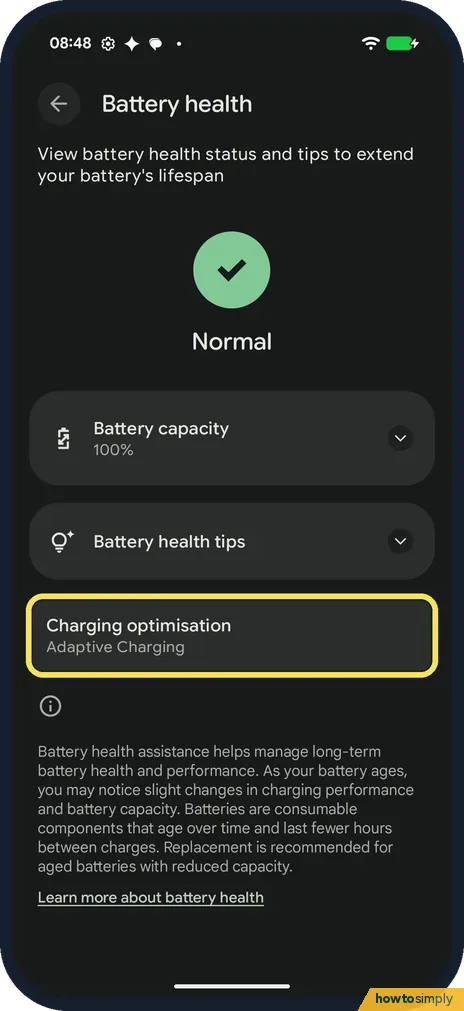
Charging optimisation, below the tips, said Adaptive Charging on ours. To stop at 80% instead, see how to limit charging to 80% on a Google Pixel.
- 7
Read the note
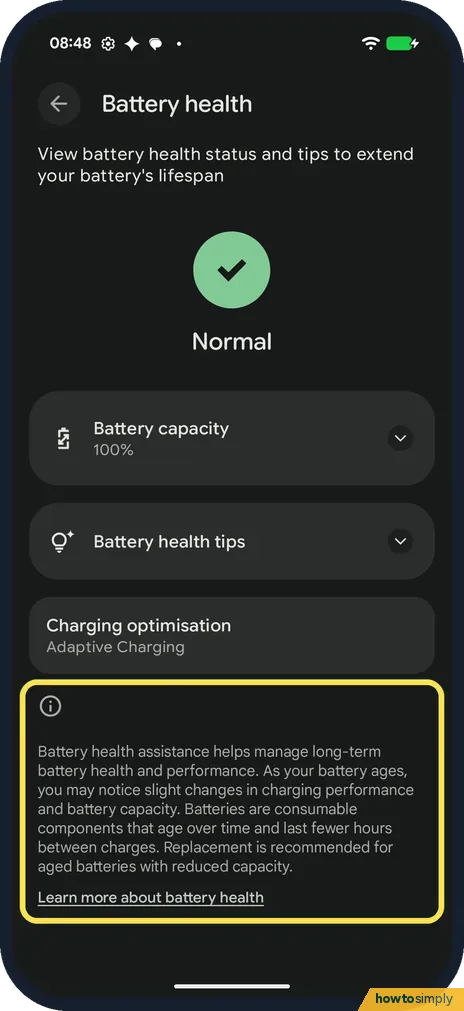
The note at the bottom says Battery health assistance manages long-term battery health, and that replacement is recommended for aged batteries with reduced capacity.
If you do not see this option
- No Normal or Reduced status? Google says the status is only on Pixel 8a and later. Pixel 6a, 7, 7 Pro, 7a, 8 and 8 Pro don't show it, and it isn't on Pixel Tablet. Source: Understand your Pixel battery
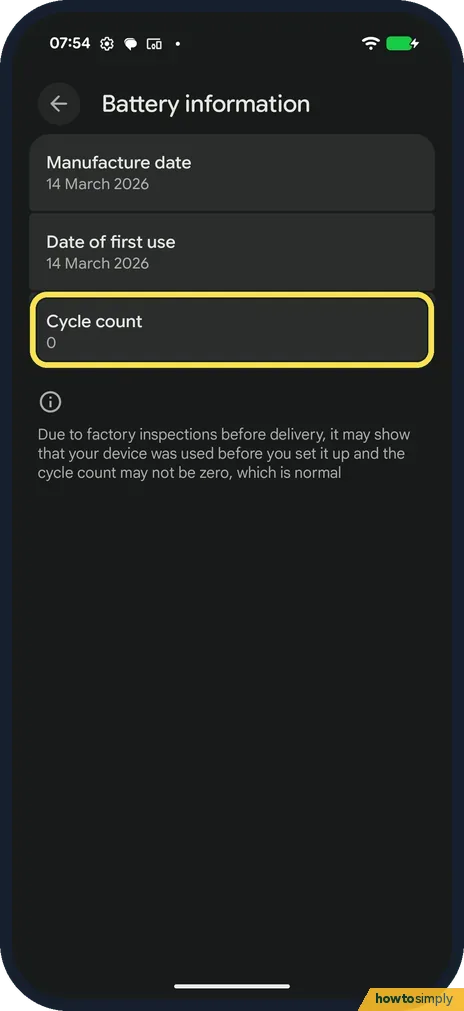
- Want the cycle count? It is not on this page. Google says to open Settings, About phone, Battery information. Google says Pixel 8a and later should keep up to 80% capacity for about 1000 charge cycles. Source: Understand your Pixel battery
- No switch for Battery health assistance? Google says that on Pixel 9a and later it is on by default and can't be turned off. On Pixel 6a to Pixel 9 Pro Fold you can turn it on or off. Source: Understand your Pixel battery
If this does not work
- Status says Reduced? Google says that means the capacity is below 80%, and to consider a battery replacement.
- Capacity looks too high or too low? Google says the figure is an estimate, and the first values are based on lab results, so they may differ from your actual battery.
- Normal, but the battery still drains fast? An app or setting is the more likely cause. Run Battery diagnostics, then check usage: how to use battery diagnostics and Pixel battery draining fast.
Good to know
Google suggests charging in a cool room, about 25°C, and storing the phone with at least 50% charge if you won't use it for more than 30 days.
The first tip is to update: how to update a Google Pixel and its apps.
What our device showed
- Device
- Google Pixel 10a
- Software
- Android 17 (build CP3A.261005.005)
- Status
- Normal
- Battery capacity
- 100%
- Cycle count
- 0 (on Battery information, not on the Battery health page)
- Manufacture date
- 14 March 2026
- Date of first use
- 14 March 2026
- Charging optimisation
- Adaptive Charging
- Date checked
- October 2026
Read from our own screenshots of this device. Your phone will show its own figures. See what each Android brand shows.
About this guide
- Device
- Android
- Shown on
- Google Pixel 10a, Android 17 (build CP3A.261005.005)
- App
- Settings
- Path
- Settings › Battery › Battery health: status › Battery capacity › Battery health tips
- Real screenshots
- 7 of 7 steps
- What we did
- Observed: looked at each screen, changed nothing
- Checked
- October 2026
- Sources
- 1 official, linked below
Sources
Links checked October 2026. Menus and features can change with updates.Spotted a mistake? Menus change with updates, and we want every step to match your screen. Email us about this page or use the contact form. We read every report, and fixes are listed on What changed.
Liked this guide?
Follow us for new guides and short how-to videos.
Did this guide work for you?
Sorry about that. What happened?