
howtosimply.com/guides/how-to-export-contacts-on-a-samsung-galaxy-to-a-file-or-the-sim/ · Checked October 2026 · Samsung Galaxy A57 5G (SM-A576B), One UI 8.5, Android 16
In this guide
Open Contacts, tap the three dots, then Settings and Export contacts. Check what is selected under From, pick Internal storage or SIM 1 under To, then tap the Export button that appears at the bottom.
4 of 4 steps with real screenshots · 2 official sources below
- Device
- Android
- Shown on
- Samsung Galaxy A57 5G (SM-A576B), One UI 8.5, Android 16
- App
- Contacts
- Real screenshots
- 4 of 4 steps
- Checked
- October 2026
- Sources
- 2 official, linked below
Step by step
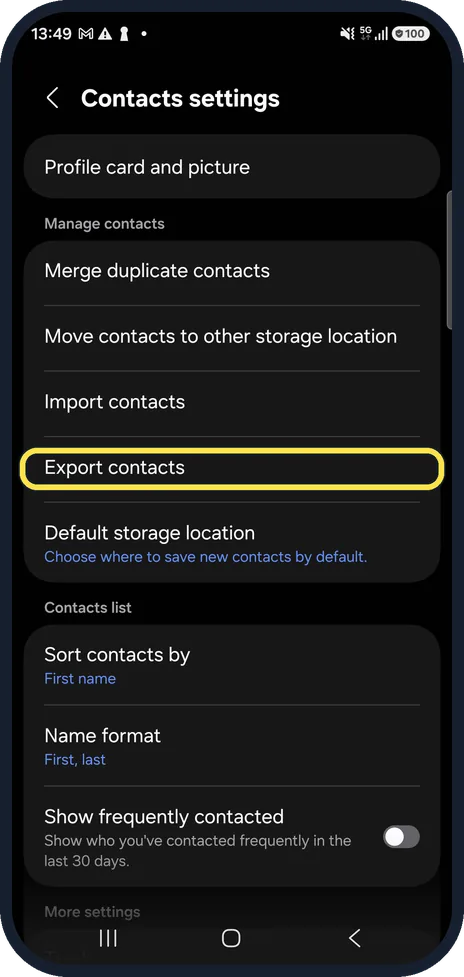
Open Export contacts
In the Contacts app, tap the three dots at the top right, then Settings.
Under Manage contacts, tap Export contacts. On our Galaxy it sits between Import contacts and Default storage location.
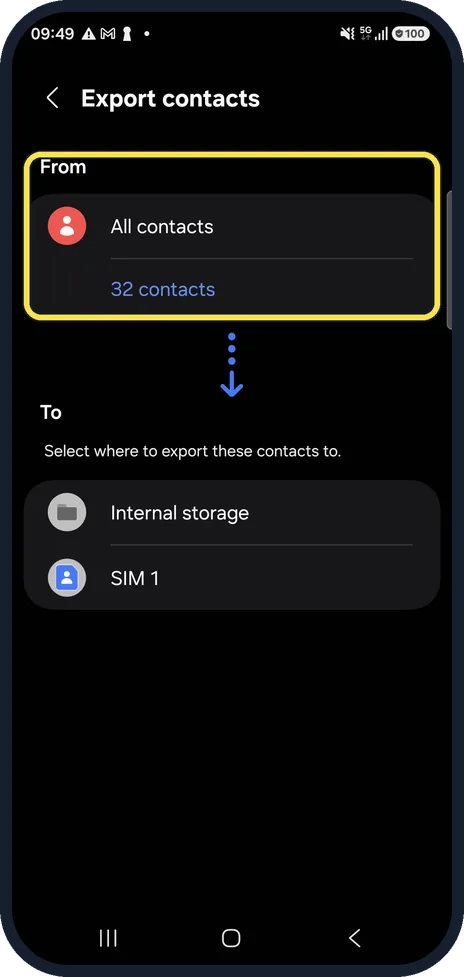
Check what will be exported
From shows the source. On our Galaxy, All contacts was selected, with 32 contacts shown under it.
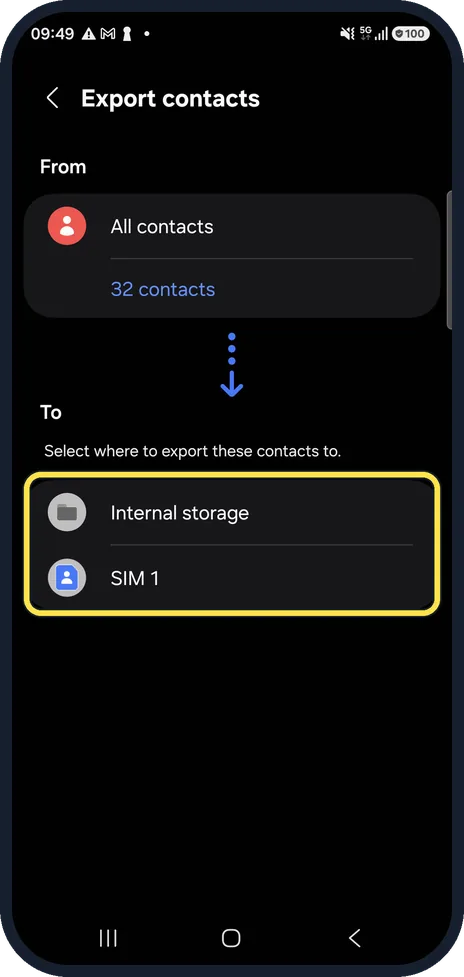
Choose where to save them
Under To, tap Internal storage to save a file on the phone, or SIM 1 to copy them to the SIM card.
On our Galaxy, the chosen row shows a tick.
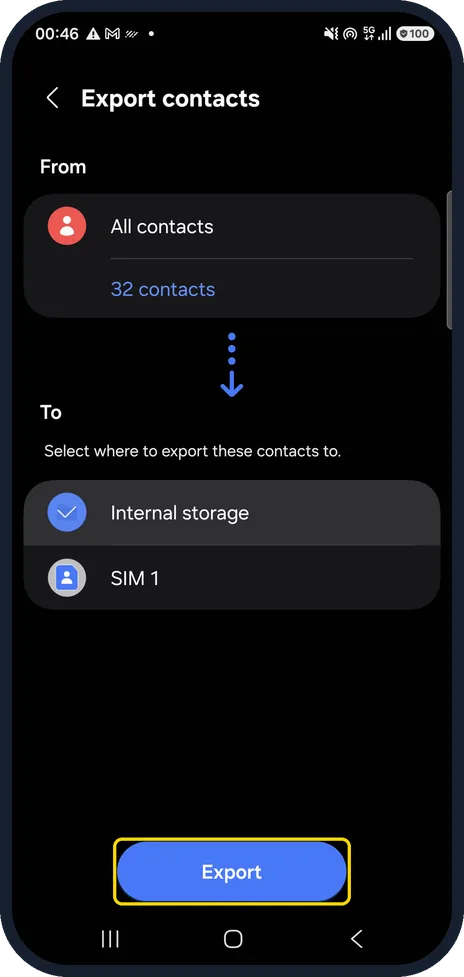
Tap Export
Once you have picked a destination, an Export button appears at the bottom of the screen. Tap it to make the copy.
If you do not see this option
- No Export contacts row Make sure you are on Contacts settings (three dots, then Settings in the Contacts app). Export contacts is in the Manage contacts section, below Import contacts.
- No Export button The button only appears after you choose a destination. Tap Internal storage or SIM 1 under To and it shows at the bottom of the screen.
If this does not work
- Not sure how many contacts will be copied Check the number under All contacts in the From section. On our Galaxy it showed 32 contacts.
- Duplicates in the copy Go back to Contacts settings and use Merge duplicate contacts under Manage contacts before exporting.
- Contacts not appearing on the other phone On the other phone, open the same Contacts settings page and tap Import contacts to load them.
About this guide
Exporting makes a copy of your contacts that you can keep, move to a computer or load on another phone. It does not remove anything from the phone.
The screenshots are from a Samsung Galaxy A57 with One UI 8.5, in Dark mode. On older One UI versions a few names and positions may differ. We stopped before the final Export, so we did not create a file.
Good to know
To have your contacts on every phone without files, keep them in your Google account instead: how to move phone contacts to your Google account.
To load the file on another phone, use the same Settings page and tap Import contacts.
In short: Contacts, three dots, Settings, Export contacts. From: All contacts. To: Internal storage or SIM 1. Export.
- Samsung Latin: How to import and export contacts on your Samsung Galaxy smartphone
- Samsung UK: How to manage, save or copy contacts on your phone & sim
Links checked in October 2026. Menus and features can change after software updates. These steps match the version named at the top.
📷 See real photos from the Galaxy A57 in our Camera Lab, next to 10 other phones.
Did this guide work for you?
Sorry about that. What happened?