How-to
How to open the SIM tray and insert a SIM card (iPhone, Galaxy, Pixel)
Push the SIM tool straight into the small hole beside the tray and the tray pops out. Put the nano-SIM in with its cut corner matching the tray, then push the tray back flush. Many new iPhones sold in the US, Canada, Japan, Mexico and the Gulf have no tray.
By Abu Bakar Saadat · Publisher: Saadat Rafiq · 3 min read · Published 27 October 2026
- Tool
- The SIM tool from the box, or a straightened paper clip (Apple)
- iPhone tray
- Left side on iPhone 12 and later, where a tray exists
- No tray
- iPhone 17e and 18 Pro in 13 countries incl. US, Canada, Japan, Mexico, Gulf; iPhone 14 Pro in the US
- Advice from
- Apple, Samsung and Google pages, read 27 October 2026
- Applies to
- iPhone 17e, iPhone 18 Pro, iPhone 14 Pro, Galaxy S26, Galaxy A57, Pixel 10a
- Checked
- October 2026
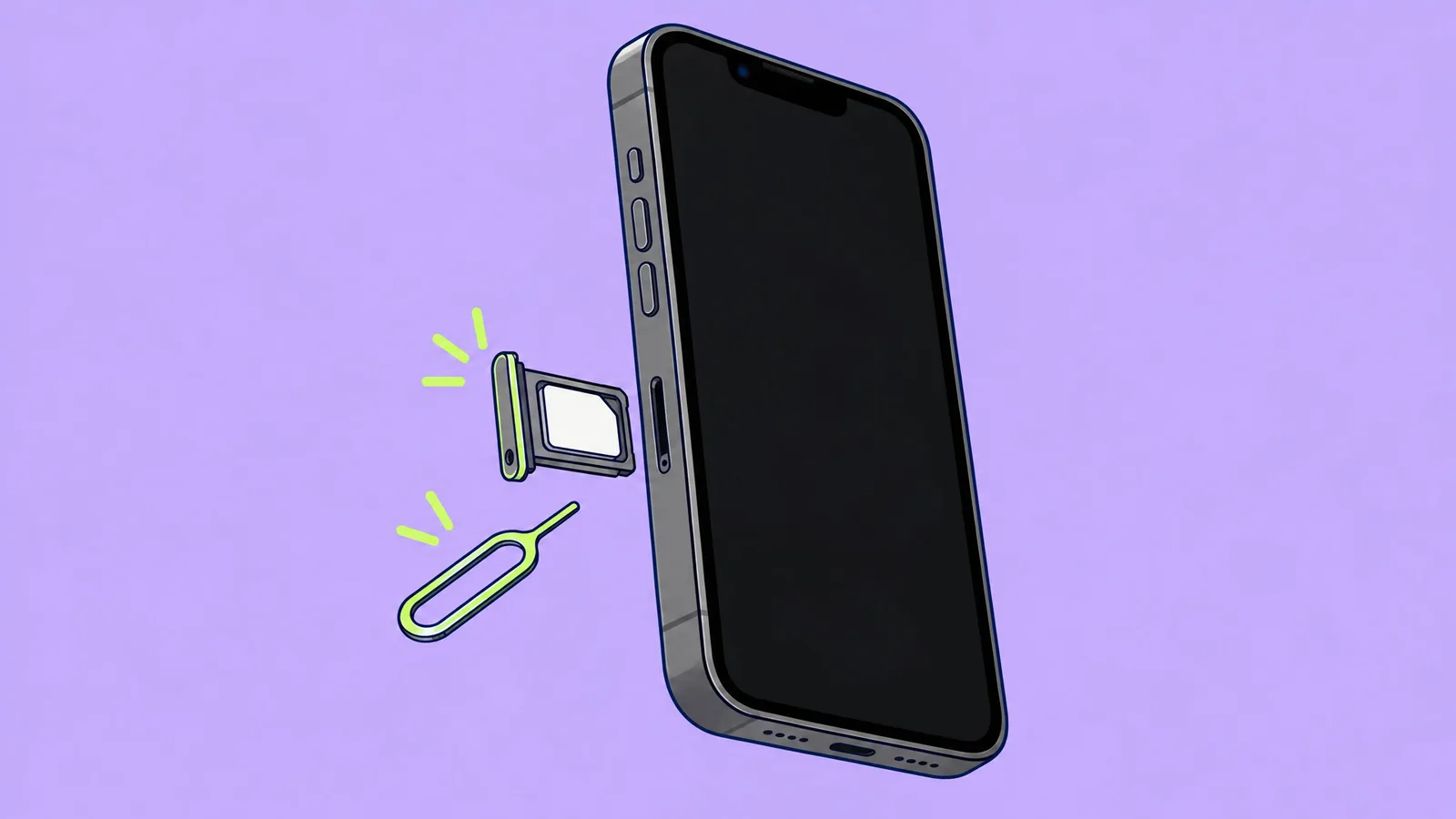
Step 0: does your phone have a SIM tray?
| Phone | Has a tray? | Where |
|---|---|---|
| iPhone 17e | No tray in the US, Puerto Rico, Bahrain, Canada, Guam, Japan, Kuwait, Mexico, Oman, Qatar, Saudi Arabia, UAE and US Virgin Islands. Yes everywhere else. | Left side |
| iPhone 18 Pro | No tray in the same 13 countries; yes everywhere else | Left side |
| iPhone 14 Pro | No tray in the US only | Left side |
| Pixel 10a | Yes: one nano-SIM plus eSIM, and Google puts a SIM tool in the box | Look for a thin slot outline with a pinhole on the edges |
| Galaxy S26, Galaxy A57 | Yes on ours | Look for a thin slot outline with a pinhole on the edges |
iPhone: check the model number. Go to Settings, General, About and tap Model Number until it shows a number starting with A. On the iPhone 17e, A3575 has no tray, A3634 has one, and A3635 (China mainland) works with a nano-SIM or an eSIM. On the iPhone 18 Pro, A3472 and A3713 have no tray, A3714 has one, and A3715 is the China mainland model. These numbers are from Apple's model list.
No tray? Your phone is eSIM-only. Ask your carrier for an eSIM, or move the eSIM from your old phone.
Step 1: find the pinhole
The pinhole sits at one end of the tray, inside or right next to its thin outline. Samsung warns not to push the pin into a microphone hole by mistake, so make sure the hole you choose is part of the tray outline.
Step 2: push the tool straight in
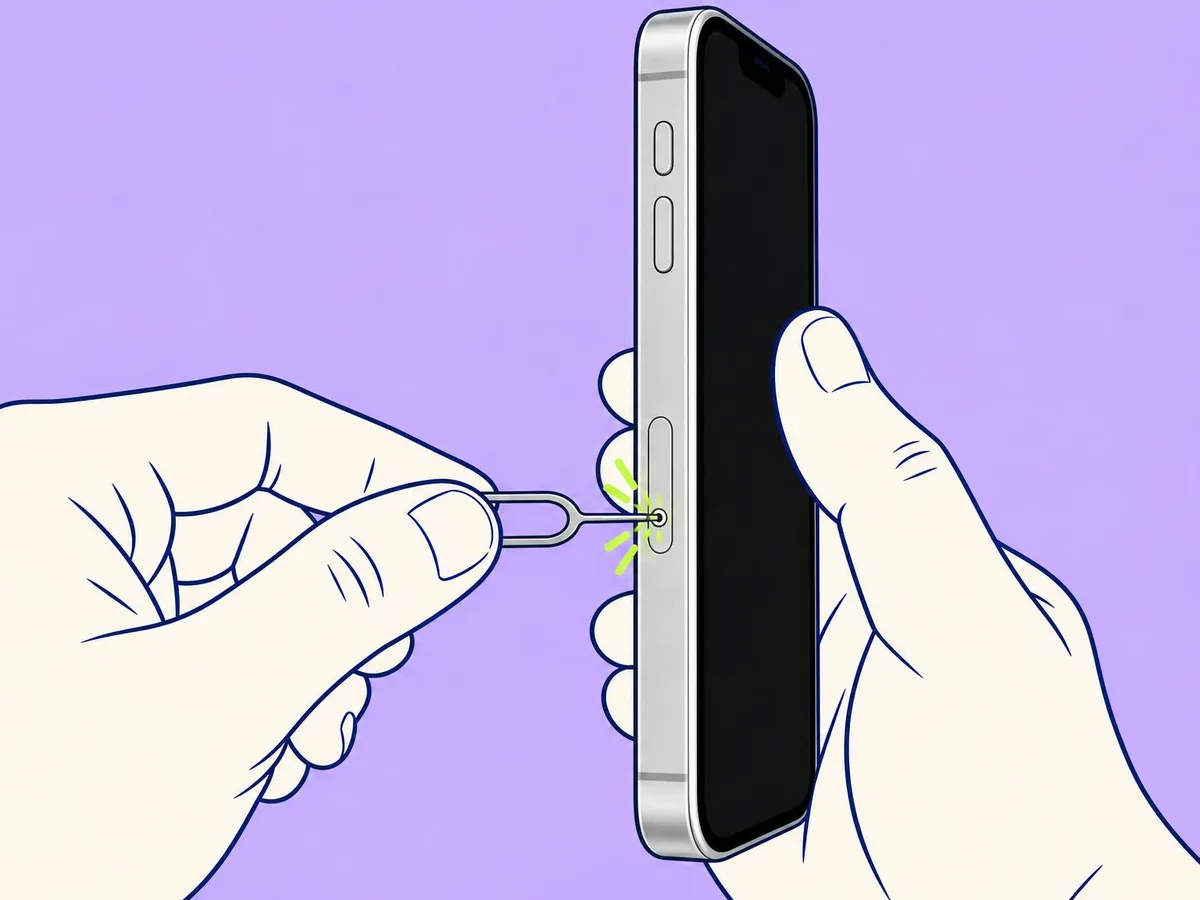
Use the SIM tool from the box, or a straightened paper clip (Apple names both). Hold it straight, not at an angle: Samsung says an angled pin can damage the phone. Push towards the phone until the tray pops out a little. If it won't move, don't force it: take it to your carrier or an Apple Store, as Apple advises.
Step 3: pull the tray out
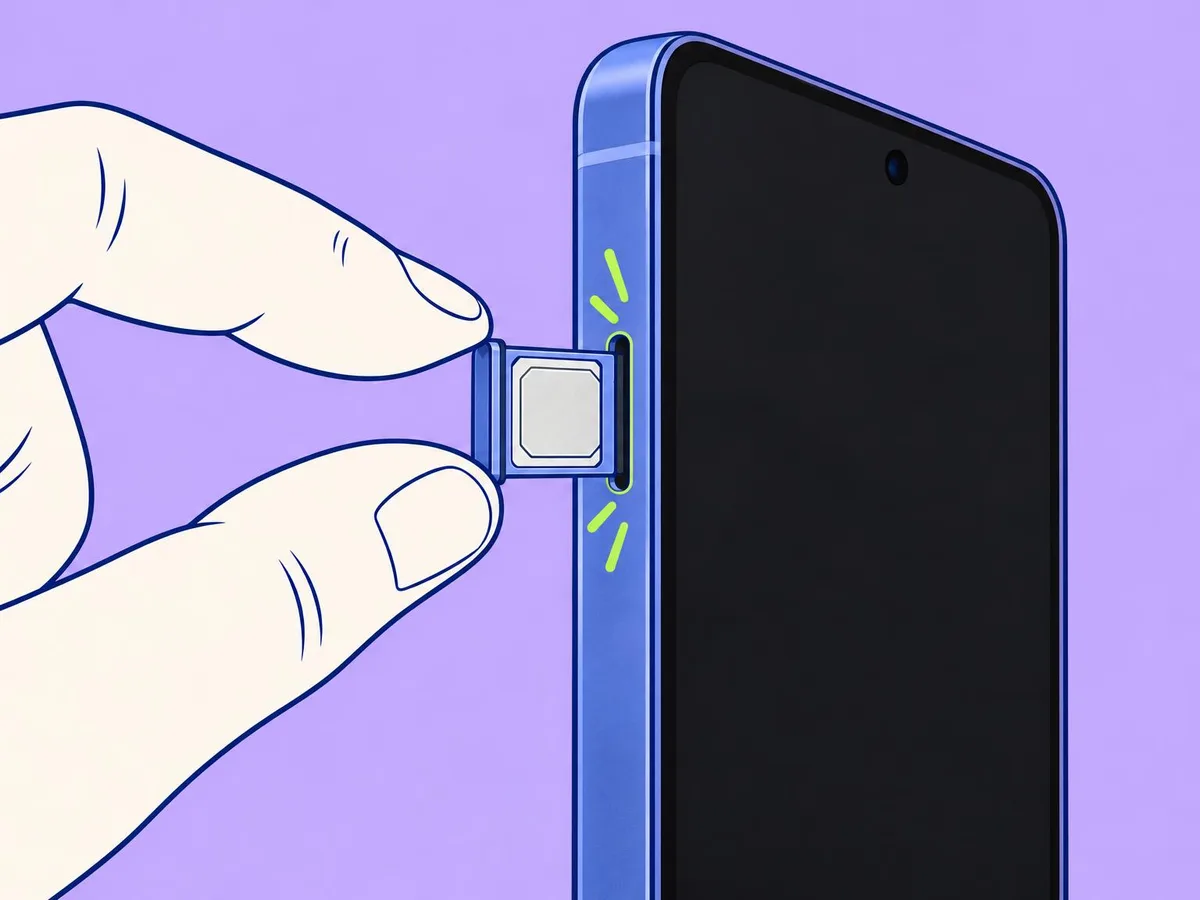
Pull the tray straight out with your fingertips. Note which way up it came out: it only goes back the same way.
Step 4: put the SIM in
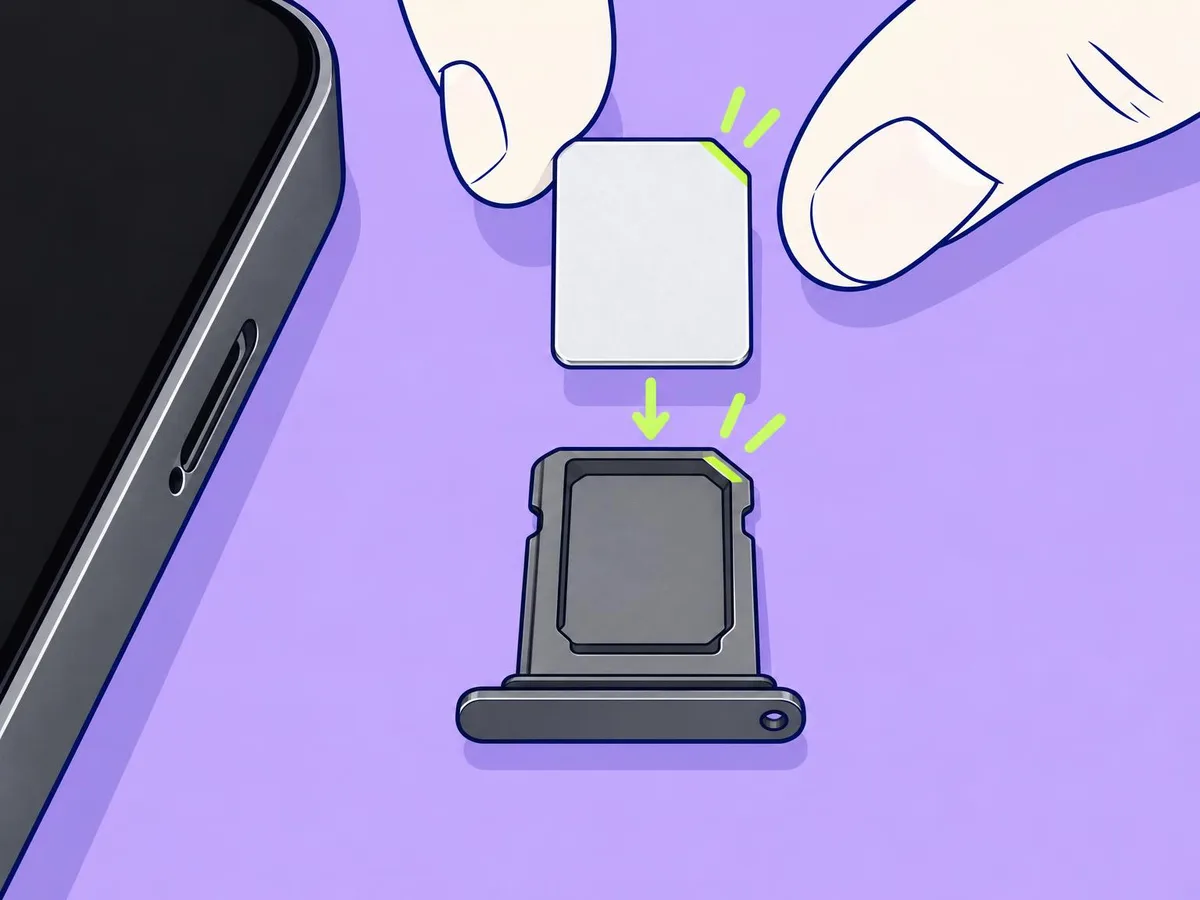
Match the SIM's cut corner to the cut corner of the tray. It fits only one way. Samsung says gold contacts face down. Press it in gently so it sits flat.
Step 5: push the tray back until it's flush
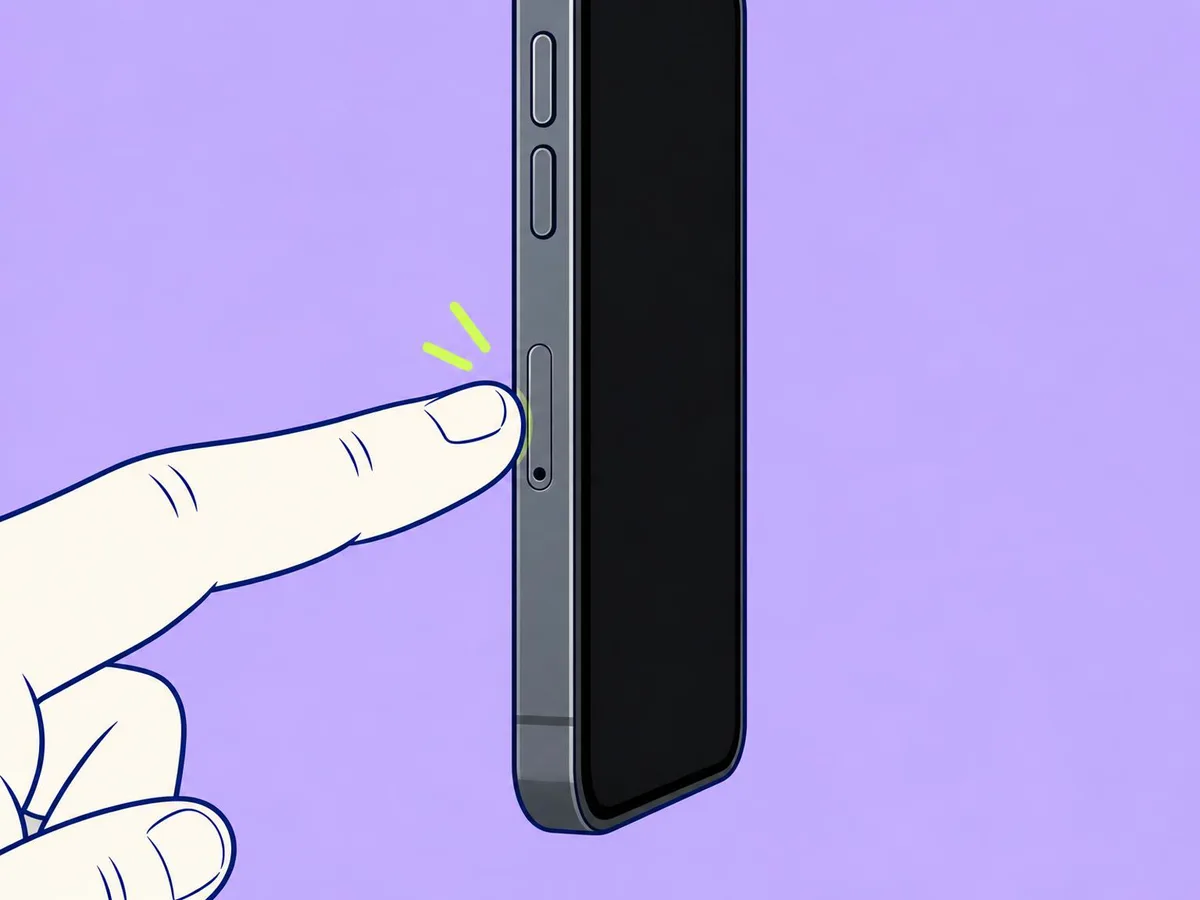
Slide it in the same way round, then push until it sits level with the frame. Samsung says the tray must be completely dry and fully closed, otherwise water can get in.
If this doesn't work
- "No SIM" after inserting: take the tray out, check the SIM is flat and the right way round, put it back and restart the phone.
- The tray won't go back in: it's upside down, or the SIM is sitting proud. Never push hard.
- You lost the tray: Apple says to use only the tray that came with your phone; a tray from another model won't fit.
- The tray is stuck: don't use oil, a needle or a knife. Go to your carrier or a repair shop.
Related
Wet phone: what to do (don't open the tray until the phone is dry) · How to clean your iPhone · Charging port not working
Questions readers ask
Can I use an earring or a needle?
Apple names a SIM-eject tool or a paper clip. Thin needles and earring posts can snap off inside the hole.
Do I need to turn the phone off?
Apple's and Samsung's SIM steps don't say so. Turning it off first does no harm.
Can I put two SIM cards in?
Not on our phones: each tray takes one nano-SIM and the second line is an eSIM. Apple notes that some iPhone models sold in Hong Kong and Macao take two nano-SIMs.
My iPhone 17e from the US has no tray. Can I add one?
No. Those models are eSIM-only. Ask your carrier for an eSIM instead.
- Apple: Identify your iPhone model
- Apple: Remove or switch the SIM card in your iPhone
- Apple: iPhone 17e Tech Specs
- Google Pixel Help: Pixel phone hardware tech specs
- Google Pixel Help: What comes in the box with your Pixel phone
- Samsung UK: How to install or change a SIM or SD memory card on Galaxy phone
- Samsung ZA: How do I insert the SIM card
This article is based on the sources above. We have not tested these products ourselves. Prices and availability change; check the maker's website before you buy.