
howtosimply.com/guides/how-to-turn-off-or-restart-a-samsung-galaxy/ · Checked October 2026 · SM-A576B), One UI 9.0, Android 17 (build CP2A.260605.016.A576BXXU6BZIE · Samsung Galaxy A57
In this guide
Swipe down to open the Quick panel and tap the power icon at the top right, next to Settings. Tap Power off or Restart, then tap it again to confirm. Or press and hold the Side and Volume down buttons together to get the same menu.
3 of 3 steps with real screenshots · 2 official sources below
- Device
- Android
- Shown on
- Samsung Galaxy A57 (SM-A576B), One UI 9.0, Android 17 (build CP2A.260605.016.A576BXXU6BZIE)
- App
- Settings
- Real screenshots
- 3 of 3 steps
- Checked
- October 2026
- Sources
- 2 official, linked below
Step by step
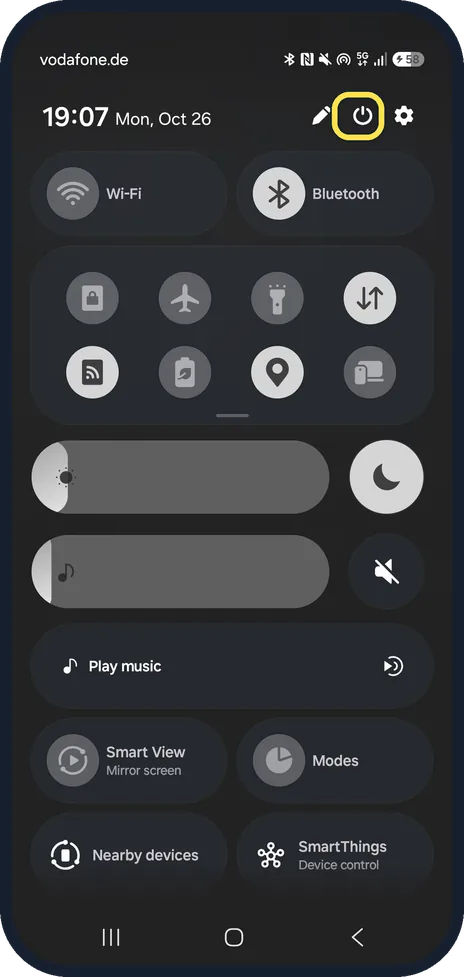
Open the Quick panel and tap the power icon
Swipe down from the top of the screen until the full Quick panel shows. The power icon sits at the top right, between the pencil and the Settings cog.
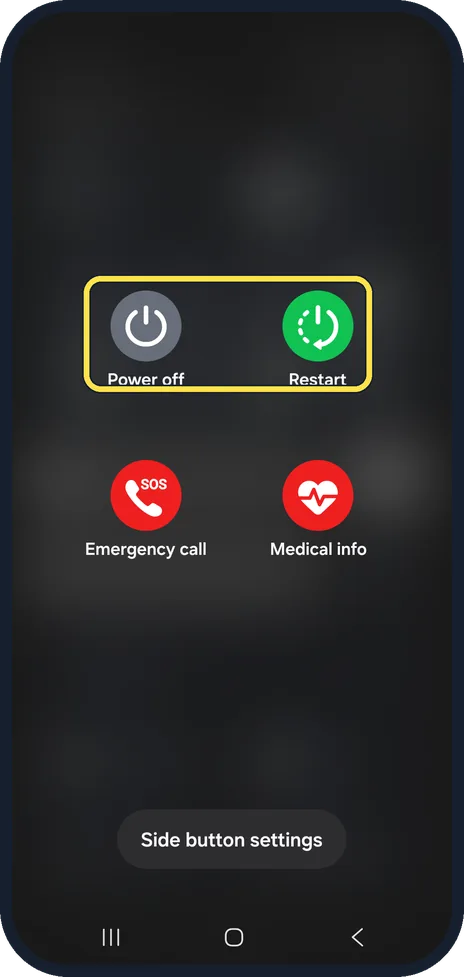
Tap Power off or Restart
The power menu shows Power off, Restart, Emergency call and Medical info. Samsung says to confirm by tapping Power off again; Restart also asks for a second tap.
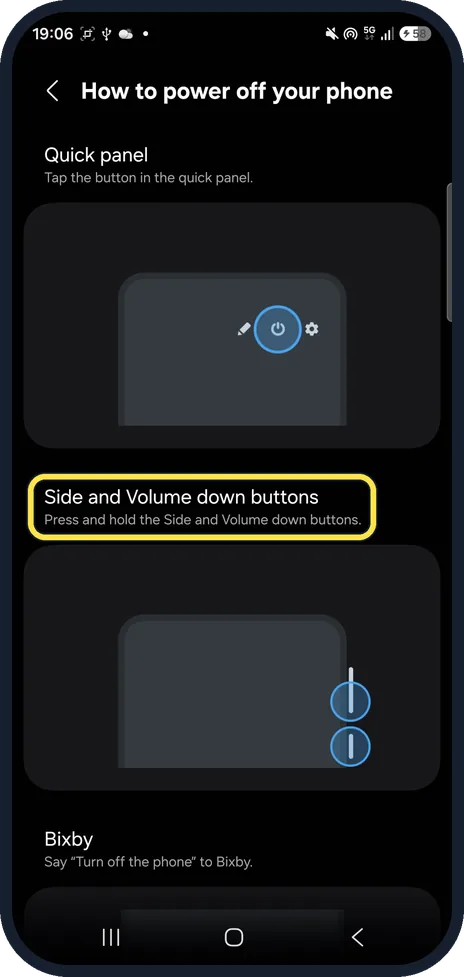
Or hold Side and Volume down
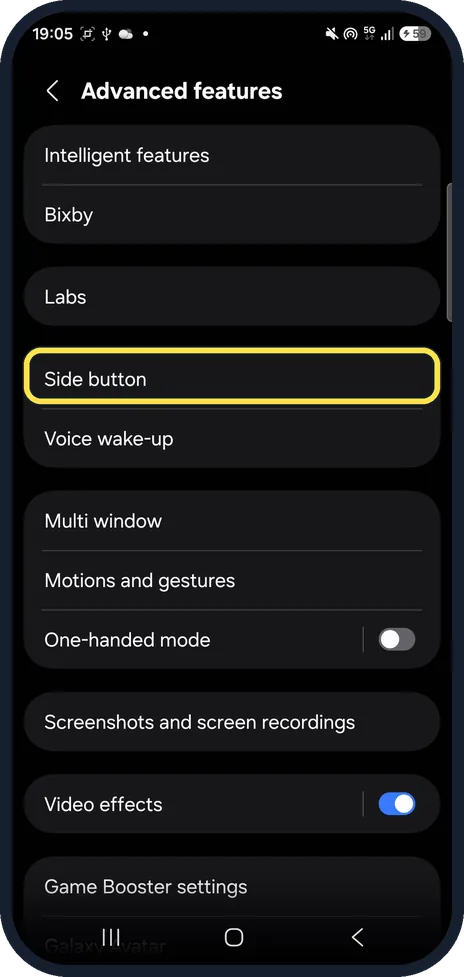
Settings, Advanced features, Side button, How to power off your phone lists three ways: the Quick panel button, pressing and holding the Side and Volume down buttons, and saying "Turn off the phone" to Bixby.
If you do not see this option
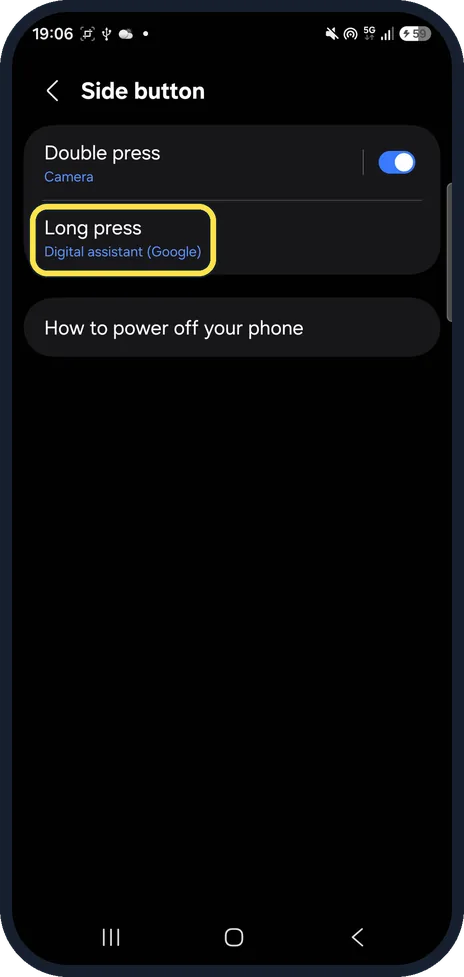
- Want a long press to open the power menu? Open Settings, Advanced features, Side button, Long press and pick Power off menu. Ours listed Digital assistant (Google), Bixby and Power off menu; we left it on Digital assistant. Source: Set up the Side button or Bixby key on your Galaxy phone
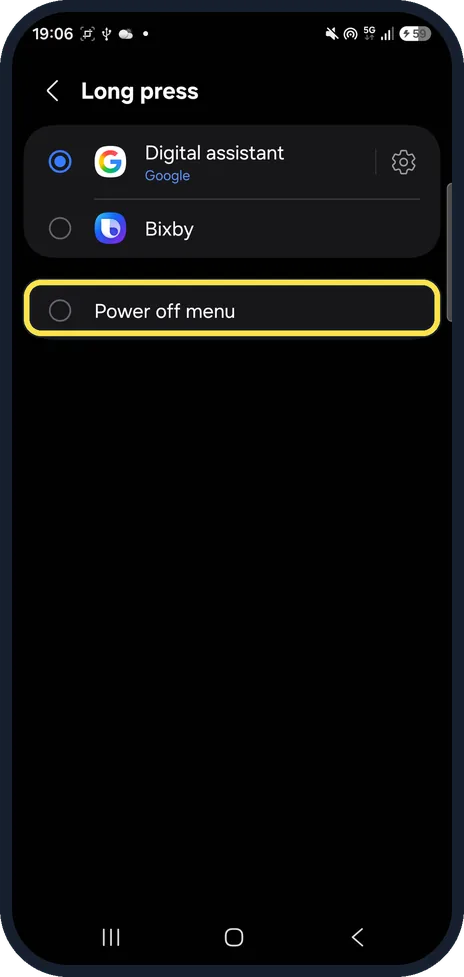
- Where are the Side button settings? Settings, Advanced features, Side button, below Labs. The power menu has a Side button settings shortcut at the bottom too. Source: Set up the Side button or Bixby key on your Galaxy phone
- No power icon in the Quick panel? On ours it sat in the top row of the expanded panel, beside the Settings cog. Swipe down again if you only see notifications. Source: Set up the Side button or Bixby key on your Galaxy phone
If this does not work
- Holding the Side button opens Google? On ours, Long press was set to Digital assistant (Google). Use the Quick panel or Side and Volume down, or change Long press. Source: Set up the Side button or Bixby key on your Galaxy phone
- Phone frozen and the screen does not respond? Samsung says to hold Volume down and the Side button at the same time until the device turns off and turns back on. That is a force restart. Source: Different ways to restart your Galaxy phone or tablet
- Restart from the buttons? Samsung says: hold Volume down and Side together, tap Restart, then tap Restart again to confirm. Source: Different ways to restart your Galaxy phone or tablet
About this guide
On our One UI 9 phone a long press of the Side button alone opens the digital assistant (Google), not the power menu. These are the ways that still reach Power off and Restart.
The screenshots are from our Samsung Galaxy A57, model SM-A576B, with One UI 9.0 and Android 17 (build CP2A.260605.016.A576BXXU6BZIE), in Dark mode, taken on 26 October 2026. We opened the power menu but did not confirm Power off or Restart.
Good to know
To make a long press open the power menu, see change what the Side button does on a Galaxy.
To keep the Side button for the assistant, see use Google Gemini on a Galaxy.
If the phone acts up after a restart, try starting a Galaxy in Safe mode.
In short: Quick panel, power icon, Power off or Restart, tap again to confirm. Or hold Side and Volume down.
- Samsung CA: Set up the Side button or Bixby key on your Galaxy phone
- Samsung US: Different ways to restart your Galaxy phone or tablet
Links checked in October 2026. Menus and features can change after software updates. These steps match the version named at the top.
📷 See real photos from the Galaxy A57 in our Camera Lab, next to 10 other phones.
Did this guide work for you?
Sorry about that. What happened?