
howtosimply.com/guides/how-to-use-saved-messages-in-telegram-on-android/ · Checked October 2026 · Google Pixel 10a, Android 17, Telegram 13.1.1
In this guide
Saved Messages is a chat with yourself. Open it from the Chats search, type a note and send it, or tap the paperclip to save a photo or file. Telegram calls it your cloud storage, so it also shows on your other logged-in devices.
7 of 7 steps with real screenshots · 3 official sources below
- Device
- Android
- Shown on
- Google Pixel 10a, Android 17, Telegram 13.1.1
- App
- Telegram
- Real screenshots
- 7 of 7 steps
- Checked
- October 2026
- Sources
- 3 official, linked below
Step by step
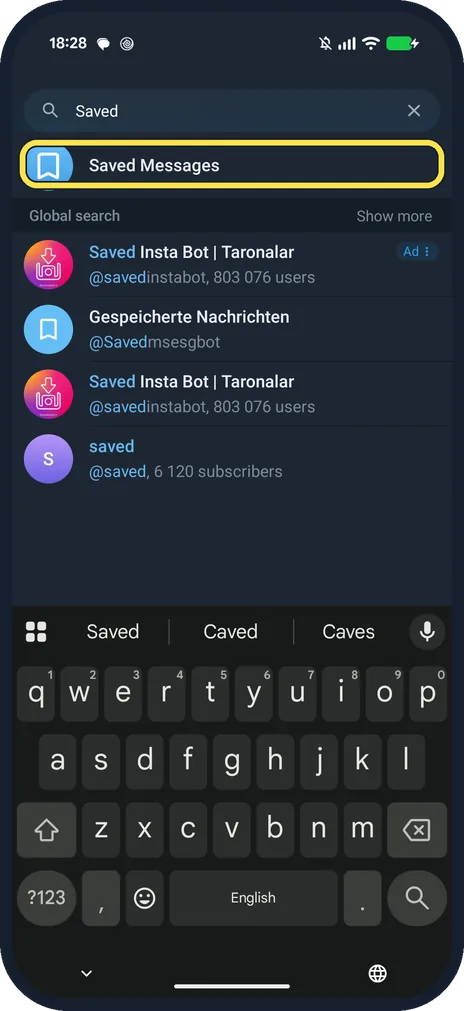
Search for Saved
On the Chats screen, tap the magnifier and type Saved. Saved Messages was the top result on ours; public bots and channels show below it.
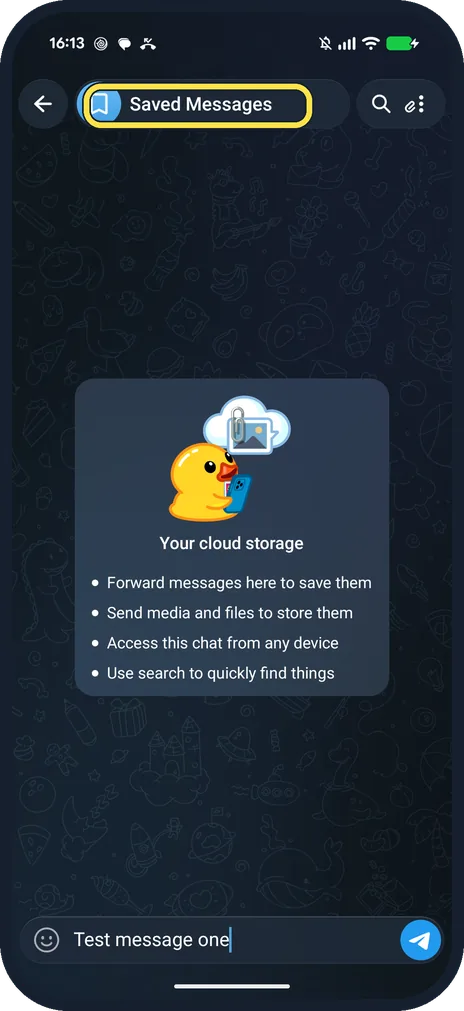
Open Saved Messages
The empty chat says Your cloud storage.
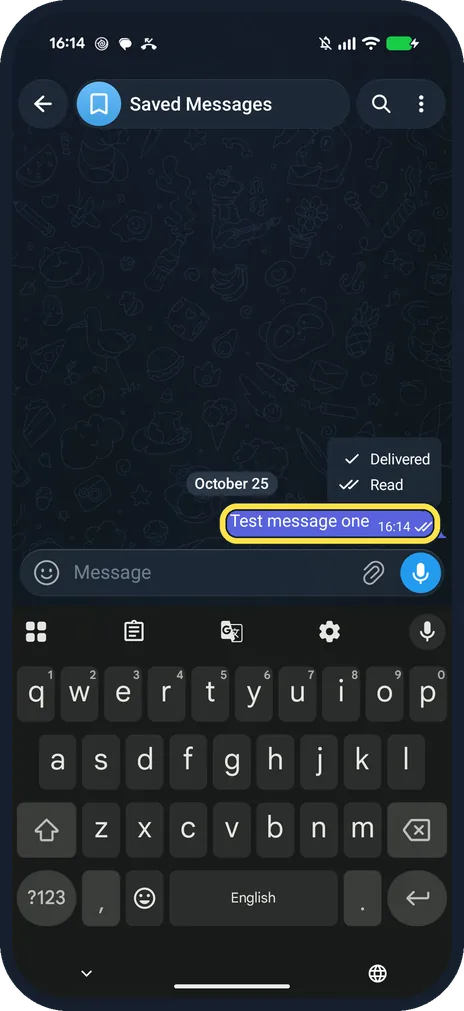
Type a note and send it
Ours: Test message one, sent at 16:14.
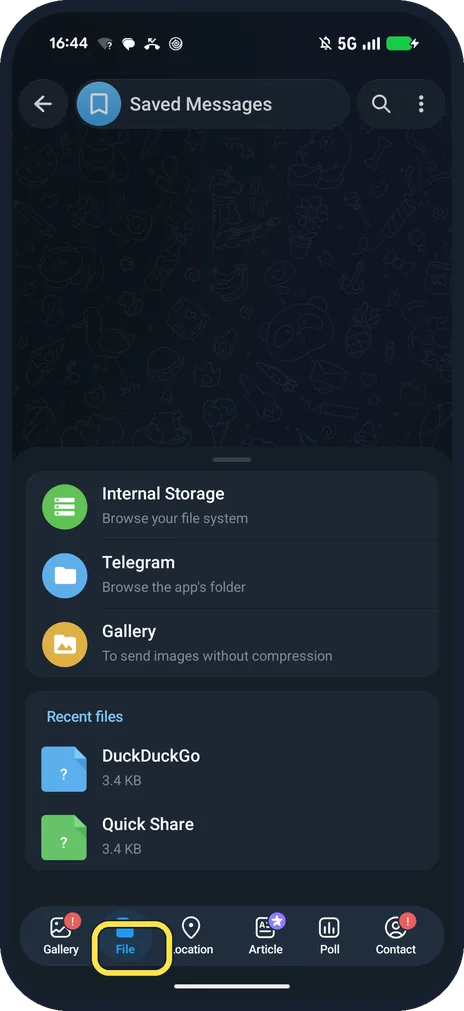
Tap the paperclip, then File
The sheet has Gallery, File, Location, Article, Poll and Contact. File opens Internal Storage, the Telegram folder and Gallery.
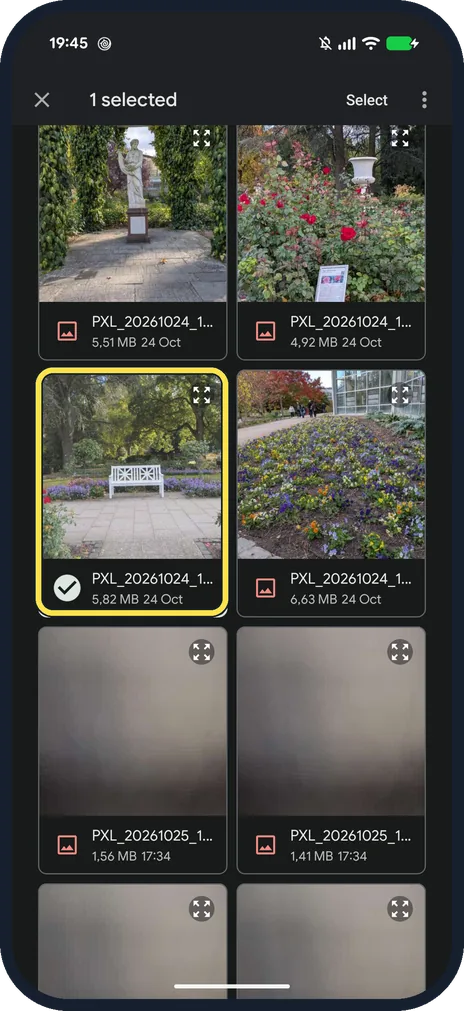
Browse to the photo and tick it
In Internal Storage, DCIM, Camera, each photo shows its size and date. The one we sent showed 5,82 MB in the picker.
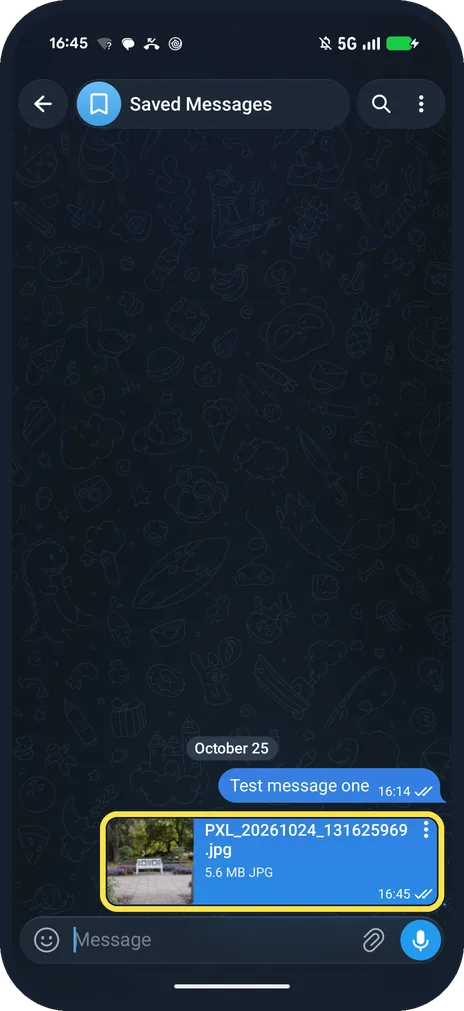
Send it as a file
Sent from Internal Storage, our JPG kept its name and full size: Telegram showed 5.6 MB, the same file counted in binary megabytes.
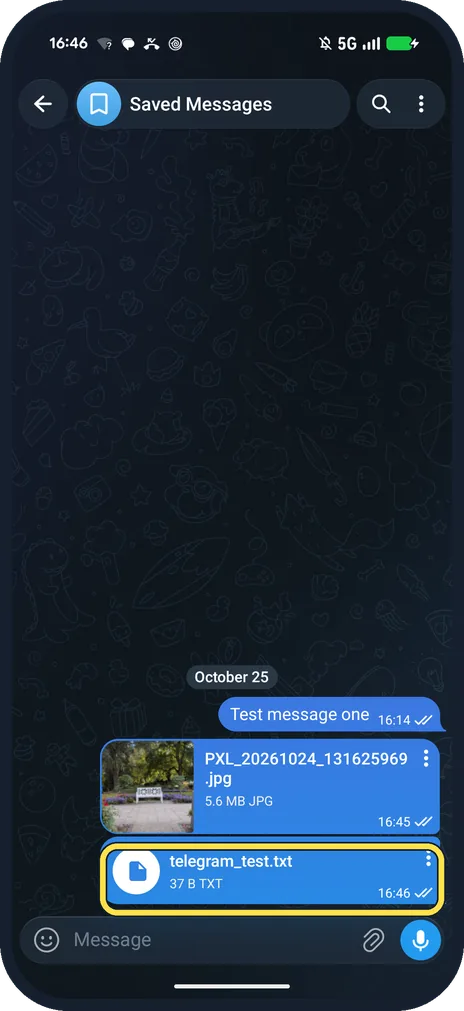
Find it later in the chat
Our text file, telegram_test.txt, sent the same way from Download, shows below the photo with its size, 37 B.
If you do not see this option
- Saved Messages shows a list of chats? Telegram says the View as Chats mode groups saved messages by the chat they came from. Tap the title, or the three dots, and pick View as Messages. Source: Saved Messages 2.0, One-Time Voice Messages and 8 More Features
- No tags on your saved messages? Telegram says tags for Saved Messages are for Premium users. Ours, without Premium, had none. Source: Saved Messages 2.0, One-Time Voice Messages and 8 More Features
If this does not work
- Photo comes out smaller? Send it from the File tab. Its Gallery row says To send images without compression. Ours, picked from Internal Storage on that tab, kept its full size: 5,82 MB in the picker, 5.6 MB in Telegram, which counts in binary megabytes.
- Running out of phone space? Telegram says clearing the cache frees space without logging out: see clear the Telegram cache. Source: How do I log out?
- Need it on another device? Log in there with the same number; your devices are listed under Devices. See see which devices are logged in. Sources: How do I log out?, My phone was stolen, what do I do?
About this guide
The empty chat lists what it is for: forward messages here, send media and files to store them, open it on any device.
The screenshots are from Telegram 13.1.1 on our Google Pixel 10a with Android 17, in Dark mode, taken on 25 October 2026. The photo is one we took on this Pixel.
Good to know
To edit or pin a saved note, see edit, pin or delete a Telegram message.
In Signal, see use Note to Self in Signal.
In short: Search Saved Messages, type and send; paperclip, File for photos and files.
- Telegram Blog: Saved Messages 2.0, One-Time Voice Messages and 8 More Features
- Telegram FAQ: How do I log out?
- Telegram FAQ: My phone was stolen, what do I do?
Links checked in October 2026. Menus and features can change after software updates. These steps match the version named at the top.
📷 See real photos from the Pixel 10a in our Camera Lab, next to 10 other phones.
Did this guide work for you?
Sorry about that. What happened?