GOOGLE PIXEL
How to move or remove an app from the home screen on a Google Pixel (Android 17)

In short
Press and hold the app icon and drag it where you want it, then lift your finger. To take it off the home screen, drag it to Remove at the top. The app stays on the phone: swipe up to find it in the apps list, and drag it back from there.
8 of 8 steps show a real screenshot from our Pixel 10a. Each step was checked against the maker's own instructions, linked at the end.
Steps
- 1
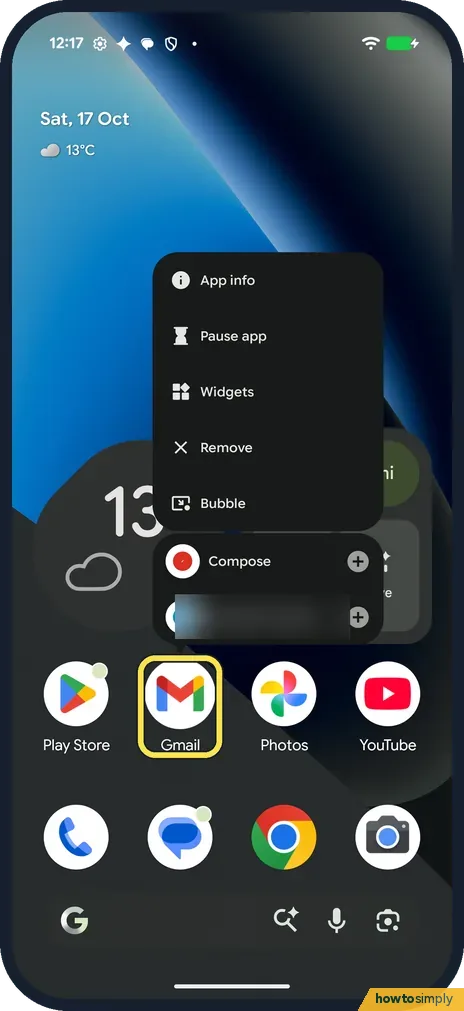
Press and hold the app
Press and hold the app icon; we used Gmail. A menu opens with App info, Pause app, Widgets, Remove and Bubble, and the app's shortcuts below. To move it, keep holding and start dragging instead.
- 2
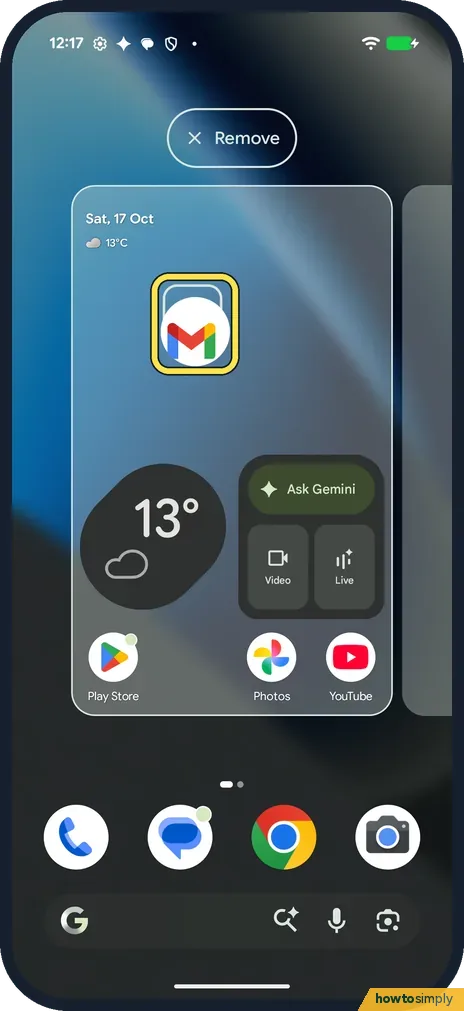
Drag it to a new spot
The home screen shrinks into a card, with Remove at the top. Drag Gmail over an empty spot; an outline shows where it will go.
- 3
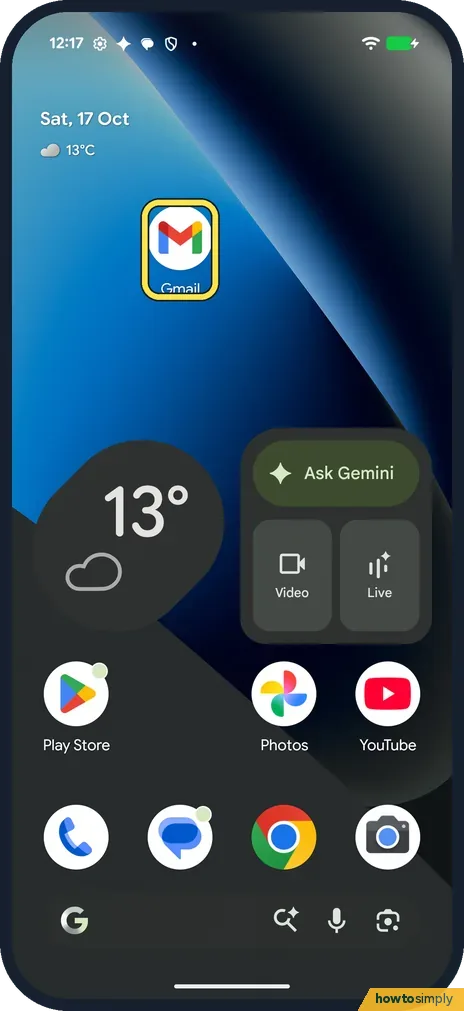
Lift your finger
Gmail stays in its new place, and the other apps keep theirs. Google says that to put it on a new home screen, you slide it to the right until you get a blank one.
- 4
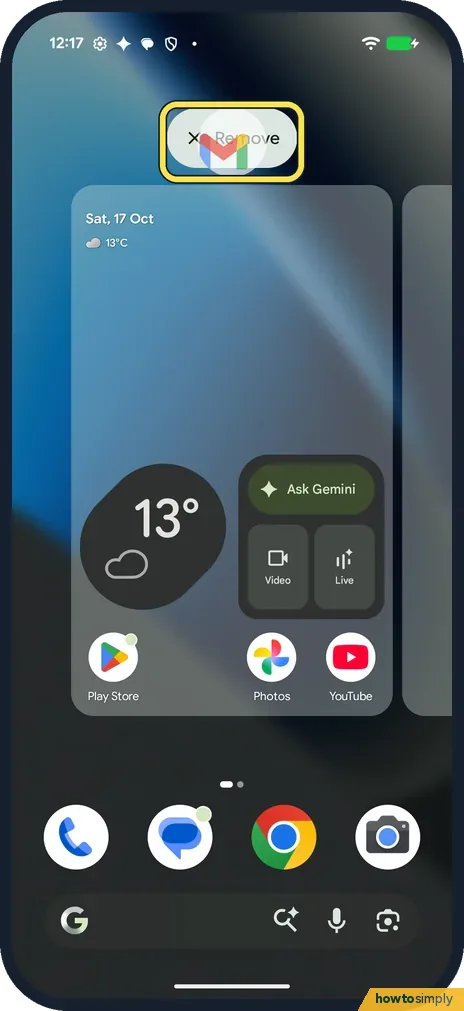
To remove it, drag it to Remove
Press and hold the app again and drag it up onto Remove at the top. Remove lights up when the app is over it. Lift your finger.
- 5
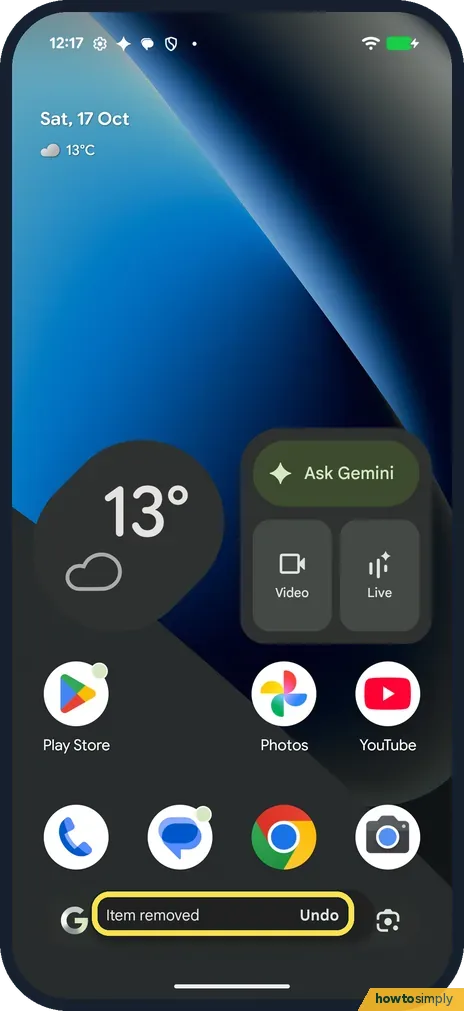
Undo if you change your mind
The icon goes and a bar at the bottom says Item removed, with Undo. We did not tap Undo; we put Gmail back from the apps list instead.
- 6
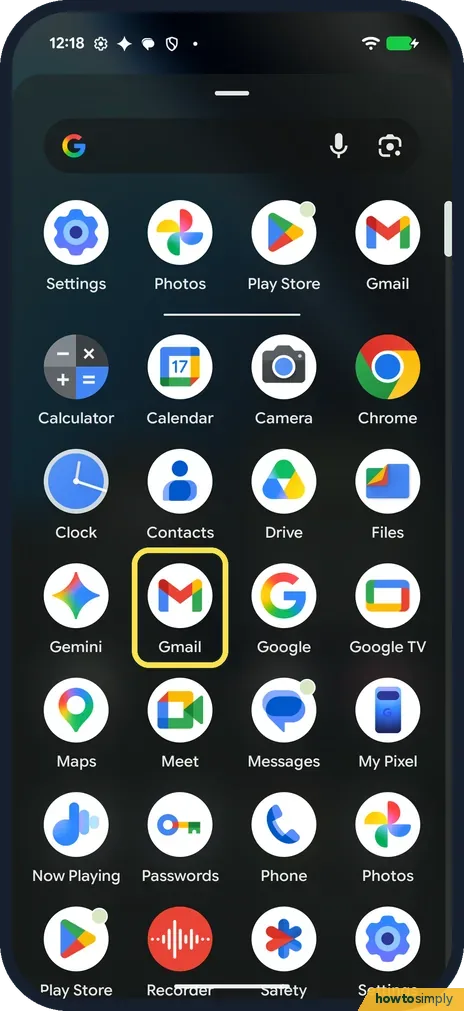
Find it in the apps list
Swipe up from the bottom of the home screen. Gmail was still there in the A to Z list, so it was only off the home screen, not uninstalled.
- 7
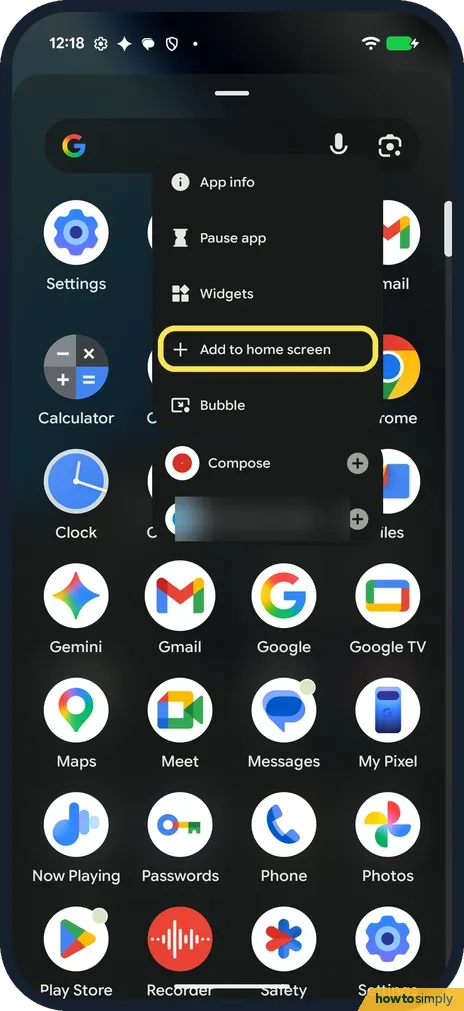
Put it back
Press and hold the app in the list. The menu has Add to home screen; we kept holding and dragged it instead.
- 8
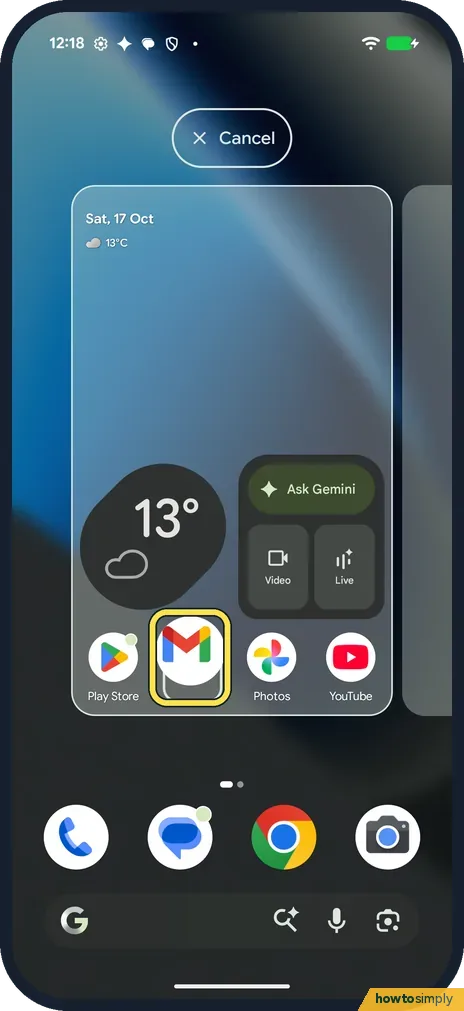
Drop it where you want it
The home screen card opens with Cancel at the top. Drop the app in an empty spot; we put Gmail back between Play Store and Photos, where it was.
If you do not see this option
- Remove says Cancel? When we dragged Gmail from the apps list, the top of the screen said Cancel, not Remove. Dropping there cancels the move. Remove shows when you drag an icon that is already on the home screen.
- No Uninstall in the menu? Google says you can find Remove, Uninstall or both. Ours showed App info, Pause app, Widgets, Remove and Bubble for Gmail. Source: Add apps, shortcuts & widgets to your Home screens
- Want it on a new home screen? Google says to slide it to the right until you get a blank home screen. While we dragged, the edge of our second screen showed at the right of the card. Source: Add apps, shortcuts & widgets to your Home screens
If this does not work
- Removed the wrong app? Tap Undo on the Item removed bar at the bottom. Or swipe up to the apps list, where the app still is, and drag it back to the home screen, as we did.
- Worried Remove deleted the app? Google says Remove takes an app off your home screen only; Uninstall takes it off your device. Gmail was still in our apps list afterwards.
- Can't move the date and weather? Google says you can't move the At A Glance information at the top of the home screen. You can change what it shows: home screen and search settings.
Good to know
Group apps instead of spreading them out: make an app folder on a Pixel. Bubble in the same menu opens the app in a floating window: split screen and bubbles.
Change how many icons fit: change the home screen grid. On a Xiaomi phone: move or remove an app on a Xiaomi phone.
About this guide
- Device
- Android
- Shown on
- Google Pixel 10a, Android 17 (build CP3A.261005.005)
- App
- Home screen
- Path
- Home screen › Hold an app › Drag it › Remove
- Real screenshots
- 8 of 8 steps
- Checked
- October 2026
- Sources
- 1 official, linked below
Sources
Links checked October 2026. Menus and features can change with updates.Spotted a mistake? Menus change with updates, and we want every step to match your screen. Email us about this page or use the contact form. We read every report, and fixes are listed on What changed.
Liked this guide?
Follow us for new guides and short how-to videos.
Did this guide work for you?
Sorry about that. What happened?