ONEPLUS
How to move or remove an app from the home screen on a OnePlus

In short
Touch and hold the app. The menu has App info, Edit, Remove and App Lock: Remove takes it off the home screen. To move it, keep holding and drag it; drag to the screen edge for another page.
5 of 5 steps show a real screenshot from our Nord 5. Each step was checked against the maker's own instructions, linked at the end.
Steps
- 1
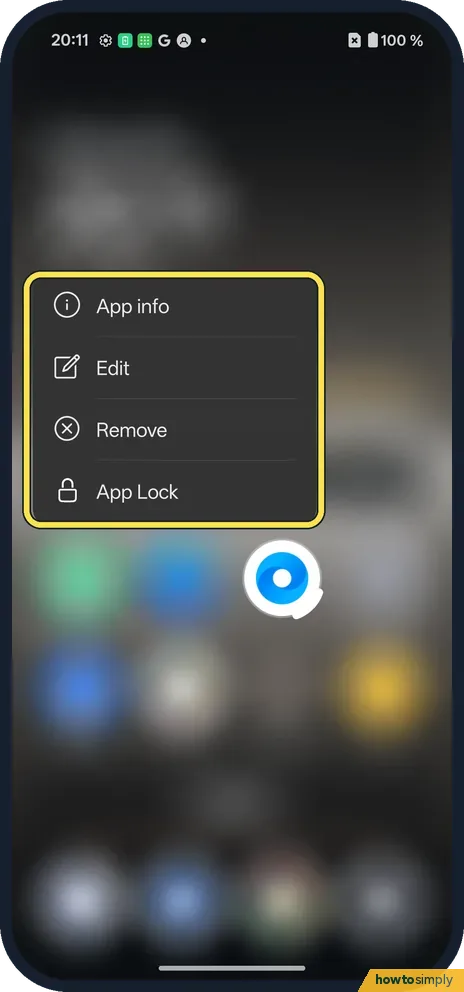
Touch and hold the icon
A menu opens: App info, Edit, Remove and App Lock.
- 2
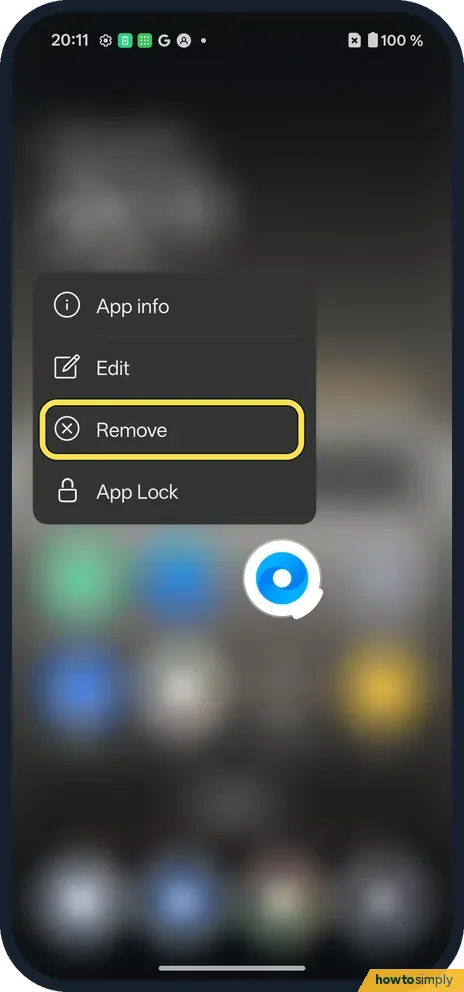
Remove
Tap Remove to take the icon off the home screen. We did not.
- 3
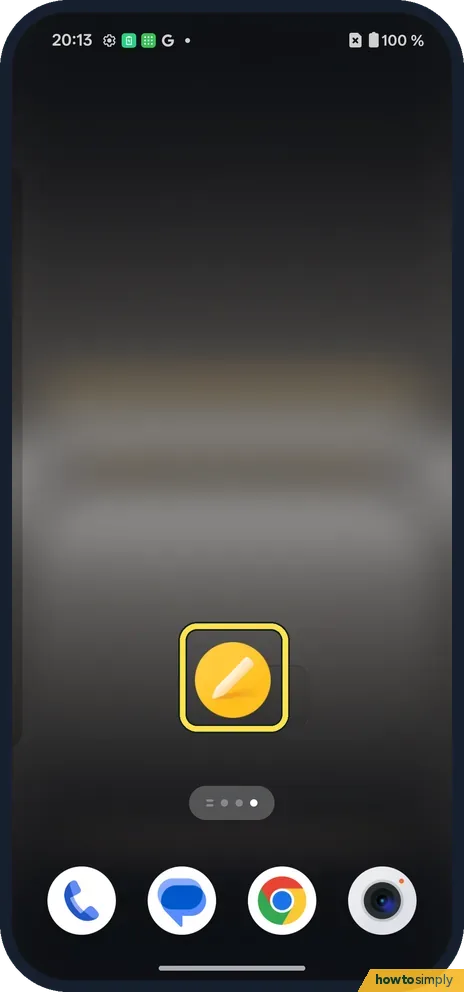
Or drag to move it
Keep holding and drag. Drag to the right edge to reach the next page.
- 4
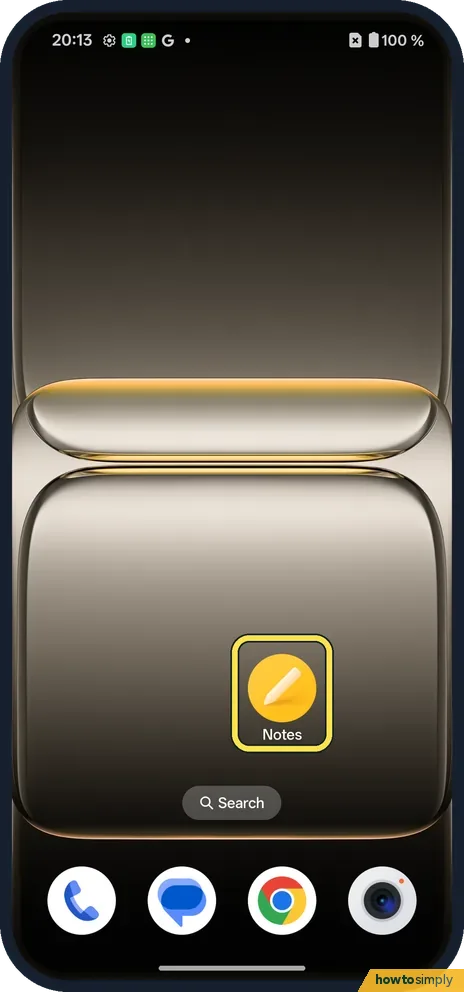
Drop it
The Notes icon landed on a new, empty page.
- 5
Move it back
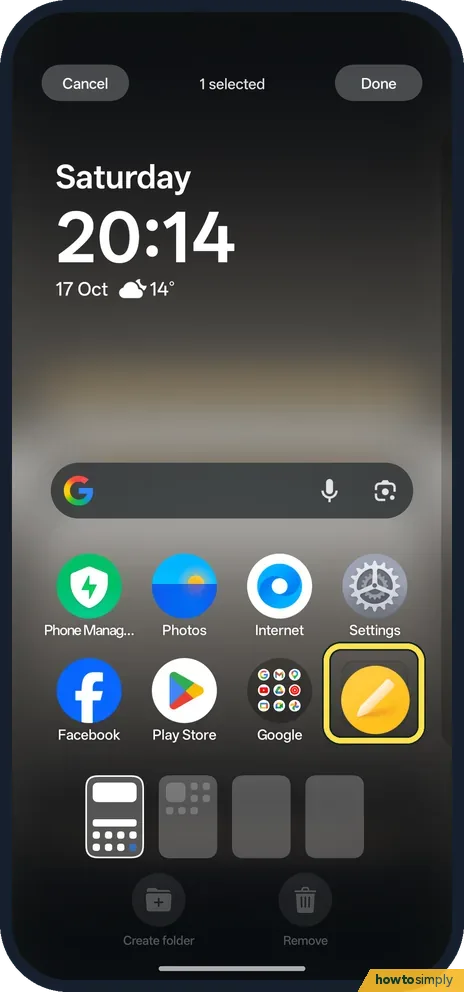
Tap Edit in the touch-and-hold menu for the edit view. A bar shows 1 selected, with Create folder and Remove at the bottom. Drag the icon back and tap Done.
If you do not see this option
- Uninstall? Not in this menu on ours. OnePlus's OxygenOS 14 manual uses Settings, Apps, App management, the app, Uninstall. Source: OxygenOS 14.0 User Manual
- App Lock? It locks the app behind your screen lock. We did not set it up.
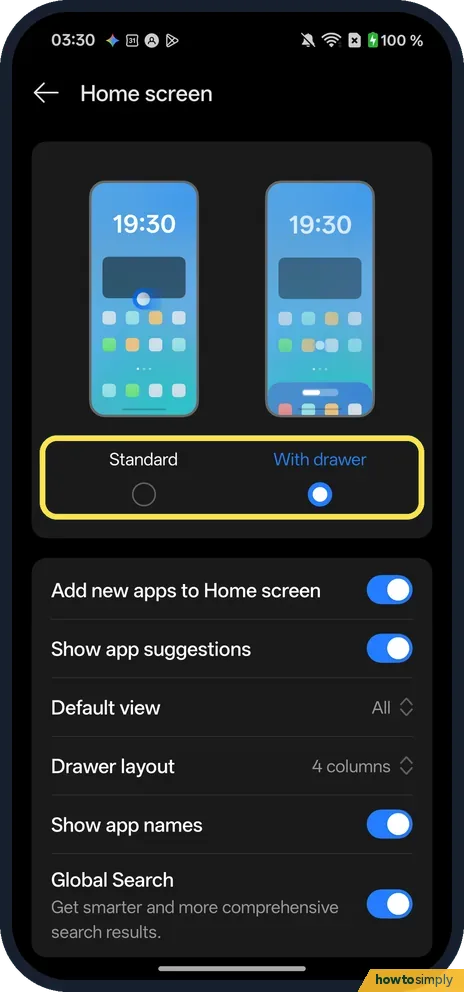
- Want every app on the home screen? Touch and hold an empty spot, tap Home screen settings, then Home screen. It offers Standard and With drawer; ours was With drawer, with Drawer layout at 4 columns. Standard puts every app on the home screen.
If this does not work
- Icon came back? With the drawer on, apps stay in the drawer. Remove only takes the shortcut away.
- Moved by mistake? Lock layout in Home screen settings stops icons moving: home screen layout.
- Want a removed app back on the home screen? The OnePlus manual says that in Drawer mode you swipe up to open the drawer and drag the app out onto the home screen.
- No Remove, only Uninstall? OnePlus's OxygenOS 14 manual says that in Standard mode all installed apps live on the home screen, while Drawer mode keeps them in the drawer. Look for the home screen mode in your Home screen settings.
- Empty page left behind? Google's help notes that a home screen page is removed once you move or remove its last item, so you do not need to delete empty pages yourself.
- Icon will not drag? Hold it until the menu appears, then start moving without lifting your finger. If nothing moves at all, the home screen layout may be locked.
Good to know
Make an app folder on a OnePlus.
Removing or moving an icon changes only the layout. The app keeps running as before, its notifications still arrive, and nothing happens to its data or to your battery. To undo a removal, drag the app back from the drawer; to undo a move, drag it back or use Edit as in the last step.
If you want the app off the phone completely, use Uninstall from App info instead and back up first, because uninstalling removes the app's data. For tidier pages, group apps in a folder, and once you are happy, lock the home screen layout so nothing moves by accident.
About this guide
- Device
- Android
- Shown on
- OnePlus Nord 5 (CPH2709), OxygenOS 16.0.5.1201, Android 16
- App
- Home screen
- Path
- Home screen › Touch and hold an app
- Real screenshots
- 5 of 5 steps
- Checked
- October 2026
- Sources
- 2 official, linked below
Sources
Links checked October 2026. Menus and features can change with updates.Spotted a mistake? Menus change with updates, and we want every step to match your screen. Email us about this page or use the contact form. We read every report, and fixes are listed on What changed.
Liked this guide?
Follow us for new guides and short how-to videos.
Did this guide work for you?
Sorry about that. What happened?