GOOGLE PIXEL
How to use Quick Tap and other gestures on a Google Pixel (Android 17)

In short
Open Settings, System, Gestures. Quick Tap lets you tap the back of the phone twice to take a screenshot, toggle the torch, open an app and more. Tap to check phone wakes the screen with a tap. Ours had Quick Tap off and Tap to check phone on.
7 of 7 steps show a real screenshot from our Pixel 10a. Each step was checked against the maker's own instructions, linked at the end.
Steps
- 1
Open Gestures
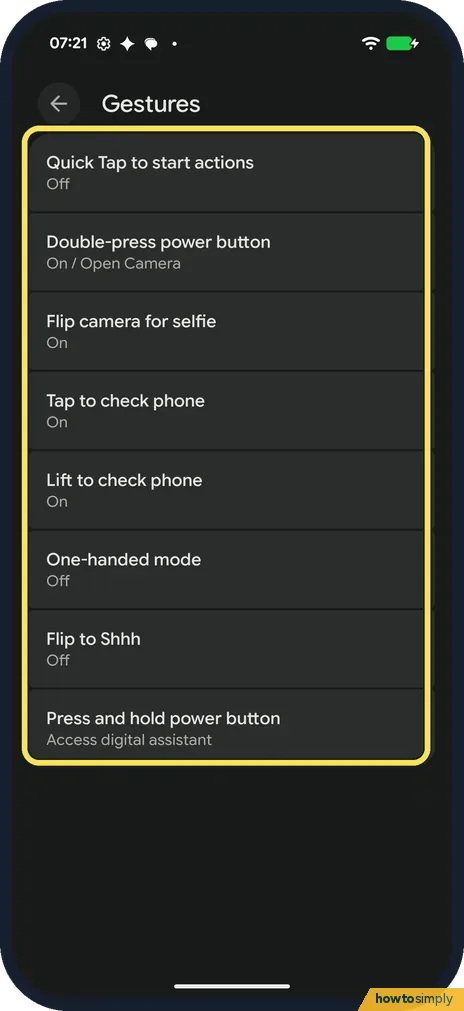
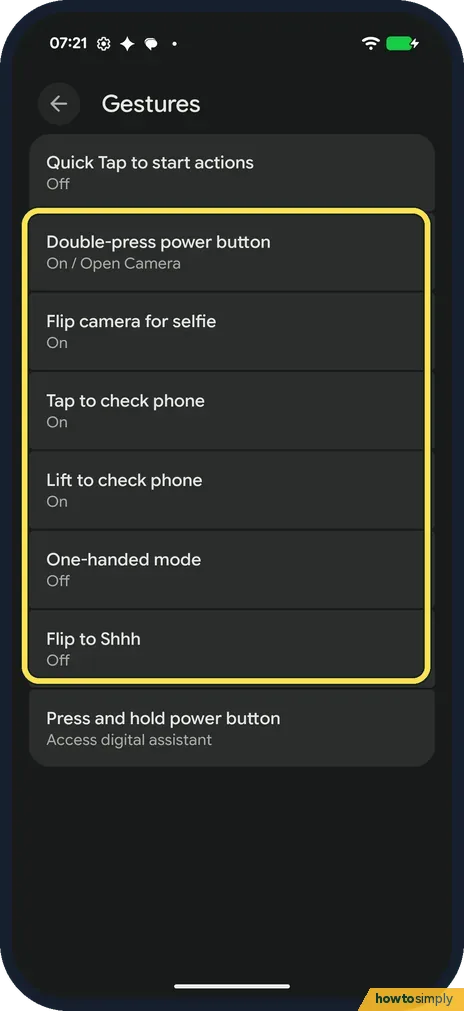
Open Settings, tap System, then Gestures. Ours fit on one screen, from Quick Tap to start actions to Press and hold power button.
- 2
Open Quick Tap
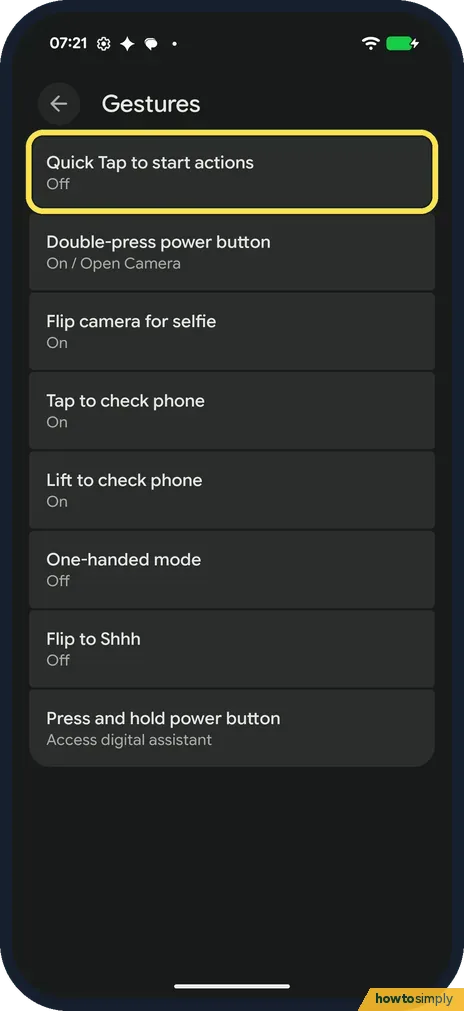
Tap Quick Tap to start actions. Ours was Off.
- 3
Turn on Use Quick Tap
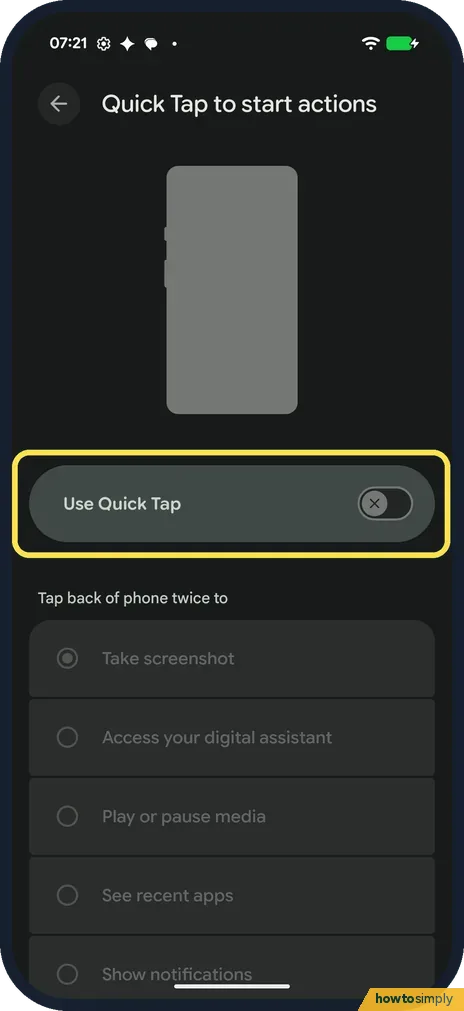
Turn on Use Quick Tap. Ours was off.
- 4
Pick what two taps do
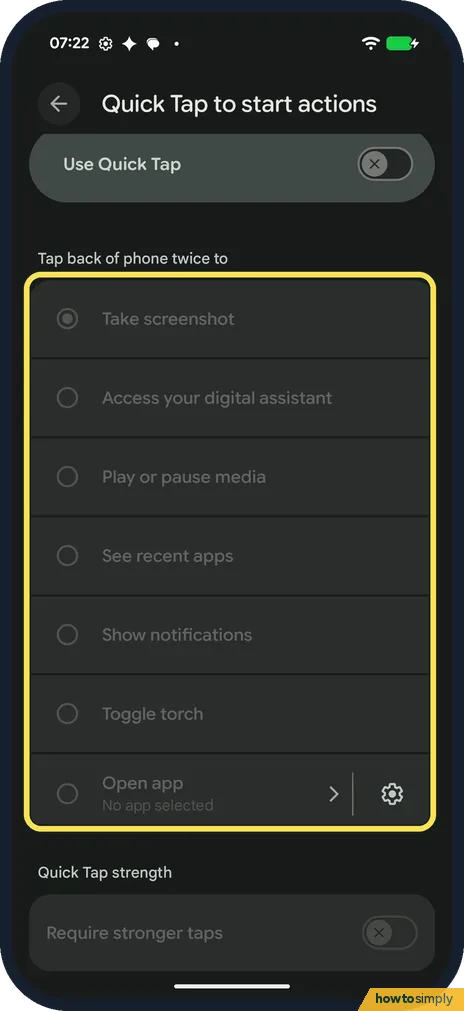
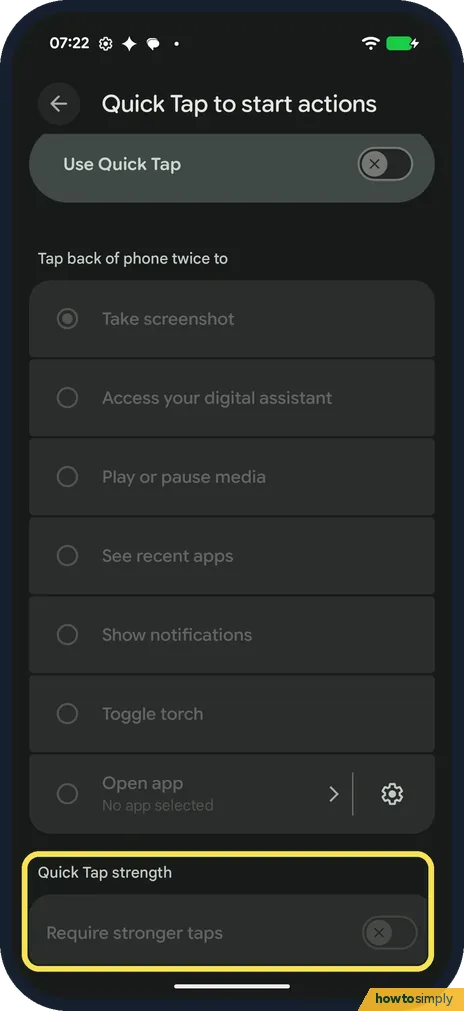
Under Tap back of phone twice to, pick one: Take screenshot, Access your digital assistant, Play or pause media, See recent apps, Show notifications, Toggle torch or Open app. Open app said No app selected on ours.
- 5
Quick Tap strength
At the bottom, Quick Tap strength has Require stronger taps. It was off on ours.
- 6
Tap to check phone
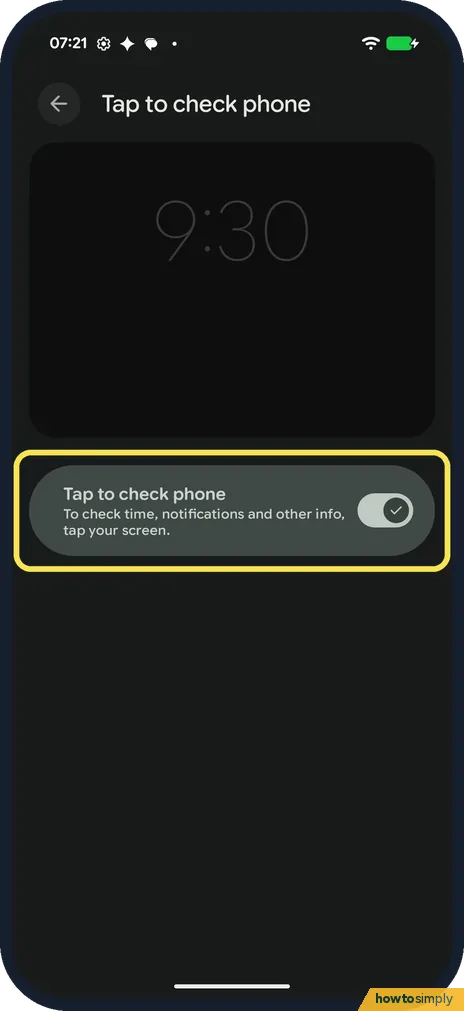
Back on Gestures, tap Tap to check phone. The switch says To check time, notifications and other info, tap your screen. Ours was on.
- 7
The other gestures
Double-press power button was On / Open Camera, Flip camera for selfie On, Lift to check phone On, One-handed mode Off and Flip to Shhh Off. Google says Flip to Shhh turns on Do Not Disturb when you put the phone face down on a flat surface.
If you do not see this option
- Which Pixels have Quick Tap? Google says Quick Tap works on the Pixel 4a (5G) and later. Source: Use gestures on your Pixel phone
- Flip camera for selfie? Google says that with the camera open, you twist the phone twice to switch between the front and back cameras. Source: Use gestures on your Pixel phone
If this does not work
- Quick Tap fires by accident? Turn on Require stronger taps under Quick Tap strength, or turn Quick Tap off.
- Holding the power button opens the assistant? On ours, Press and hold power button was set to Access digital assistant. See how to turn off or restart a Google Pixel.
- Phone went silent face down? That is Flip to Shhh. See how to use Do Not Disturb and modes.
- Open app does nothing? Picking Open app is not enough on its own. Google says to tap Settings next to Open app and choose the app; ours said No app selected until then.
- Double-press opens the wrong thing? Google says the double press can open the camera or Wallet. Open Double-press power button in Gestures and pick the shortcut you want; Google notes your previous phone's choice may carry over.
Good to know
Other ways to take a screenshot: how to take a screenshot on a Google Pixel.
Set how bright the torch is: how to change the torch brightness.
Gestures only change what a tap, press or movement does, so turning one off loses nothing and you can switch it back on at any time from the same page. If Quick Tap is set to Toggle torch, a stray double tap can leave the torch on in a pocket, so glance at the back of the phone after a fumble. Flip to Shhh switches Do Not Disturb on while the phone lies face down, so calls and alarms then follow your Do Not Disturb rules.
About this guide
- Device
- Android
- Shown on
- Google Pixel 10a, Android 17 (build CP3A.261005.005)
- App
- Settings
- Path
- Settings › System
- Real screenshots
- 7 of 7 steps
- What we did
- Observed: looked at each screen, changed nothing
- Checked
- October 2026
- Sources
- 1 official, linked below
Sources
Links checked October 2026. Menus and features can change with updates.Spotted a mistake? Menus change with updates, and we want every step to match your screen. Email us about this page or use the contact form. We read every report, and fixes are listed on What changed.
Liked this guide?
Follow us for new guides and short how-to videos.
Did this guide work for you?
Sorry about that. What happened?