XIAOMI REDMI
How to move or remove an app from the home screen on a Xiaomi phone (HyperOS 3)

In short
Press and hold the app icon and drag it where you want it; drag it to the screen edge to change page. To take it off, press and hold it, tap the minus icon at the top of the menu, then Remove. For Music, ours said it is a system app and still works after you remove the icon.
7 of 7 steps show a real screenshot from our Redmi Note 15 Pro 5G. Each step was checked against the maker's own instructions, linked at the end.
Steps
- 1
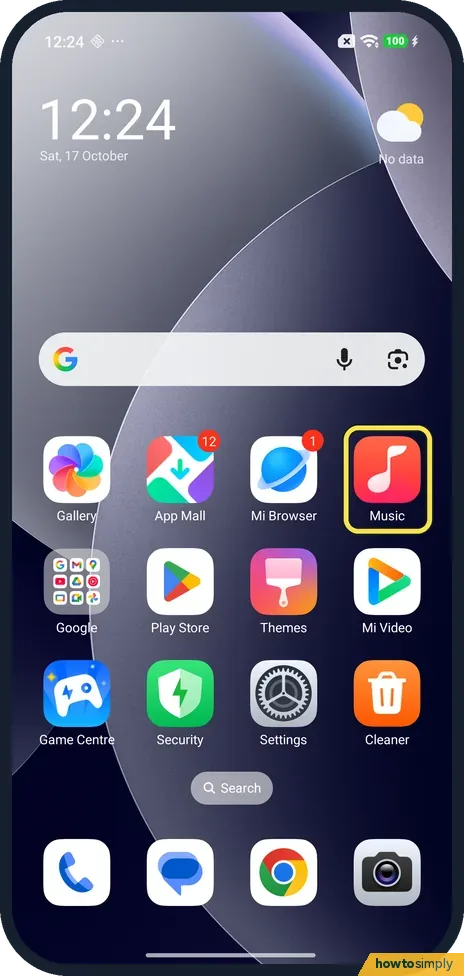
Press and hold the app
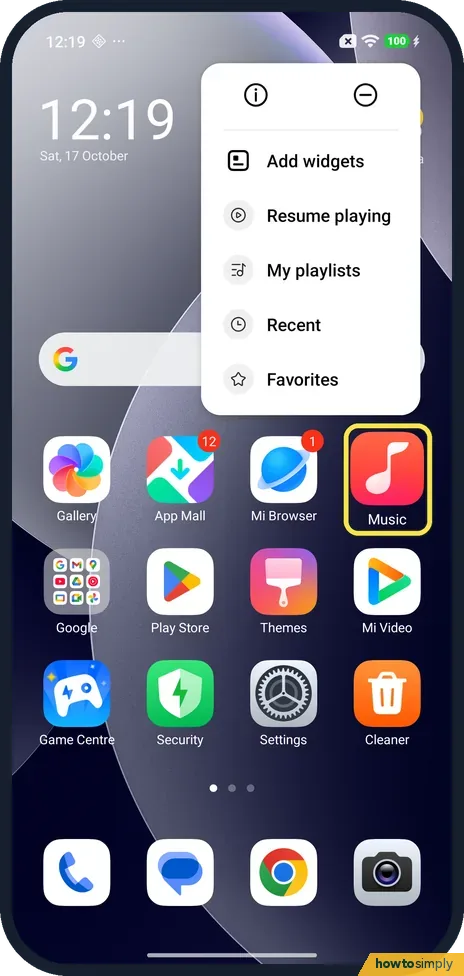
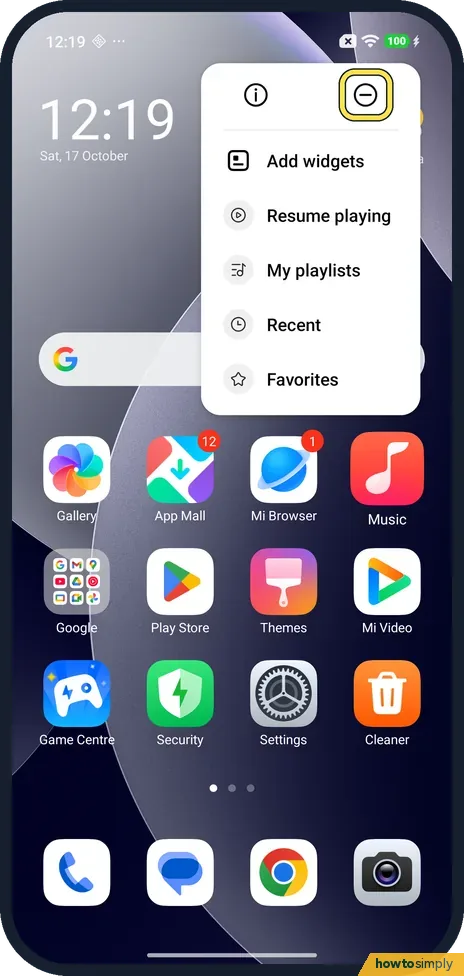
Press and hold the app icon; we used Music. A menu opens with an info icon and a minus icon at the top, then Add widgets and the app's shortcuts: Resume playing, My playlists, Recent and Favorites. To move the app, keep holding and drag.
- 2
Drag it to another page
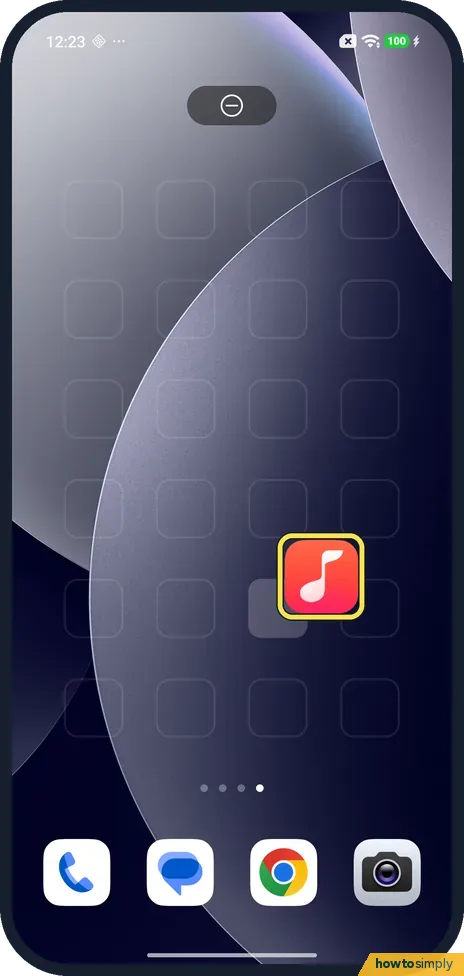
The page shrinks, with a minus target at the top. Drag the app to the right edge to flip pages. Ours went past the last page onto a new, empty one, shown by a fourth dot.
- 3
Lift your finger
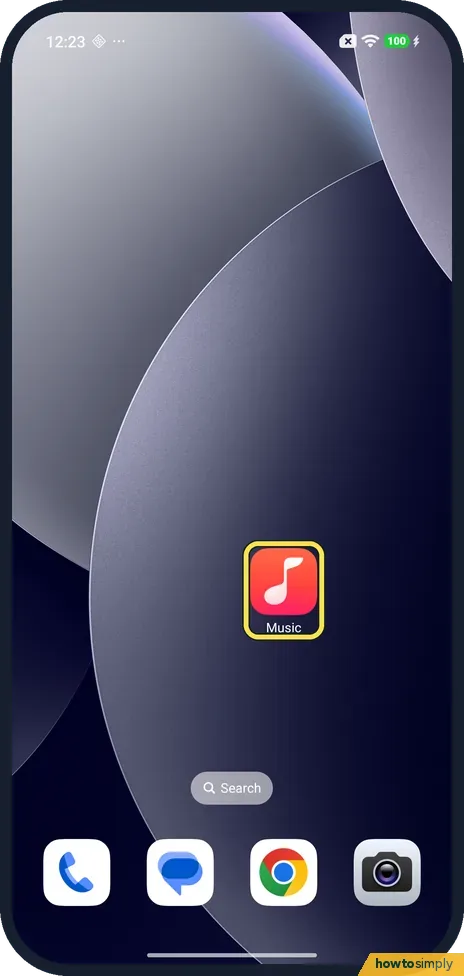
Music stayed where we dropped it, alone on the new page.
- 4
Drag it back
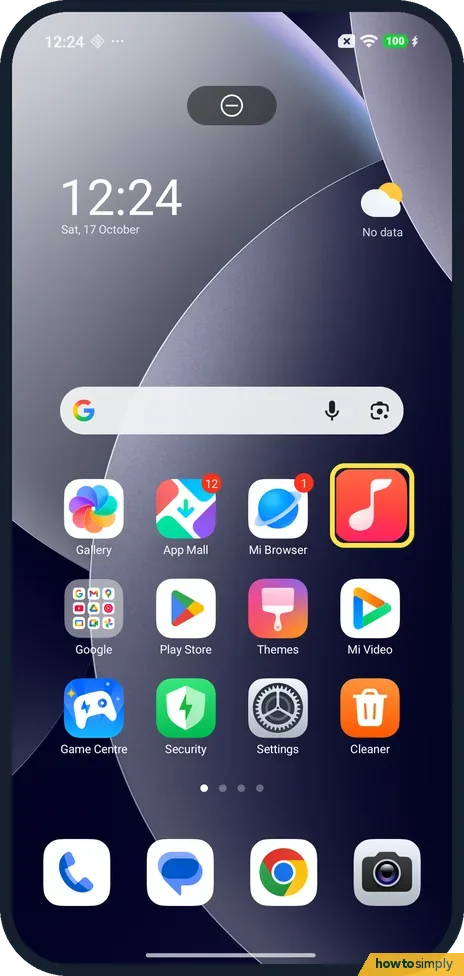
To put it back, press and hold it, drag it to the left edge to flip back to the first page, and drop it in the empty spot. We put Music back beside Mi Browser.
- 5
Check the page
Music was back in its old place at the end of the top row, and the rest of the page was as before.
- 6
To remove it, tap the minus icon
Press and hold the app again and tap the minus icon at the top right of the menu.
- 7
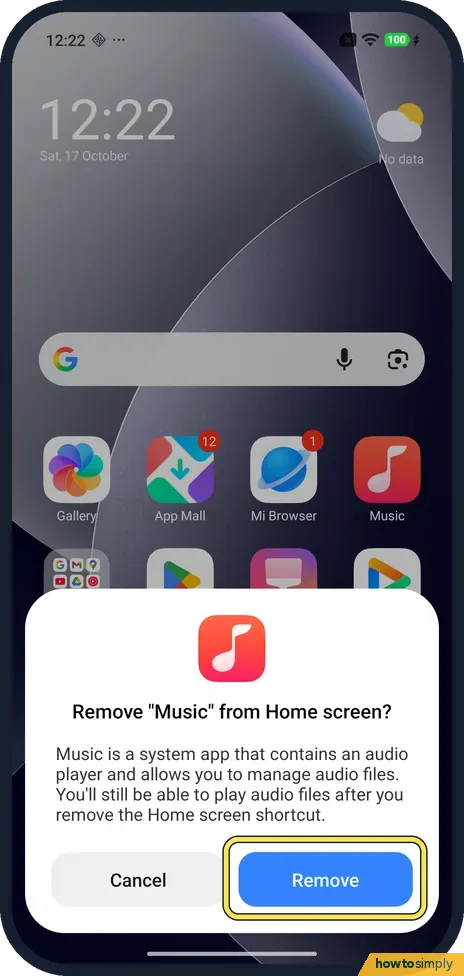
Tap Remove
Ours asked: Remove "Music" from Home screen? It said Music is a system app and you'll still be able to play audio files after you remove the Home screen shortcut. Tap Remove to take the icon off. We pressed Cancel, so we have no picture of the result.
If you do not see this option
- No Uninstall? Xiaomi's guide says to tap Uninstall in the pop-up window. For Music, a system app, ours had the minus icon, which only removes the home screen icon. Source: Generic User Guide for HyperOS 3.0
- No new page appeared? On ours the new page showed when we dragged Music past the last page to the right edge. Xiaomi says to move the app to other places on the home screen. Source: Generic User Guide for HyperOS 3.0
- Menu covers the app? The menu opened above Music on ours, with the minus icon at its top right. Keep holding and start dragging: in our picture of the drag, the menu had gone.
If this does not work
- App can't be moved? If Lock Home screen layout is on, ours showed the message Home screen layout is locked, and nothing moved. To turn it off: lock the home screen layout.
- App ended up on a page of its own? Dragging to the right edge flipped pages and ours went onto a new, empty page. Drag it back to the left edge and drop it on the page you want.
- Worried Remove deletes the app? For Music, ours said it is a system app and you can still play audio files after you remove the Home screen shortcut. Ours is in Classic mode, with no app drawer to add it back from, so we pressed Cancel and did not test getting it back.
Good to know
Group apps instead: make an app folder on a Xiaomi phone. Keep apps in a drawer you swipe up for: turn on the app drawer.
Take an app off the phone instead: uninstall or disable preinstalled apps. Fit more icons on each page: change the home screen layout. On a Pixel: move or remove an app on a Pixel.
About this guide
- Device
- Android
- Shown on
- Xiaomi Redmi Note 15 Pro 5G (25080RABDG), HyperOS 3.0.308.0, Android 16
- App
- Home screen
- Path
- Home screen › Hold an app › Drag it › Remove
- Real screenshots
- 7 of 7 steps
- Checked
- October 2026
- Sources
- 1 official, linked below
Sources
Links checked October 2026. Menus and features can change with updates.Spotted a mistake? Menus change with updates, and we want every step to match your screen. Email us about this page or use the contact form. We read every report, and fixes are listed on What changed.
Liked this guide?
Follow us for new guides and short how-to videos.
Did this guide work for you?
Sorry about that. What happened?