
howtosimply.com/guides/how-to-clear-the-telegram-cache-on-android/ · Checked October 2026 · Google Pixel 10a, Android 17, Telegram 13.1.1
In this guide
Open Telegram Settings, Data and Storage, Storage Usage, tap Clear Cache and confirm. Ours freed 15.6 MB. Telegram says the media stays in its cloud and downloads again when you open it.
5 of 5 steps with real screenshots · 1 official source below
- Device
- Android
- Shown on
- Google Pixel 10a, Android 17, Telegram 13.1.1
- App
- Telegram
- Real screenshots
- 5 of 5 steps
- Checked
- October 2026
- Sources
- 1 official, linked below
Step by step
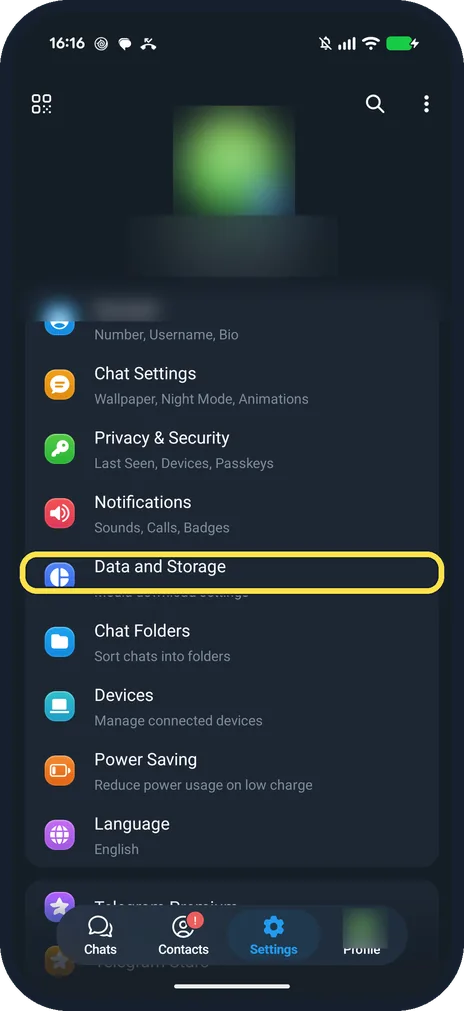
Tap Data and Storage
Open Settings in Telegram. Data and Storage is below Notifications.
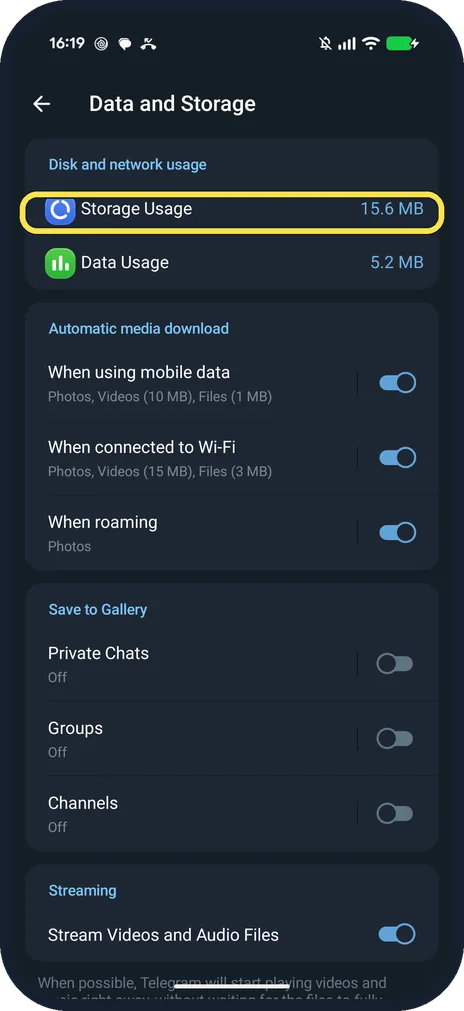
Tap Storage Usage
It is the first row. Ours showed 15.6 MB.
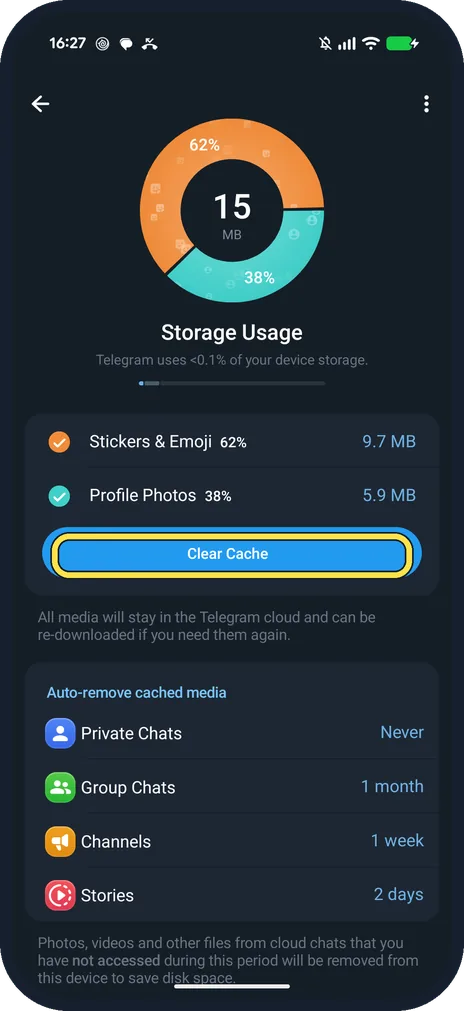
Tap Clear Cache
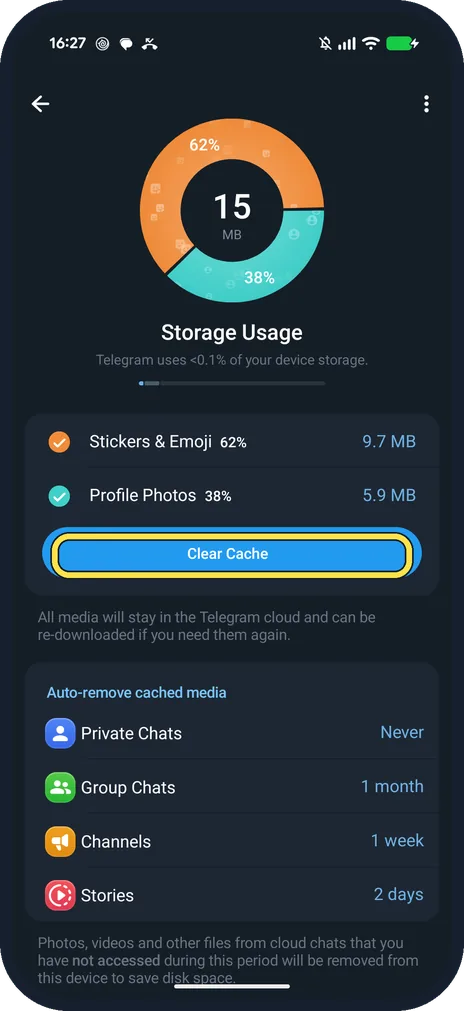
The chart shows what is stored. Ours: Stickers & Emoji 62 % (9.7 MB), Profile Photos 38 % (5.9 MB).
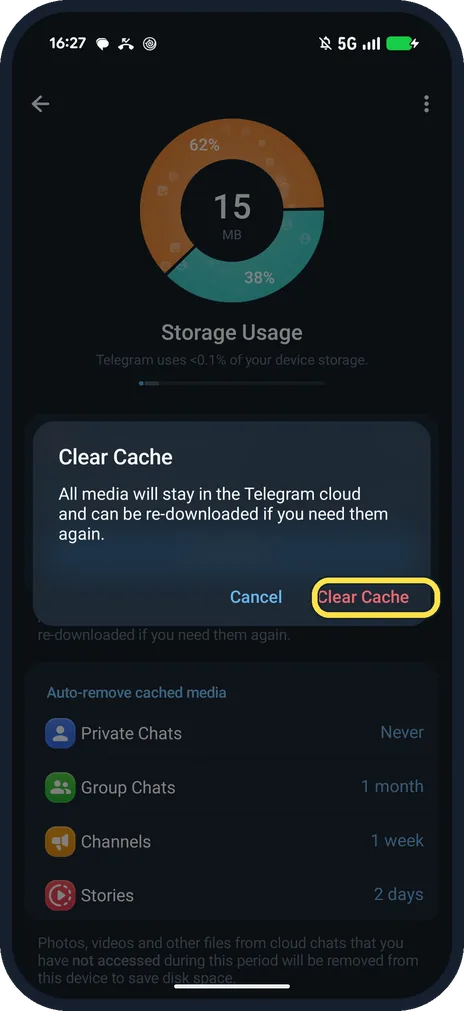
Confirm with Clear Cache
Telegram says: All media will stay in the Telegram cloud and can be re-downloaded if you need them again.
Check the result
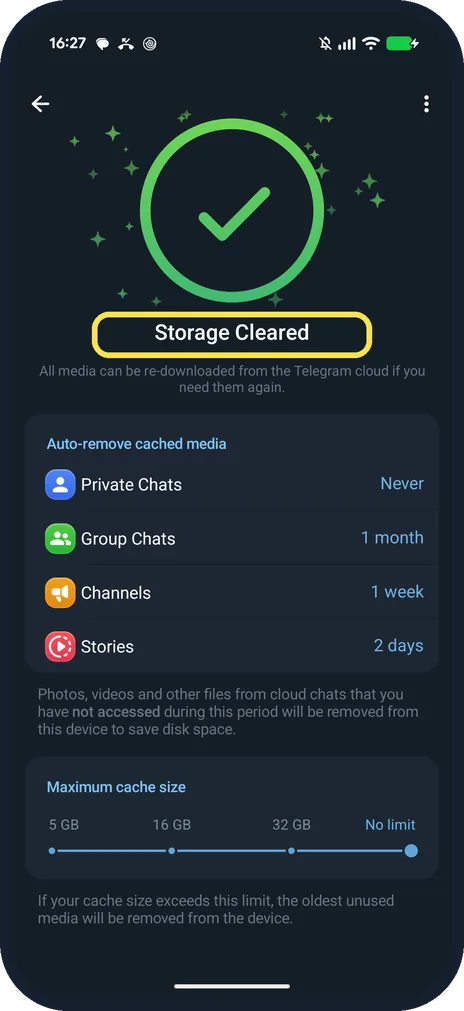
Ours said Storage Cleared.
If you do not see this option
- Help page says Clear cache under Storage Usage? Telegram's FAQ gives Settings > Data and Storage > Storage Usage > Clear cache. On our Telegram 13.1.1 the button reads Clear Cache, at the bottom of the chart. Source: How do I log out?
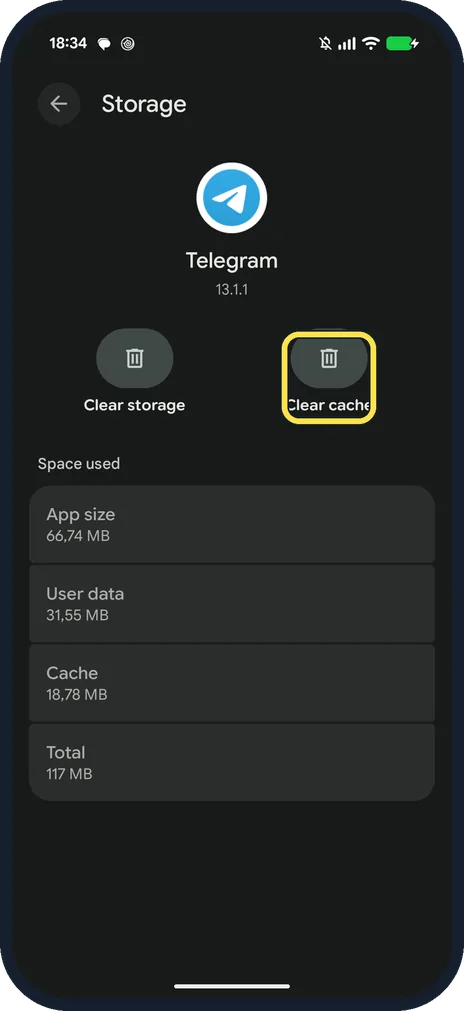
- Using the Pixel's Clear cache instead? Pixel Settings, Apps, Telegram, Storage and cache has Clear cache and Clear storage. Ours showed Cache 18,78 MB of 117 MB. Clear storage removes all of Telegram's data on the phone, not just the cache, so use Telegram's own Clear Cache.
If this does not work
- Cache fills up again fast? Ours was back to 18 MB about two hours after clearing: Stickers & Emoji 13.1 MB and Documents 5.6 MB. Stop media downloading on its own: see stop Telegram auto-downloading. Auto-remove cached media sets how long media is kept per chat type.
- Space comes back but the phone is still full? Maximum cache size is a slider from 5 GB to No limit; Telegram removes the oldest unused media past it. Telegram says clearing does not log you out. Source: How do I log out?
About this guide
Clearing the cache does not log you out or delete chats, Telegram says.
The screenshots are from Telegram 13.1.1 on our Google Pixel 10a with Android 17, in Dark mode, taken on 25 October 2026.
Good to know
To stop media downloading, see stop Telegram auto-downloading.
For Signal storage, see stop Signal auto-downloading media.
In short: Telegram, Settings, Data and Storage, Storage Usage, Clear Cache.
Links checked in October 2026. Menus and features can change after software updates. These steps match the version named at the top.
📷 See real photos from the Pixel 10a in our Camera Lab, next to 10 other phones.
Did this guide work for you?
Sorry about that. What happened?