
howtosimply.com/guides/how-to-use-note-to-self-in-signal-on-android/ · Checked October 2026 · Google Pixel 10a, Android 17, Signal 8.32.3
In this guide
Tap the pencil on Signal's Chats screen and pick Note to Self. Type a note and send it, tap + to add a photo or file, or hold the mic for a voice note. Signal says notes sync to your linked devices.
6 of 6 steps with real screenshots · 2 official sources below
- Device
- Android
- Shown on
- Google Pixel 10a, Android 17, Signal 8.32.3
- App
- Signal
- Real screenshots
- 6 of 6 steps
- Checked
- October 2026
- Sources
- 2 official, linked below
Step by step
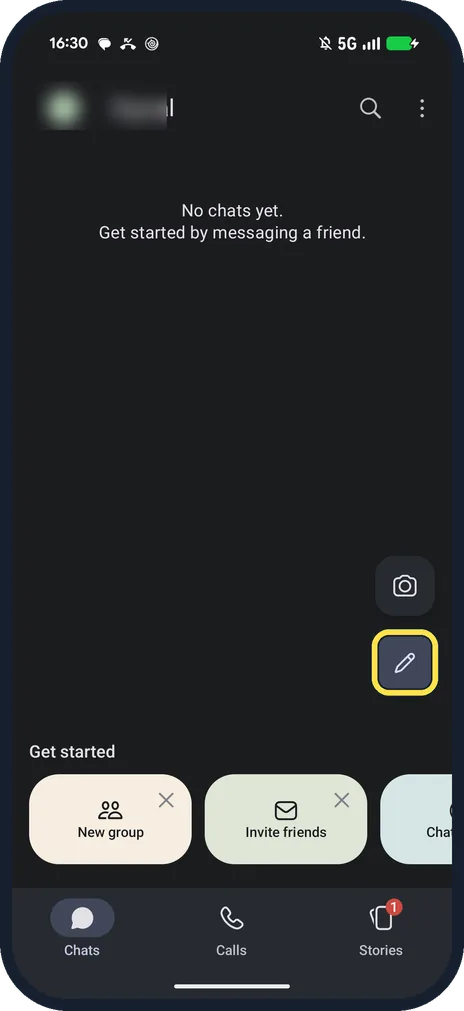
Tap the pencil
It is at the bottom right of Signal's Chats screen, below the camera.
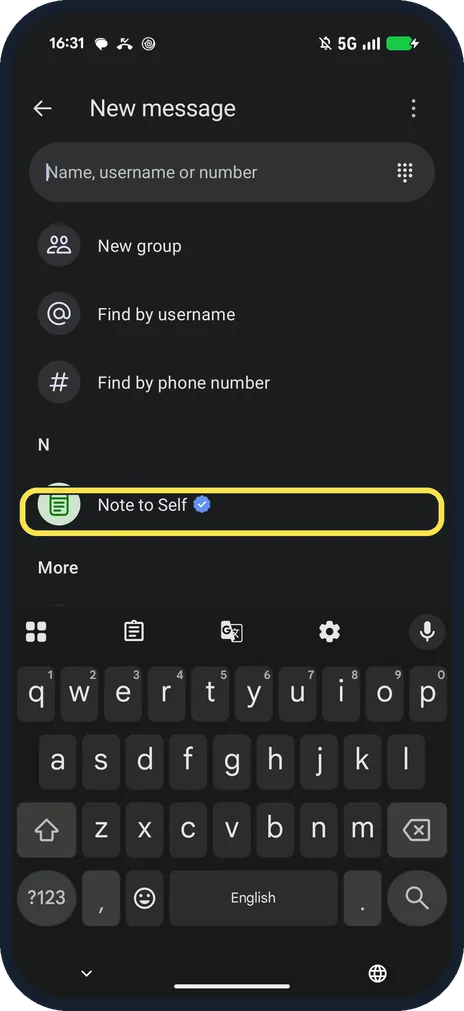
Pick Note to Self
On the New message screen it is listed under N.
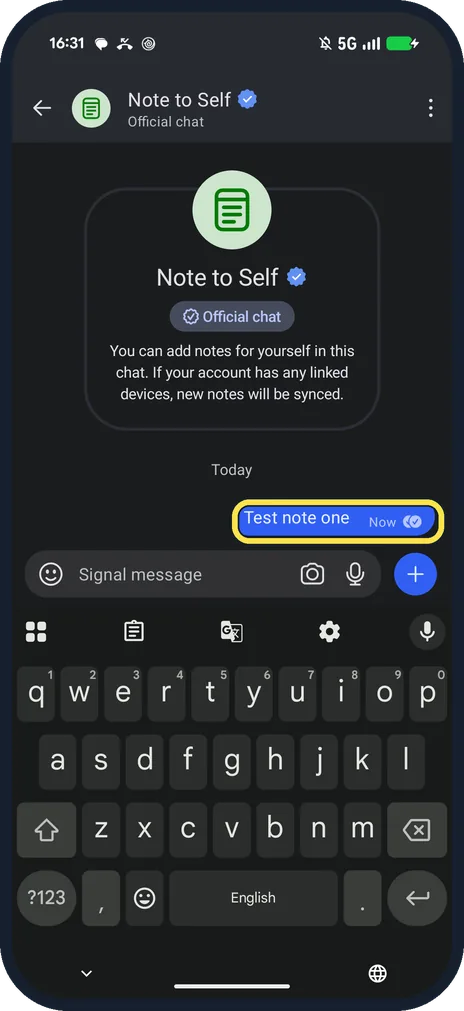
Type a note and send it
Ours: Test note one.
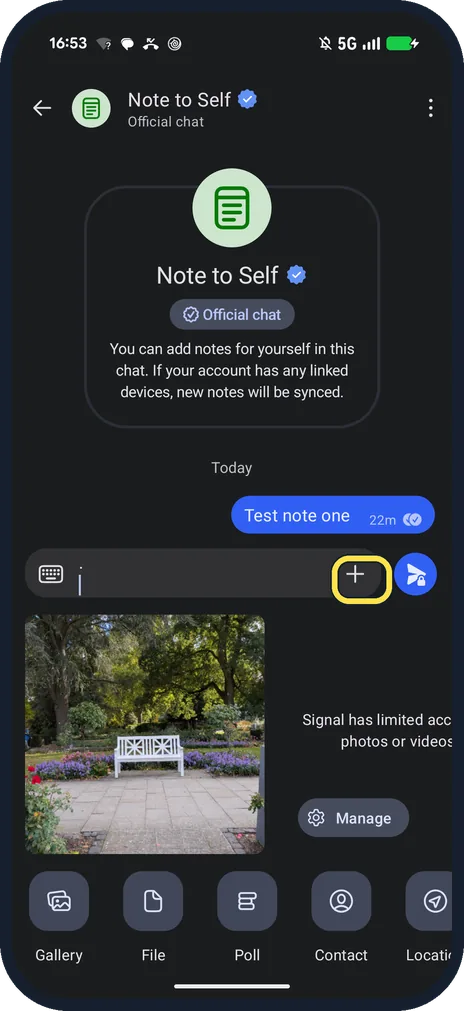
Tap + to add a photo
The row has Gallery, File, Poll, Contact and Location, with the one photo Signal could see above it.
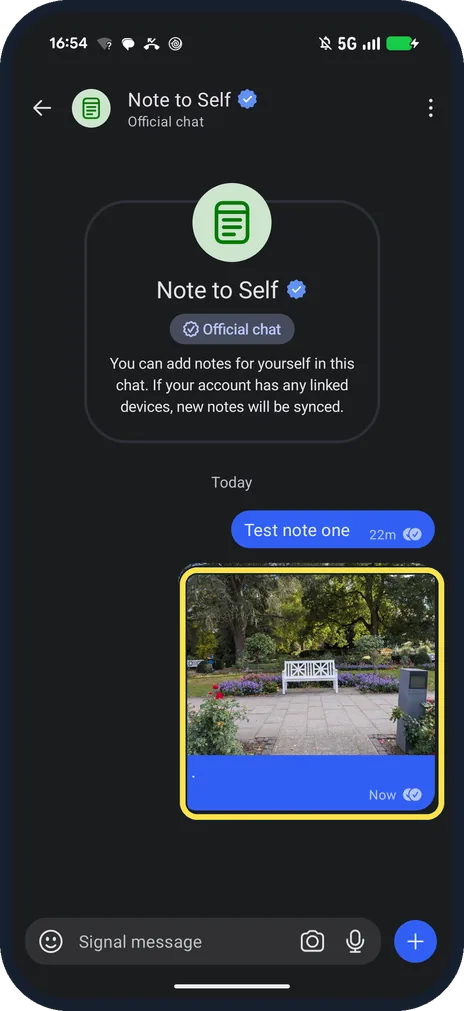
Send the photo
Ours shows in the chat with Now and two ticks.
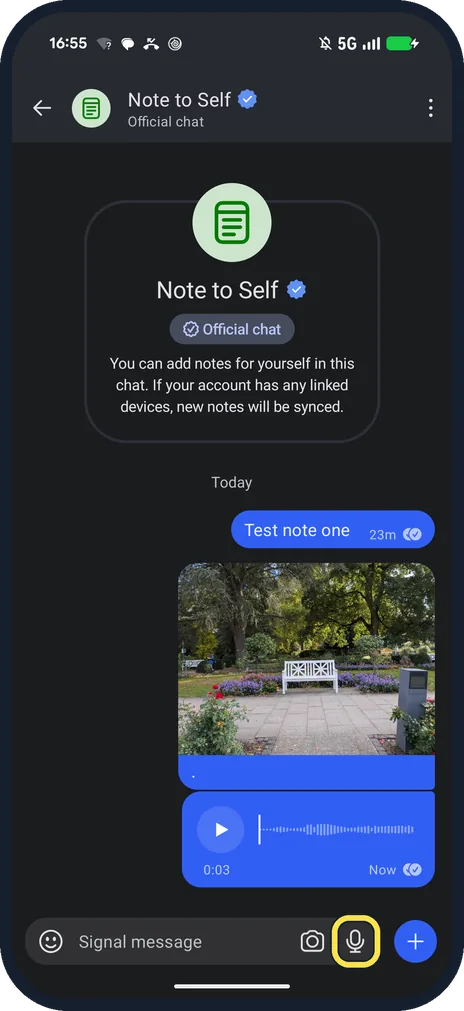
Hold the mic for a voice note
The mic is next to the camera in the message box. Ours was 0:03 long, below the photo.
If you do not see this option
- On a computer? Signal says on Desktop you use Search, then pick Note to Self, and it opens on the right. Our chat says new notes sync to any linked devices. Source: Note to Self
- On an iPhone? Signal gives the same route as Android: tap compose, then pick Note to Self. Source: Note to Self
If this does not work
- Notes vanish? Signal says you can set disappearing messages in Note to Self, and the default timer covers new chats: see disappearing messages. Sources: Note to Self, Set and manage disappearing messages
- Don't see Note to Self? Signal says to search for it. Type note in the Name, username or number box on the New message screen. Source: Note to Self
- Asked for the microphone or photos? Ours asked to allow the microphone (Continue) and said Signal has limited access to photos or videos, with a Manage button.
About this guide
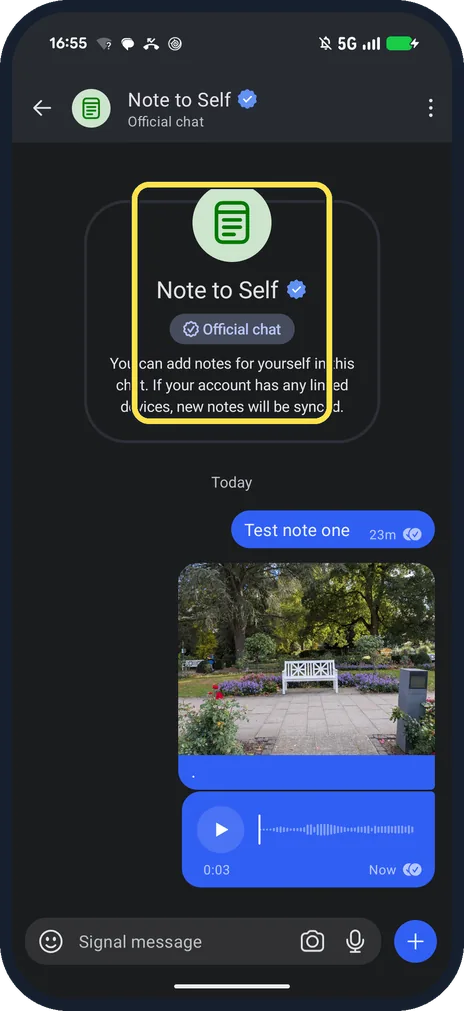
Note to Self is an official chat with yourself, marked with a blue tick.
The screenshots are from Signal 8.32.3 on our Google Pixel 10a with Android 17, in Dark mode, taken on 25 October 2026. The photo is one we took on this Pixel.
Good to know
On Telegram, see use Saved Messages in Telegram.
To stop Signal downloading media, see stop Signal auto-downloading.
In short: Pencil, Note to Self, type or + or hold mic.
Links checked in October 2026. Menus and features can change after software updates. These steps match the version named at the top.
📷 See real photos from the Pixel 10a in our Camera Lab, next to 10 other phones.
Did this guide work for you?
Sorry about that. What happened?