
howtosimply.com/guides/how-to-use-picture-in-picture-on-an-iphone/ · Checked October 2026 · iPhone 17e · iOS 27.0.1
In this guide
Check that Start PiP Automatically is on in Settings, General, Picture in Picture. Play a video full screen and swipe up to go Home: the video keeps playing in a small window. You can also tap the Picture in Picture button at the top left of the video.
3 of 3 steps with real screenshots · 1 official source below
- Device
- iPhone
- Shown on
- iOS 27.0.1 (iPhone 17e)
- App
- Settings
- Path
- Settings › General › Picture in Picture
- Real screenshots
- 3 of 3 steps
- Checked
- October 2026
- Sources
- 1 official, linked below
Step by step
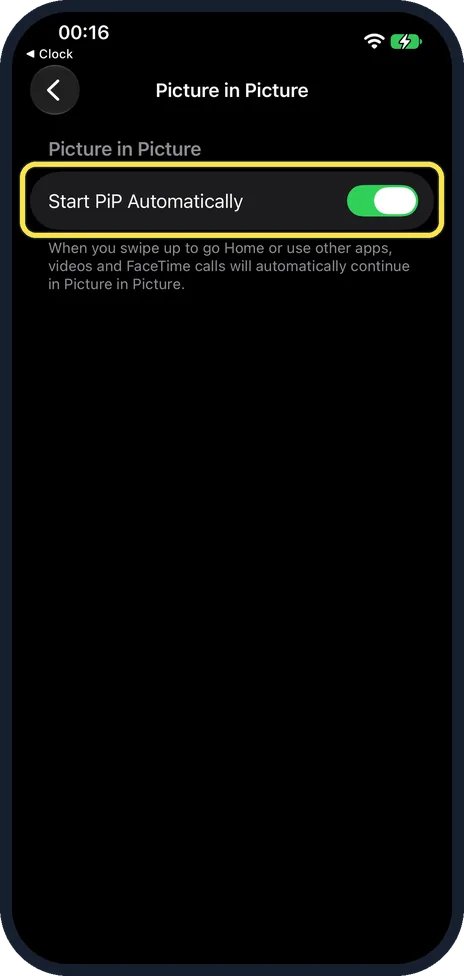
Check Start PiP Automatically
Open Settings, General, Picture in Picture. Start PiP Automatically is the only switch on the page and was on by default on ours. The note says videos and FaceTime calls continue in Picture in Picture when you swipe up to go Home or use other apps.
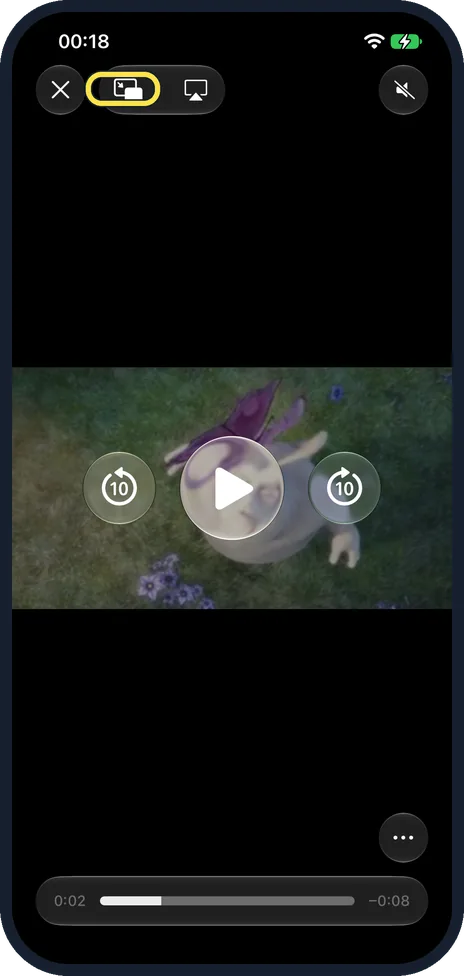
Play a video full screen
On ours the Picture in Picture button sat between the close button and the AirPlay button at the top left. Tapping it starts Picture in Picture straight away.
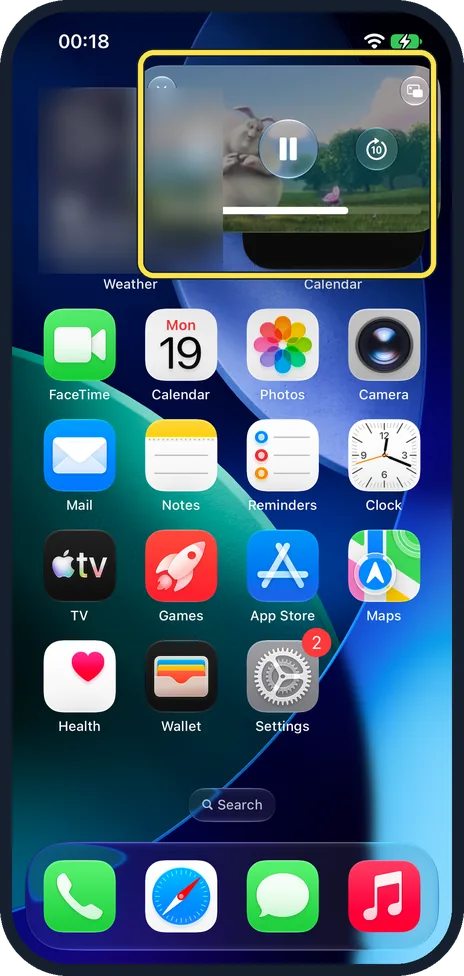
Swipe up to go Home
The video shrinks into a floating window at the top of the Home Screen and keeps playing. Ours showed a pause button and a skip-10-seconds button in the window.
If you do not see this option
- No Picture in Picture button on the video? Apple says Picture in Picture works only with supported apps and videos: if the option isn't there, the app or video may not support it. Ours worked with a video played full screen in Safari. Source: Multitask with Picture in Picture on iPhone
- The video does not float when you swipe Home? Check Start PiP Automatically in Settings, General, Picture in Picture. With it off, tap the Picture in Picture button in the video instead. Source: Multitask with Picture in Picture on iPhone
If this does not work
- The window is in the way? Apple says to drag it to another corner, or drag it off the left or right edge to hide it. Source: Multitask with Picture in Picture on iPhone
- The window is too small? Apple says to pinch open to make it larger and pinch closed to shrink it again. Source: Multitask with Picture in Picture on iPhone
About this guide
Picture in Picture keeps a video or FaceTime call in a small window while you use other apps.
The screenshots are from our iPhone 17e with iOS 27.0.1, in Dark mode. We played a public sample video in Safari, muted.
Good to know
To close the window, Apple says to tap it and then tap the close button. To go back to the full video, tap the window and then the full-screen button.
See also where Live Activities show on an iPhone 17e.
In short: Settings, General, Picture in Picture on. Play a video full screen, swipe Home.
Links checked in October 2026. Menus and features can change after software updates. These steps match the version named at the top.
Did this guide work for you?
Sorry about that. What happened?