
howtosimply.com/guides/how-to-turn-on-low-data-mode-on-an-iphone/ · Checked October 2026 · iPhone 17e · iOS 27.0.1
In this guide
Open Settings, tap Wi-Fi, then the i button next to the network you are connected to, and turn on Low Data mode. It is set for each Wi-Fi network. For mobile data Apple says to turn it on under Mobile Data Options instead.
4 of 4 steps with real screenshots · 1 official source below
- Device
- iPhone
- Shown on
- iOS 27.0.1 (iPhone 17e)
- App
- Settings
- Path
- Settings › Wi-Fi › Low Data mode
- Real screenshots
- 4 of 4 steps
- Checked
- October 2026
- Sources
- 1 official, linked below
Step by step
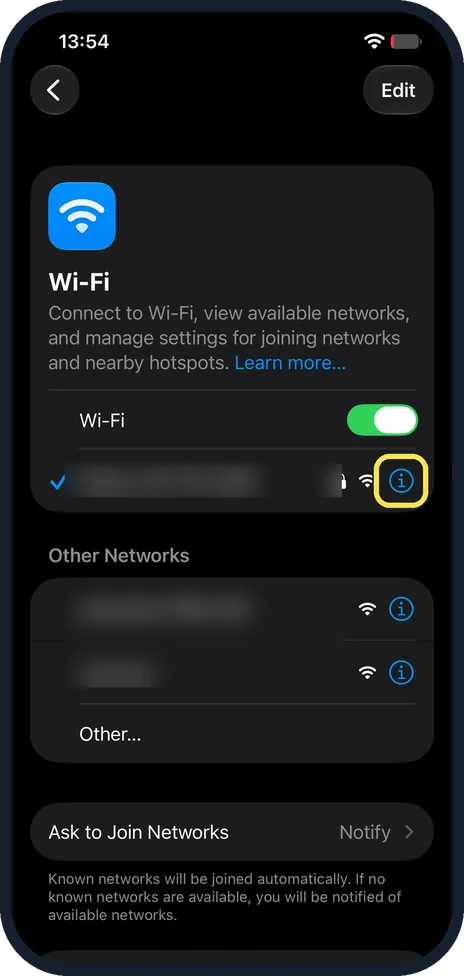
Tap the i next to your network
Open the Settings app and tap Wi-Fi. The network you are connected to has a tick. Tap the blue i button at the right of that row. Network names are hidden in our picture.
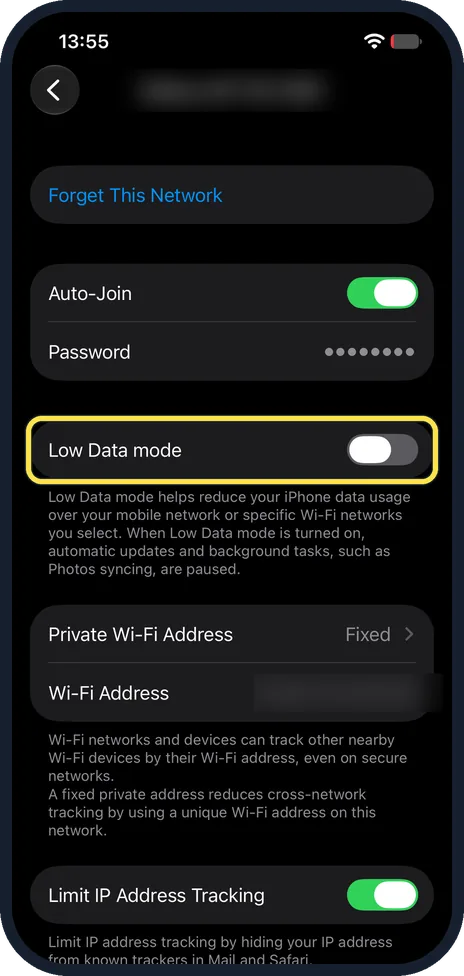
Find Low Data mode
The network page has Forget This Network, Auto-Join and Password at the top. Low Data mode is the next switch. The note below it says automatic updates and background tasks, such as Photos syncing, are paused.
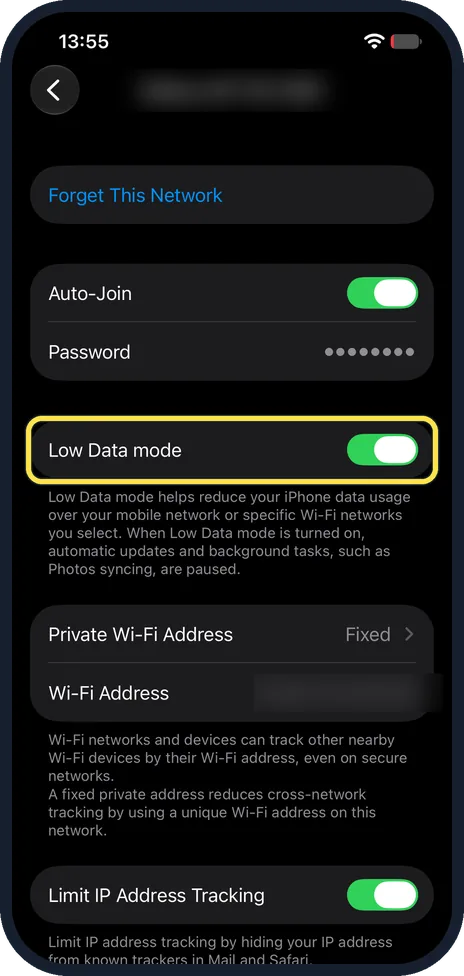
Turn on Low Data mode
Tap the switch next to Low Data mode. It turns green. From now on, this setting applies whenever the iPhone uses this Wi-Fi network.
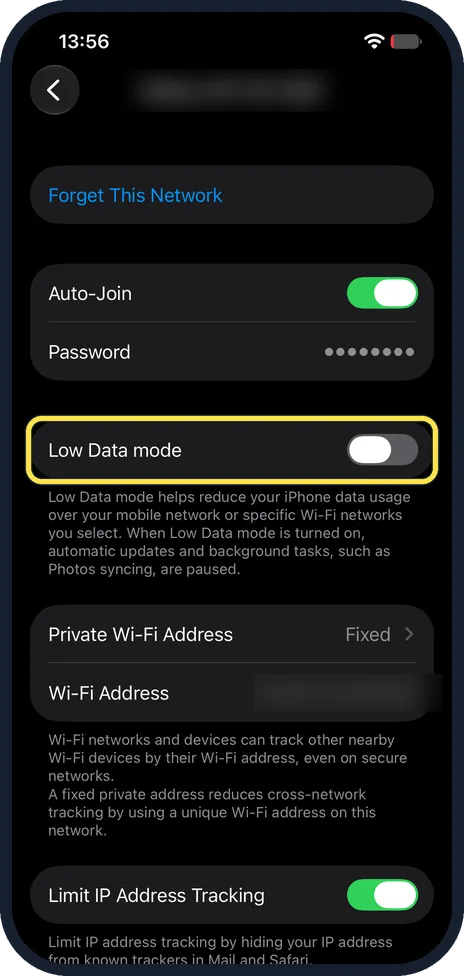
Turn Low Data mode off again
To use data normally again, open the same page and tap the Low Data mode switch once more. It turns grey. We switched ours back off.
If you do not see this option
- Want Low Data Mode on mobile data? Apple says to open Settings, Cellular (Mobile Data), then Cellular Data Options and turn on Low Data Mode. With 5G, tap Data Mode first. Our iPhone had no SIM, so this is not shown. Source: Use Low Data Mode on your iPhone and iPad
- No Low Data Mode for your mobile plan? Apple says the Low Data Mode settings might vary depending on your carrier, and on Dual SIM phones you tap one of your numbers first. Source: Use Low Data Mode on your iPhone and iPad
If this does not work
- Photos stopped syncing to iCloud? Apple says Low Data Mode pauses iCloud Photos updates and automatic backups. Turn it off for that network when you want them to catch up. Source: Use Low Data Mode on your iPhone and iPad
- Apps no longer update by themselves? Apple says the App Store turns off automatic updates and downloads in Low Data Mode. Turn it off, or update apps by hand in the App Store. Source: Use Low Data Mode on your iPhone and iPad
- Low Data Mode is on for a network on another device too? Apple says iCloud keeps your Low Data Mode choice for each Wi-Fi network up to date across all your devices. Source: Use Low Data Mode on your iPhone and iPad
About this guide
Low Data Mode makes the iPhone use less data in the background: Apple says it turns off Background App Refresh and automatic downloads and pauses iCloud Photos updates. It helps on a phone hotspot, a metered connection or a slow network.
The screenshots are from our iPhone 17e with iOS 27.0.1, in Dark mode. It had no SIM, so we turned Low Data mode on and off again for the Wi-Fi network only. iOS 27 spells it Low Data mode.
Good to know
To stop single apps using data in the background: how to turn off Background App Refresh on an iPhone. To save battery too: how to turn on Low Power Mode on an iPhone. Wi-Fi Assist can switch to mobile data when Wi-Fi is poor.
On Android the setting is called Data Saver: on a Google Pixel and on a Samsung Galaxy.
In short: Settings, Wi-Fi, the i next to your network, then turn on Low Data mode.
Links checked in October 2026. Menus and features can change after software updates. These steps match the version named at the top.
Did this guide work for you?
Sorry about that. What happened?