
howtosimply.com/guides/how-to-change-how-long-an-iphone-screen-stays-on/ · Checked October 2026 · iPhone 17e · iOS 27.0.1
In this guide
Open Settings, tap Display & Brightness, then Auto-Lock, and choose 30 seconds, 1 to 5 minutes or Never. The screen locks after that long without a touch. With Low Power Mode on, Apple says Auto-Lock is set to 30 seconds.
3 of 3 steps with real screenshots · 2 official sources below
- Device
- iPhone
- Shown on
- iOS 27.0.1 (iPhone 17e)
- App
- Settings
- Path
- Settings › Display & Brightness › Auto-Lock
- Real screenshots
- 3 of 3 steps
- Checked
- October 2026
- Sources
- 2 official, linked below
Step by step
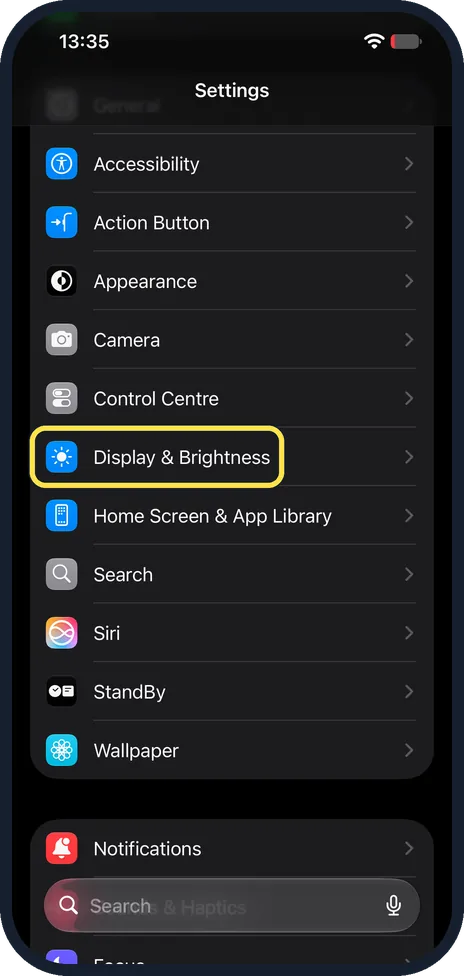
Open Display & Brightness
Open the Settings app and scroll down to the group with Control Centre and Home Screen & App Library. Tap Display & Brightness, the blue icon with a sun.
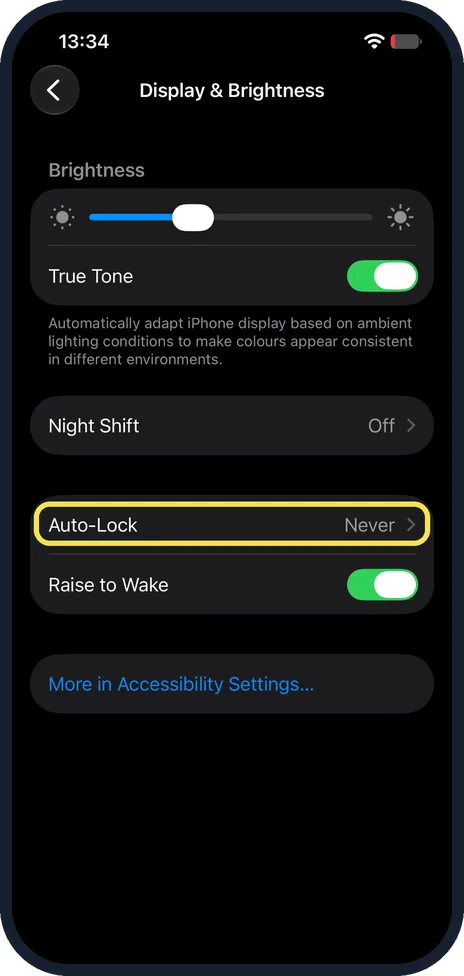
Tap Auto-Lock
Below Brightness, True Tone and Night Shift is Auto-Lock, with the current time on the right. Ours showed Never. Raise to Wake is the switch just below it. Tap Auto-Lock.
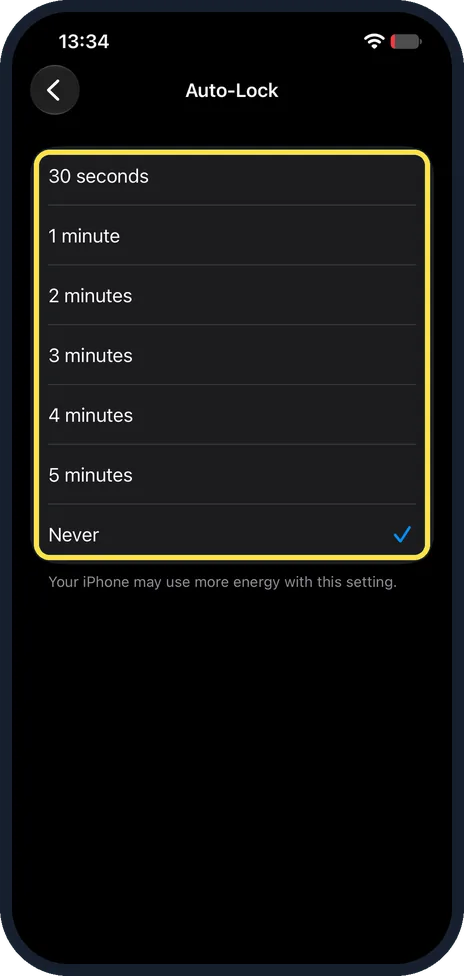
Choose how long the screen stays on
Pick 30 seconds, 1 minute, 2 minutes, 3 minutes, 4 minutes, 5 minutes or Never. The tick moves to your choice. With Never ticked, ours showed: Your iPhone may use more energy with this setting.
If you do not see this option
- No Always On Display under Auto-Lock? Apple says Always On display works on supported models only. On our iPhone 17e the Display & Brightness page has Auto-Lock and Raise to Wake but no Always On Display row. Source: Keep the iPhone display on longer
- Auto-Lock stuck at 30 seconds? Apple says Low Power Mode sets Auto-Lock to 30 seconds. Turn Low Power Mode off under Settings, Battery, Power Mode, then choose a longer time again. Source: Use Low Power Mode to save battery life on your iPhone
If this does not work
- The screen still turns off after 30 seconds? Check the battery icon. If it is yellow, Low Power Mode is on, and Apple says it sets Auto-Lock to 30 seconds while it is on. Source: Use Low Power Mode to save battery life on your iPhone
- The screen dims before it locks? Apple says the display dims and then locks when you look away for a while. Choose a longer Auto-Lock time to push both back. Source: Keep the iPhone display on longer
- Battery running down faster on Never? Apple notes that delaying or preventing Auto-Lock may increase power consumption, and ours showed the same warning under Never. Pick a few minutes instead. Source: Keep the iPhone display on longer
About this guide
Auto-Lock decides how long the iPhone screen stays on after your last touch before it dims and locks. Apple's guide says a longer time helps, for example while you navigate with Maps.
The screenshots are from our iPhone 17e with iOS 27.0.1, in Dark mode. Ours was already set to Never, and we left it that way.
Good to know
If the screen gets darker on its own rather than locking, see iPhone screen keeps dimming? 7 settings to check and how to turn off Auto-Brightness on an iPhone.
Low Power Mode keeps Auto-Lock at 30 seconds while it is on: how to turn on Low Power Mode on an iPhone.
In short: Settings, Display & Brightness, Auto-Lock, then pick 30 seconds to 5 minutes or Never.
- Apple Support: Keep the iPhone display on longer
- Apple Support: Use Low Power Mode to save battery life on your iPhone
Links checked in October 2026. Menus and features can change after software updates. These steps match the version named at the top.
Did this guide work for you?
Sorry about that. What happened?