
What changed: new screenshots from our own iPhone 17e on iOS 27.0.1, dark mode, and the wording checked against those screens.
howtosimply.com/guides/how-to-use-back-tap-on-an-iphone/ · Checked October 2026 · iPhone 14 Pro (iOS 27.0.1) and iPhone 17e (iOS 27.0.1)
In this guide
Open Settings, tap Accessibility, Touch, then Back Tap. Choose Double Tap or Triple Tap and pick an action such as Screenshot, Torch or Control Centre. Tapping the back of the phone then triggers it.
5 of 5 steps with real screenshots · 1 official source below
- Device
- iPhone
- Shown on
- iOS 27.0.1 (iPhone 14 Pro), iOS 27.0.1 (iPhone 17e)
- App
- Settings
- Path
- Settings › Accessibility › Touch › Back Tap
- Real screenshots
- 5 of 5 steps
- Checked
- October 2026
- Sources
- 1 official, linked below
Step by step
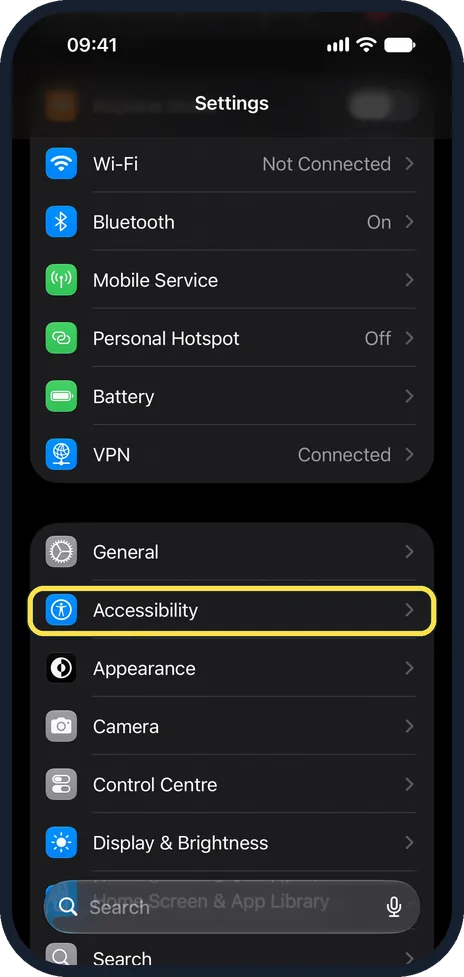
Open Settings and tap Accessibility
Scroll down past Wi-Fi, Bluetooth and Battery. Accessibility is just below General.
Watch these steps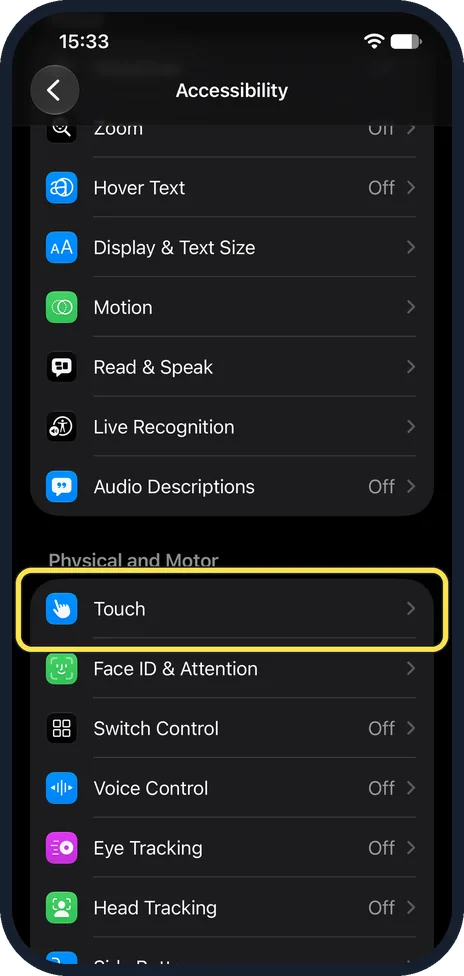
Tap Touch
It is the first row under Physical and Motor.
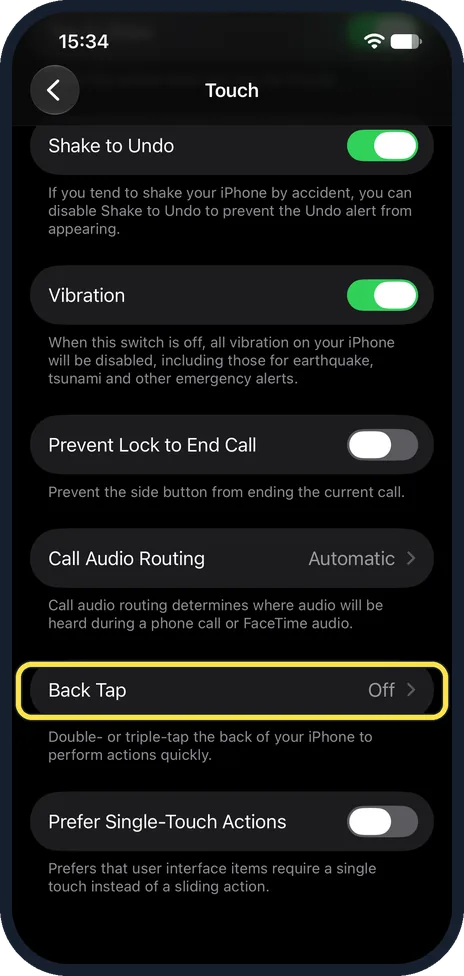
Scroll down and tap Back Tap
It is near the bottom of the Touch page and shows Off until you choose an action.
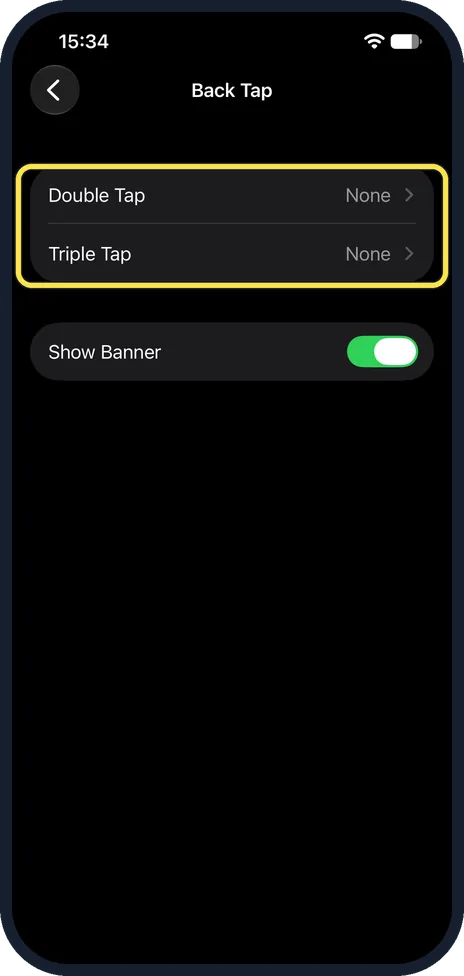
Choose Double Tap or Triple Tap
You can set a different action for each. On our iPhone 17e both showed None, and Show Banner was on.
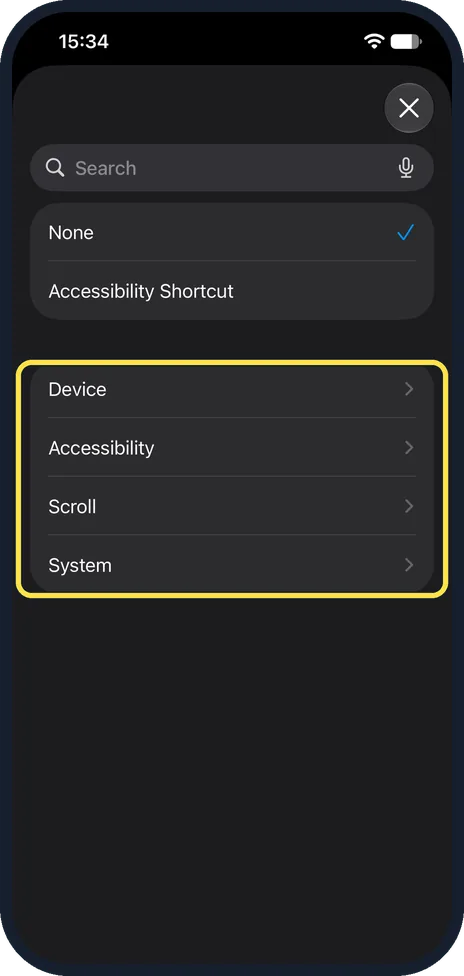
Pick an action
On iOS 27.0.1 the list starts with None and Accessibility Shortcut, then four groups: Device, Accessibility, Scroll and System. Device holds Action Button, Lock screen, Screenshot, Shake, Torch, Volume Down and Volume Up. Open a group and tap the action.
What changed: new screenshots from our own iPhone 17e on iOS 27.0.1, dark mode, and the wording checked against those screens.
Watch these steps
About this guide
Back Tap turns the back of the iPhone into a hidden button. Two or three firm taps can take a screenshot, switch the torch on, open the camera or run a shortcut. It works through most cases. The screenshots are our own, taken on an iPhone 14 Pro and an iPhone 17e, both running iOS 27.0.1 in dark mode. The 14 Pro picture was recorded over USB in QuickTime. The path is the same on iOS 26.
Good to know
Tap firmly near the middle of the back. Gentle taps are ignored on purpose.
If it triggers by accident in your pocket or on a table, use Triple Tap or switch it off.
With a shortcut you can do almost anything, for example open a specific app or start a timer.
It works on iPhone 8 and later.
In short: Settings, Accessibility, Touch, Back Tap, choose an action.
Links checked in October 2026. Menus and features can change after software updates. These steps match the version named at the top.
Did this guide work for you?
Sorry about that. What happened?