
howtosimply.com/guides/how-to-use-assistivetouch-if-an-iphone-button-is-broken/ · Checked October 2026 · iPhone 14 Pro · iOS 27.0.1
In this guide
Open Settings, tap Accessibility, Touch, AssistiveTouch and switch it on. A floating button appears. Tap it for a menu with Home, Siri, Control Centre, volume, screenshot and lock, so you can use the phone without the physical buttons.
3 of 5 steps with real screenshots · 1 official source below
- Device
- iPhone
- Shown on
- iOS 27.0.1 (iPhone 14 Pro)
- App
- Settings
- Path
- Settings › Accessibility › Touch
- Real screenshots
- 3 of 5 steps
- Checked
- October 2026
- Sources
- 1 official, linked below
Step by step
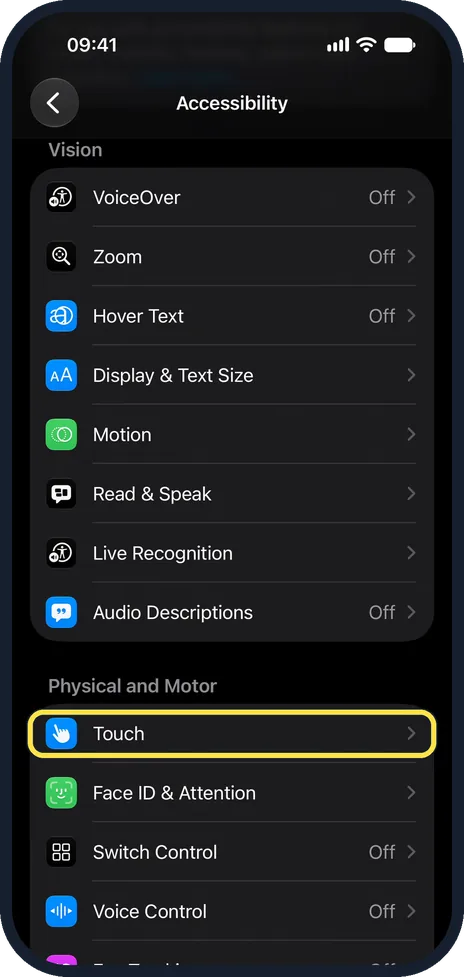
Open Settings, Accessibility, Touch
Touch is the first row under Physical and Motor.
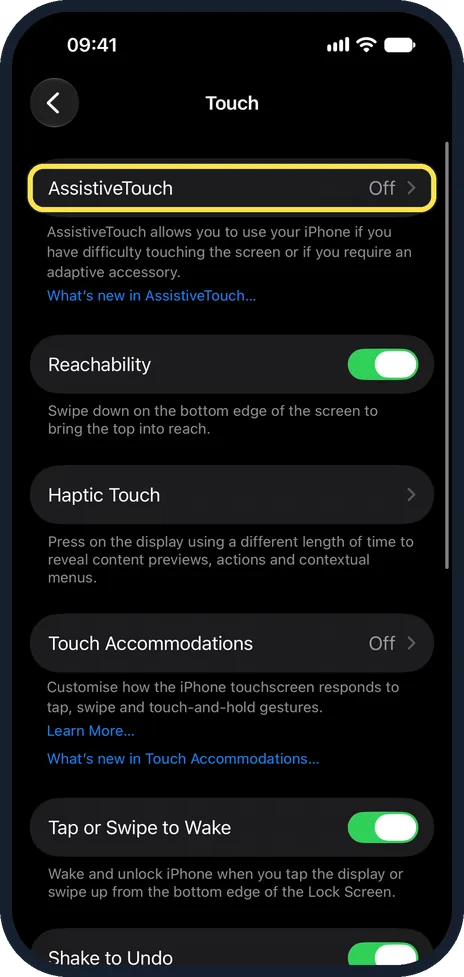
Tap AssistiveTouch and switch it on
It is the first row on the Touch page. Switch on AssistiveTouch at the top of the next page. A grey round button appears. Drag it to any edge of the screen.
Tap the button to open the menu
The menu offers Notification Centre, Device, Control Centre, Home, Siri and Custom.
Use Device for hardware actions
Tap Device for Lock Screen, Volume Up, Volume Down, Mute and Rotate Screen. Tap More for Screenshot, Restart and Emergency SOS.
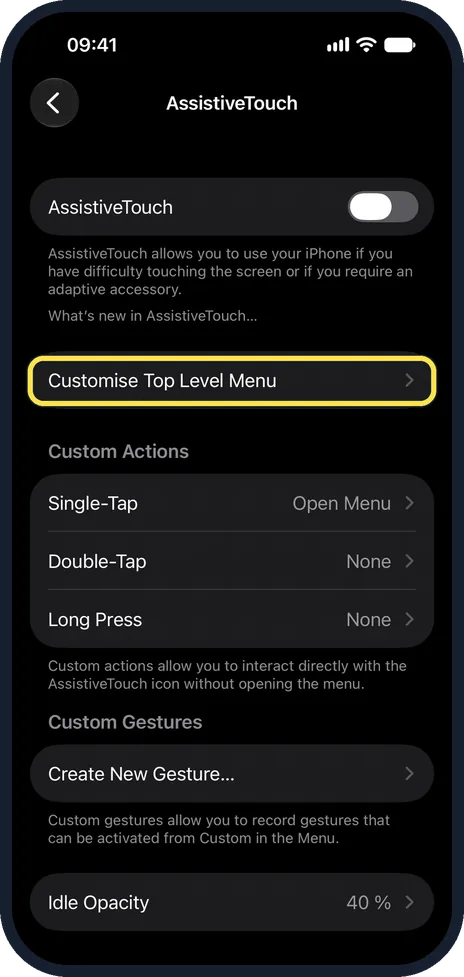
Customise the menu
On the AssistiveTouch page, tap Customise Top Level Menu to choose which icons appear. Under Custom Actions, set what a single tap, double tap or long press on the button does.
About this guide
AssistiveTouch puts an on-screen button on the display that replaces hardware buttons and gestures. People use it when a side or volume button stops working, and when pressing buttons or swiping is difficult. The screenshots are our own, taken on an iPhone 14 Pro running iOS 27.0.1. They were recorded over USB in QuickTime. The path is the same on iOS 26.
Good to know
To turn the phone off without the side button, open Settings, General, Shut Down. Plug in the charger to turn it back on.
Set the Idle Opacity lower so the button is less visible when you are not using it.
A broken button can usually be repaired. AssistiveTouch is a workaround until then.
In short: Settings, Accessibility, Touch, AssistiveTouch on. Tap the floating button.
Links checked in October 2026. Menus and features can change after software updates. These steps match the version named at the top.
Did this guide work for you?
Sorry about that. What happened?