
What changed: the screenshots are now our own iPhone 17e on iOS 27.0.1, dark mode, and the wording is checked against those screens and Apple's iOS 27 guide.
howtosimply.com/guides/iphone-screen-keeps-dimming-7-settings-to-check/ · Checked October 2026 · iPhone 17e · iOS 27.0.1
In this guide
Open Settings, tap Accessibility, tap Display & Text Size, scroll to the bottom and switch off Auto-Brightness. If the screen still dims, check True Tone and Night Shift under Display & Brightness, check Power Mode under Battery, and let the iPhone cool down: Apple lists a dimmed screen among the signs of a hot iPhone.
5 of 6 steps with real screenshots · 8 official sources below
- Device
- iPhone
- Shown on
- iOS 27.0.1 (iPhone 17e)
- App
- Settings
- Real screenshots
- 5 of 6 steps
- Checked
- October 2026
- Sources
- 8 official, linked below
Step by step
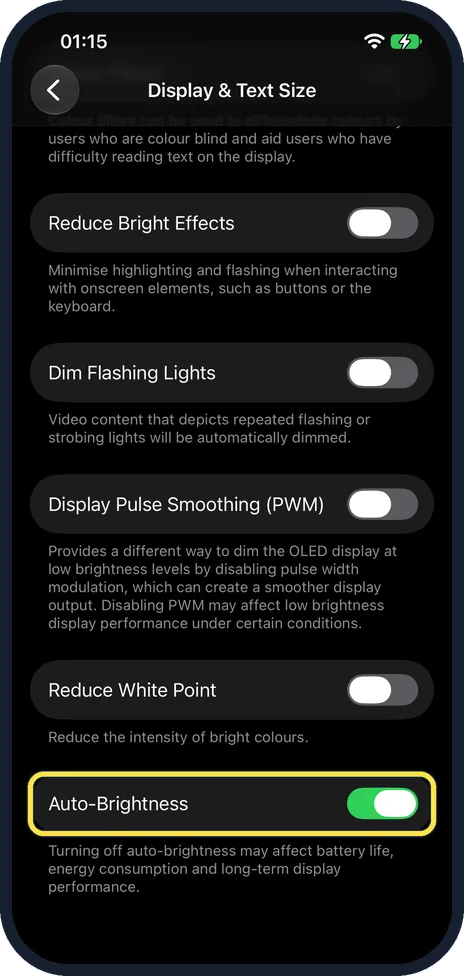
Switch off Auto-Brightness
Open Settings, Accessibility, Display & Text Size and scroll to the bottom. It is the last switch on the page. On our iPhone 17e it was on. The built-in ambient light sensor lowers the brightness in dark places and raises it in bright ones. The note under the switch says that turning it off may affect battery life, energy consumption and long-term display performance. Apple Support's tip: if you think the brightness is not adapting correctly, turn Auto-Brightness off and then back on. Two rows above it, above Reduce White Point, is Display Pulse Smoothing (PWM), which was off on our iPhone 17e. Apple says that for some people the display can appear to flicker when dim, and that this switch creates a smoother dimming experience at low brightness levels. Step by step: how to turn off auto-brightness on an iPhone.
Watch these steps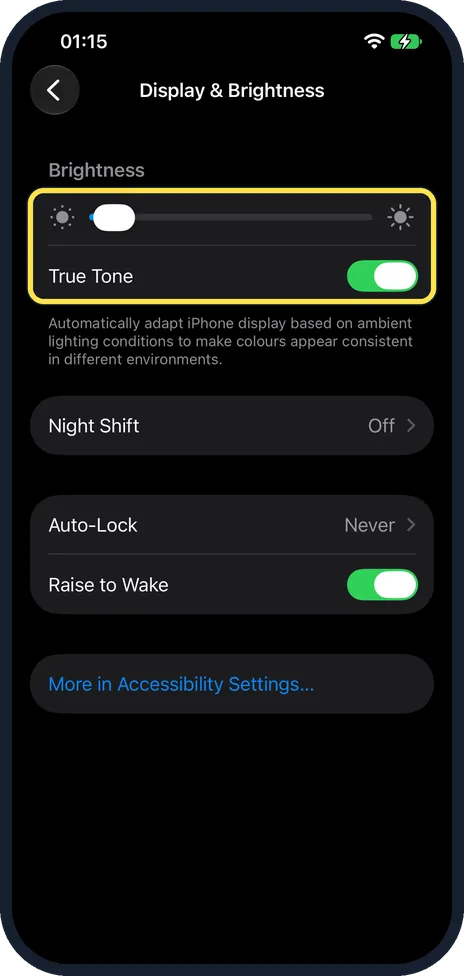
Set the brightness, then check True Tone
Open Control Centre and drag the brightness bar up, or use the Brightness slider at the top of Settings, Display & Brightness. Just below the slider, True Tone adjusts colour and intensity to the light around you. On our iPhone 17e it was on. Switch it off for a test if the screen seems to change by itself. Further down the same page, Auto-Lock showed Never on our iPhone 17e.
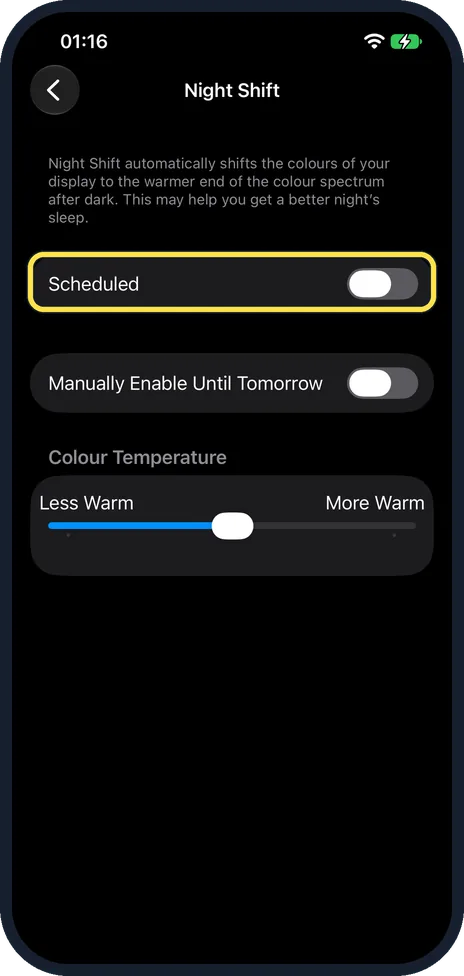
Check Night Shift
Under Settings, Display & Brightness, Night Shift, the display turns warmer in the evening, which can look dimmer. Switch off Scheduled if you do not want it. On our iPhone 17e Scheduled and Manually Enable Until Tomorrow were both off.
Let the iPhone cool down
Apple lists a dimmed screen among the signs that an iPhone is too hot, for example in a hot car or in direct sunlight. It may also stop charging. Apple Support says: "If your device gets too warm, the display might dim and your maximum screen brightness is reduced until your device can cool down." Move it somewhere cooler, out of direct sunlight, and wait a few minutes.
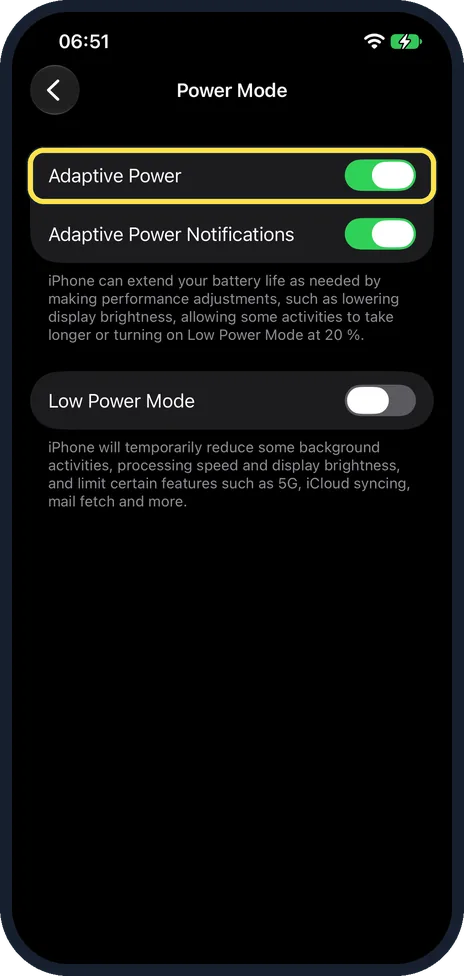
Check Power Mode and Low Power Mode
On iOS 27 the Battery page on an iPhone 15 or later has a Power Mode row instead of a Low Power Mode switch. The Power Mode page there had Adaptive Power and Adaptive Power Notifications, both on, and Low Power Mode, which was off. The note under Adaptive Power says iPhone can extend battery life by making performance adjustments, such as lowering display brightness, allowing some activities to take longer or turning on Low Power Mode at 20 %. The note under Low Power Mode says it temporarily reduces some background activities, processing speed and display brightness, and limits certain features such as 5G, iCloud syncing, mail fetch and more. Apple says Adaptive Power can lower screen brightness, limit background activity and make performance adjustments, and it can turn on Low Power Mode when the battery reaches 20%. Tap Power Mode, then turn Adaptive Power off, or tap Low Power Mode to switch it off. On iPhone 14 or earlier, tap Battery, then Low Power Mode. Low Power Mode turns off by itself when the iPhone charges to 80% or higher. More in how to turn on Low Power Mode on an iPhone.
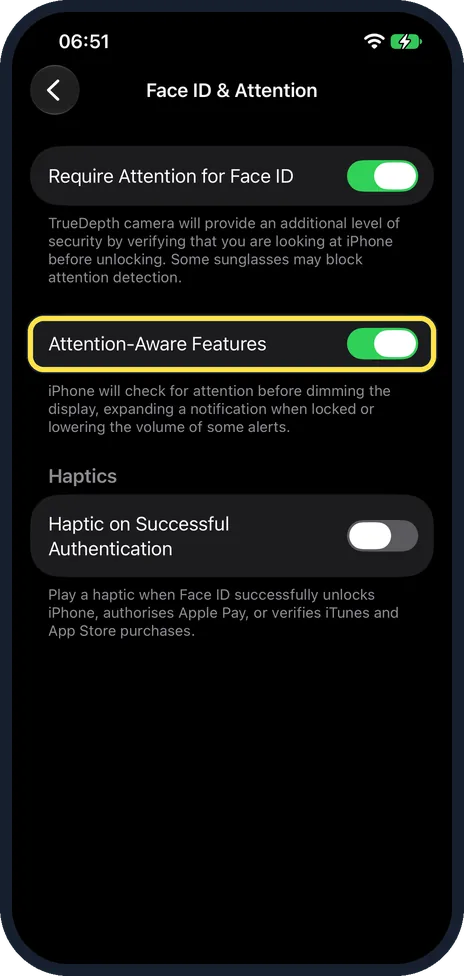
Check Attention-Aware Features, then Auto-Lock
On an iPhone with Face ID, open Settings, Accessibility, Face ID & Attention. On our iPhone 17e Attention-Aware Features was on. The note under it says iPhone will check for attention before dimming the display, expanding a notification when locked or lowering the volume of some alerts. Apple says that with it turned on, iPhone won't dim or lock as long as it detects attention. If the screen dims while you are reading, check that it is on. Then, under Settings, Display & Brightness, Auto-Lock sets how long the iPhone waits before it locks. On supported models, Always On Display keeps a dimmed Lock Screen visible while the iPhone is locked. That is normal. The iPhone 17e has no Always On setting: its Display & Brightness page shows Brightness, True Tone, Night Shift, Auto-Lock and Raise to Wake.
What changed: the screenshots are now our own iPhone 17e on iOS 27.0.1, dark mode, and the wording is checked against those screens and Apple's iOS 27 guide.
Watch these steps
If you do not see this option
- No Low Power Mode switch on the Battery page On iPhone 15 or later it is inside Battery, Power Mode. On iPhone 14 or earlier it is a switch on the Battery page. Source: Save battery life with Power Modes on iPhone
- No Adaptive Power Apple lists Adaptive Power for iPhone 15 Pro or later. On other models you only have Low Power Mode. Source: Save battery life with Power Modes on iPhone
- No Always On Display Apple offers it on supported models only. The Display & Brightness page on our iPhone 17e has no Always On row. Source: Keep the iPhone display on longer
If this does not work
- The screen still dims with Auto-Brightness off Check Power Mode. Apple says Adaptive Power can lower screen brightness to conserve power. Source: Save battery life with Power Modes on iPhone
- The screen dims while you are looking at it On an iPhone with Face ID, check Attention-Aware Features under Settings, Accessibility, Face ID & Attention. It was on on our iPhone 17e. Apple says that with it turned on, iPhone won't dim or lock as long as it detects attention. Source: Change Face ID and attention settings on iPhone · Source: Wake, unlock, and lock iPhone
- Night Shift turns on in the evening Apple says Scheduled shifts the colours to the warmer end of the spectrum at night. Switch off Scheduled under Display & Brightness, Night Shift. Source: Adjust the screen brightness and color on iPhone
About this guide
An iPhone screen that gets darker on its own is nearly always doing what it was set up to do. Several features change the brightness or the colour without asking, and each has its own switch.
Menu names are from recent versions of iOS. Screenshots: iPhone 17e, iOS 27.0.1, dark mode.
Good to know
The screen also dims for a moment just before it locks. If you are reading and it dims, tap the screen once.
Reduce White Point under Accessibility, Display & Text Size reduces the intensity of bright colours, which can look like a dimmer screen. On our iPhone 17e it was off.
A screen that flickers or stays dark at full brightness after all of these checks needs a look by Apple or a repair shop.
In short: Auto-Brightness off, brightness by hand, True Tone, Night Shift, cool down, Power Mode and Low Power Mode, Attention-Aware Features, Auto-Lock, and Always On on models that have it.
- Apple Support: Adjust the brightness and color temperature on your iPhone or iPad
- Apple iPhone User Guide: Adjust the screen brightness and color on iPhone
- Apple iPhone User Guide: Save battery life with Power Modes on iPhone
- Apple iPhone User Guide: Keep the iPhone display on longer
- Apple iPhone User Guide: Important handling information for iPhone
- Apple iPhone User Guide: Change Face ID and attention settings on iPhone
- Apple iPhone User Guide: Customize onscreen motion on iPhone
- Apple iPhone User Guide: Wake, unlock, and lock iPhone
Links checked in October 2026. Menus and features can change after software updates. These steps match the version named at the top.
Did this guide work for you?
Sorry about that. What happened?