
howtosimply.com/guides/how-to-use-one-handed-mode-on-an-oppo-phone/ · Checked October 2026 · CPH2689, EEA), ColorOS 16.0.5, Android 16 (build CPH2689_16.0.5.1001(EX01) · OPPO Reno13 5G
In this guide
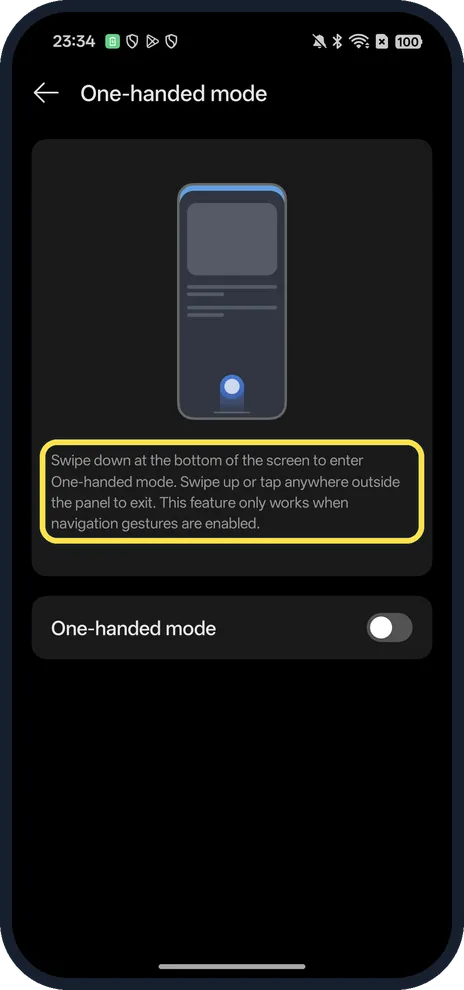
Turn on One-handed mode in Settings, Accessibility & convenience, One-handed mode. Then swipe down at the bottom of the screen to pull the top half down within reach. Swipe up or tap outside the panel to go back. It only works with gesture navigation.
4 of 4 steps with real screenshots · 2 official sources below
- Device
- Android
- Shown on
- OPPO Reno13 5G (CPH2689, EEA), ColorOS 16.0.5, Android 16 (build CPH2689_16.0.5.1001(EX01))
- App
- Settings
- Path
- Settings › Accessibility & convenience
- Real screenshots
- 4 of 4 steps
- Checked
- October 2026
- Sources
- 2 official, linked below
Step by step
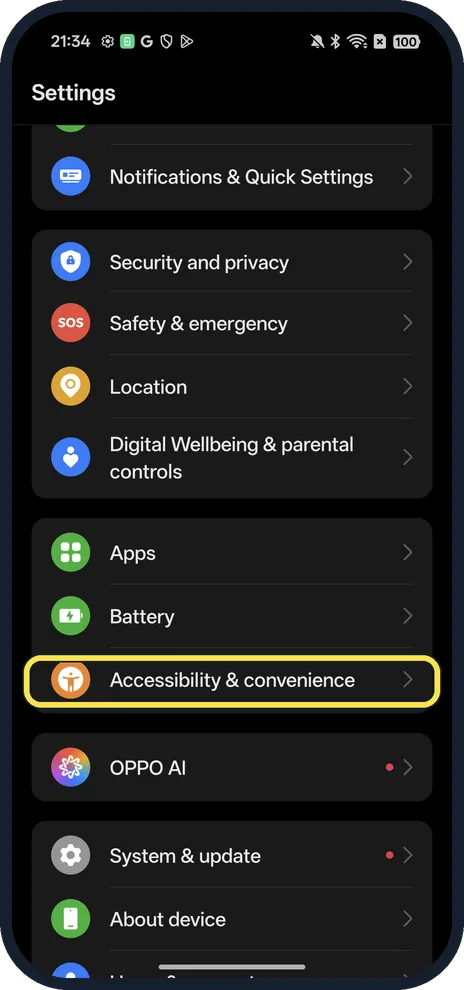
Open Accessibility & convenience
Open Settings and scroll down.
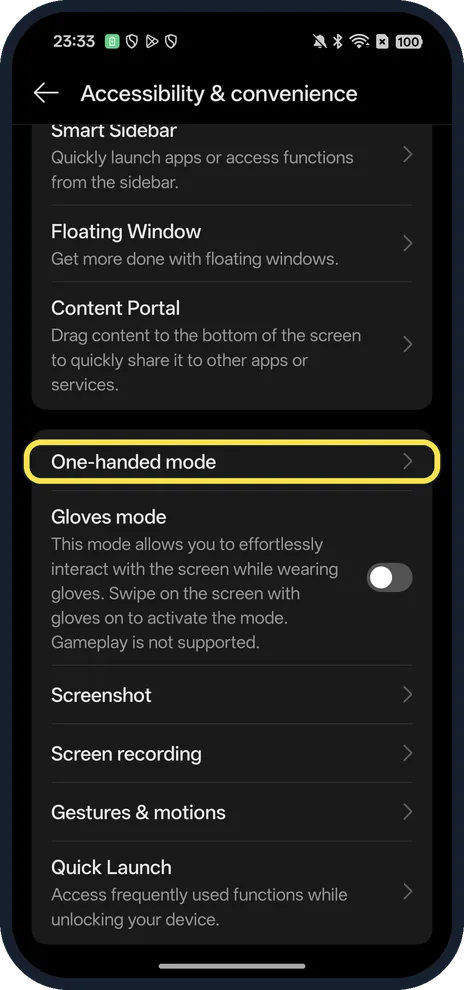
Tap One-handed mode
Below Content Portal.
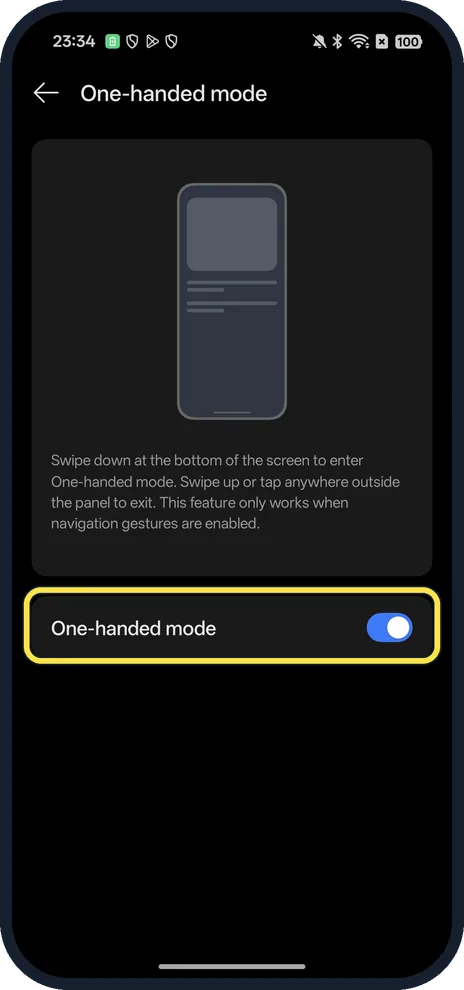
Turn on One-handed mode
The switch is under the animation.
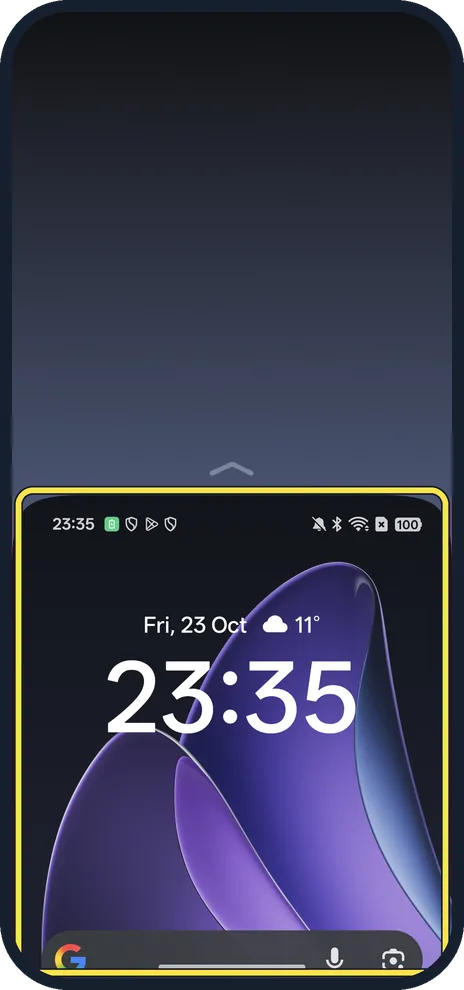
Swipe down at the bottom edge
The whole screen drops to the bottom half, so the top is within reach of your thumb. Swipe up or tap the empty area above to exit.
If you do not see this option
- Swipe does nothing? The page says it only works when navigation gestures are enabled. Switch to gestures first.
- Older OPPO phone? OPPO's ColorOS 11 user guide starts One-Handed Mode from a tile in the pull-down Notification Center instead; buttons on both sides move the small screen left or right, and a button at the top exits. Source: ColorOS 11 User Guide
If this does not work
- Keeps turning on by accident? Turn the One-handed mode switch off; a short swipe down at the bottom edge is enough to start it.
- Stuck in the small view? Tap anywhere outside the panel or swipe up, as the page describes.
About this guide
The screenshots are from our OPPO Reno13 5G, the European model CPH2689, with ColorOS 16.0.5 and Android 16 (build CPH2689_16.0.5.1001(EX01)), in Dark mode. We turned it on for the screenshots and off again afterwards.
Good to know
To change how you go back and home, switch between gestures and buttons.
For bigger text instead, change font size.
In short: Settings, Accessibility & convenience, One-handed mode on; swipe down at the bottom edge.
Links checked in October 2026. Menus and features can change after software updates. These steps match the version named at the top.
Did this guide work for you?
Sorry about that. What happened?