XIAOMI REDMI
How to use one-handed mode on a Xiaomi phone (HyperOS 3)

In short
Go to Settings, Accessibility, General, One-handed mode and turn on the switch, or search Settings for one-handed. Then, inside an app, swipe down a little on the line at the bottom of the screen. The app slides down. Tap above it or swipe up to go back.
6 of 6 steps show a real screenshot from our Redmi Note 15 Pro 5G. Each step was checked against the maker's own instructions, linked at the end.
Steps
- 1
Search for one-handed
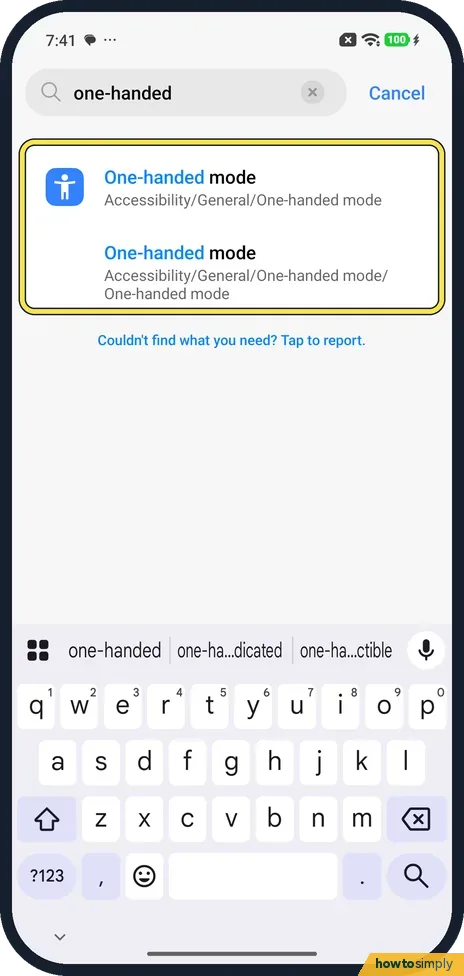
Open Settings and search one-handed. The result shows the path: Accessibility, General, One-handed mode. Tap it.
- 2
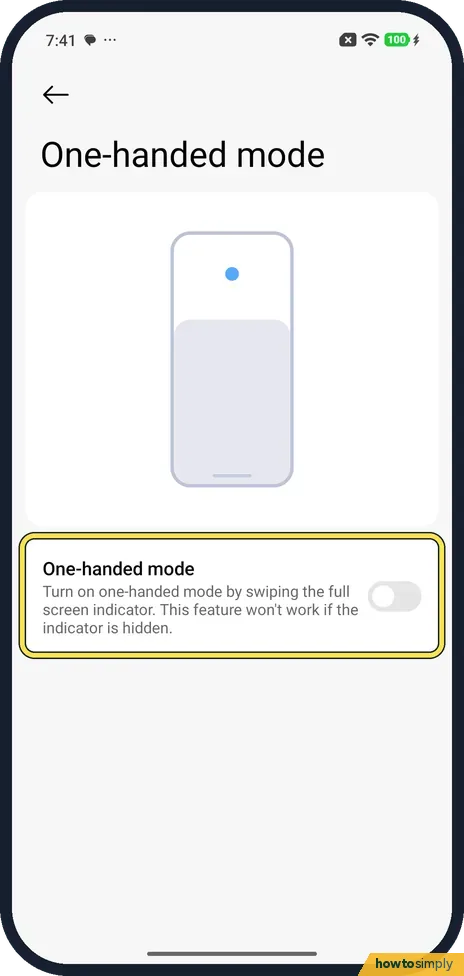
Turn on the switch
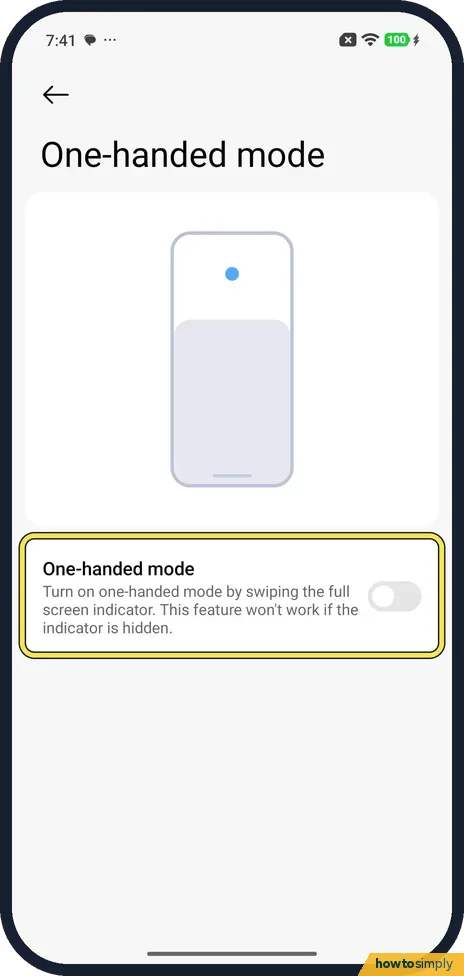
The page has one switch. Its note says you turn on one-handed mode by swiping the full screen indicator, and it won't work if the indicator is hidden. Ours was off.
- 3
Check it is on
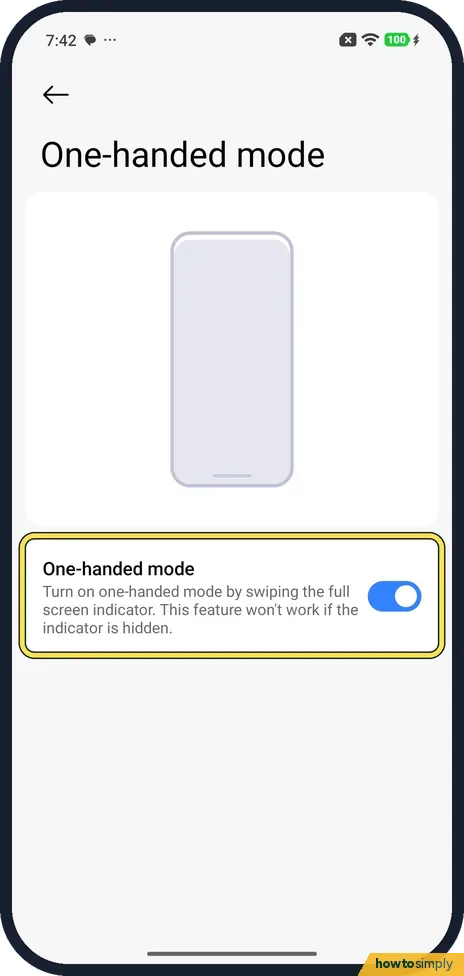
The switch turns blue.
- 4
Swipe down in an app
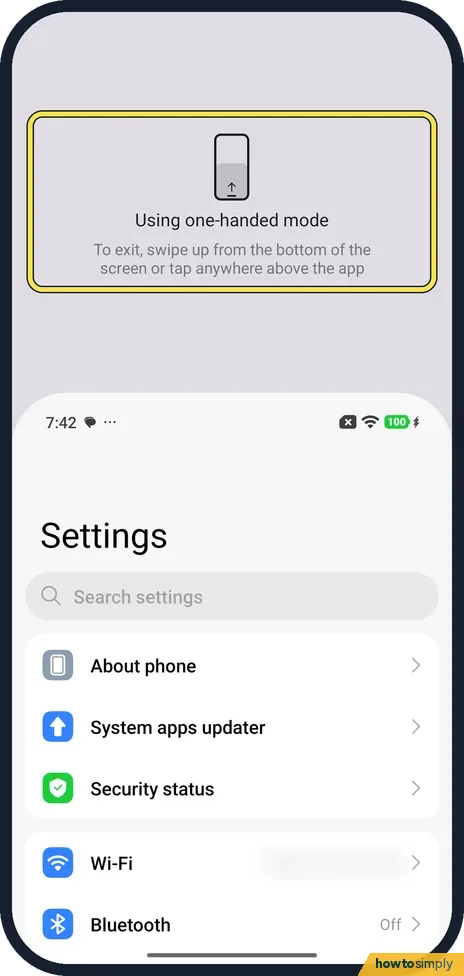
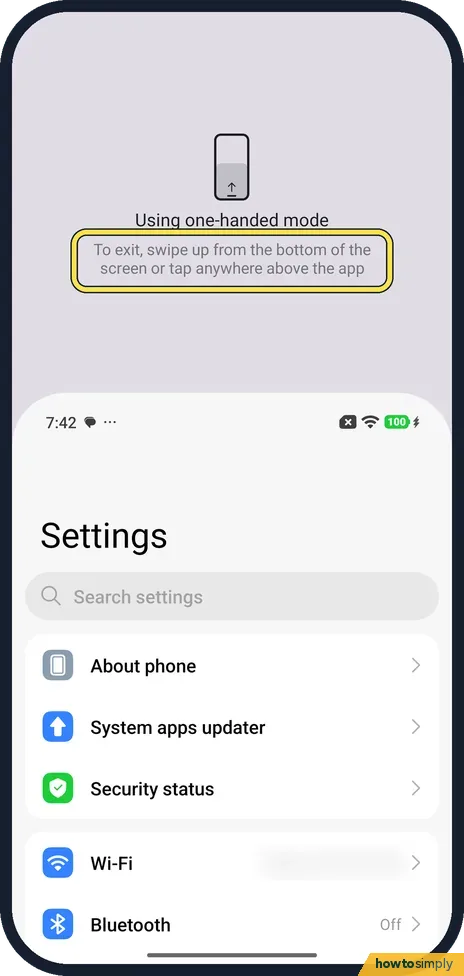
Open any app, then swipe down a short way on the line at the bottom of the screen. The app slides down and the top shows Using one-handed mode. We tried it in Settings.
- 5
Go back to full screen
The note says: to exit, swipe up from the bottom of the screen or tap anywhere above the app.
- 6
Turn it off again
To stop using it, go back to the One-handed mode page and turn the switch off. We did.
If you do not see this option
- Swiping down on the Home screen? On our phone the same short swipe on the Home screen opened App finder instead. It only worked inside an app.
- Not under Additional settings? On our HyperOS 3 phone there was no One-handed mode in Additional settings. Searching Settings found it under Accessibility. Xiaomi's HyperOS 3 guide does not cover it.
- Steps from Google? Google's help also says to search Settings for One-handed mode and turn it on. Source: Use one-handed mode
If this does not work
- Nothing happens when you swipe? It needs the line at the bottom. If you hid it, or use buttons, see how to switch between gestures and buttons.
- App finder opens instead? You are on the Home screen. Open an app first. To change what App finder shows, see App finder suggestions.
- The app snaps back straight away? One-handed mode ends as soon as you tap above the app or swipe up from the bottom, as the switch's note says. Keep your thumb within the lowered app and avoid the empty space at the top.
- The swipe switches apps instead? A long or sideways swipe on the bottom line is read as a different gesture. Make a short, straight swipe downwards and lift your thumb.
Good to know
A floating button within thumb reach: how to turn on Quick ball.
Make text bigger: how to change the text size and font.
Turning the switch on changes nothing until you make the swipe, so it has no effect on battery, data or other apps. Each time you use it, only the view moves: the app keeps running normally and nothing is resized or closed. To undo it, turn the same switch off; your other accessibility settings stay as they were. If you mainly struggle to read small items at the top rather than reach them, magnification may suit you better.
About this guide
- Device
- Android
- Shown on
- Xiaomi Redmi Note 15 Pro 5G (25080RABDG), HyperOS 3.0.308.0, Android 16
- App
- Settings
- Path
- Settings › Accessibility › General › One-handed mode
- Real screenshots
- 6 of 6 steps
- Checked
- October 2026
- Sources
- 1 official, linked below
Sources
Links checked October 2026. Menus and features can change with updates.Spotted a mistake? Menus change with updates, and we want every step to match your screen. Email us about this page or use the contact form. We read every report, and fixes are listed on What changed.
Liked this guide?
Follow us for new guides and short how-to videos.
Did this guide work for you?
Sorry about that. What happened?