
howtosimply.com/guides/how-to-use-clear-voice-on-an-oppo-phone/ · Checked October 2026 · CPH2689, EEA), ColorOS 16.0.5, Android 16 (build CPH2689_16.0.5.1001(EX01) · OPPO Reno13 5G
In this guide
Open Settings, Sound & vibration and tap Clear Voice under Microphone mode, then turn it on. During voice and video calls it filters out background noise. It can also be switched in Quick Settings, and does not work with headphones.
3 of 3 steps with real screenshots · 1 official source below
- Device
- Android
- Shown on
- OPPO Reno13 5G (CPH2689, EEA), ColorOS 16.0.5, Android 16 (build CPH2689_16.0.5.1001(EX01))
- App
- Settings
- Path
- Settings › Sound & vibration
- Real screenshots
- 3 of 3 steps
- Checked
- October 2026
- Sources
- 1 official, linked below
Step by step
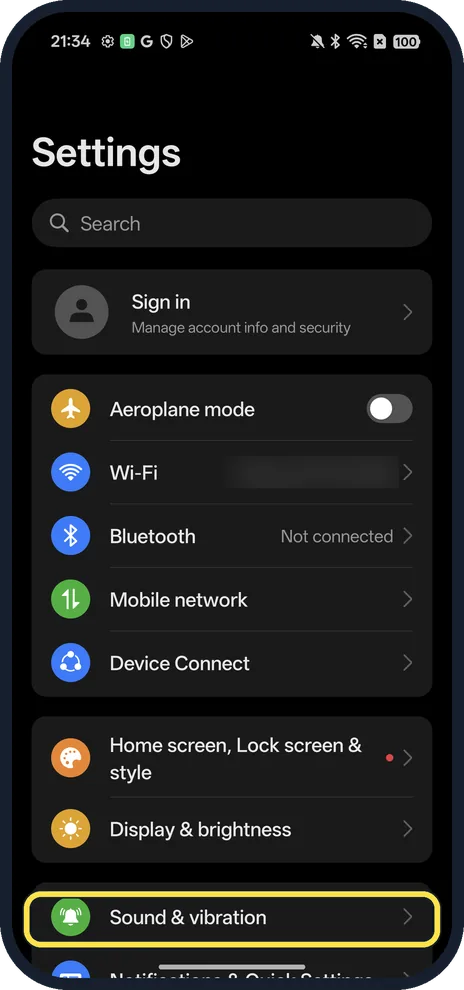
Open Sound & vibration
Open Settings. It is below Display & brightness.
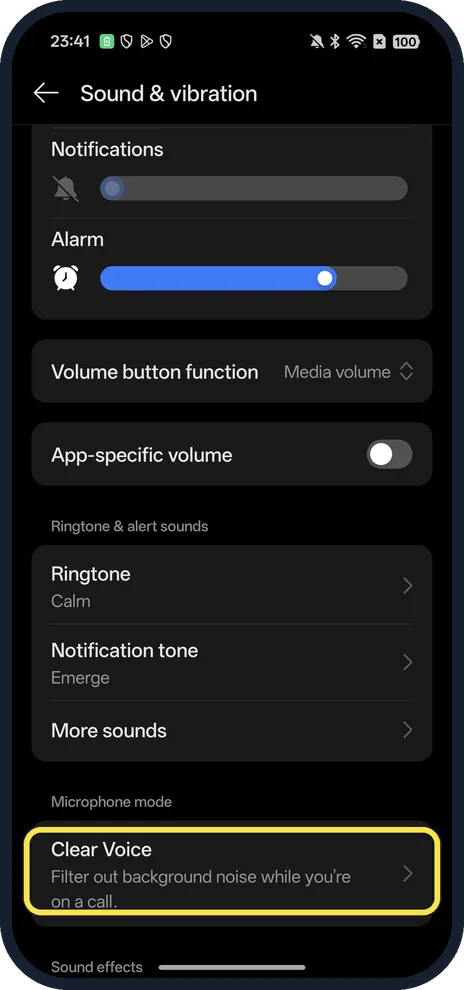
Tap Clear Voice
Under Microphone mode: Filter out background noise while you're on a call.
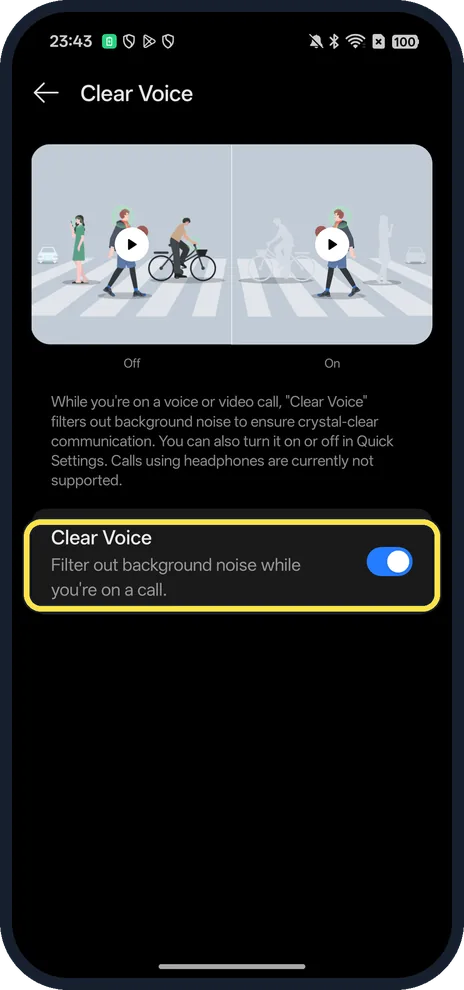
Turn on Clear Voice
The page says it filters background noise on voice or video calls and can also be turned on or off in Quick Settings.
If you do not see this option
- Faster switch? The page says you can turn it on or off in Quick Settings.
- Looking for AI Clear Voice? OPPO's Reno12 announcement calls it AI Clear Voice and says it cuts background noise by up to 40 dB while enhancing voices, on standard, WhatsApp and Zoom calls. On our Reno13 the row is just Clear Voice, under Microphone mode. Source: OPPO's Reno12 Series sets a new AI benchmark
If this does not work
- Using headphones? The page says calls using headphones are currently not supported, so it won't help on a headset call.
- No difference? It only works on voice or video calls, not recordings or voice notes.
About this guide
The screenshots are from our OPPO Reno13 5G, the European model CPH2689, with ColorOS 16.0.5 and Android 16 (build CPH2689_16.0.5.1001(EX01)), in Dark mode. We turned it on for the screenshot and off again; we did not make a call.
Good to know
To change how calls sound, change the ringtone.
To stop nuisance calls, block a number.
In short: Settings, Sound & vibration, Clear Voice on.
Links checked in October 2026. Menus and features can change after software updates. These steps match the version named at the top.
Did this guide work for you?
Sorry about that. What happened?