
howtosimply.com/guides/how-to-use-one-handed-mode-on-a-nothing-phone/ · Checked October 2026 · 4a) Pro (A069P, EEA), Nothing OS 4.1, Android 16 (build FroggerPro-B4.1-260424-1447-EEA · Nothing Phone
In this guide
Open Settings, Special features, Gestures, One-handed mode and turn on Use one-handed mode. Then swipe down at the bottom edge to pull the screen into reach, or choose Show notifications instead.
5 of 5 steps with real screenshots · 1 official source below
- Device
- Android
- Shown on
- Nothing Phone (4a) Pro (A069P, EEA), Nothing OS 4.1, Android 16 (build FroggerPro-B4.1-260424-1447-EEA), Nothing Phone (4a) Pro (A069P, EEA), Nothing OS 4.1, Android 16 (build FroggerPro-B4.1-260907-1153-EEA)
- App
- Settings
- Path
- Settings › Special features › Gestures
- Real screenshots
- 5 of 5 steps
- Checked
- October 2026
- Sources
- 1 official, linked below
Step by step
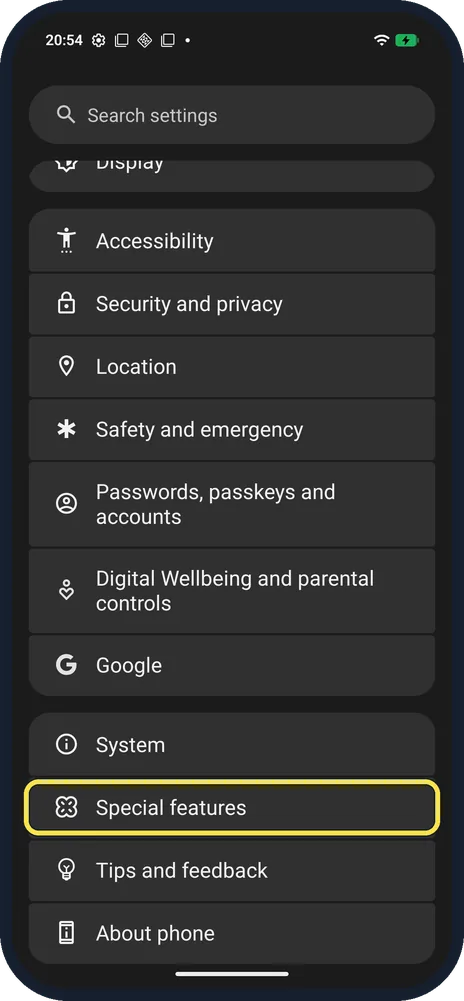
Open Special features
Open Settings, scroll near the bottom and tap Special features.
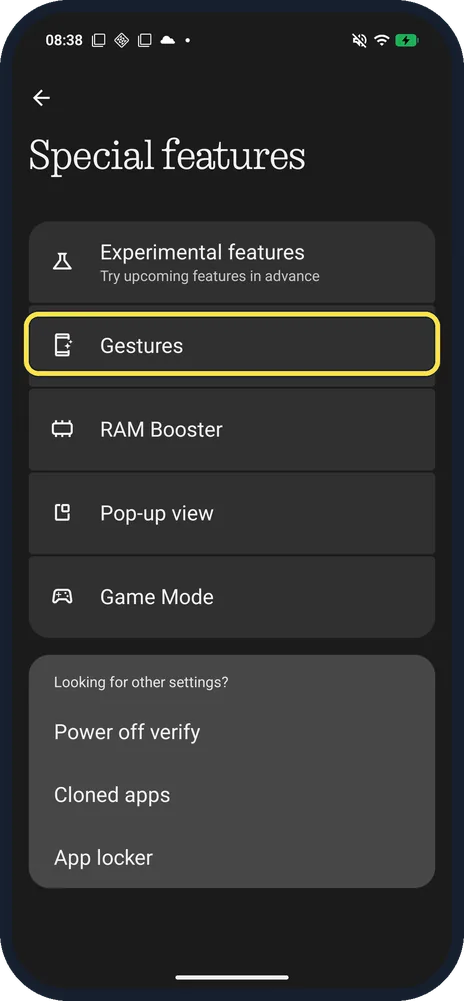
Tap Gestures
The first row after Experimental features.
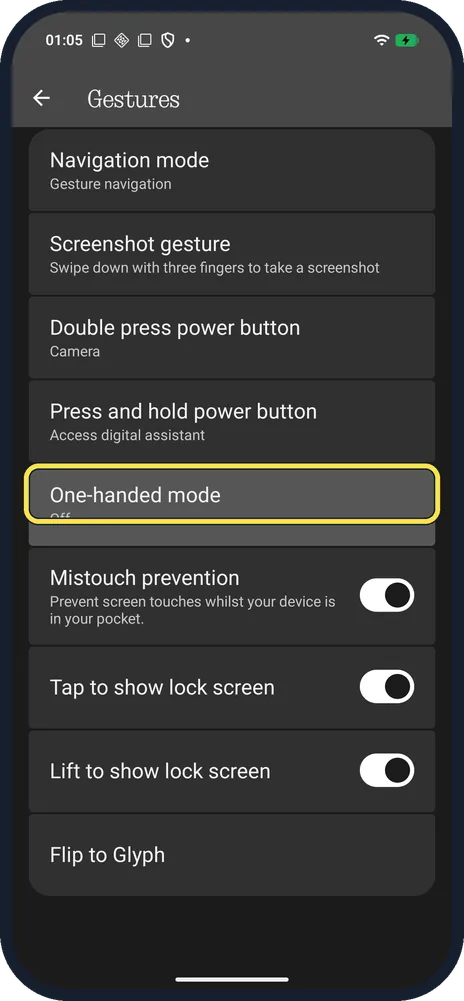
Tap One-handed mode
On Gestures, below Press and hold power button. Ours said Off.
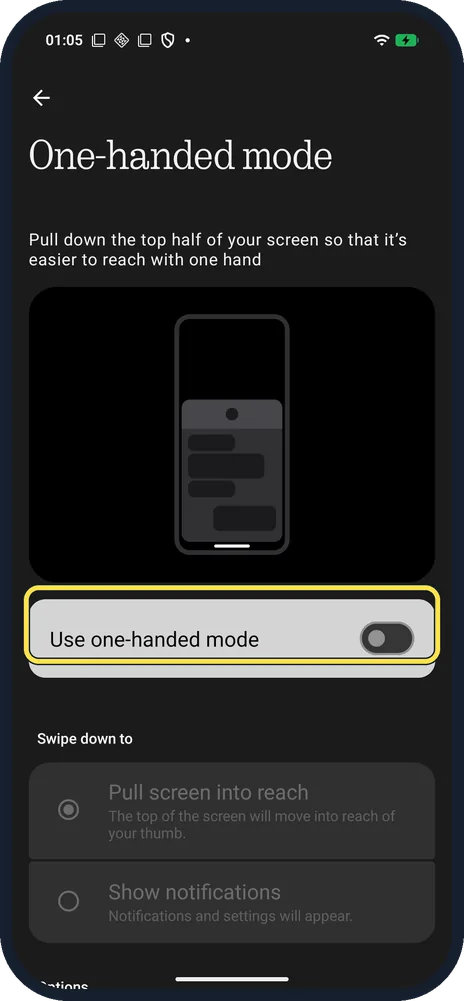
Turn on Use one-handed mode
The page says it pulls down the top half of your screen so it is easier to reach with one hand.
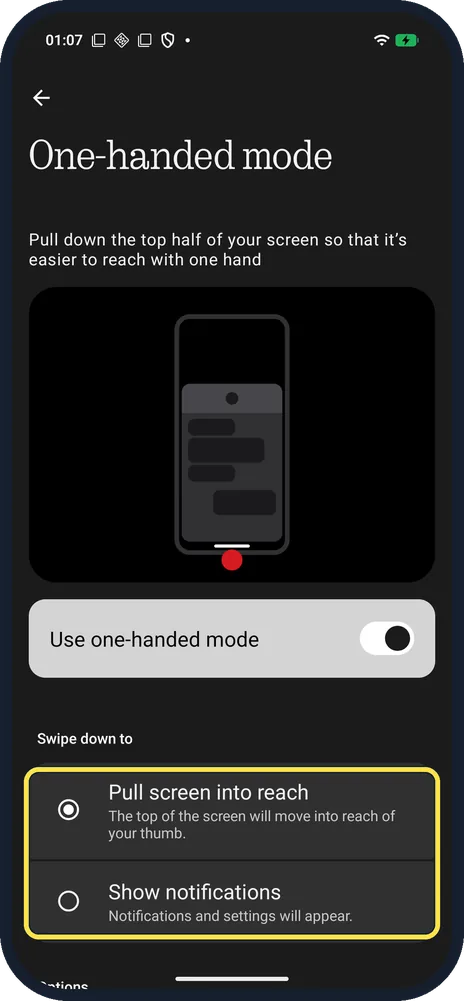
Choose what the swipe does
Under Swipe down to: Pull screen into reach, or Show notifications (notifications and settings appear).
If you do not see this option
- Can't find it under Display? It is under Special features, Gestures. Searching Settings for one-handed also finds it.
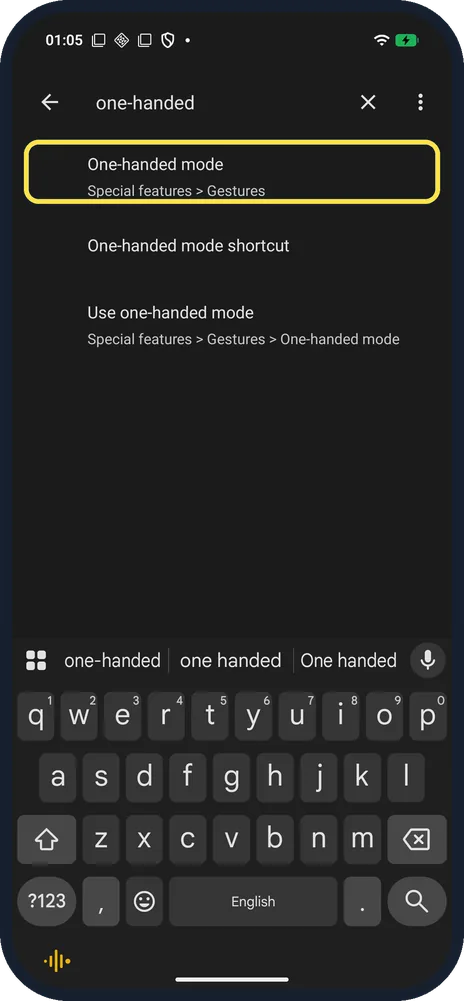
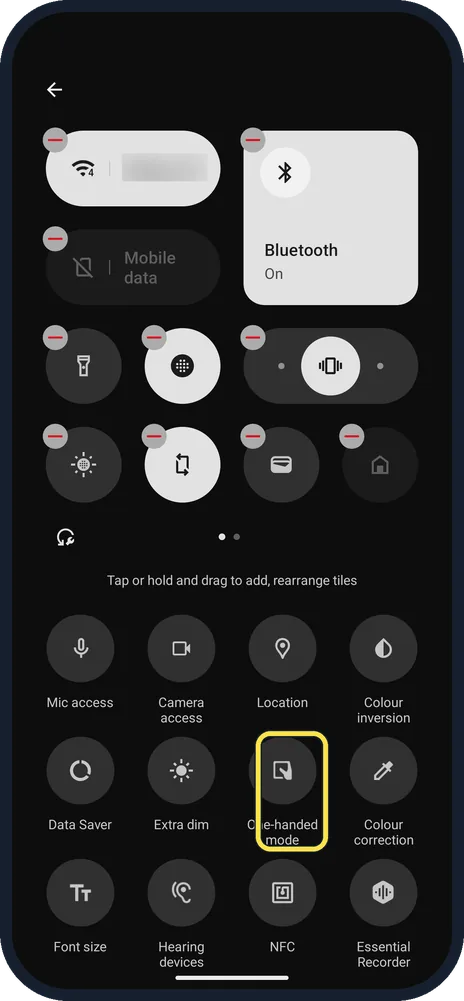
- Want a Quick Settings tile? One-handed mode is also a Quick Settings tile you can add.
If this does not work
- Swipe does nothing? Check Use one-handed mode is on. We couldn't trigger the swipe in our screenshot tool, so we have no shot of the result.
- Phone ignores touches in your pocket? That is Mistouch prevention on the Gestures page; it prevents touches while the phone is in your pocket.
About this guide
The screenshots are from our Nothing Phone (4a) Pro, the European model A069P, with Nothing OS 4.1 and Android 16 (build FroggerPro-B4.1-260907-1153-EEA, security update 1 September 2026), in Dark theme. One-handed mode was off on ours; we turned it on for the screenshots and off again.
The step 1 screenshot was taken earlier, on build FroggerPro-B4.1-260424-1447-EEA.
Good to know
To switch to buttons, change navigation mode.
To change what the power button does, change the power button.
In short: Settings, Special features, Gestures, One-handed mode on.
Links checked in October 2026. Menus and features can change after software updates. These steps match the version named at the top.
Did this guide work for you?
Sorry about that. What happened?