
howtosimply.com/guides/how-to-switch-between-gestures-and-buttons-on-an-oppo-phone/ · Checked October 2026 · CPH2689, EEA), ColorOS 16.0.5, Android 16 (build CPH2689_16.0.5.1001(EX01) · OPPO Reno13 5G
In this guide
Open Settings, System & update, System navigation and tap Buttons or Gestures. Ours was on Gestures.
3 of 3 steps with real screenshots · 1 official source below
- Device
- Android
- Shown on
- OPPO Reno13 5G (CPH2689, EEA), ColorOS 16.0.5, Android 16 (build CPH2689_16.0.5.1001(EX01))
- App
- Settings
- Path
- Settings › System & update › System navigation: Buttons or Gestures
- Real screenshots
- 3 of 3 steps
- Checked
- October 2026
- Sources
- 1 official, linked below
Step by step
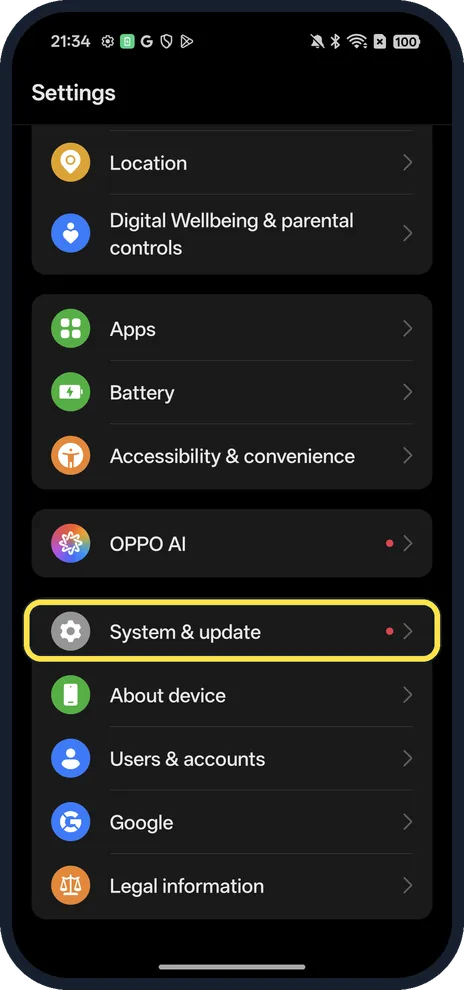
Open System & update
Open Settings and scroll near the bottom.
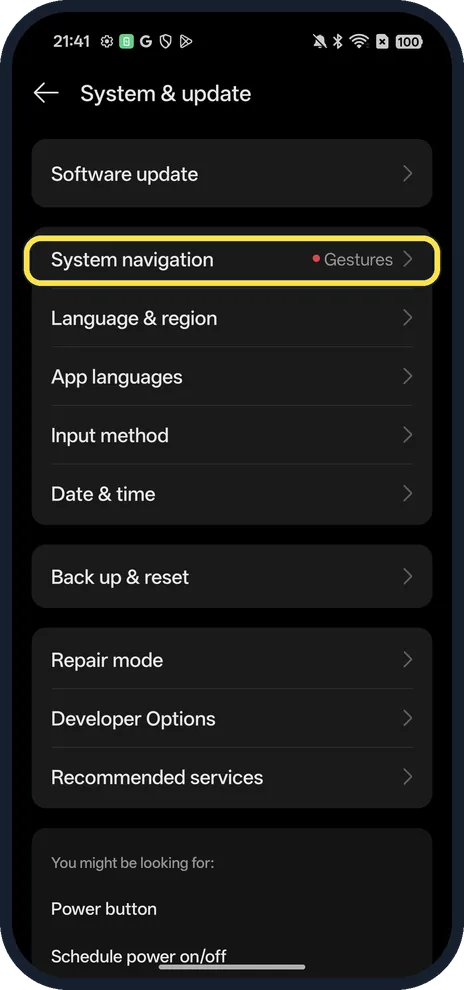
Tap System navigation
Ours said Gestures.
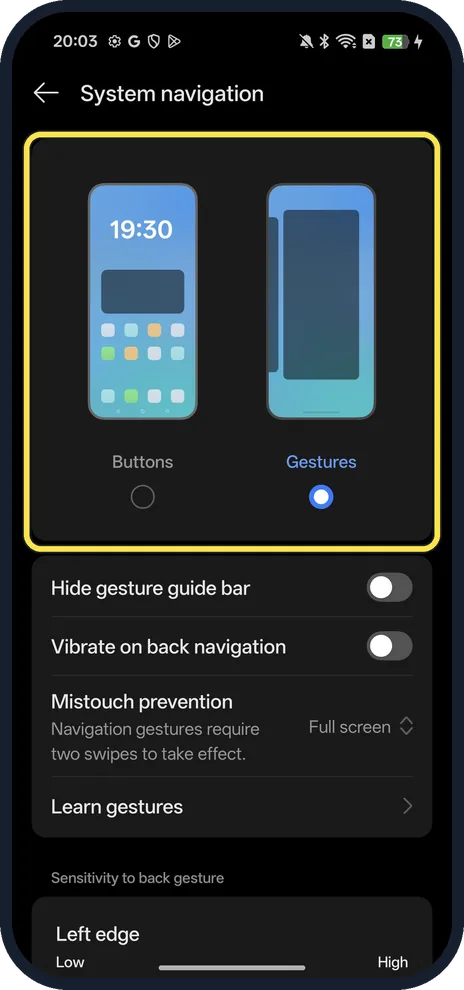
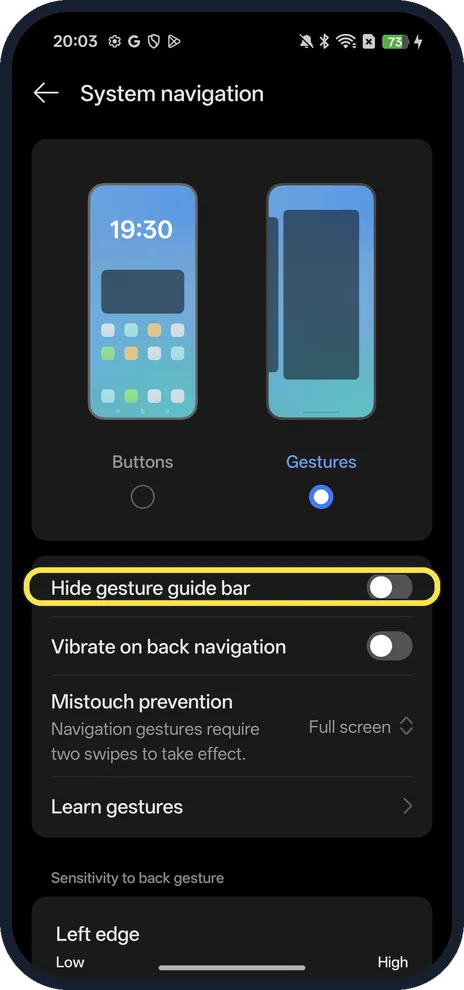
Pick Buttons or Gestures
Tap the circle under the picture.
If you do not see this option
- Not under System & update? Google gives Settings, System, Gestures, Navigation mode (System, Navigation mode on a Pixel) and says to ask the maker if those menus are missing. On our ColorOS 16.0.5 it is System & update, System navigation; search Settings for navigation if yours differs. Source: Get around on your Android phone
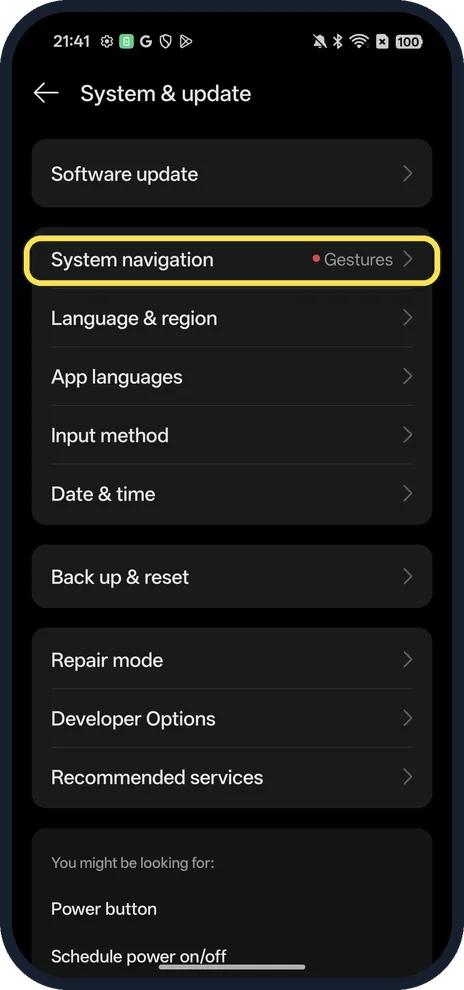
- Want the line at the bottom gone? Turn on Hide gesture guide bar, the first switch under the two choices. It was off on ours.
If this does not work
- Swiping back closes games? Mistouch prevention was set to Full screen on ours: in full-screen apps navigation gestures need two swipes.
- Back swipe scrolls the page instead? Google says to start the back swipe from the far edge of the screen; swiping from the middle scrolls sideways. A thick case can get in the way, so raise the sensitivity. Source: Get around on your Android phone
- Back gesture too sensitive? Adjust Sensitivity to back gesture at the bottom.
About this guide
On ColorOS 16, System navigation sits under System & update, not under Accessibility & convenience.
The screenshots are from our OPPO Reno13 5G, the European model CPH2689, with ColorOS 16.0.5 and Android 16 (build CPH2689_16.0.5.1001(EX01)), in Dark mode.
Good to know
Change what holding the side button does: power button settings on an OPPO phone.
Open apps from the screen edge: use Smart Sidebar.
In short: Settings, System & update, System navigation: Buttons or Gestures.
Links checked in October 2026. Menus and features can change after software updates. These steps match the version named at the top.
Did this guide work for you?
Sorry about that. What happened?