
howtosimply.com/guides/how-to-use-one-handed-mode-on-a-samsung-galaxy/ · Checked October 2026 · Samsung Galaxy A57 5G (One UI 8.5, Android 16) and Samsung Galaxy A57 (One UI 9, Android 17 (build A576BXXU6BZIE))
In this guide
Open Settings, Advanced features, One-handed mode and switch it on. Then choose Gesture (swipe down in the centre of the bottom edge) or Button (double tap the Home button) to shrink the screen so you can reach the top with your thumb.
3 of 4 steps with real screenshots · 2 official sources below
- Device
- Android
- Shown on
- Samsung Galaxy A57 5G (SM-A576B), One UI 8.5, Android 16, Samsung Galaxy A57 (SM-A576B), One UI 9, Android 17 (build A576BXXU6BZIE)
- App
- Settings
- Path
- Settings › Advanced features
- Real screenshots
- 3 of 4 steps
- What we did
- Performed: we made the change on our device and show the result
- Our phone
- Shown on Galaxy A57, One UI 8.5
- Checked
- October 2026
- Sources
- 2 official, linked below
Step by step
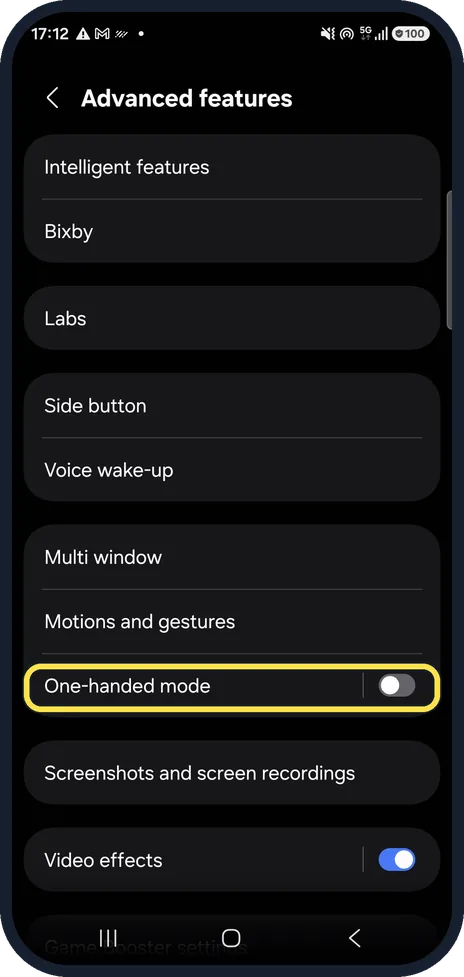
Open Advanced features
Open Settings and tap Advanced features. One-handed mode has its own switch there.
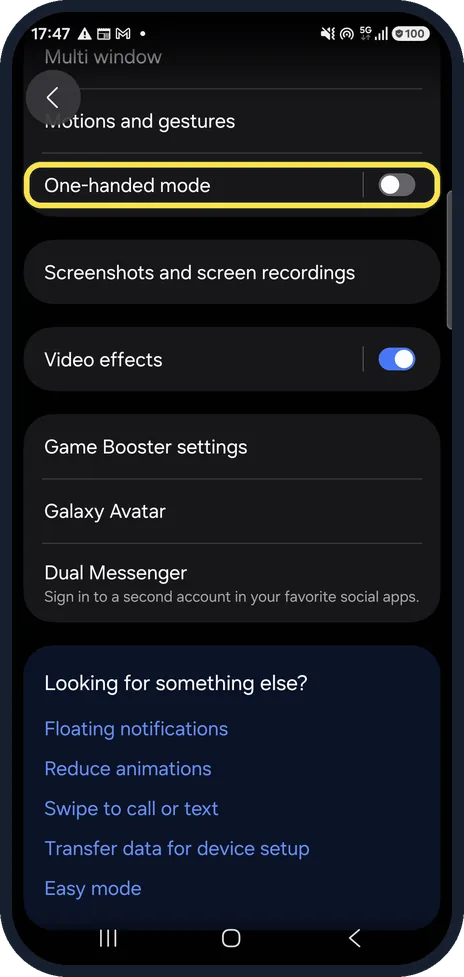
Switch it on
Settings, Advanced features. Turn on the switch next to One-handed mode. Ours is Off.
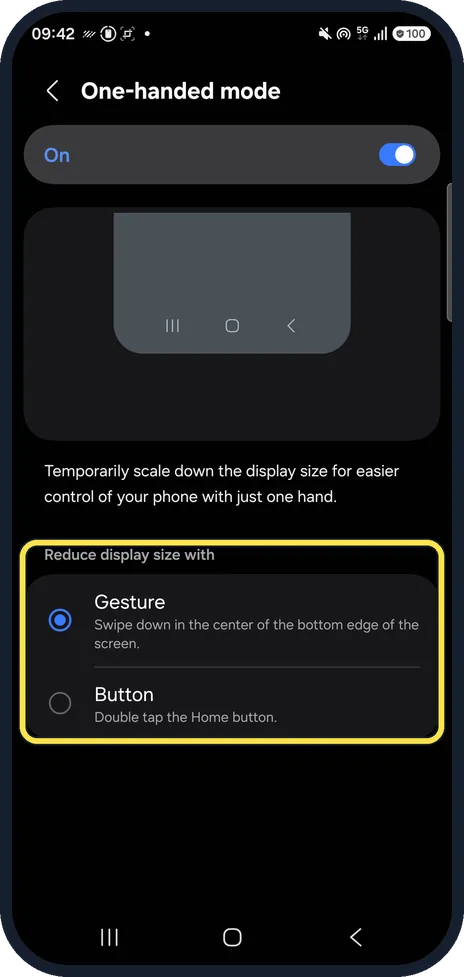
Choose how to start it
Under Reduce display size with, Gesture means swiping down in the centre of the bottom edge of the screen. Button means double tapping the Home button. The options can be chosen once the switch is on.
On ours, Gesture was selected when we switched it on. We switched it back off afterwards.
Use it
Do the gesture or double tap. The screen shrinks; tap the empty area outside it to go back to full size.
If you do not see this option
- Your phone has no One-handed mode under Advanced features Google Android phones without Samsung menus have it under Settings: search for One-handed mode and turn on Use One-handed mode. Google says it needs Android 12 or later. Source: Use one-handed mode
- You want it in the quick panel Google says one-handed mode can also be set as an Accessibility shortcut and added to Quick Settings. Source: Use one-handed mode
If this does not work
- The screen does not shrink Samsung says the action depends on what you chose: swipe down in the centre of the bottom edge for Gesture, or double tap the Home button for Button. If you use swipe gestures there is no Home button, so choose Gesture. Source: Using One Handed Mode on my Samsung Phone
- The small window is on the wrong side or too small Samsung says an icon on the small window moves it to the other side, and dragging the blue dot at its top corner changes its size. Tap the empty space outside it to go back. Source: Using One Handed Mode on my Samsung Phone
About this guide
On a big phone the top of the screen is out of reach of your thumb. One-handed mode temporarily scales the display down to a corner. We switched one-handed mode on for one picture and back off afterwards.
Step 3 is from the same phone after its One UI 9 update (Android 17).
Good to know
Gesture fits gesture navigation and Button fits the three navigation buttons. If one does nothing, try the other or check your navigation bar setting.
In short: Settings, Advanced features, One-handed mode on. Gesture: swipe down at the bottom centre. Button: double tap Home.
- Samsung AU: Using One Handed Mode on my Samsung Phone
- Android Accessibility Help: Use one-handed mode
Links checked in October 2026. Menus and features can change after software updates. These steps match the version named at the top.
📷 See real photos from the Galaxy A57 in our Camera Lab, next to 10 other phones.
Did this guide work for you?
Sorry about that. What happened?