XIAOMI REDMI
How to change wireless emergency alert settings on a Xiaomi phone (HyperOS 3)

In short
Open Settings and search for emergency alerts, then tap Wireless emergency alerts under Safety and emergency. Allow alerts turns them on or off; below are Extreme threats, Severe threats, AMBER alerts and Test alerts, then Vibration, Alert reminder and full volume.
4 of 4 steps show a real screenshot from our Redmi Note 15 Pro 5G. Each step was checked against the maker's own instructions, linked at the end.
Steps
- 1
Search for emergency alerts
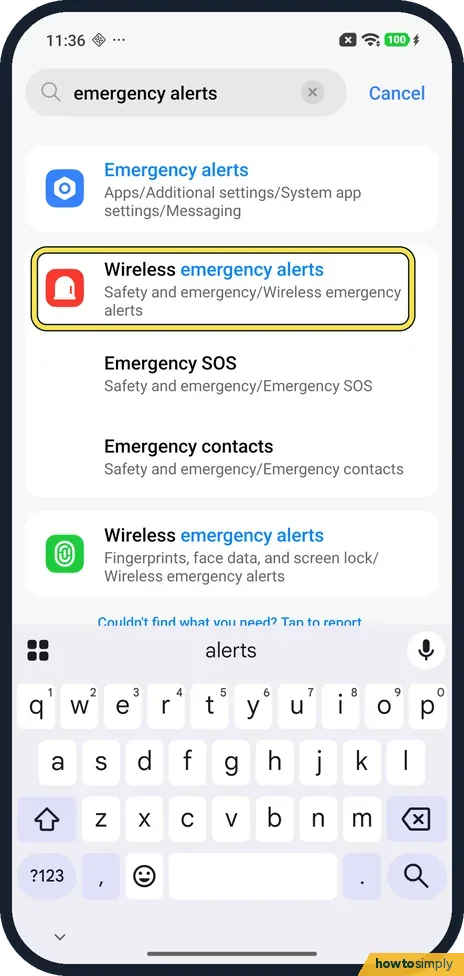
Open Settings and search for emergency alerts. Tap Wireless emergency alerts with the path Safety and emergency/Wireless emergency alerts. Ours also listed it under Fingerprints, face data, and screen lock.
- 2
Allow alerts and pick the alerts
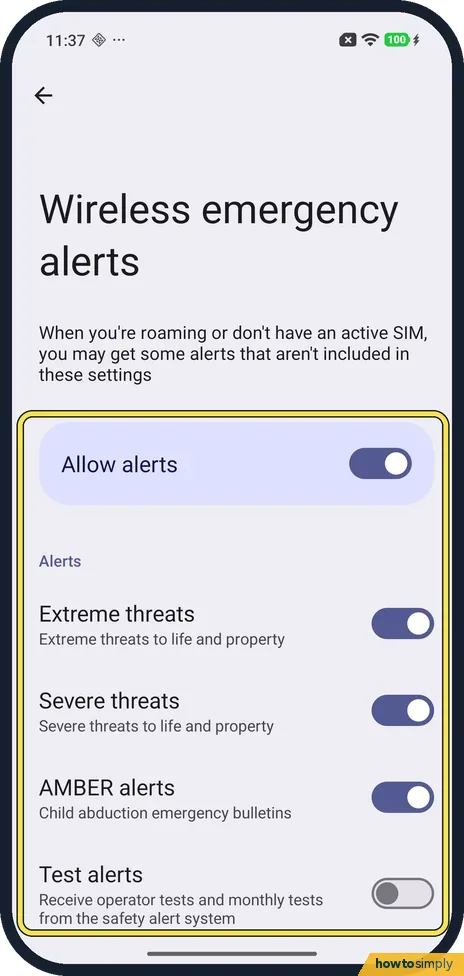
Allow alerts turns all of them on or off. Under Alerts, Extreme threats, Severe threats and AMBER alerts were on on ours, and Test alerts was off. Tap a switch to change it.
- 3
Set the alert preferences
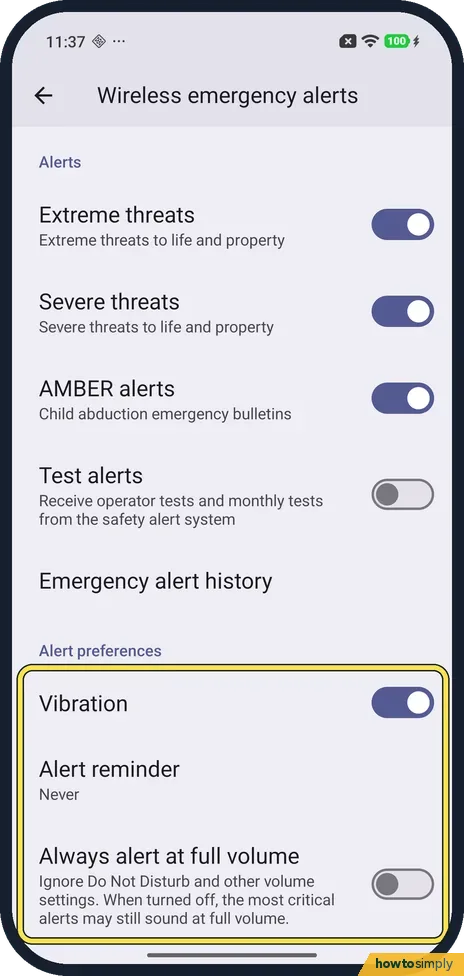
Scroll down past Emergency alert history. Under Alert preferences, Vibration was on, Alert reminder said Never and Always alert at full volume was off. That switch says it ignores Do Not Disturb and other volume settings.
- 4
Or open it from the screen lock page
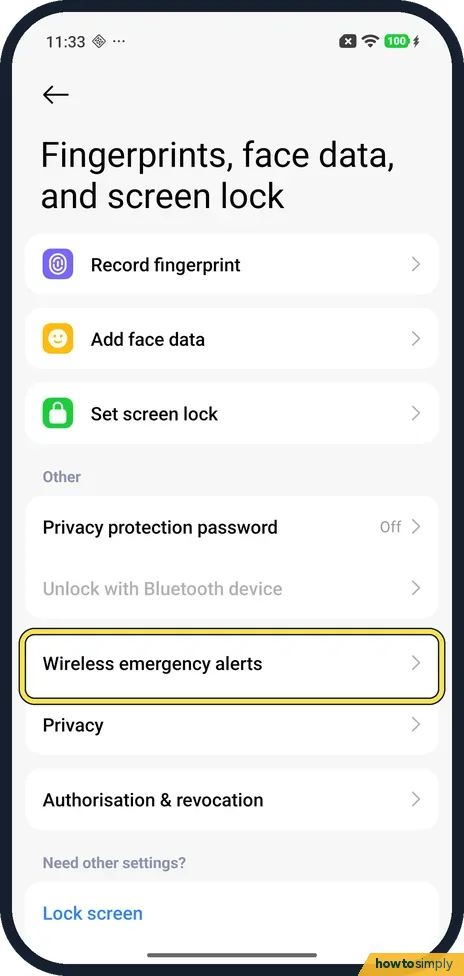
The same Wireless emergency alerts row is on Settings, Fingerprints, face data, and screen lock, above Privacy. Set screen lock at the top shows our phone had no screen lock.
If you do not see this option
- No Safety and emergency in search? Xiaomi's steps for the Xiaomi 14T and Redmi 13C are Settings, Safety & emergency, Wireless emergency alerts, Allow alerts. On our Redmi Note 15 Pro 5G the screen lock page had the same row. Sources: How to enable the Wireless emergency alerts on the Xiaomi 14T?, How to enable the Wireless emergency alerts on the Redmi 13C?
- Found Emergency alerts under Messaging? Our search also listed Emergency alerts under Apps, Additional settings, System app settings, Messaging. We did not open it; the alert switches here are under Wireless emergency alerts.
- Alerts you didn't choose? The page on ours says that when you're roaming or don't have an active SIM, you may get some alerts that aren't included in these settings.
If this does not work
- Alert came late or not at all? Xiaomi says that if your internet or network connection is poor, you will not receive alerts in a timely manner.
- Alert sounded in Do Not Disturb? Always alert at full volume was off on ours. Its line says that when turned off, the most critical alerts may still sound at full volume. See Do Not Disturb on a Xiaomi phone.
- No test alerts? Test alerts was off on ours. Google's Android help says to turn on Developer options, then turn Test alerts on or off on the Wireless emergency alerts page.
Good to know
Google says wireless emergency alerts always show up on top of any other screen. For calls and other sounds: Xiaomi not ringing or vibrating.
Emergency SOS: how to set up Emergency SOS on Android. Screen lock: how to set one. On a Pixel: emergency alerts on a Google Pixel.
Changes apply straight away; you do not need to restart. Earthquake alerts are a separate system: Google says wireless emergency alerts show first, then earthquake alerts, then app notifications.
About this guide
- Device
- Android
- Shown on
- Xiaomi Redmi Note 15 Pro 5G (25080RABDG), HyperOS 3.0.308.0, Android 16
- App
- Settings
- Real screenshots
- 4 of 4 steps
- What we did
- Observed: looked at each screen, changed nothing
- Checked
- October 2026
- Sources
- 4 official, linked below
Sources
Links checked October 2026. Menus and features can change with updates.Spotted a mistake? Menus change with updates, and we want every step to match your screen. Email us about this page or use the contact form. We read every report, and fixes are listed on What changed.
Liked this guide?
Follow us for new guides and short how-to videos.
Did this guide work for you?
Sorry about that. What happened?