ANDROID
How to use Dark mode and its styles on a OnePlus (OxygenOS 16)

In short
Go to Settings, Display & brightness and choose Dark mode. Then tap Dark mode settings to pick a style: Enhanced (darkest), Medium or Gentle. Dark mode for third-party apps (Beta) on the same page can force dark mode on apps that don't have one.
7 of 7 steps show a real screenshot from our Nord 5. Each step was checked against the maker's own instructions, linked at the end.
Steps
- 1
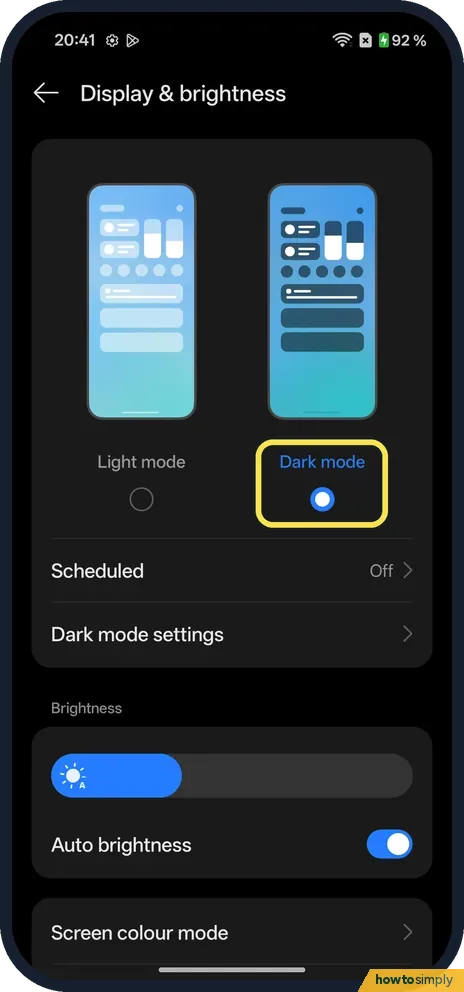
Turn on Dark mode
Go to Settings, Display & brightness. Tap Dark mode, under the right-hand picture.
- 2
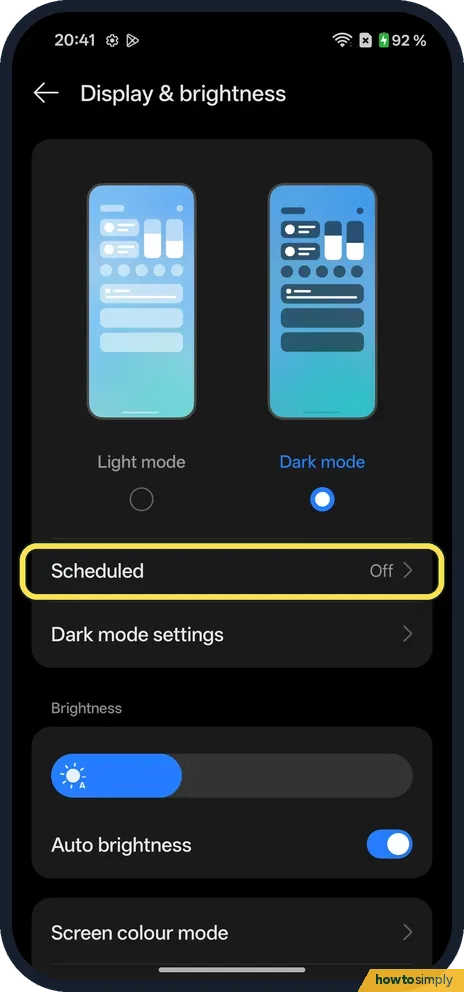
Set a schedule
Scheduled was Off on ours. Tap it to switch between light and dark at set times.
- 3
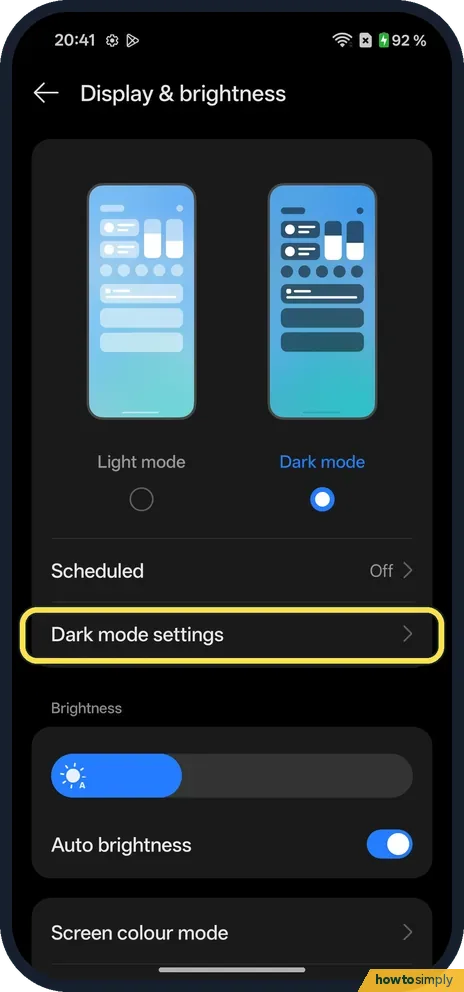
Open the styles
Tap Dark mode settings.
- 4
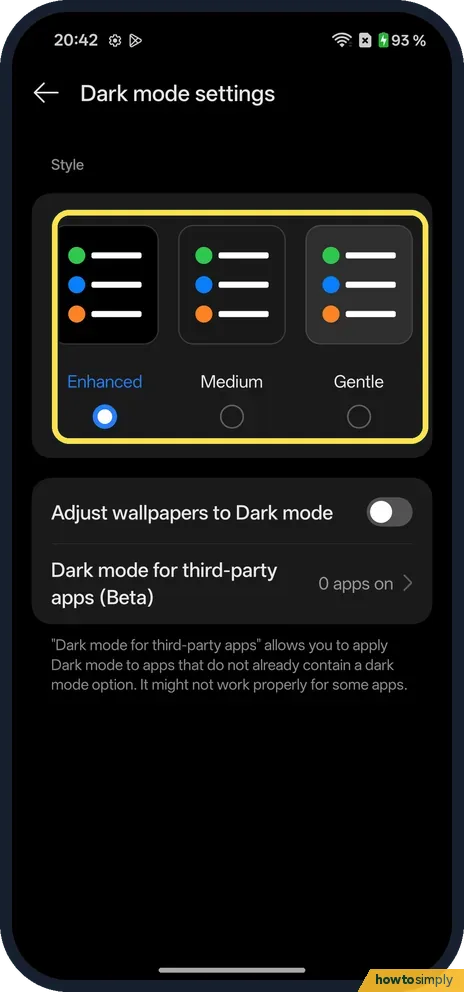
Choose a style
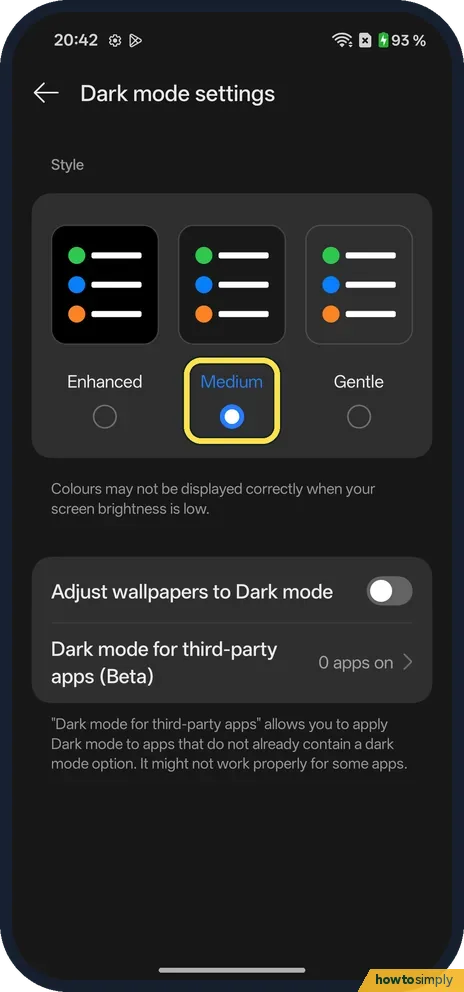
Style has Enhanced, Medium and Gentle. Enhanced is the darkest and was selected on ours.
- 5
Try Medium
Medium sits between Enhanced and Gentle. A note says colours may not be displayed correctly when your screen brightness is low.
- 6
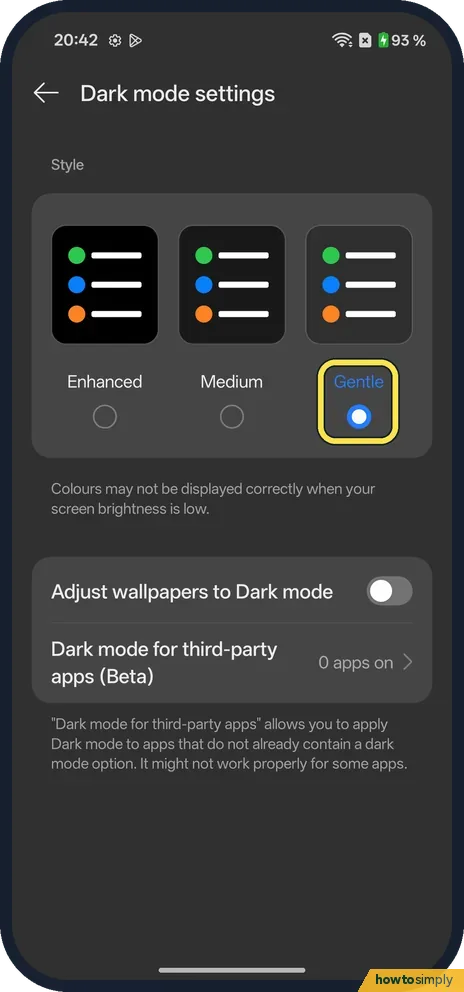
Try Gentle
Gentle is the lightest grey of the three.
- 7
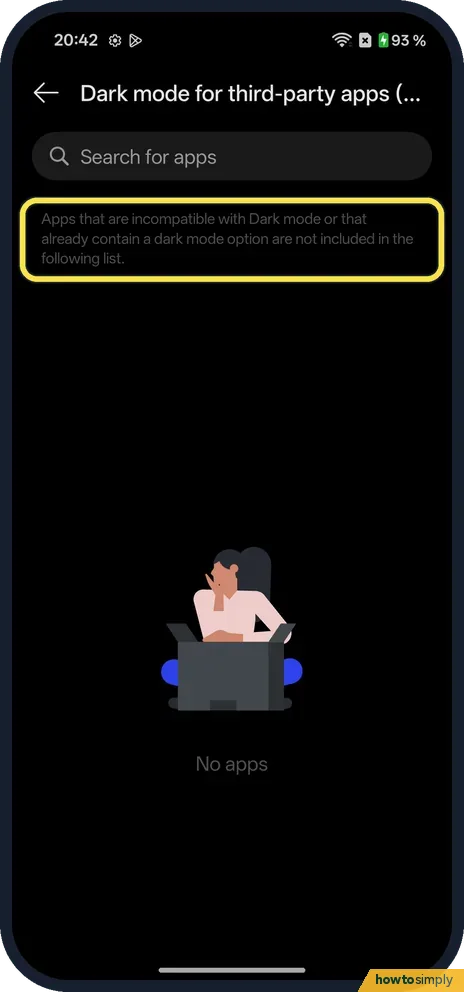
Dark mode for other apps
Back on Dark mode settings, tap Dark mode for third-party apps (Beta). Ours listed No apps. The page says apps that are incompatible, or that already have a dark mode option, are not included.
If you do not see this option
- Wallpaper too bright? Adjust wallpapers to Dark mode, on Dark mode settings, was off on ours. Turn it on to dim the wallpaper too.
- No apps in the third-party list? Ours had none. Apps with their own dark mode are left out, as the page says.
If this does not work
- An app looks wrong? The page says Dark mode for third-party apps might not work properly for some apps. Turn that app off in the list.
- Colours look off in the dark? The page says this can happen at low brightness with Medium. Try Enhanced.
- Dark mode turns off by itself? Check Scheduled on Display & brightness.
- Dark mode on when you did not turn it on? Google says Battery Saver may turn dark theme on automatically, and that you cannot use Battery Saver in light theme. If the phone went dark at low battery, power saving is the likely cause.
- One app stays white? Google notes that dark theme is not available for all apps. If the app is not in Dark mode for third-party apps either, look for a Theme or Display option in the app's own settings.
- App stays dark in light mode? Some apps have their own dark setting or a fixed dark design. Google says to check the app's Theme or Display settings; if there is none, it cannot be changed.
Good to know
Change the colours and the refresh rate: screen colour mode and refresh rate.
Dark mode changes Settings, the notification shade, system apps and any app that follows the system theme. Nothing else changes and you can switch back at any time from Display & brightness. For less glare at night, pair it with a warmer screen colour: turn on Eye Comfort on a OnePlus.
About this guide
- Device
- Android
- Shown on
- OnePlus Nord 5 (CPH2709), OxygenOS 16.0.5.1201, Android 16
- App
- Settings
- Path
- Settings › Display & brightness
- Real screenshots
- 7 of 7 steps
- Checked
- October 2026
- Sources
- 2 official, linked below
Sources
Links checked October 2026. Menus and features can change with updates.Spotted a mistake? Menus change with updates, and we want every step to match your screen. Email us about this page or use the contact form. We read every report, and fixes are listed on What changed.
Liked this guide?
Follow us for new guides and short how-to videos.
Did this guide work for you?
Sorry about that. What happened?