
howtosimply.com/guides/how-to-turn-on-lift-to-wake-and-double-tap-to-wake-on-a-samsung-galaxy/ · Checked October 2026 · SM-A576B), One UI 9, Android 17 (build A576BXXU6BZIE · Samsung Galaxy A57
In this guide
Go to Settings, Advanced features, Motions and gestures and turn on Lift to wake to light up the screen when you pick the phone up, or Double tap to turn on screen to wake it with two taps. Double tap to turn off screen, on the same page, does the reverse on the Home or Lock screen.
3 of 3 steps with real screenshots · 1 official source below
- Device
- Android
- Shown on
- Samsung Galaxy A57 (SM-A576B), One UI 9, Android 17 (build A576BXXU6BZIE)
- App
- Settings
- Path
- Settings › Advanced features
- Real screenshots
- 3 of 3 steps
- Checked
- October 2026
- Sources
- 1 official, linked below
Step by step
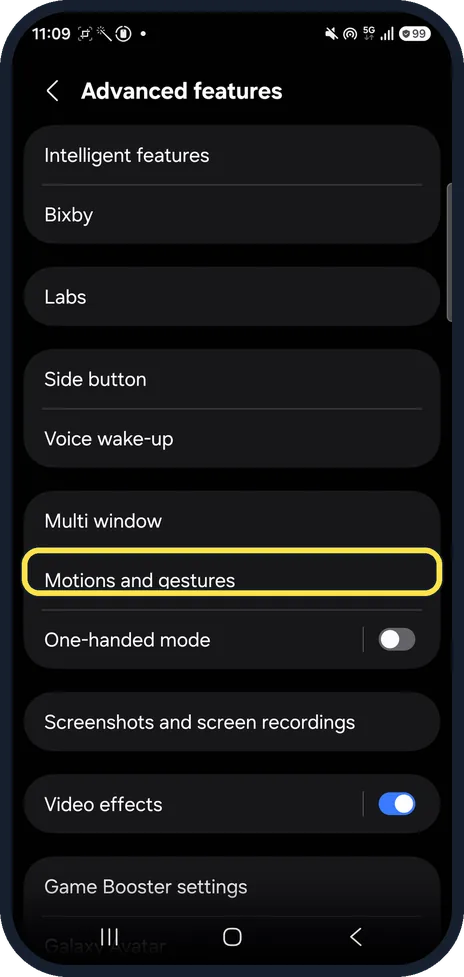
Open Motions and gestures
Open Settings, tap Advanced features, then Motions and gestures, below Multi window.
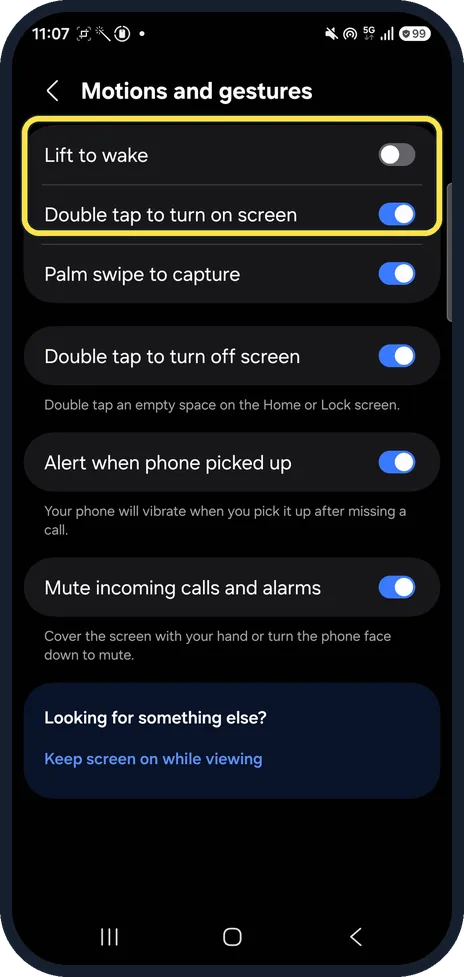
Turn on the wake gestures
Tap the switch next to Lift to wake, off on ours, or Double tap to turn on screen, on on ours. Samsung says Lift to wake turns the screen on when you pick the phone up, so you can see new notifications.
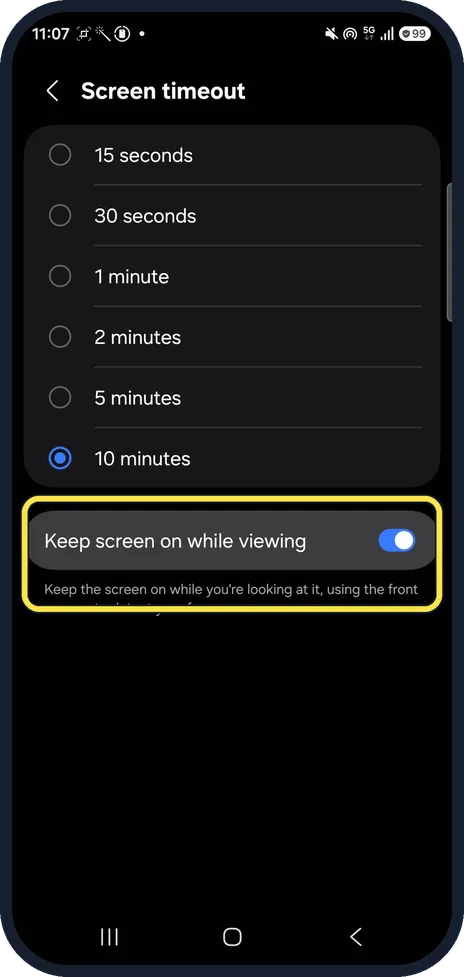
Keep the screen on while you look at it
The page ends with Keep screen on while viewing, which opens Screen timeout. That switch keeps the screen on while you're looking at it, using the front camera to detect your face. It was on on ours.
If you do not see this option
- What are the other switches? Double tap to turn off screen works on an empty space on the Home or Lock screen. Palm swipe to capture takes a screenshot when you swipe the edge of your hand across the screen. Alert when phone picked up vibrates if you missed a call. Mute incoming calls and alarms works when you cover the screen or turn the phone face down. All four were on on ours. Source: Use motions and gestures to control your Galaxy phone or tablet
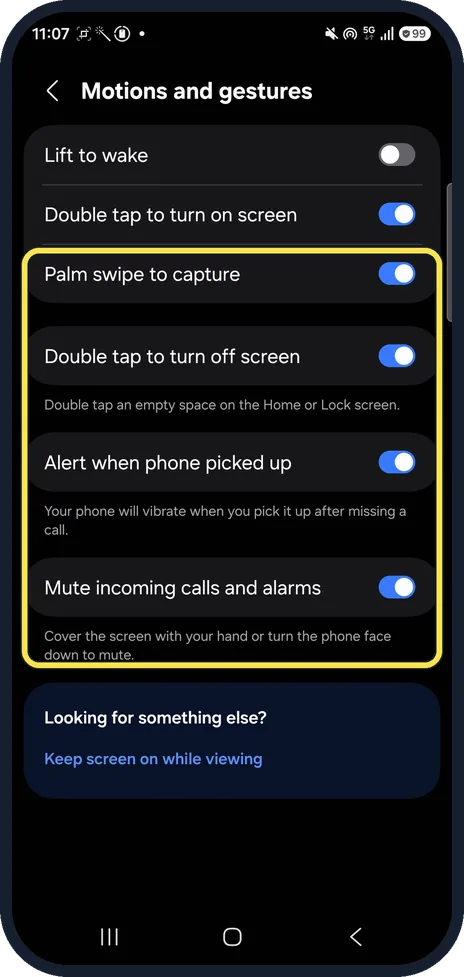
- Option missing? Samsung says the motions and gestures on offer vary by model and software version. Source: Use motions and gestures to control your Galaxy phone or tablet
If this does not work
- Screen wakes up in your pocket or bag? Turn off Lift to wake and Double tap to turn on screen on the same page. Source: Use motions and gestures to control your Galaxy phone or tablet
- Double tap to turn off does nothing? Tap an empty space, not an app or widget, on the Home or Lock screen. Source: Use motions and gestures to control your Galaxy phone or tablet
About this guide
Samsung puts its wake and sleep gestures together on one page, with a few other motion shortcuts.
The screenshots are from our Samsung Galaxy A57 with One UI 9 and Android 17, in Dark mode, taken on 24 October 2026. We didn't change any switch; the pictures show how ours was set.
Good to know
Change how long the screen stays on: how to change the screen timeout on a Samsung Galaxy.
Other ways to take a screenshot: how to take a screenshot on a Samsung Galaxy.
In short: Settings, Advanced features, Motions and gestures: Lift to wake, Double tap to turn on screen, Double tap to turn off screen.
Links checked in October 2026. Menus and features can change after software updates. These steps match the version named at the top.
Did this guide work for you?
Sorry about that. What happened?