XIAOMI REDMI
How to use gesture shortcuts on a Xiaomi phone (HyperOS 3)

In short
Go to Settings, Accessibility, General, Gesture shortcuts, or search Settings for gesture shortcuts. Tap a shortcut such as Launch camera and turn on its switches. By 23 October an update had put the Power button options (press and hold, double-press) under Settings, System, Gestures.
6 of 6 steps show a real screenshot from our Redmi Note 15 Pro 5G. Each step was checked against the maker's own instructions, linked at the end.
Steps
- 1
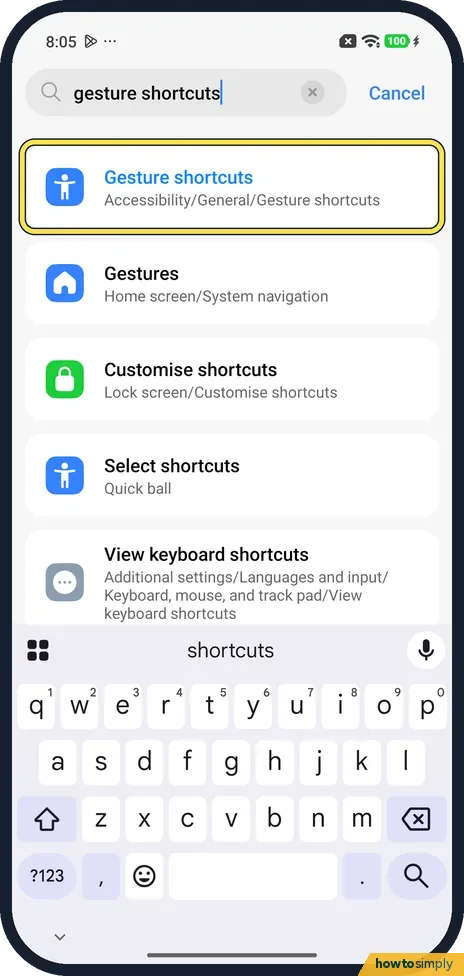
Open Gesture shortcuts
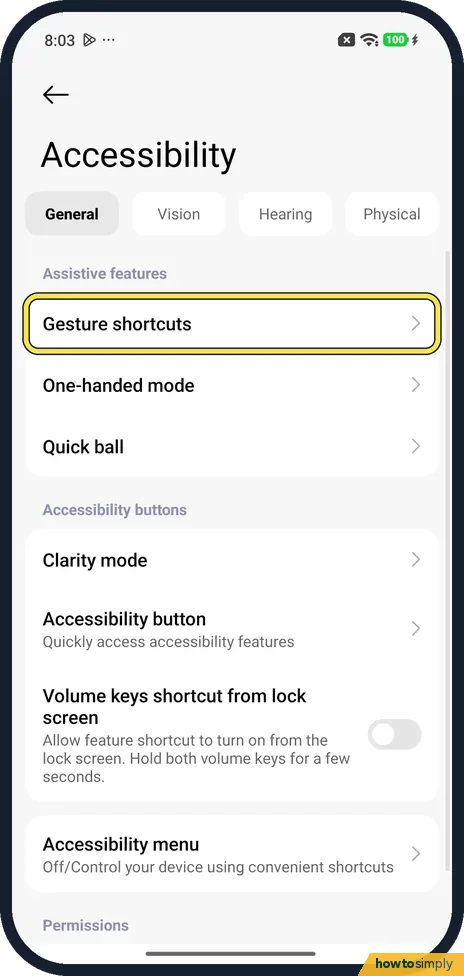
Open Settings, tap Accessibility and stay on the General tab. Gesture shortcuts is the first row under Assistive features.
- 2
See the list
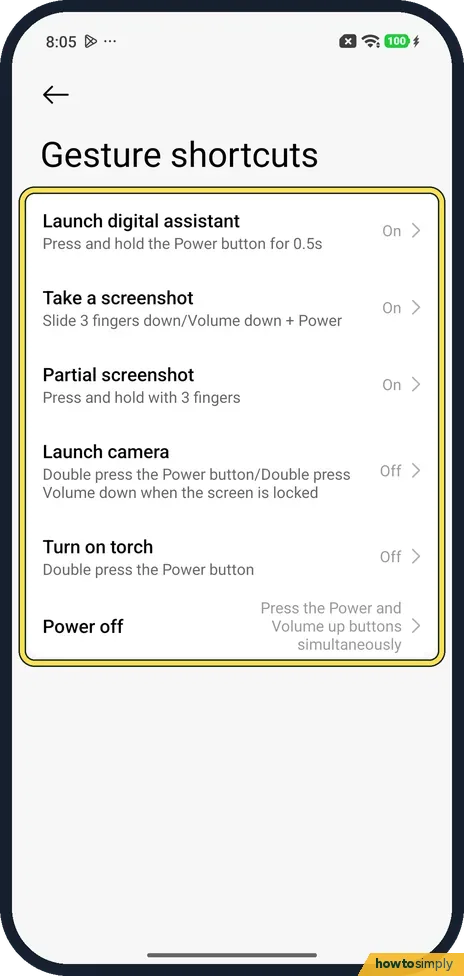
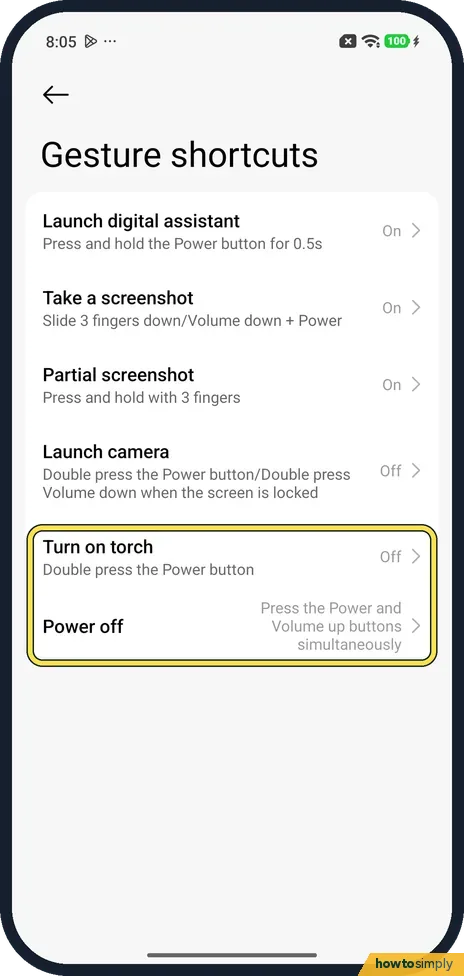
In mid-October ours had six: Launch digital assistant (hold Power for 0.5s, On), Take a screenshot (On), Partial screenshot (hold with 3 fingers, On), Launch camera (Off), Turn on torch (Off) and Power off (Power and Volume up together).
- 3
Screenshot gestures
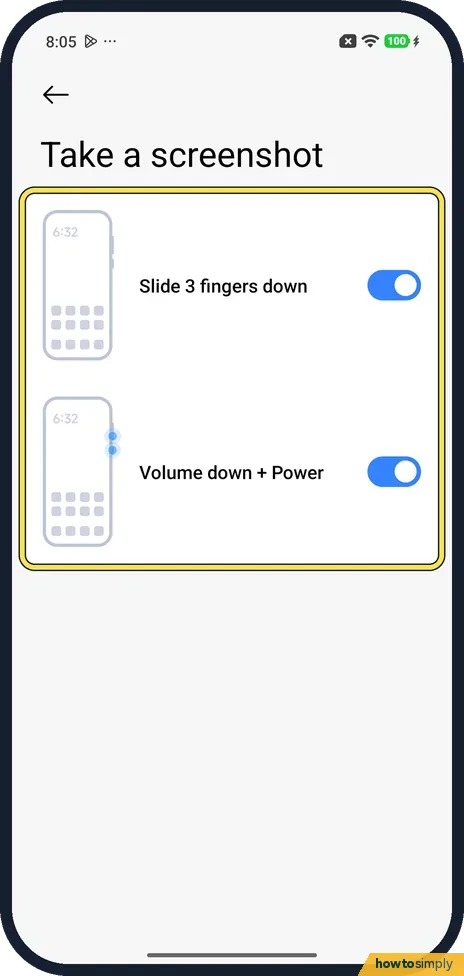
Tap Take a screenshot. Slide 3 fingers down and Volume down + Power were both on on ours. For taking and editing screenshots, see how to take a screenshot on a Xiaomi phone.
- 4
Tap Launch camera
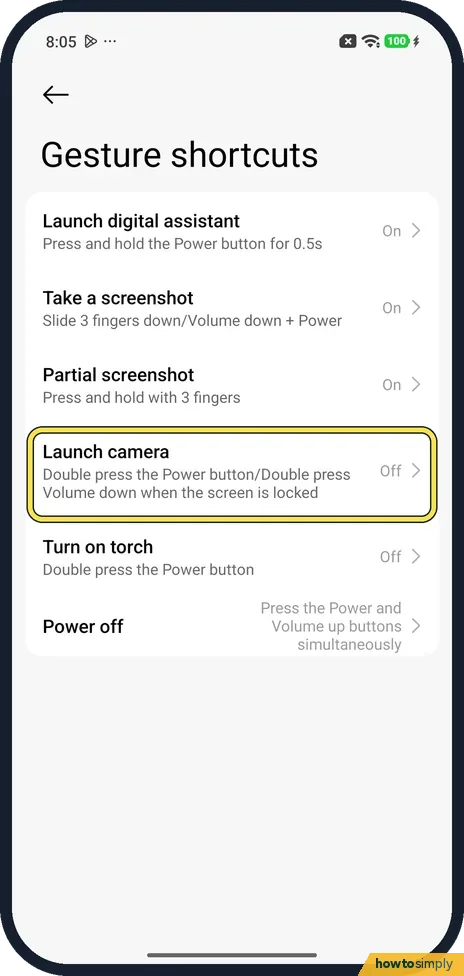
Back in the list, tap Launch camera. It was Off on ours.
- 5
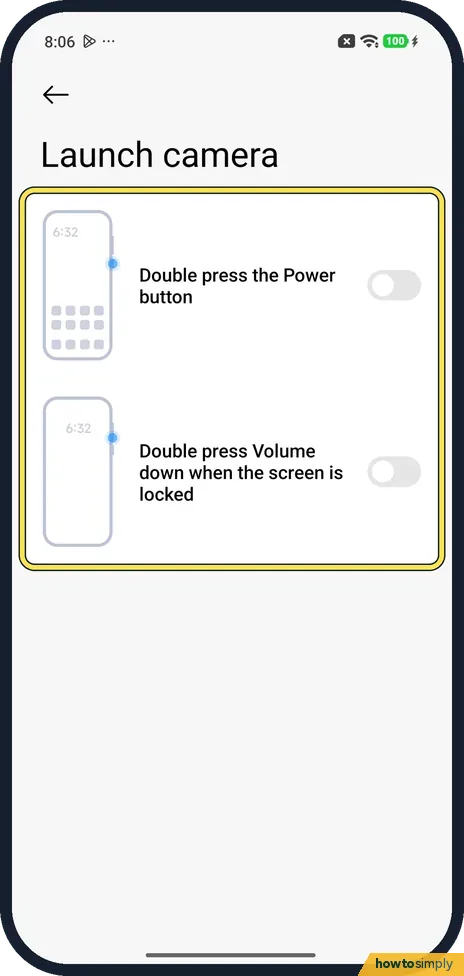
Turn on the camera shortcut
Two switches: Double press the Power button, and Double press Volume down when the screen is locked. Both were off on ours. We did not turn them on.
- 6
Torch and power off
Turn on torch uses a double press of the Power button too. Power off says Press the Power and Volume up buttons simultaneously.
If you do not see this option
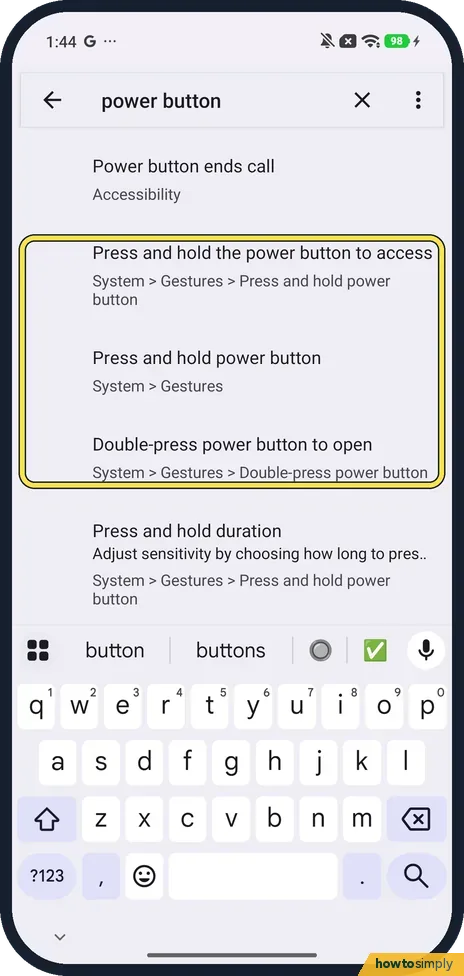
- Power button shortcuts not in this list? On 23 October, after an update, searching Settings for power button on the same phone showed Press and hold power button and Double-press power button under System, Gestures. Press and hold offers Power menu or Digital assistant; see how to turn off or restart a Xiaomi phone.
- Not in Additional settings? Xiaomi's HyperOS 3 guide and its REDMI 13C page put it under Additional settings. Searching Settings on our phone found it under Accessibility, General. Sources: Generic User Guide for HyperOS 3.0, How to use the gesture shortcuts on the REDMI 13C?
- A different list of shortcuts? It varies by model. Xiaomi's REDMI 13C page lists Launch Google Assistant and Double tap fingerprint sensor. Ours said Launch digital assistant and had no fingerprint row. Source: How to use the gesture shortcuts on the REDMI 13C?
- Camera shortcut under Lock screen? For the Xiaomi 14T, Xiaomi also gives Settings, Lock screen, Launch Camera, then press Volume down twice on the locked screen. Source: How to set up the shortcut for the camera if the Xiaomi 14T's screen is locked?
If this does not work
- Double press of Power does the wrong thing? Launch camera and Turn on torch can both use a double press of the Power button. Xiaomi warns not to set the same gesture for different functions, so turn on only one.
- Volume down twice does not open the camera? That switch only works when the screen is locked, as its label says.
- Screenshots by accident? Turn off Slide 3 fingers down on the Take a screenshot page. More in how to take a screenshot.
- 3-finger screenshot fails in games? Xiaomi's guide says Game Turbo's Game DND can Restrict screenshot gestures while you play. Use Volume down + Power instead, or change that option in Game Turbo.
Good to know
Set the torch brightness: how to change the torch brightness.
Shortcuts on the lock screen: how to change the lock screen shortcuts.
Shortcuts only add ways to start a feature; they do not change the feature itself. To undo, open the same shortcut and turn its switch off.
About this guide
- Device
- Android
- Shown on
- Xiaomi Redmi Note 15 Pro 5G (25080RABDG), HyperOS 3.0.308.0, Android 16
- App
- Settings
- Path
- Settings › Accessibility › General › Gesture shortcuts
- Real screenshots
- 6 of 6 steps
- Checked
- October 2026
- Sources
- 3 official, linked below
Sources
Links checked October 2026. Menus and features can change with updates.Spotted a mistake? Menus change with updates, and we want every step to match your screen. Email us about this page or use the contact form. We read every report, and fixes are listed on What changed.
Liked this guide?
Follow us for new guides and short how-to videos.
Did this guide work for you?
Sorry about that. What happened?