XIAOMI REDMI
How to use magnification on a Xiaomi phone (HyperOS 3)

In short
Go to Settings, Accessibility, the Vision tab, Magnification. Tap Magnification shortcut and pick Accessibility button, Accessibility gesture or Volume keys. Then use that shortcut, tap the screen and pinch with two fingers to zoom. Use the shortcut again to stop.
7 of 7 steps show a real screenshot from our Redmi Note 15 Pro 5G. Each step was checked against the maker's own instructions, linked at the end.
Steps
- 1
Open the Vision tab
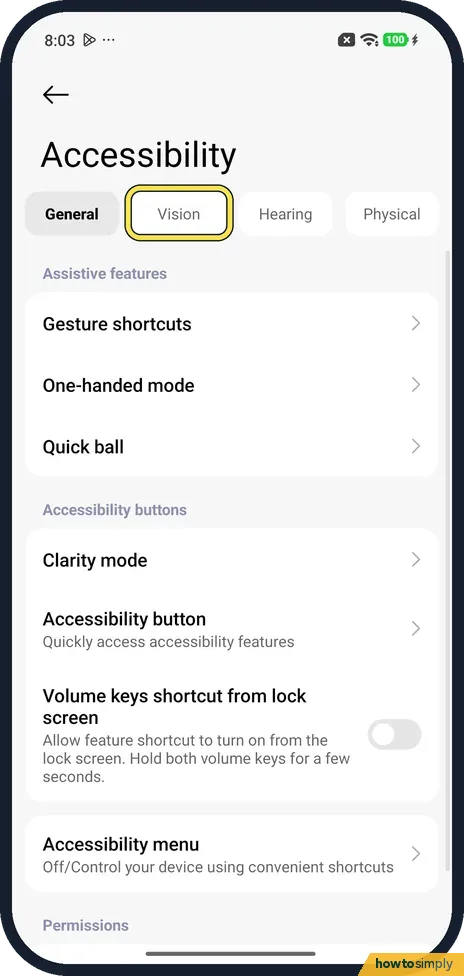
Open Settings and tap Accessibility. Four tabs sit at the top: General, Vision, Hearing and Physical. Tap Vision.
- 2
Tap Magnification
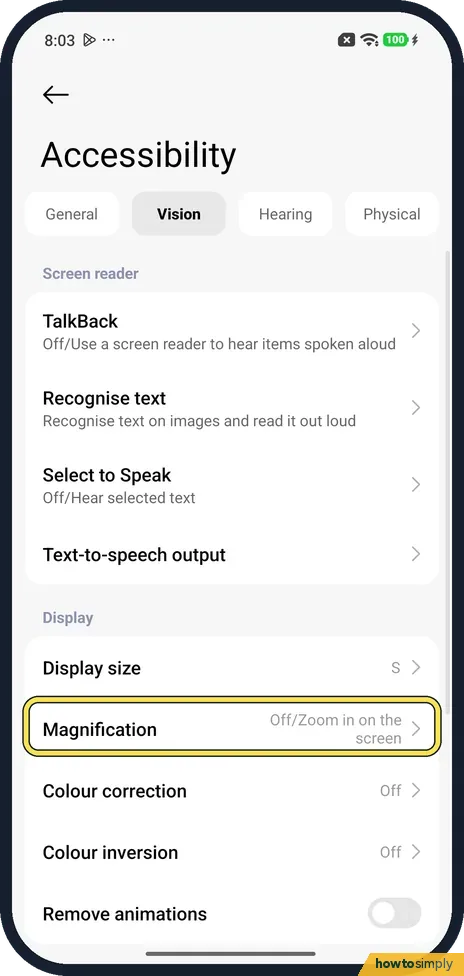
Under Display, Magnification said Off/Zoom in on the screen on ours. Tap it.
- 3
Open Magnification shortcut
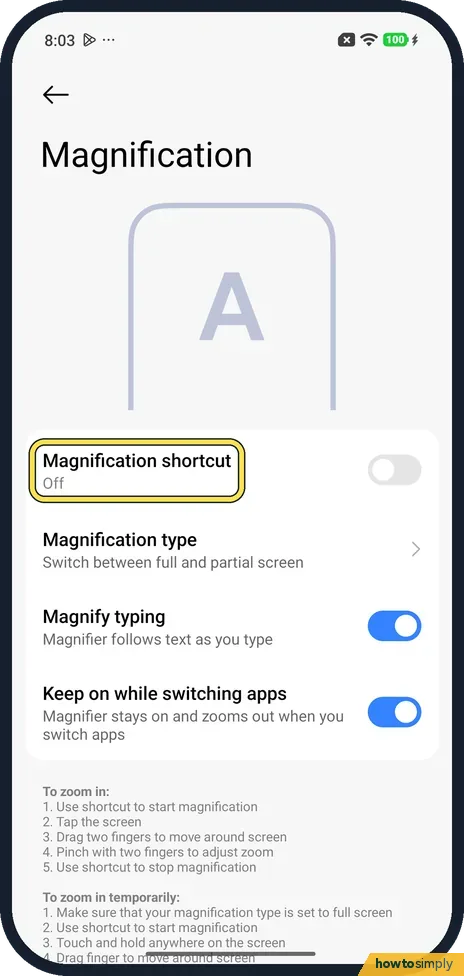
Tap Magnification shortcut. It was Off on ours. The zoom steps on this page all start with the shortcut.
- 4
Pick a shortcut
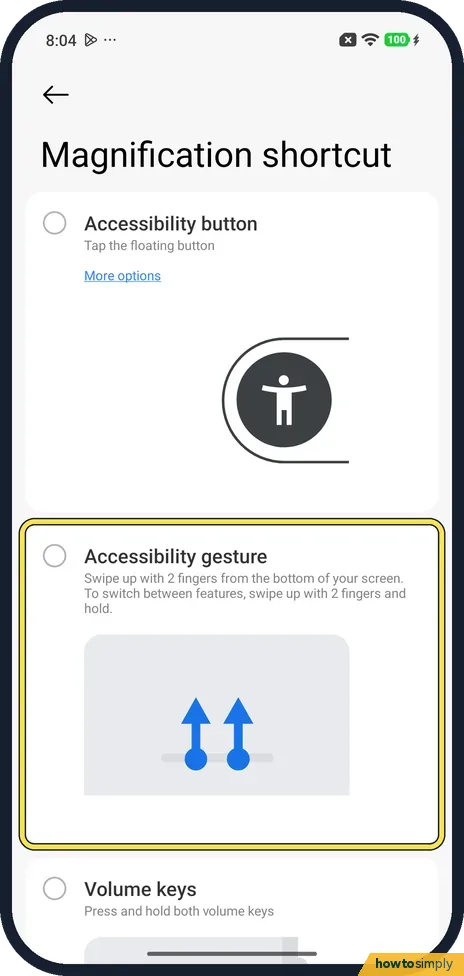
Choose one: Accessibility button (tap a floating button), Accessibility gesture (swipe up with 2 fingers from the bottom of the screen) or Volume keys (press and hold both volume keys). None was picked on ours.
- 5
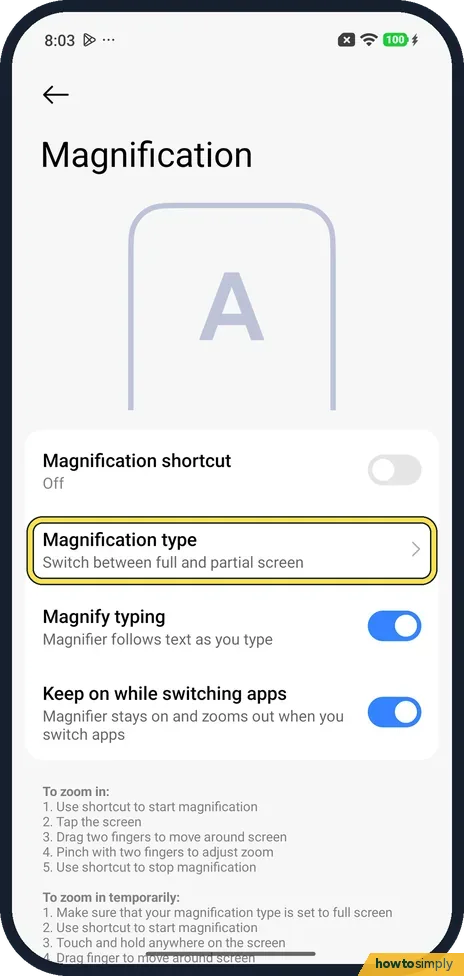
Full or partial screen
Back on Magnification, Magnification type switches between full and partial screen. We did not open it.
- 6
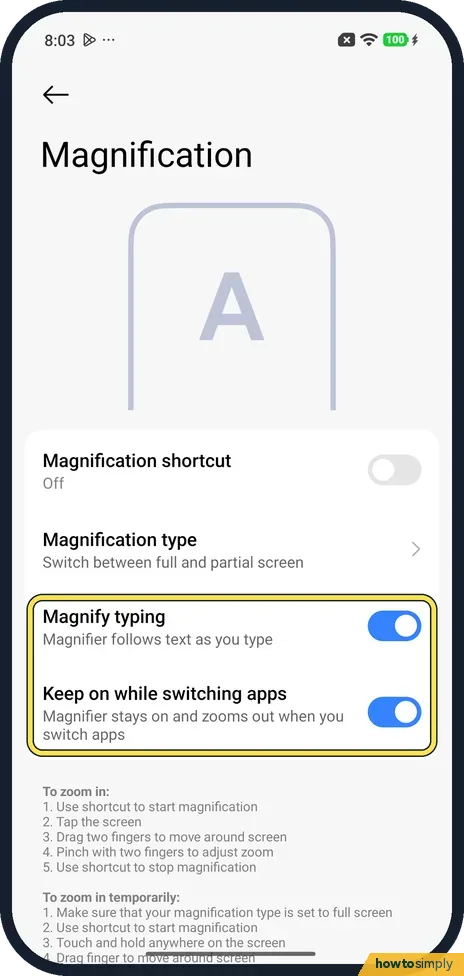
Two extra switches
Magnify typing (the magnifier follows text as you type) and Keep on while switching apps (it stays on and zooms out) were both on on ours.
- 7
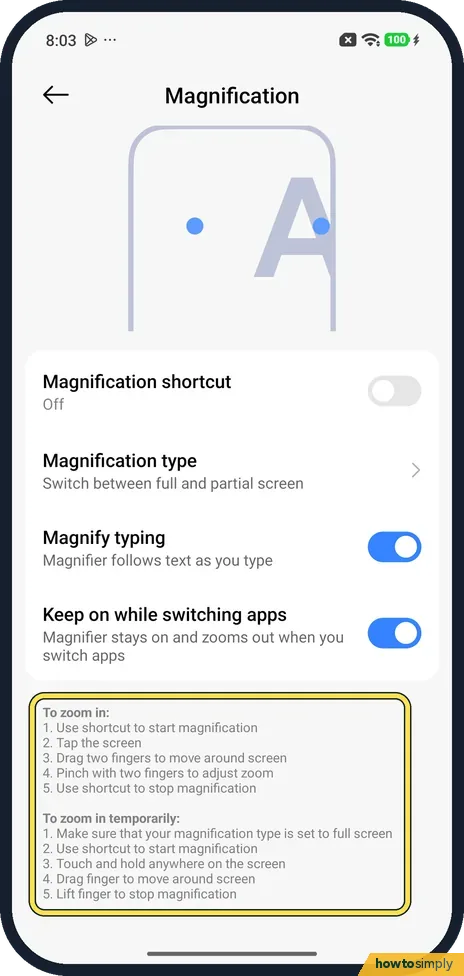
Zoom in
The notes at the bottom say: use the shortcut, tap the screen, drag two fingers to move around and pinch with two fingers to adjust the zoom. Use the shortcut again to stop. For a quick zoom on full screen, touch and hold after the shortcut and lift your finger to stop.
If you do not see this option
- Not under Additional settings? Xiaomi's HyperOS 3 guide gives Settings, Additional settings, Accessibility, Vision. On our phone Vision was a tab on the Accessibility page. Source: Generic User Guide for HyperOS 3.0
- No Triple-tap screen shortcut? Google's help lists Triple-tap screen as a shortcut and says it may slow the device down. The part of our shortcut page we saw had Accessibility button, Accessibility gesture and Volume keys. We did not scroll further. Source: Use magnification on your screen
- Some options missing on an older phone? Google says some magnification steps work only on Android 13 and up, and some settings only on Android 14 or 16 and up. Our phone runs Android 16. Source: Use magnification on your screen
If this does not work
- Tapping does not zoom? Start the shortcut first. Google's help says to tap anywhere on the screen except the keyboard or the navigation bar.
- Zoom drops when you change apps? Google says opening or closing an app may zoom out, depending on your settings. Keep on while switching apps keeps the magnifier on but zooms out.
- The two-finger swipe does something else? With Accessibility gesture, swipe up with 2 fingers from the very bottom. The page says to swipe up with 2 fingers and hold to switch between features.
- Can't find the zoomed part in partial screen? Google says the magnifier window moves when you drag with two fingers, and you can pinch to change the zoom. On Android 14 and up its settings panel has Magnifier size, and turning off Allow diagonal scrolling makes the window easier to follow.
- Keys are too small to read? Google says that on Android 16 and up you can turn on Magnify keyboard to zoom in on the keyboard as well.
Good to know
Make all text bigger instead: how to change the text size and font.
Reach the top of the screen with one hand: how to use one-handed mode.
Choosing a shortcut changes nothing until you use it. To stop using magnification altogether, open Magnification shortcut again and untick the option you picked.
About this guide
- Device
- Android
- Shown on
- Xiaomi Redmi Note 15 Pro 5G (25080RABDG), HyperOS 3.0.308.0, Android 16
- App
- Settings
- Path
- Settings › Accessibility › Vision › Magnification › Magnification shortcut
- Real screenshots
- 7 of 7 steps
- Checked
- October 2026
- Sources
- 2 official, linked below
Sources
Links checked October 2026. Menus and features can change with updates.Spotted a mistake? Menus change with updates, and we want every step to match your screen. Email us about this page or use the contact form. We read every report, and fixes are listed on What changed.
Liked this guide?
Follow us for new guides and short how-to videos.
Did this guide work for you?
Sorry about that. What happened?