XIAOMI REDMI
How to switch between gestures and buttons on a Xiaomi phone (HyperOS 3)

In short
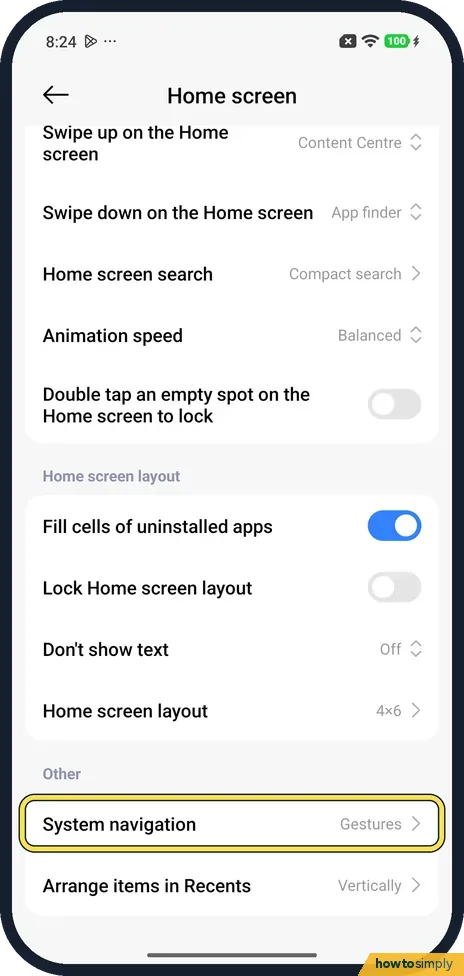
Go to Settings, Home screen, System navigation and tap Gestures or Buttons. With Gestures you swipe up from the bottom to go Home and swipe in from the left or right edge to go back. Buttons puts three buttons at the bottom. Ours used Gestures.
8 of 8 steps show a real screenshot from our Redmi Note 15 Pro 5G. Each step was checked against the maker's own instructions, linked at the end.
Steps
- 1
Open Home screen
Open Settings and tap Home screen. System navigation is near the bottom, under Other. Ours said Gestures.
- 2
Gestures or Buttons
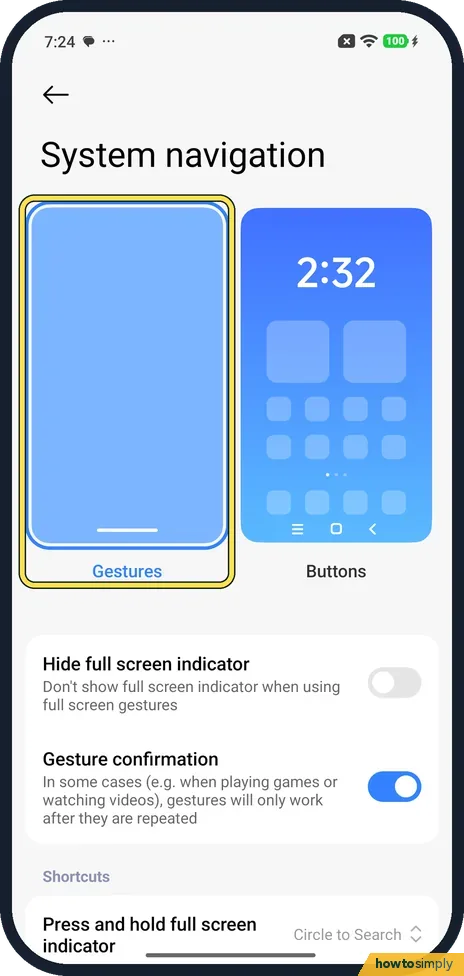
Two cards show Gestures and Buttons. Ours had Gestures selected, with a blue frame.
- 3
Tap Buttons for three buttons
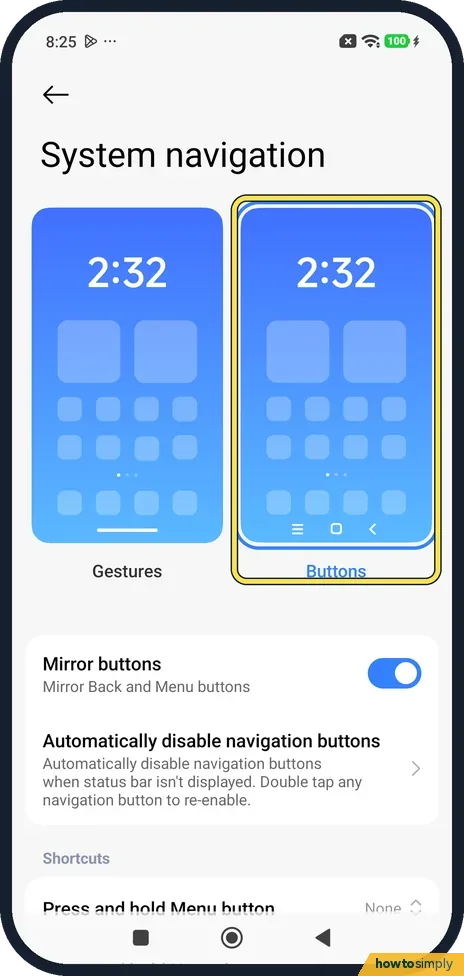
Tap Buttons. The blue frame moves to it, and three buttons appear at the bottom of the screen.
- 4
See the buttons
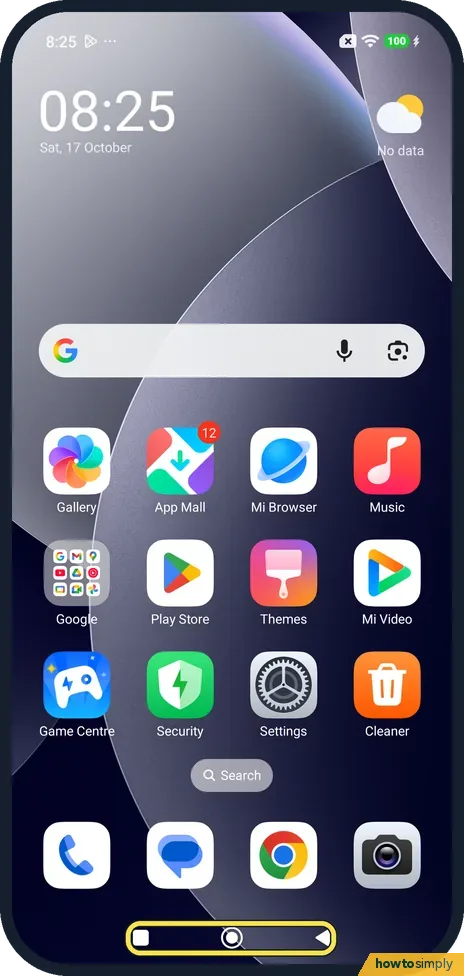
On our home screen the bar showed a square, a circle and a back arrow, from left to right.
- 5
Button options
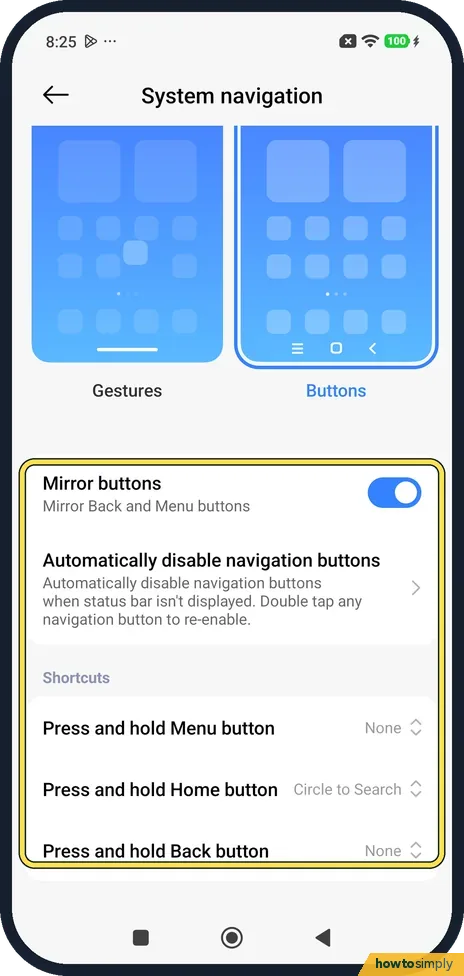
With Buttons, the page has Mirror buttons (on on ours: Back and Menu swapped), Automatically disable navigation buttons, and Press and hold for the Menu, Home and Back buttons. Ours: None, Circle to Search, None.
- 6
Gesture options
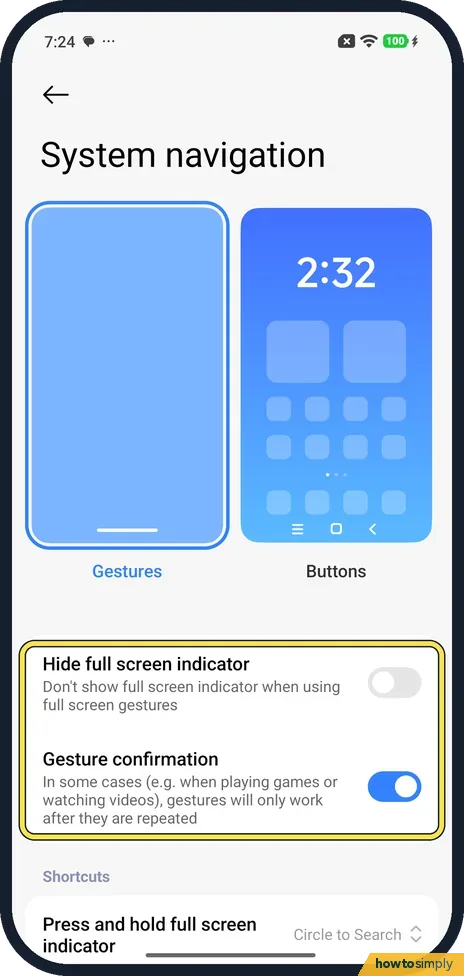
With Gestures, Hide full screen indicator removes the line at the bottom (off on ours). Gesture confirmation was on: in games or videos a gesture then only works when you repeat it.
- 7
Press and hold the line
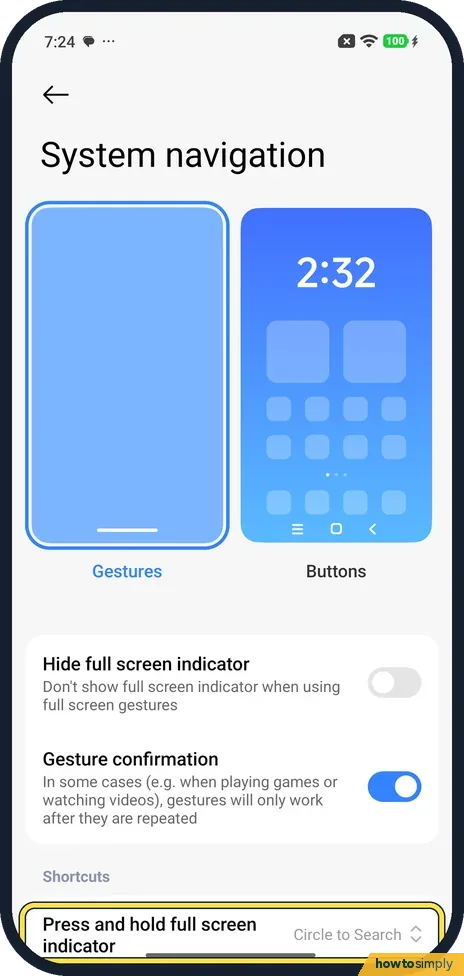
Under Shortcuts, Press and hold full screen indicator was set to Circle to Search. Xiaomi's guide says the other choice is None.
- 8
Learn the gestures
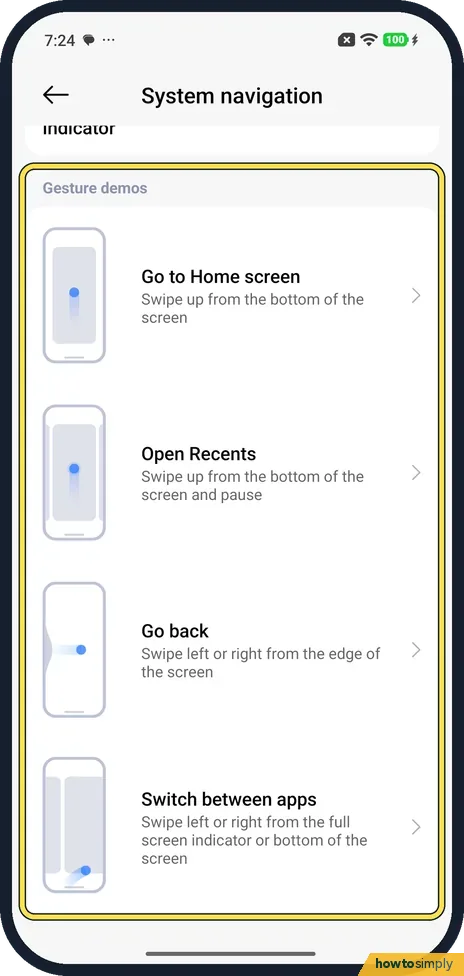
Gesture demos at the bottom: swipe up from the bottom for Home, swipe up and pause for Recents, swipe in from the left or right edge to go back, and swipe left or right along the bottom to switch apps.
If you do not see this option
- No Button shortcuts row? Xiaomi says the Xiaomi 14T has a Button shortcuts row for the buttons. On ours the Press and hold rows sat straight under Shortcuts instead. Source: How to manage the system navigation methods on the Xiaomi 14T?
- Older Redmi? Xiaomi says on the Redmi Note 9 you pick full-screen gestures when you first set up the phone, or switch later in the system's full-screen options. Source: Redmi Note 9 FAQ
If this does not work
- Back button on the wrong side? Mirror buttons was on on ours, which swaps Back and Menu. Turn it off to swap them back.
- Buttons vanished in an app? Automatically disable navigation buttons hides them when the status bar isn't shown. Xiaomi says to double tap any navigation button to bring them back, or turn the option off.
- Circle to Search opens when you rest your thumb? Set Press and hold full screen indicator to None. Xiaomi's guide lists it as a choice.
- Gestures or buttons ignored in a game? Xiaomi's guide says Game Turbo's Game DND can Restrict buttons and gestures while you play. Turn that option off in Game Turbo, or repeat the gesture if Gesture confirmation is on.
Good to know
When we switched back to Gestures, a Learn gestures box offered a tour. We tapped Not now.
A floating button for Back and Home: how to turn on Quick ball.
Keep all apps in one list: how to turn on the app drawer.
The change applies at once, so you can try one method for a few days and switch back. Gestures free the strip at the bottom of the screen for apps and videos.
About this guide
- Device
- Android
- Shown on
- Xiaomi Redmi Note 15 Pro 5G (25080RABDG), HyperOS 3.0.308.0, Android 16
- App
- Settings
- Path
- Settings › Home screen › System navigation › Gestures or Buttons
- Real screenshots
- 8 of 8 steps
- Checked
- October 2026
- Sources
- 3 official, linked below
Sources
Links checked October 2026. Menus and features can change with updates.Spotted a mistake? Menus change with updates, and we want every step to match your screen. Email us about this page or use the contact form. We read every report, and fixes are listed on What changed.
Liked this guide?
Follow us for new guides and short how-to videos.
Did this guide work for you?
Sorry about that. What happened?