
howtosimply.com/guides/how-to-take-a-scrolling-screenshot-on-a-xiaomi-phone/ · Checked October 2026 · Xiaomi Redmi Note 15 Pro 5G (25080RABDG), HyperOS 3.0.308.0, Android 16
In this guide
Press Power and Volume Down, then tap Scroll on the preview at the top right. HyperOS scrolls the page by itself and stitches it, then opens the editor; tap the tick to save the long image.
3 of 3 steps with real screenshots · 2 official sources below
- Device
- Android
- Shown on
- Xiaomi Redmi Note 15 Pro 5G (25080RABDG), HyperOS 3.0.308.0, Android 16
- Real screenshots
- 3 of 3 steps
- Checked
- October 2026
- Sources
- 2 official, linked below
Step by step
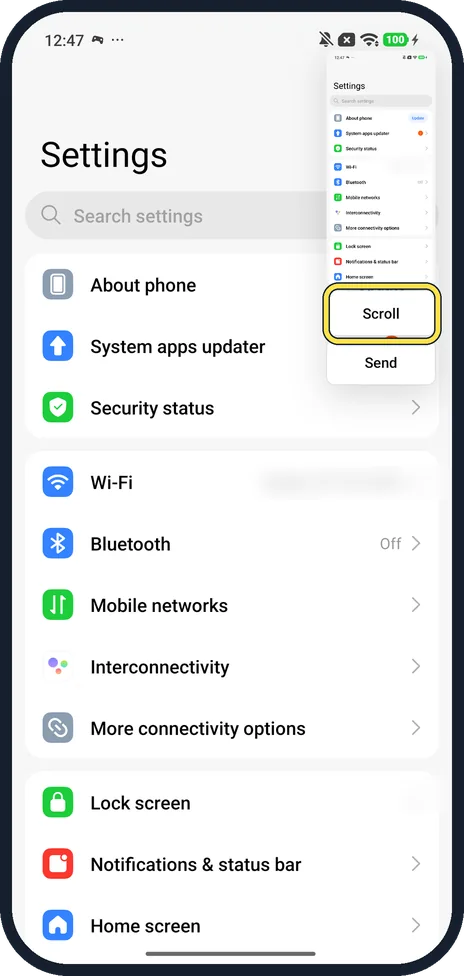
Take a screenshot and tap Scroll
Press Power and Volume Down together. The preview at the top right has Scroll and Send.
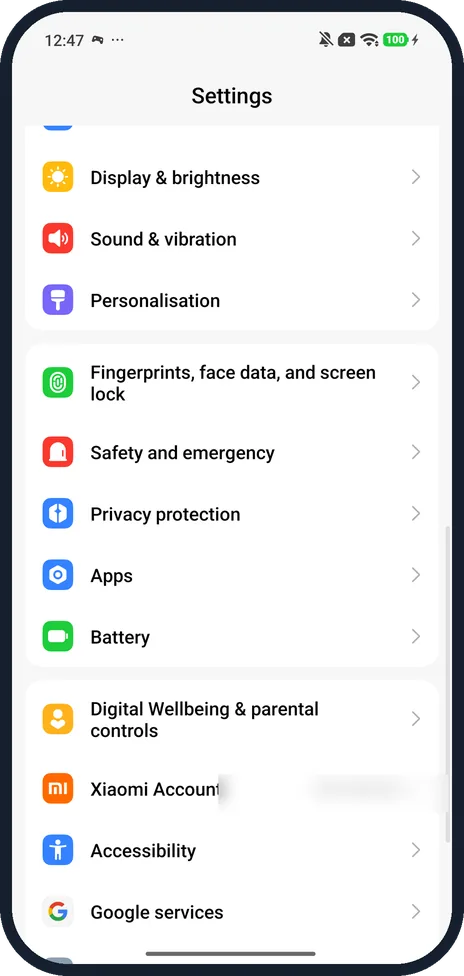
Let it scroll
The page scrolls down by itself while it is captured. Ours went from About phone down past Google services.
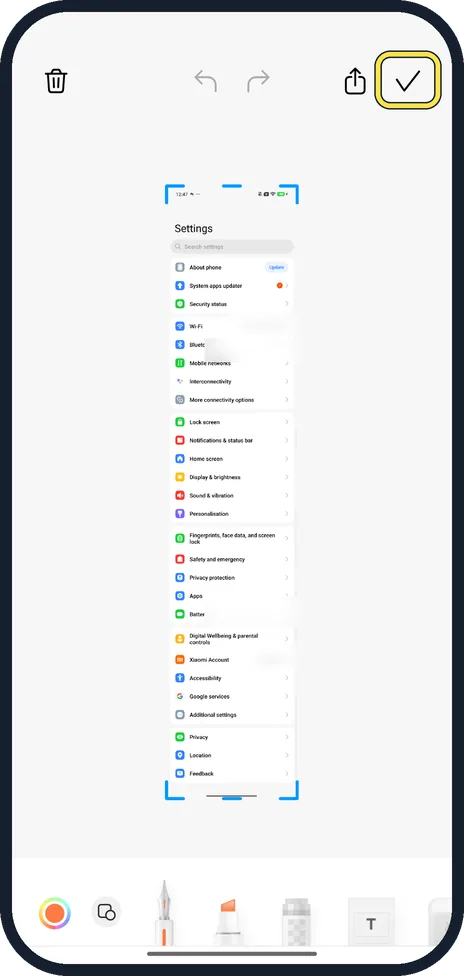
Tap the tick to save
The editor shows the whole long image with Delete, Undo, Redo, Send and the tick at the top, and Pen, Marker and Mosaic tools at the bottom.
If you do not see this option
- Searched Settings for it? On ours, searching scroll found nothing. Google also puts the button on the preview that appears after a screenshot. Source: Take a screenshot or record your screen on your Android device
- Same steps on other phones? Google calls it Capture more on Android 12 and up, for most screens that allow you to scroll. Source: Take a screenshot or record your screen on your Android device
If this does not work
- Scrolling screenshot will not save or open? Xiaomi says the Gallery editor needs permission to certain folders to view and save scrolling screenshots. Source: Generic User Guide for HyperOS 3.0
- No Scroll button? The page you captured must scroll. Google says it works on most screens that allow you to scroll. Source: Take a screenshot or record your screen on your Android device
About this guide
There is no Settings page for scrolling screenshots on HyperOS 3: the Scroll button only appears on the screenshot preview.
The screenshots are from our Redmi Note 15 Pro 5G (25080RABDG) with Xiaomi HyperOS 3.0.308.0 and Android 16, in Light mode.
Good to know
For all the screenshot gestures, see take a screenshot on a Xiaomi phone.
In short: Power + Volume Down, Scroll, tick.
- Xiaomi: Generic User Guide for HyperOS 3.0
- Google Android Help: Take a screenshot or record your screen on your Android device
Links checked in October 2026. Menus and features can change after software updates. These steps match the version named at the top.
📷 See real photos from the Redmi Note 15 Pro 5G in our Camera Lab, next to 10 other phones.
Did this guide work for you?
Sorry about that. What happened?