XIAOMI REDMI
How to take a screenshot on a Xiaomi phone (HyperOS 3)
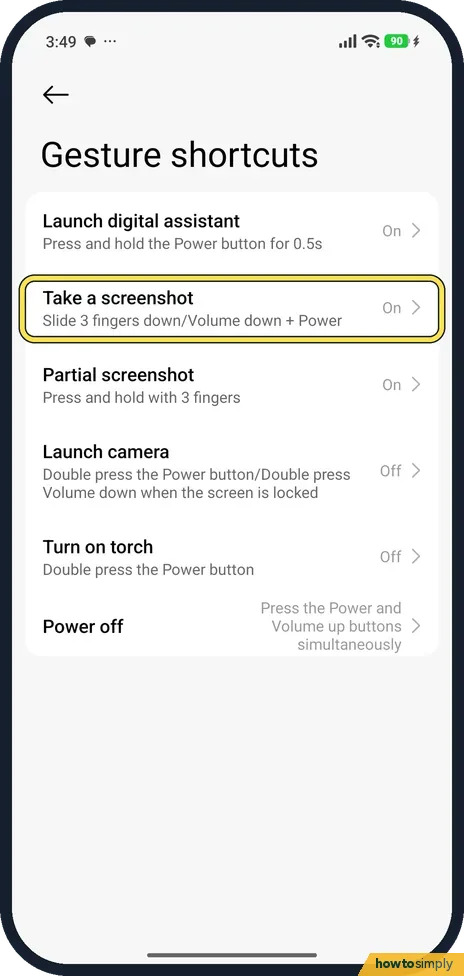
Swipe down with three fingers, or press Volume down and Power together. For a long page, tap Scroll on the preview. For part of the screen, press and hold with three fingers. The gestures are switched on in Settings, Accessibility, General, Gesture shortcuts.

6 of 6 steps show a real screenshot from our Redmi Note 15 Pro 5G. Each step was checked against the maker's own instructions, linked at the end.
Steps
- 1
Open Gesture shortcuts
Go to Settings, Accessibility, General, Gesture shortcuts (or search Settings for gesture shortcuts). Tap Take a screenshot.
- 2
Turn on the screenshot gestures
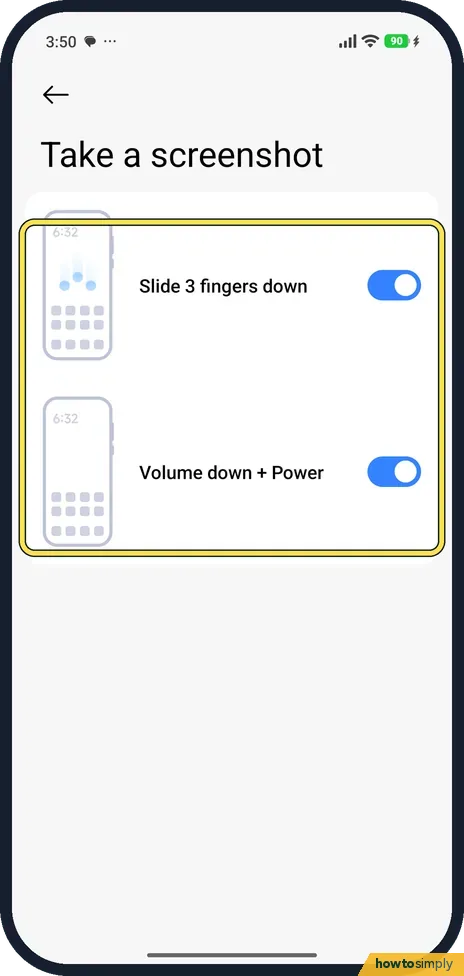
Turn on Slide 3 fingers down and Volume down + Power. Both were on on our phone.
- 3
Turn on Partial screenshot
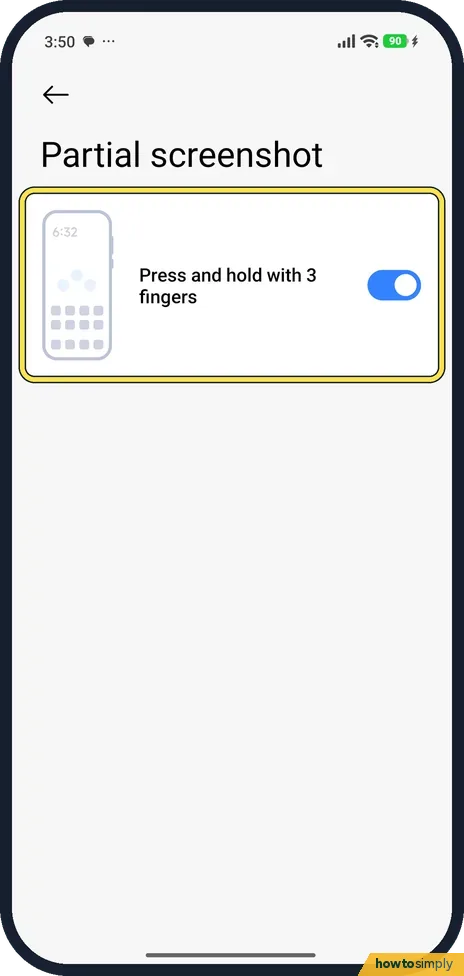
Back in Gesture shortcuts, tap Partial screenshot and turn on Press and hold with 3 fingers. Then hold three fingers on the screen to pick part of it.
- 4
Take the screenshot
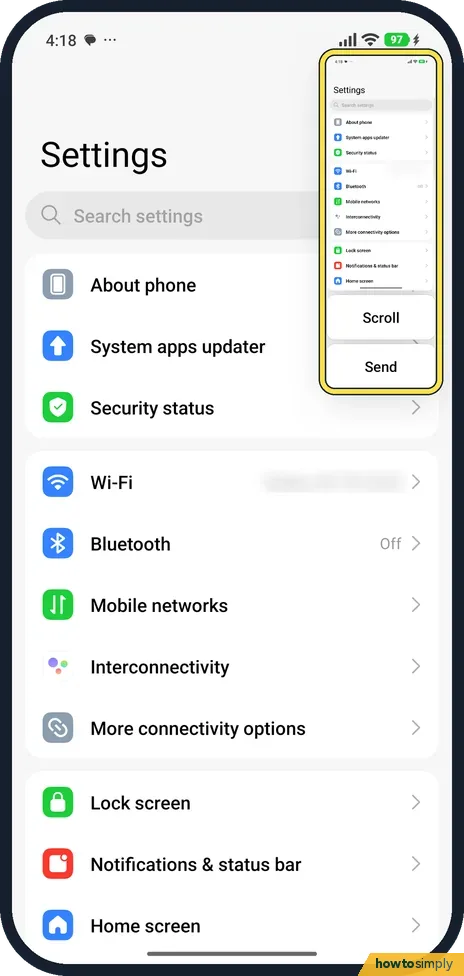
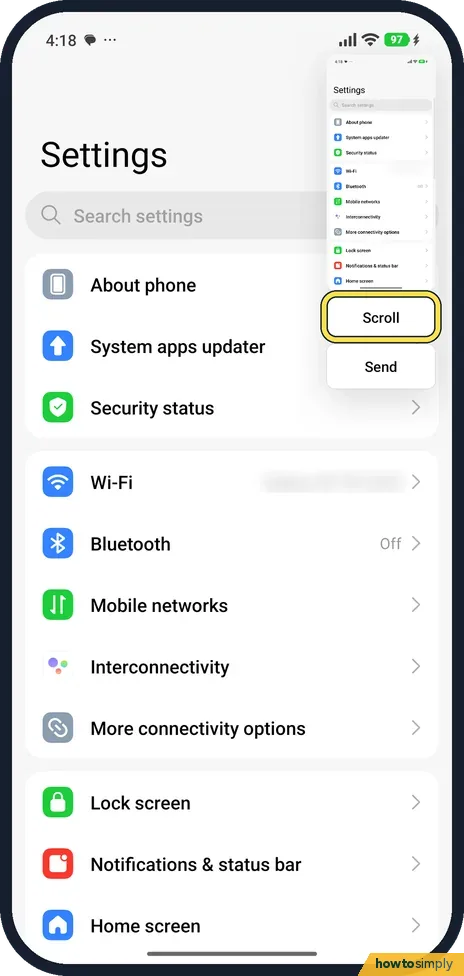
Swipe down with three fingers or press Volume down and Power. A preview appears at the top right with Scroll and Send.
- 5
Tap Scroll for a long page
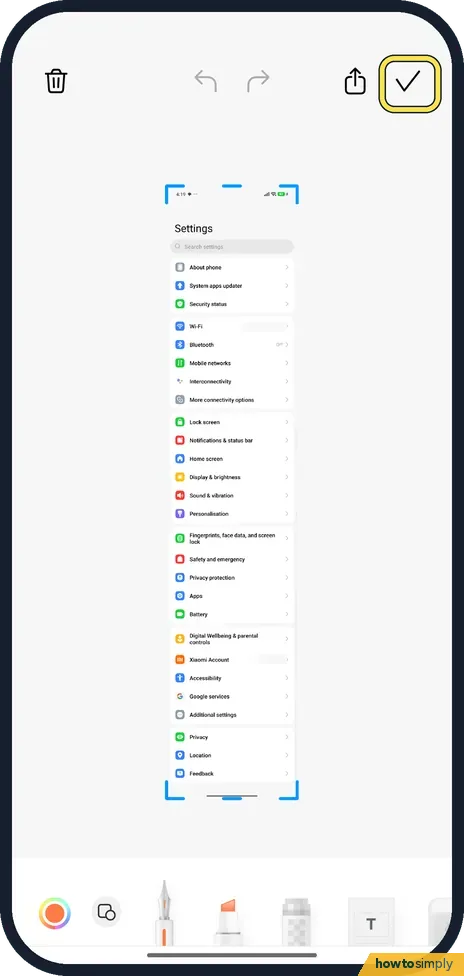
Tap Scroll. On our phone the page scrolled down by itself and then the editor opened. Xiaomi says you can also scroll up to choose where it ends.
- 6
Save it
In the editor, tap the tick at the top right to save.
If you do not see this option
- Three fingers do nothing? Slide 3 fingers down may be off. Turn it on in Gesture shortcuts, Take a screenshot. Source: Generic User Guide for HyperOS 3.0
- No Scroll button? Scroll appears on the preview only on pages that can scroll.
If this does not work
- Scrolling screenshot will not save or open? Xiaomi says the Gallery editor needs permission to certain folders to view and save scrolling screenshots.
- Screenshot taken by mistake? Turn off the gesture you trigger by accident in Gesture shortcuts.
- Screenshot comes out black? Some apps protect their screens, such as banking apps, streaming video and private browser tabs. The phone saves a blank image or shows a message instead, and no setting on the phone changes that.
- Buttons and gestures are hard to use? Xiaomi's user guide gives a third way: swipe down from the status bar to open the Control centre and tap Screenshot. Google's Accessibility Menu also has a large screenshot button, switched on under Accessibility menu in the Accessibility settings.
- Partial screenshot shape is wrong? After holding three fingers on the screen, Xiaomi's user guide says to choose a shape at the upper right, draw the area with one finger, then tap Save. Pick the shape before you start drawing.
Good to know
Record a video of the screen instead: how to screen record on a Xiaomi phone.
Xiaomi's guide says Gallery sorts screenshots into the Screenshots and screen recordings album, where you can find, edit and share them. If you use Google Photos, Google says they are under Collections, On this device, Screenshots.
About this guide
- Device
- Android
- Shown on
- Xiaomi Redmi Note 15 Pro 5G (25080RABDG), HyperOS 3.0.308.0, Android 16
- App
- Settings
- Real screenshots
- 6 of 6 steps
- Checked
- October 2026
- Sources
- 4 official, linked below
Sources
Links checked October 2026. Menus and features can change with updates.Spotted a mistake? Menus change with updates, and we want every step to match your screen. Email us about this page or use the contact form. We read every report, and fixes are listed on What changed.
Liked this guide?
Follow us for new guides and short how-to videos.
Did this guide work for you?
Sorry about that. What happened?