
howtosimply.com/guides/how-to-use-app-specific-volume-on-a-oneplus/ · Checked October 2026 · OnePlus Nord 5 (CPH2709), OxygenOS 16.0.5, Android 16
In this guide
Open Settings, Sound & vibration and turn on App-specific volume, below Volume button function. Then, while an app plays sound, press a volume button and tap the mixer button under the three dots: App volume gives that app its own slider.
4 of 4 steps with real screenshots · 2 official sources below
- Device
- Android
- Shown on
- OnePlus Nord 5 (CPH2709), OxygenOS 16.0.5, Android 16
- App
- Settings
- Path
- Settings › Sound & vibration › App-specific volume
- Real screenshots
- 4 of 4 steps
- Checked
- October 2026
- Sources
- 2 official, linked below
Step by step
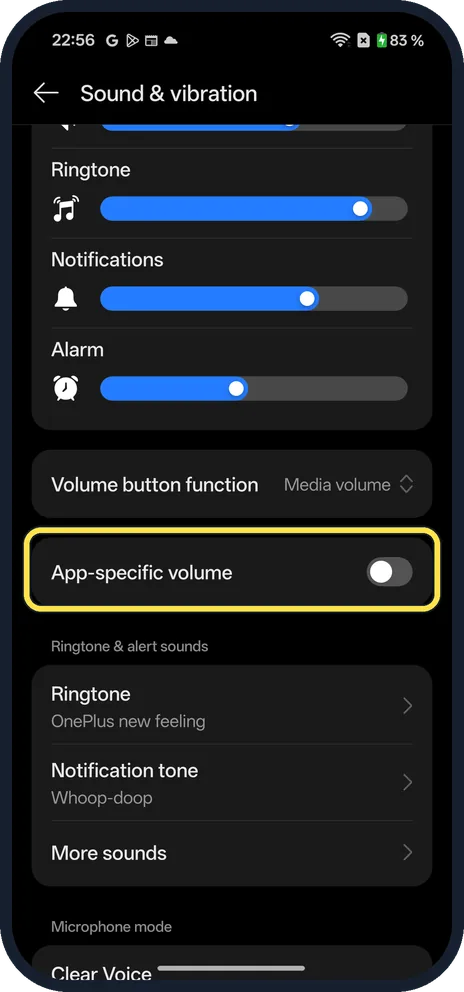
Find App-specific volume
Open Settings, Sound & vibration and scroll down past the volume sliders. The switch is the row below Volume button function. It was off on ours.
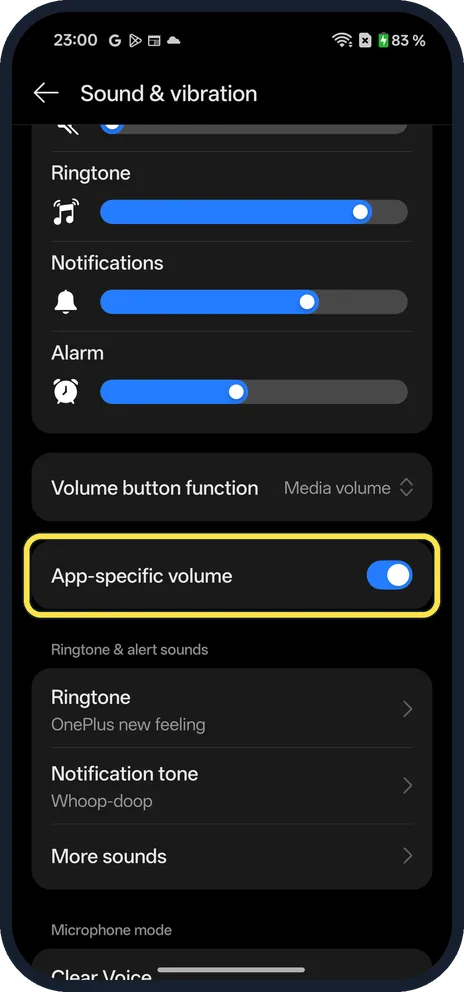
Turn it on
Tap the App-specific volume switch. Tapping the words instead opens a short explanation and turns the switch on too; tap OK to close it.
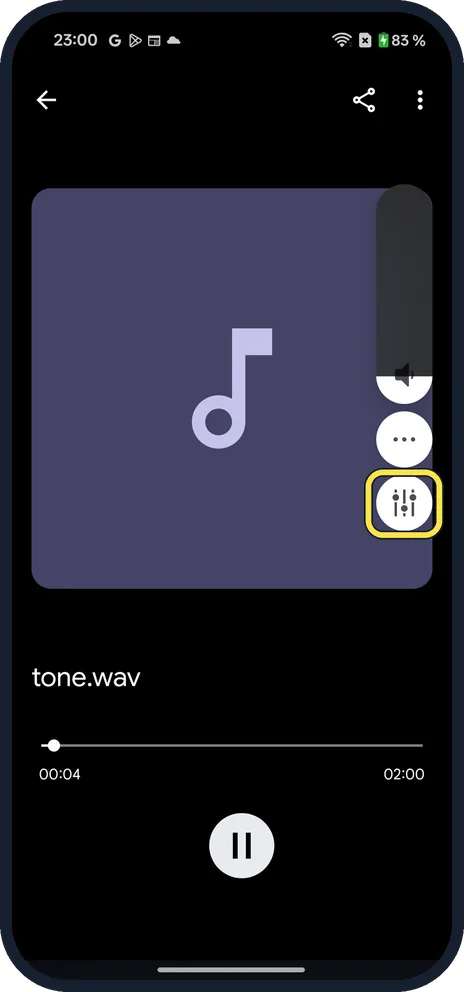
Play sound and press a volume button
Start the app you want to adjust, then press Volume Up or Volume Down. With the switch on, a mixer button (three sliders) shows under the three dots.
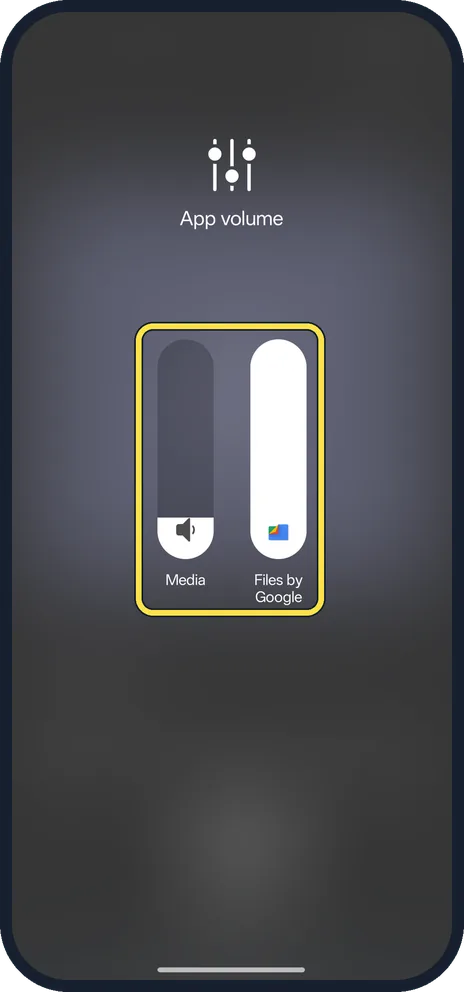
Set the app's own level
Tap the mixer button. App volume opens with a Media slider and one for the app that is playing; on ours that was Files by Google. Drag the app's slider up or down.
If you do not see this option
- No mixer button in the volume panel? Check App-specific volume is on. With it off, our panel showed only the slider and the three dots.
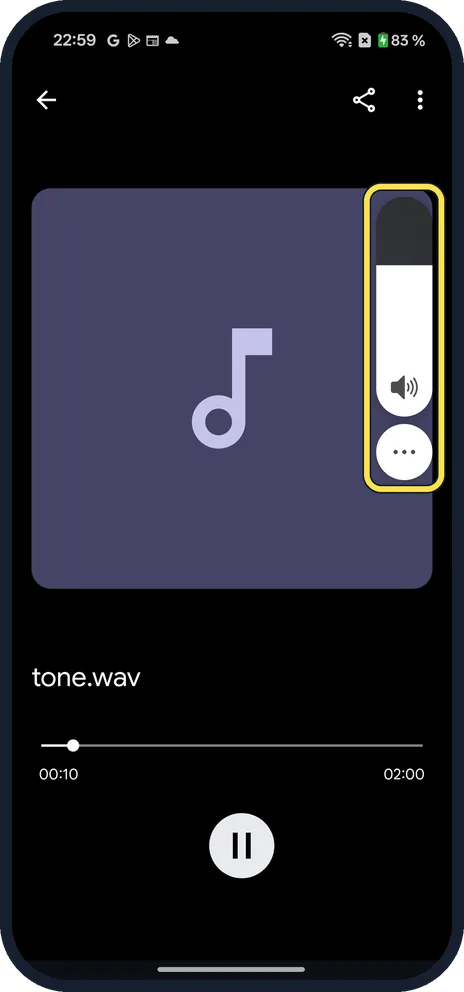
- No App-specific volume row? OnePlus added volume for individual apps in a 2024 OxygenOS 14 update (the Nord 3 changelog). Check for an update in Settings, About device (tap the OxygenOS card), then look again under Sound & vibration. Source: OxygenOS 14.0.0.510 for the OnePlus Nord 3 [IN/EU/GLO ADDED]
- Mixer button but no app slider? The phone's own text says it works when a supported app is playing sound. Start playback first, then press a volume button.
If this does not work
- Volume buttons change all media? That is normal with the switch off. Check Volume button function too: ours was set to Media volume. Source: Change volume, sound & vibrate settings
- An app is still too loud or quiet? Its slider only moves that app. The Media slider next to it still sets all media, so set both. More: Change the volume on a OnePlus. Source: Change volume, sound & vibrate settings
- Want the old panel back? Turn App-specific volume off in Sound & vibration. We set ours back to off afterwards.
About this guide
App-specific volume lets one app play louder or quieter than the rest of your media. It is off until you turn it on.
The screenshots are from our OnePlus Nord 5 with OxygenOS 16.0.5 and Android 16, in Dark mode. We played a tone in Files by Google to show the mixer, then turned the switch off again.
Good to know
Change the volume on a OnePlus.
Put a OnePlus on silent or vibrate.
In short: Settings, Sound & vibration, App-specific volume on. Play sound, press a volume button, tap the mixer, drag the app's slider.
- OnePlus Community: OxygenOS 14.0.0.510 for the OnePlus Nord 3 [IN/EU/GLO ADDED]
- Google Android Help: Change volume, sound & vibrate settings
Links checked in October 2026. Menus and features can change after software updates. These steps match the version named at the top.
Did this guide work for you?
Sorry about that. What happened?