ONEPLUS
How to turn touch sounds on or off on a OnePlus (OxygenOS 16)

In short
Go to Settings, Sound & vibration, More sounds and switch Touch sound on or off. The same page has Dial pad tone, Lock screen sound, Screenshot sound and Deletion sound.
4 of 4 steps show a real screenshot from our Nord 5. Each step was checked against the maker's own instructions, linked at the end.
Steps
- 1
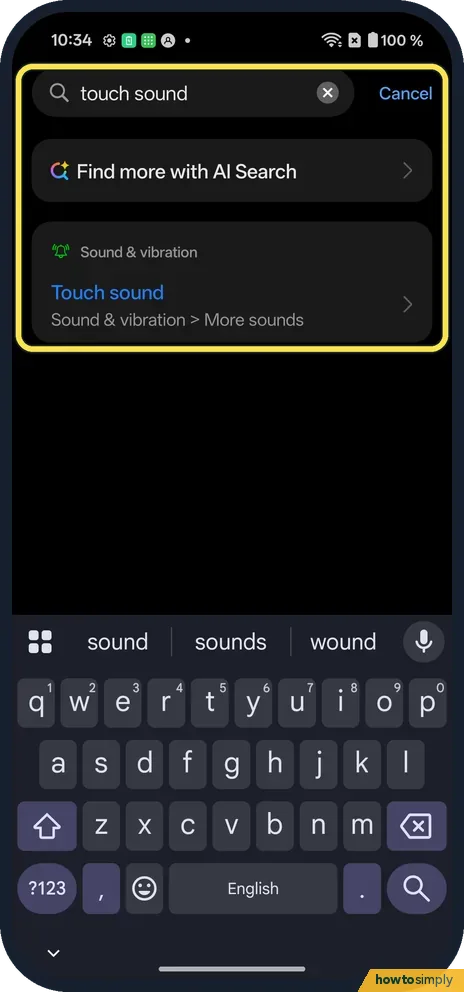
Search for it
Open Settings and type touch sound. Tap the result under Sound & vibration, More sounds.
- 2
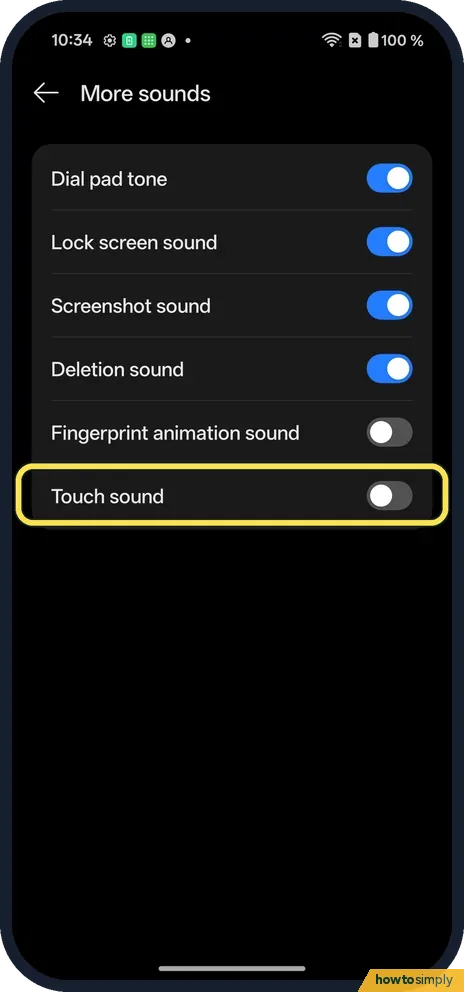
Find Touch sound
It is the last row on More sounds.
- 3
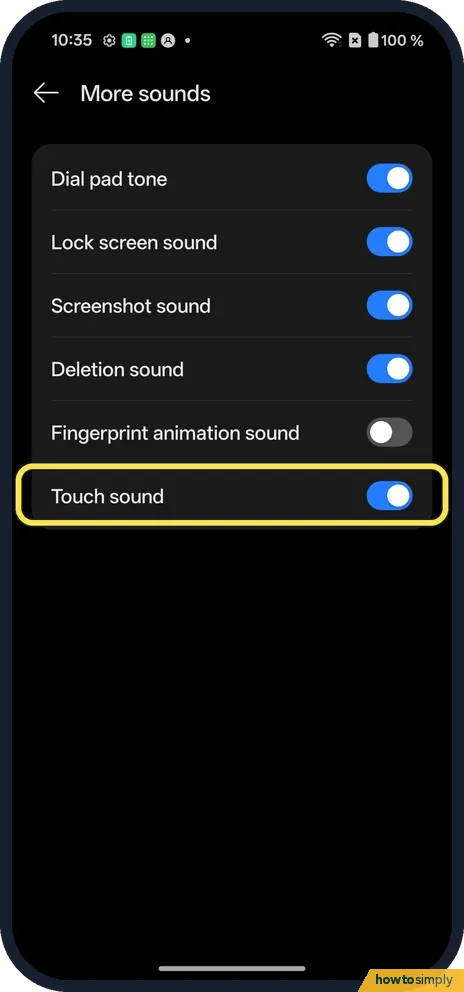
Switch Touch sound on
Taps now click.
- 4
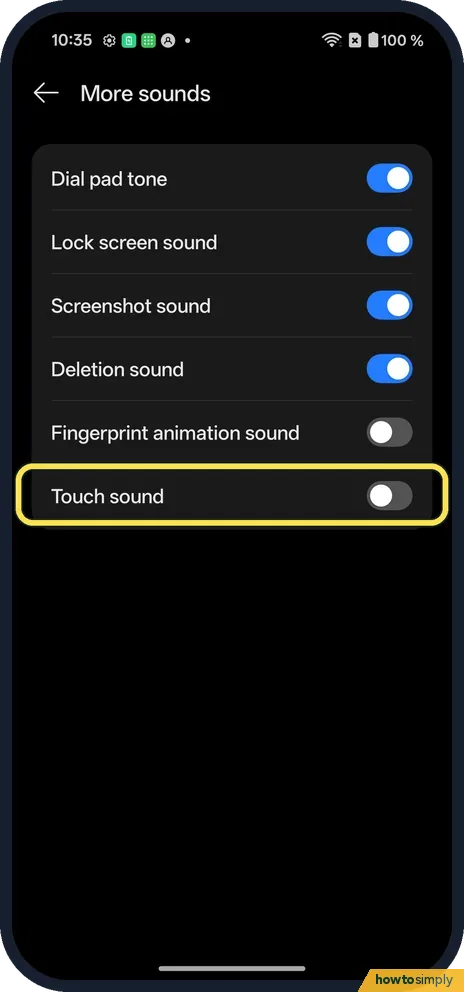
Or switch Touch sound off
We switched it off again, as it was.
If you do not see this option
- Not in Sound & vibration? On ours Touch sound is one level down, in More sounds, with Fingerprint animation sound. Search finds it.
- Keyboard clicks? They are not on this page. They are in your keyboard's settings: keyboard settings on a OnePlus.
If this does not work
- Still no click? The phone may be on Silent or Vibrate: silent or vibrate on a OnePlus.
- Do Not Disturb on? It can mute sounds. Turn off Do Not Disturb on your OnePlus and try again.
- Click too quiet or too loud? More sounds has no separate volume slider for Touch sound. If the switch is on but you can barely hear the click, check the volume levels in Sound & vibration and make sure the phone is not on Silent, then test again.
- Hear clicks only in some apps? Touch sound covers taps on system controls. Some apps play their own sounds, and keyboard clicks are a separate setting in the keyboard app, so they can sound different or stay silent.
- Still a beep when you plug in? That is a separate system sound, not Touch sound. The OxygenOS 14 manual says the phone beeps when you connect the charger, except in Silent or Do Not Disturb mode, and that system sounds are switched on or off in More sounds.
Good to know
Change the ringtone and vibration on a OnePlus.
The change takes effect straight away, applies to the whole phone and stays after a restart. It does not change your ringtone, notification sound, alarm or media volume. With Touch sound on, every tap on a system control makes a short click, which some people find reassuring and others find tiring in quiet rooms. Battery use is not affected in any way you would notice.
If you are tidying up the phone's sounds in general, go through the other switches on More sounds at the same time, then set the overall levels in volume on a OnePlus. To undo, return to More sounds and switch Touch sound back to how it was.
About this guide
- Device
- Android
- Shown on
- OnePlus Nord 5 (CPH2709), OxygenOS 16.0.5.1201, Android 16
- App
- Settings
- Path
- Settings › Sound & vibration › More sounds › Touch sound
- Real screenshots
- 4 of 4 steps
- What we did
- Performed: we made the change on our device and show the result
- Checked
- October 2026
- Sources
- 2 official, linked below
Sources
Links checked October 2026. Menus and features can change with updates.Spotted a mistake? Menus change with updates, and we want every step to match your screen. Email us about this page or use the contact form. We read every report, and fixes are listed on What changed.
Liked this guide?
Follow us for new guides and short how-to videos.
Did this guide work for you?
Sorry about that. What happened?