
howtosimply.com/guides/how-to-record-your-screen-on-a-samsung-galaxy/ · Checked October 2026 · Samsung Galaxy A57 5G (One UI 8.5, Android 16) and Samsung Galaxy A57 (One UI 9, Android 17 (build A576BXXU6BZIE))
In this guide
Swipe down from the top right and tap Screen recorder, choose the sound (None, Media, or Media and mic), then tap Start recording. If the button is missing, add it with the pencil and Add a control. Settings, Advanced features, Screenshots and screen recordings sets the quality.
8 of 8 steps with real screenshots · 1 official source below
- Device
- Android
- Shown on
- Samsung Galaxy A57 5G (SM-A576B), One UI 8.5, Android 16, Samsung Galaxy A57 (SM-A576B), One UI 9, Android 17 (build A576BXXU6BZIE)
- Starts in
- Quick Settings
- Real screenshots
- 8 of 8 steps
- What we did
- Observed: looked at each screen, changed nothing
- Our phone
- Shown on Galaxy A57, One UI 8.5
- Checked
- October 2026
- Sources
- 1 official, linked below
Step by step
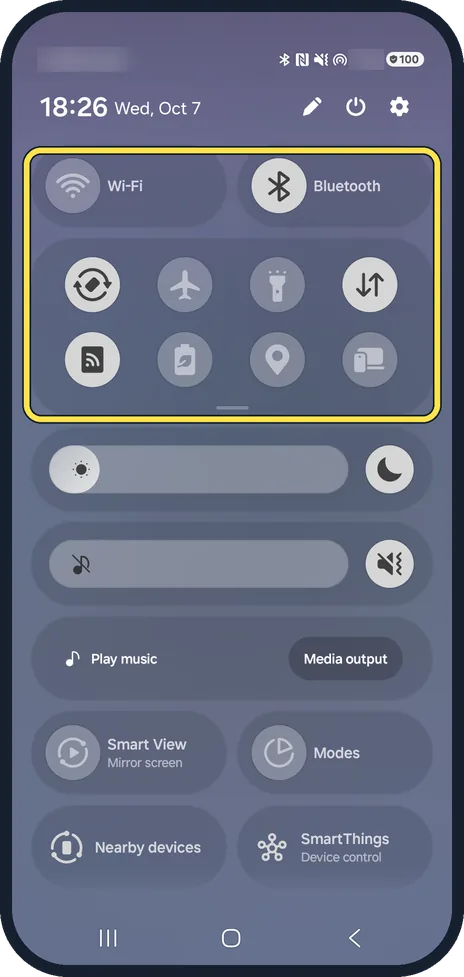
Open the quick panel
Swipe down from the top right corner of the screen and look for Screen recorder.
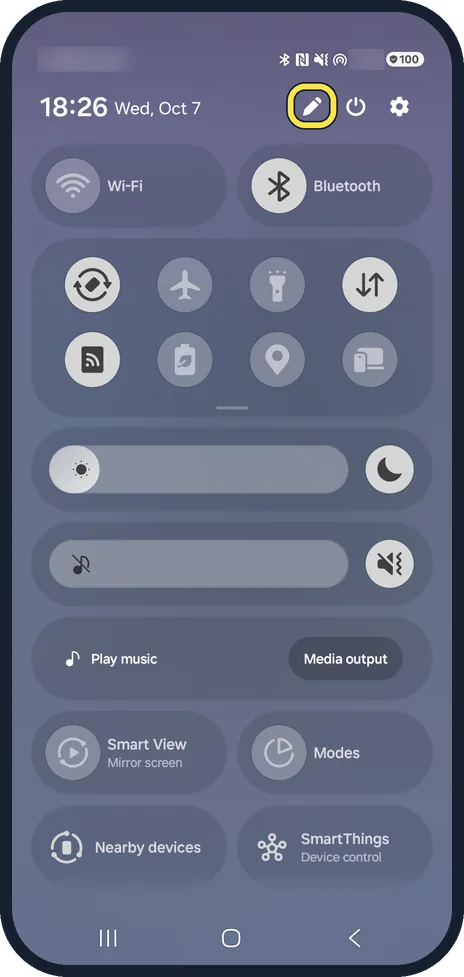
No button? Tap the pencil
Ours had no Screen recorder button.
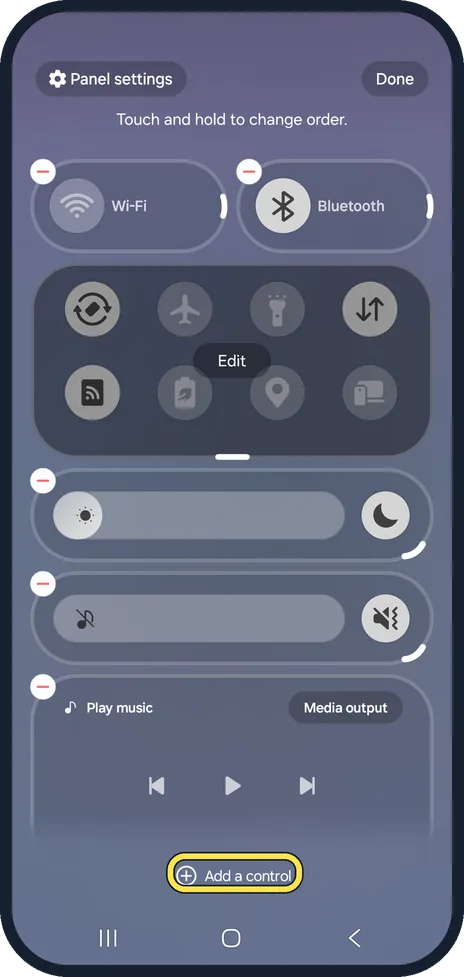
Tap Add a control
Pick Screen recorder from the list and tap Done.
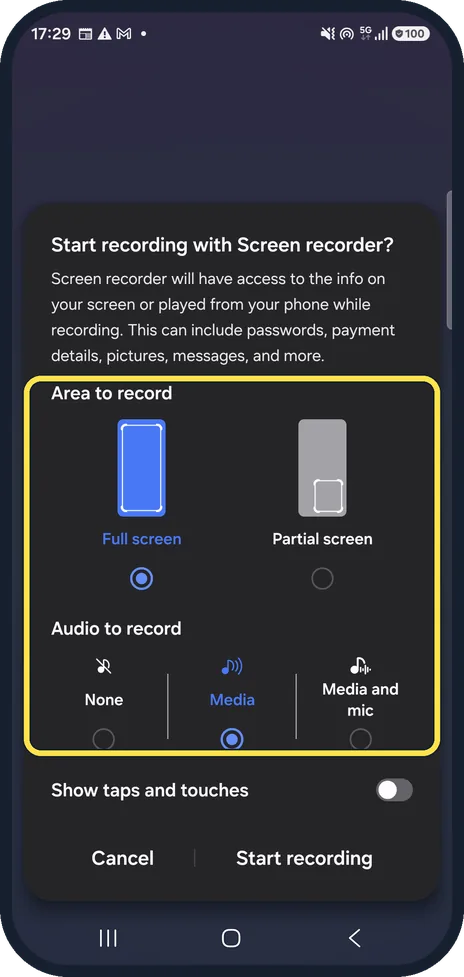
Tap Screen recorder and choose the sound
A sheet opens. Area to record offers Full screen or Partial screen. Under Audio to record, None records no sound, Media the phone's own sound, Media and mic adds your voice. Then tap Start recording.
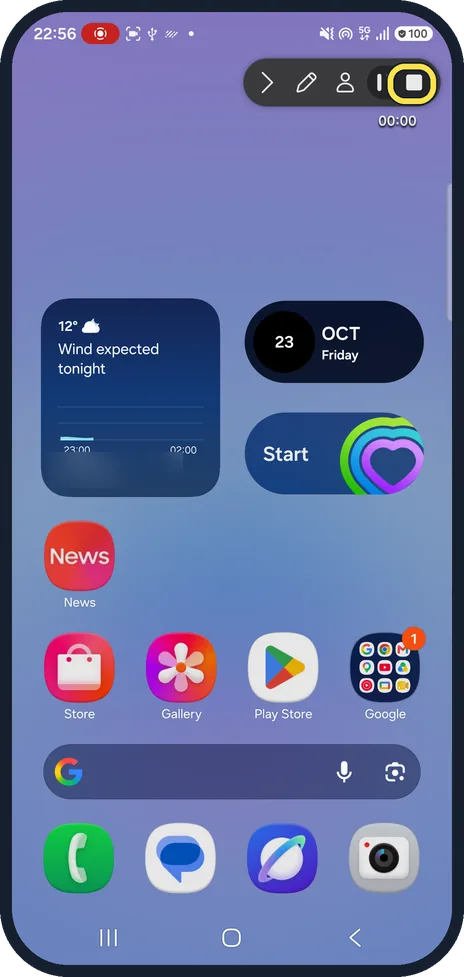
Stop the recording
Tap the stop button in the small toolbar. The video is saved to the Gallery.
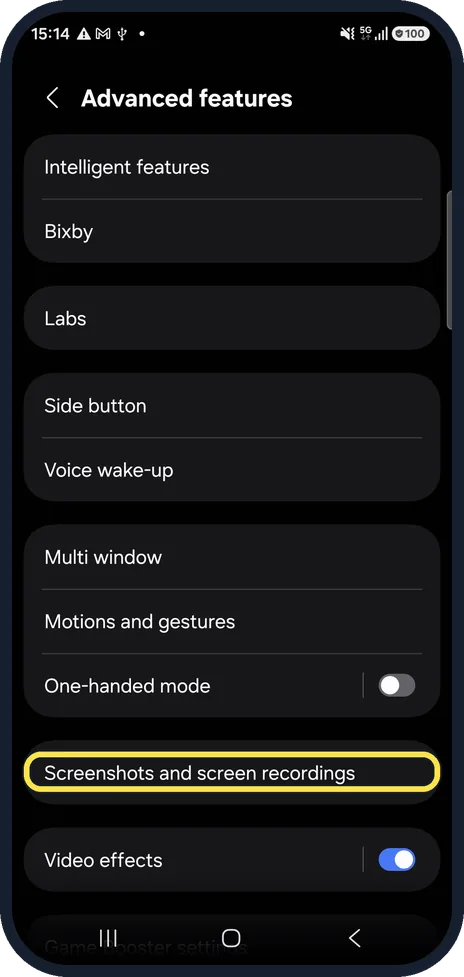
Change the defaults
Settings, Advanced features, Screenshots and screen recordings. You can also touch and hold the Screen recorder button.
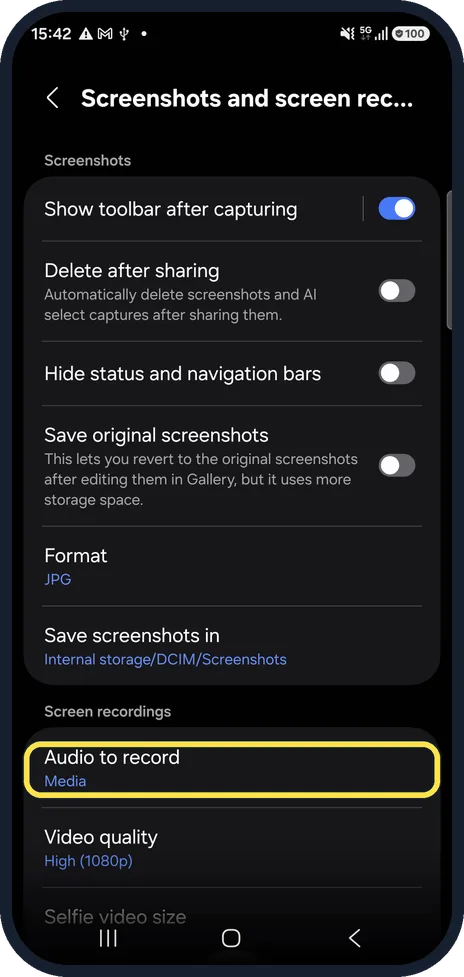
Pick the sound to record
Audio to record sets the default. Ours was Media.
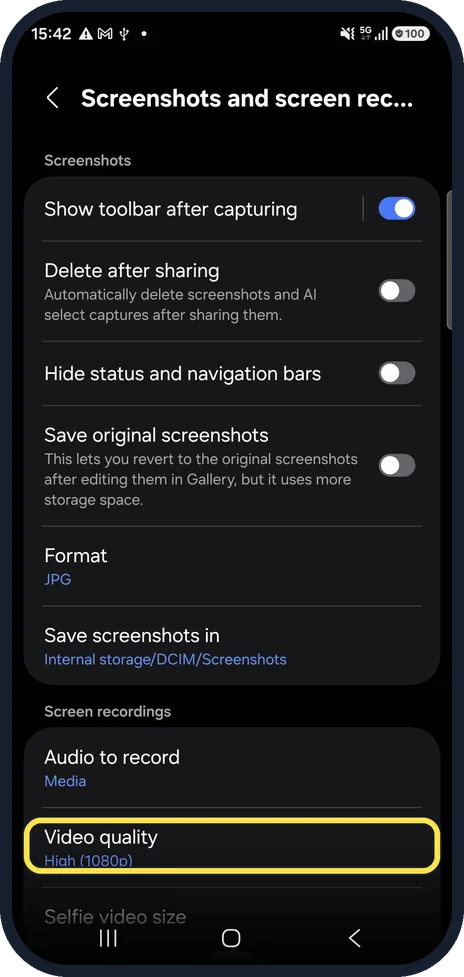
Pick the video quality
High (1080p), Medium (720p) or Low (480p). Ours was High. Lower quality makes smaller files.
If you do not see this option
- There is no front camera button while recording Samsung says some devices cannot add the front camera to a screen recording; its example is the Galaxy Tab A8. Source: Record and capture your Galaxy phone or tablet's screen
- You want to change the recording settings first Samsung says to touch and hold the Screen recorder button in the quick panel to open its settings. Source: Record and capture your Galaxy phone or tablet's screen
If this does not work
- The recording has no sound Samsung says Record sound in the Screen recorder settings can be None, Media, or Media and mic. Choose Media to record the phone's own sound. Source: Record and capture your Galaxy phone or tablet's screen
- You cannot find the video Samsung says recordings are saved in Gallery, but some can only be found in My Files, Internal storage, DCIM. Source: Record and capture your Galaxy phone or tablet's screen
- A call is not recorded Samsung says Screen recorder does not record phone calls, internet calls or video calls, and some apps block it for copyright reasons. Source: Record and capture your Galaxy phone or tablet's screen
About this guide
Samsung phones have their own screen recorder, no app needed. On our Galaxy A57 its button was not in the quick panel at first, so the first steps add it.
Good to know
Does the Galaxy A57 have screen recording? Yes, it is built in. On ours only the Screen recorder button was missing from the quick panel until we added it (steps 2 and 3).
Some apps, such as streaming and banking apps, block recording; the video then shows a black screen.
For a still picture instead: how to take a screenshot on a Samsung Galaxy phone.
In short: Quick panel, Screen recorder (add it with the pencil if missing), choose the sound, Start recording.
Links checked in October 2026. Menus and features can change after software updates. These steps match the version named at the top.
📷 See real photos from the Galaxy A57 in our Camera Lab, next to 10 other phones.
Did this guide work for you?
Sorry about that. What happened?