
howtosimply.com/guides/how-to-recover-deleted-photos-on-android/ · Checked October 2026 · build CP3A.261005.005 · Google Pixel 10a, Android 17
In this guide
Open Google Photos, tap Collections, then Bin. Touch and hold the photo and tap Restore. Our Pixel's Bin says backed-up items are deleted after 60 days and items that aren't backed up after 30 days.
7 of 7 steps with real screenshots · 1 official source below
- Device
- Android
- Shown on
- Google Pixel 10a, Android 17 (build CP3A.261005.005)
- App
- Google Photos
- Path
- Google Photos › Collections › Bin
- Real screenshots
- 7 of 7 steps
- Checked
- October 2026
- Sources
- 1 official, linked below
Step by step
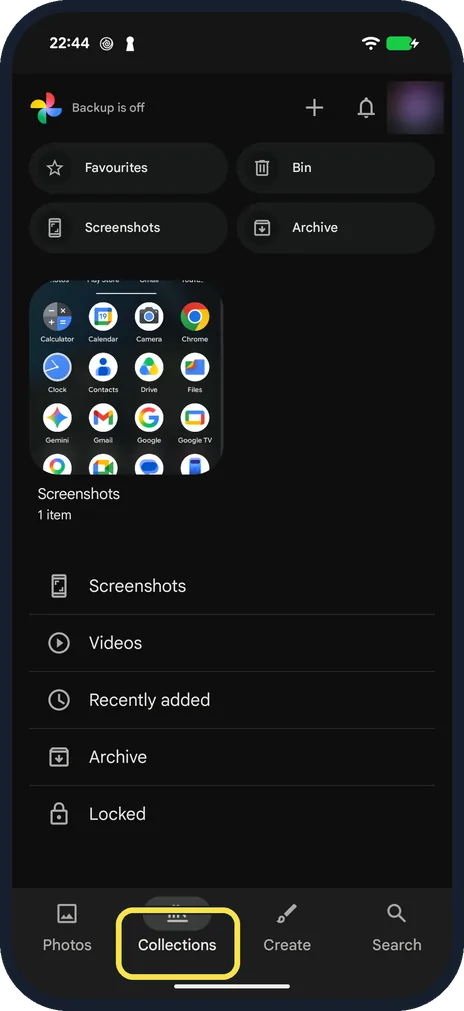
Open Google Photos and tap Collections
Collections is at the bottom of the screen. On older versions it is called Library.
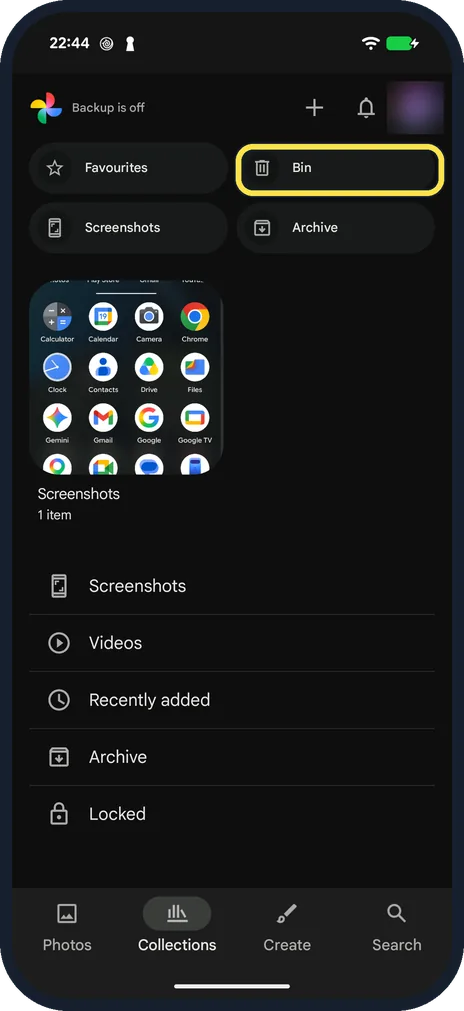
Tap Bin
Bin is at the top, next to Favourites, Screenshots and Archive.
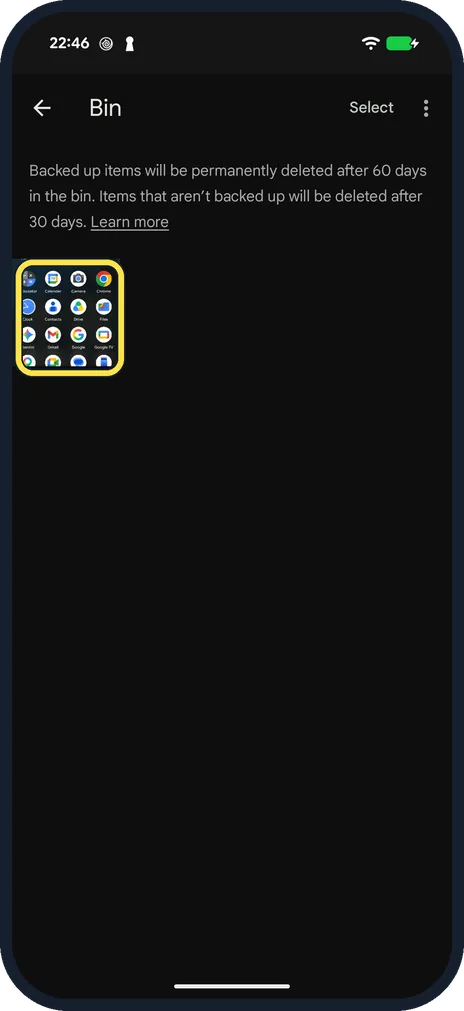
Find the photo
The Bin lists everything you deleted recently. The text at the top says how long items stay: 60 days if backed up, 30 days if not.
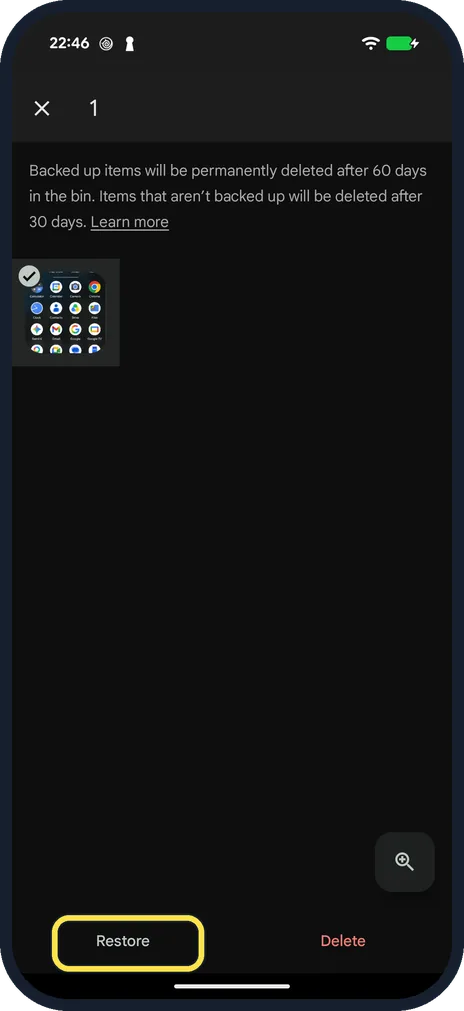
Touch and hold it and tap Restore
A tick marks the photo. Tap others to add them, then tap Restore at the bottom left.
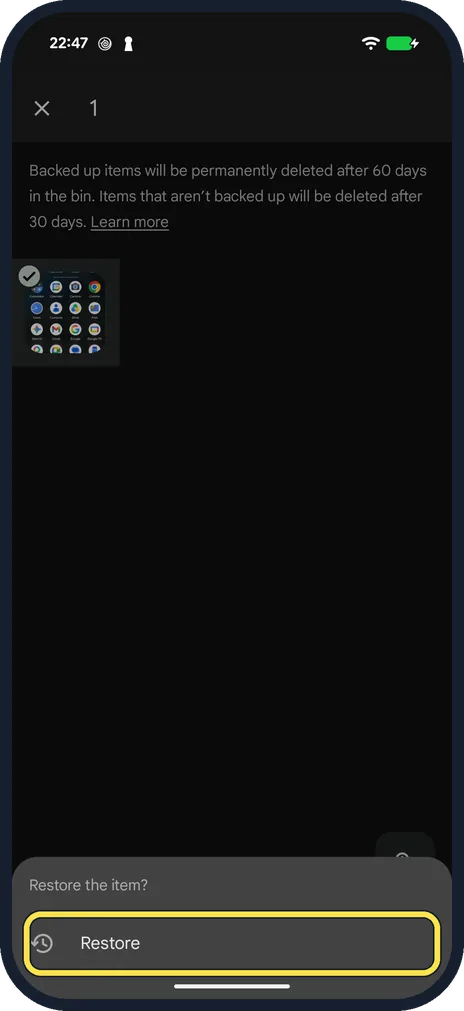
Confirm with Restore
Restore the item? appears at the bottom. Tap Restore.
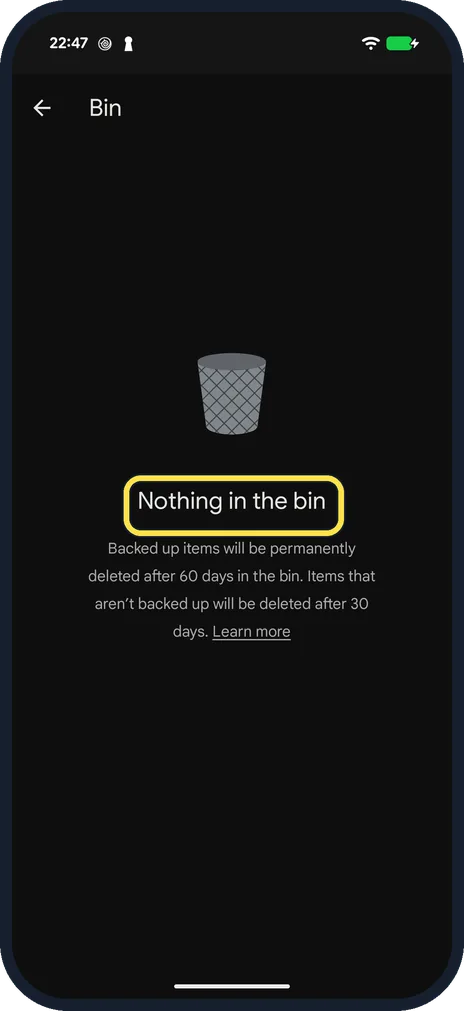
Check that it is back
The photo returns to the album it came from, and the Bin no longer lists it. Ours was empty again: Nothing in the bin.
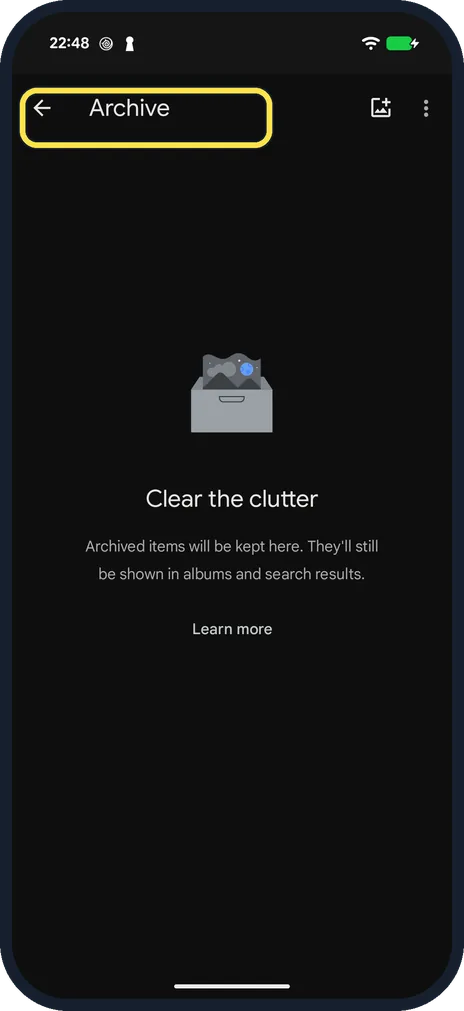
Check Archive too
A photo that seems to be gone may only be archived. Open Collections, Archive. Ours was empty: Clear the clutter.
What we saw on our device
- Check that it is back: Ours was empty again: Nothing in the bin.
- Check Archive too: Ours was empty: Clear the clutter.
If you do not see this option
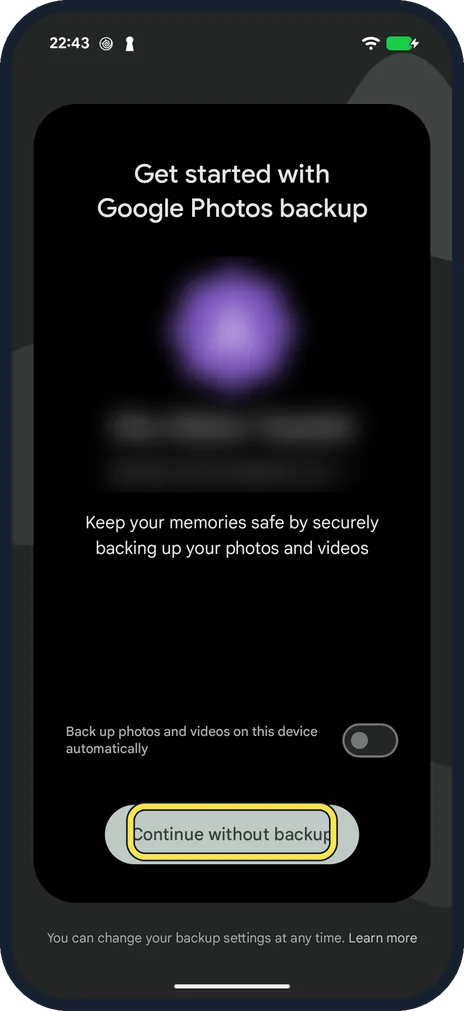
- Google Photos asks you to set up backup first? You can switch automatic backup off and carry on without it. The Bin works without backup: ours said Backup is off at the top of Collections.
- No Bin under Collections? Update Google Photos in the Play Store. On ours Bin was at the top of Collections, next to Favourites.
If this does not work
- Photo not in the Bin? Items not backed up are deleted after 30 days, backed-up ones after 60, as the Bin's own text says. After that, or after Empty bin, they are gone. Source: Delete or restore your photos and videos
- Restored photo not where you expect? It goes back to the albums it was in. Ours, a screenshot, was back under Collections, Screenshots.
About this guide
Deleted photos are moved to a bin before they are removed for good. If you act within the time limit, getting them back takes a few taps.
The screenshots are from our Google Pixel 10a with Android 17 (build CP3A.261005.005), in dark mode. Google Photos had backup off. We deleted a test screenshot, restored it, and deleted it again afterwards.
Good to know
On a Samsung Galaxy, the Gallery app has its own Trash: open Gallery, tap the three lines, then Trash.
Sign in at photos.google.com on a computer and check the bin there, in case the phone is not showing everything.
If you used a different Google Account on an old phone, switch accounts in Google Photos and look again.
After the bin has been emptied, photos cannot be recovered. Paid "recovery" apps rarely work on modern phones.
Turn on backup so it cannot happen again: how to back up an Android phone.
In short: Google Photos, Collections, Bin, touch and hold, Restore.
Links checked in October 2026. Back up anything you want to keep before you reset or delete. Menus can change after software updates.
Did this guide work for you?
Sorry about that. What happened?